Best Text-to-Speech Software: 7 Free & Paid Tools for Commercial Use
How to change the name/address on Stripe invoices and receipts and the email recipient
Jan. 26, 2026

At Ondoku, you can purchase paid plans using credit cards or debit cards.
After purchasing,

I want to change my credit card from next time.
There are times when this happens.
On this page, we will explain:
- How to change credit card/debit card
- How to change the name on invoices and receipts from Stripe
- How to change the email address for emails delivered from Stripe
regarding these topics.
How to change Ondoku credit card/debit card registration information
Changing your credit card or debit card on Ondoku is very easy.
1. Access Settings

Log in to Ondoku and access the "Settings" menu.
2. Click Change Card Information

Within the "Settings" page, click "Change Card Information" in the "Payment/Usage Status" section.
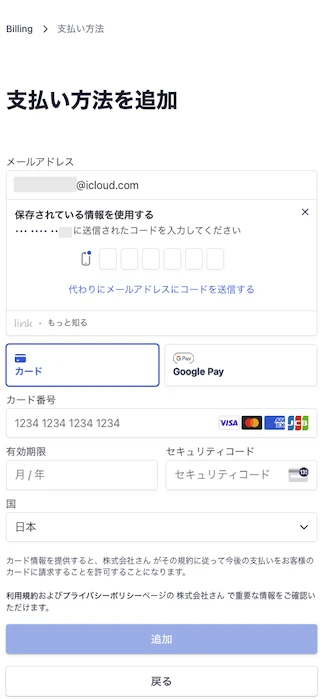
3. Add/Update payment method
Click "..." and select "Set as default" from the menu
On the screen that appears, enter the necessary information to add a payment method, and set the added card as default.
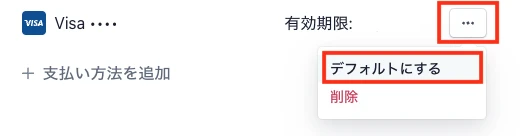
Please delete any unnecessary card information.
If you do not set it as default at this time, the card change will not be completed.
Please do not forget to configure the default setting.
With this, the credit card/debit card change is complete.
The new card information is registered as the default payment method and will be used for future payments.
How to change the name on invoices and receipts from Stripe
Once the purchase is completed on Ondoku, a receipt email like the one below will be sent to the specified email address.
Information such as the name and address at this time reflects the content at the time of payment.
Due to the specifications of the payment service "Stripe," even if you change this information later, you cannot download invoices or receipts with updated information.
Invoices and receipts reflecting the updated content can be downloaded starting from the next payment.
To change the name on invoices and receipts from Stripe, please follow these simple steps.
1. Access Settings
Log in to Ondoku and access the "Settings" menu.
2. Click Change Card Information
Within the "Settings" page, look for the "Payment/Usage Status" section and click "Change Card Information."
3. Change information

On the screen that appears, you can change the name displayed on invoices and receipts by changing the "Name" in the billing information.
Enter the information you want to change and save it.
Change the email recipient address
To change the email recipient address in Stripe, perform the following steps in the same way.
1. Access Settings
Log in to Ondoku and access the "Settings" menu.
2. Click Change Card Information
Within the "Settings" page, look for the "Payment/Usage Status" section and click "Change Card Information."
3. Change information
You can change the email address here. Enter the new email address, make the necessary changes, and then save it.
With the steps above, the changes to the Stripe invoice/receipt name and email recipient address are complete.
If any issues arise during payment or with Stripe settings, please contact the Stripe support team.
■ AI voice synthesis software "Ondoku"
"Ondoku" is an online text-to-speech tool that can be used with no initial costs.
- Supports 81 languages and regions, including Japanese, English, Chinese, Korean, Spanish, French, and German
- Available from both PC and smartphone
- Suitable for business, education, entertainment, etc.
- No installation required, can be used immediately from your browser
- Supports reading from images
To use it, simply enter text or upload a file on the site. A natural-sounding audio file will be generated within seconds. You can use voice synthesis up to 5,000 characters for free, so please give it a try.

Text-to-speech software "Ondoku" can read out 5000 characters every month with AI voice for free.
You can easily download MP3s and commercial use is also possible.
If you sign up for free, you can convert up to 5,000 characters per month for free from text to speech.
Try Ondoku now.
HP:
ondoku3.com
Email: ondoku3.com@gmail.com
Email: ondoku3.com@gmail.com
Related posts
"Ondoku" is a Text-to-Speech service that anyone can use for free without installation. If you register for free, you can get up to 5000 characters for free each month. Register now for free
- What is Ondoku
- Start text-to-speech conversion
- Free registration
- Pricing
- Posts
- Try other free services