![How to adjust intervals and blank time in Ondoku reading [2 types] | Text-to-speech software Ondoku](https://storage.googleapis.com/ondoku3/image/Line_930.webp)
Study Japanese for Free! Effective Ways to Use YouTube Videos and Text-to-Speech Software
How to Quickly Create Narration for YouTube and Other Videos with Text-to-Speech Software: Tips and Key Points
Jan. 26, 2026

I want to know how to create narration for videos with Ondoku!

One of the most common uses for 『Ondoku』 is "narration for videos such as YouTube."
Text-to-speech software is very convenient for those who do not want to record their own voice, isn't it?
By using 『Ondoku』, you can create professional-level narration that is much easier to hear than recording it yourself!
This video also uses 『Ondoku』 audio for its narration.
However, there are a few tips required to create video narration using 『Ondoku』.
Therefore, in this article, we will introduce how to create video narration with 『Ondoku』 in an easy-to-understand way!
The process for creating narration with 『Ondoku』 is as follows:
- Create the narration script text
- Read out the narration script text with Ondoku
- Check the narration audio and download it if there are no problems
- Correct the narration audio if it feels unnatural
- Import the downloaded narration audio into video editing software
- Edit the timing and pauses of the narration audio
- The YouTube video with easy-to-hear narration is complete!
This is the general flow.
We will explain each item in detail, including recommended points for improvement.
The Flow of Creating YouTube Video Narration with 『Ondoku』
Now, let's explain in detail how to create narration audio for YouTube videos with 『Ondoku』!
1. Create the narration script text

First, create the script text for the narration.
For the YouTube video introducing 『Ondoku』 shown earlier, Google Docs was used.
Of course, any tool that allows you to write text, such as Microsoft Word, Libre Office, or Notepad, is fine.
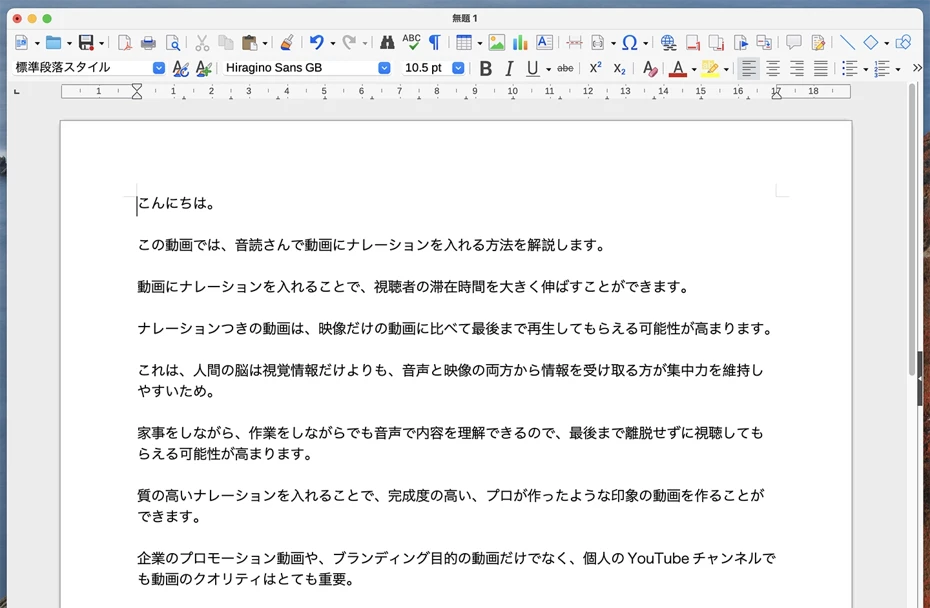
The script created here can also be reused as subtitles for YouTube.
The video introduced at the beginning is designed to have the narration spoken using only one type of voice.
In such a case, about 2,000 characters will result in a video of about 5 minutes.
The introduced video is made to narrate rhythmically without leaving much space between voices, so if you take pauses more firmly, it is possible to make it a video of about 7 minutes.
If you configure the narration to match the visual content, you can freely adjust the length of the entire video.
- What is the theme?
- How many minutes will the video be?
- Is the flow of the story natural?
By thinking about the structure of the video while keeping these points in mind, you can create a script smoothly.
2. Read out the narration script text with Ondoku
Once the script is complete, next, read out the narration audio with 『Ondoku』.
To create narration, open the 『Ondoku』 top page from here.

Paste the content of the script into the text box.
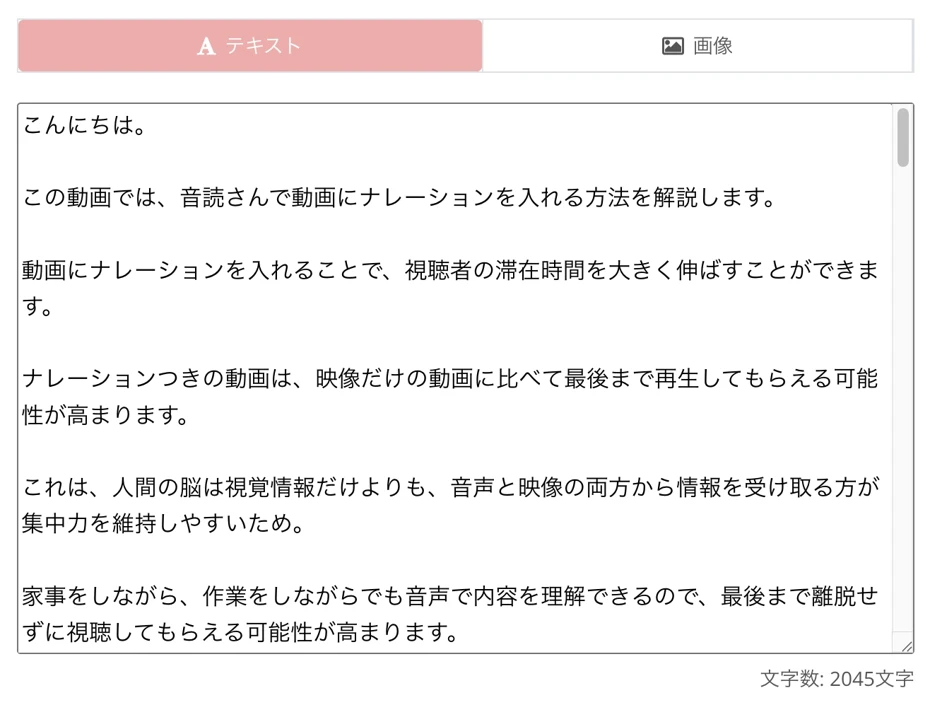
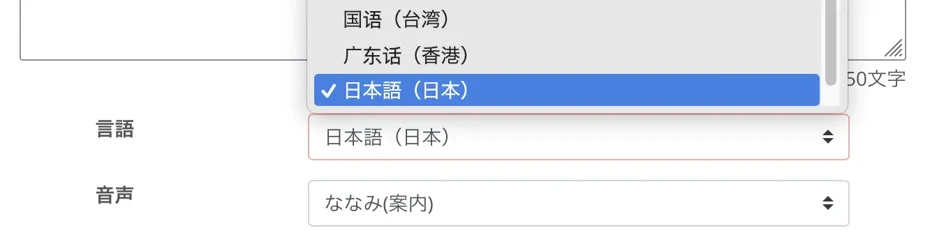
If it is set to another language, set the language to match the narration script text.
Select the voice type, such as female or male.
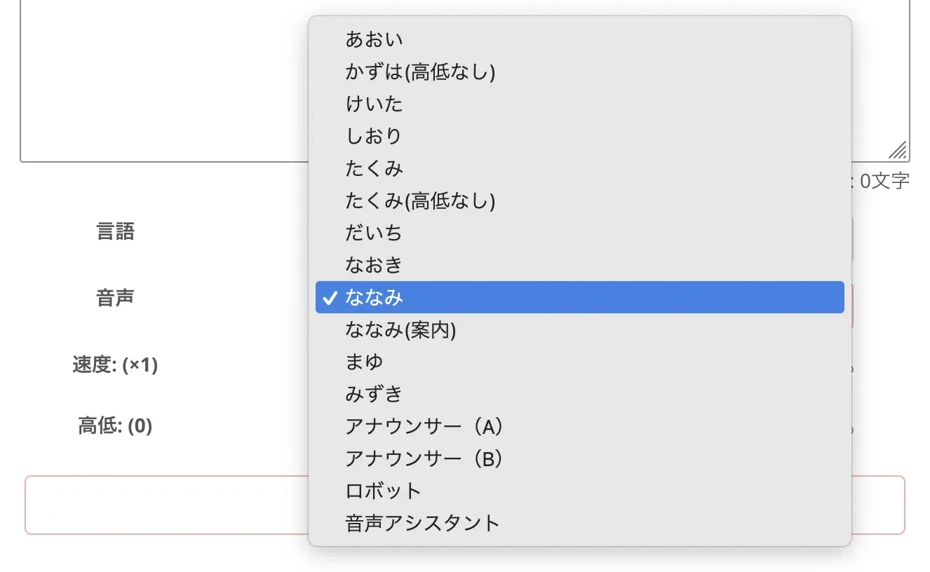
For example, in the case of Japanese, you can choose from over 16 types of voices including female, male, and children!
You can listen to samples on this page, so please take a look.

In 『Ondoku』, you can also adjust the pitch of the voice and the speed of the reading.
However, when using it for the first time, it is fine to leave it at the default settings.

Now you are ready to read out the narration script text.
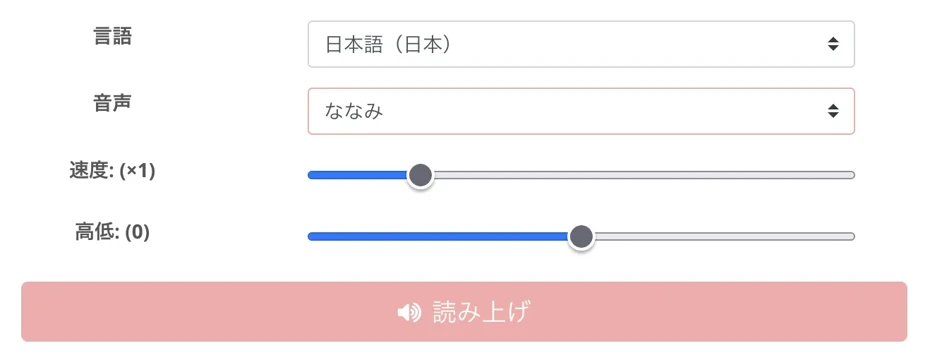
Click "Read aloud" to start generating the narration audio!
The reading of the narration script text will be completed quickly, so wait with the screen open.
For example, in the case of a 5,000-character script text, the reading is completed in just a few seconds.
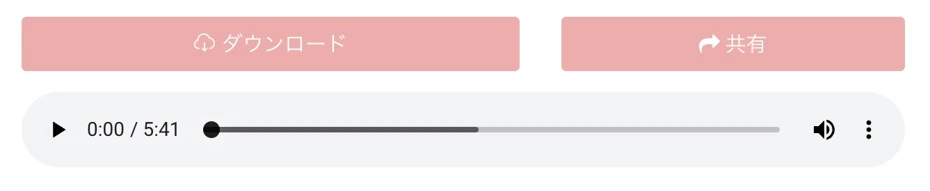
When the audio generation is complete, the screen will switch and an audio player will be displayed.
3. Check the narration audio and download it if there are no problems
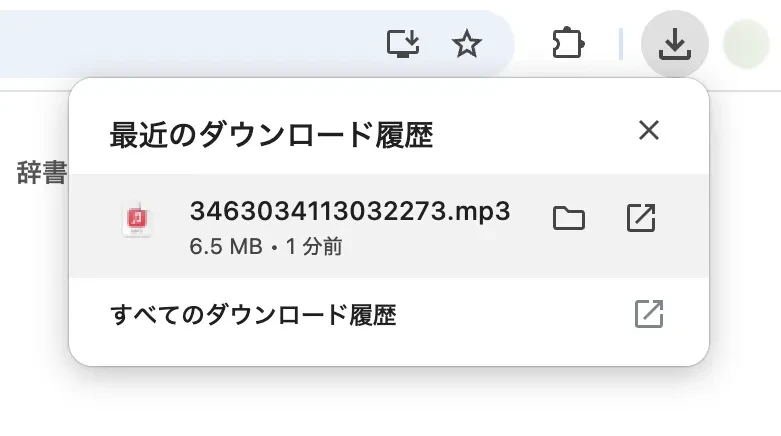
Listen to the read-aloud audio, and if there are no problems, click "Download" to save the audio file.
Splitting and downloading audio is also recommended
When downloading audio from 『Ondoku』, the split function is something you should definitely utilize.
To use the split function, first open the 『Ondoku』 reading history page.

When you open the history page, you will see the following on the right side:
- Show Full Text
- Split
- Delete
These are the menu options.

When you click "Split," the split download page will open.

Enter the "Interval".
The unit for the interval is milliseconds, so if it is "300", the file will be split when the pause is longer than 0.3 seconds.
If you are using it for the first time, you can leave it at the default setting of "300".
Click "Split and Download" to start the audio splitting process.

When the splitting process is finished, a ZIP file will be automatically downloaded.

When you extract the ZIP file, the MP3 files are split like this.

Then, just import them into your video editing software!
4. Correct the narration audio if it feels unnatural
If there is something unnatural about the read-aloud audio, correct it.
Correcting the timing of pauses
The timing of pauses can be easily corrected with punctuation marks.
For details, please see this article.
Adjusting Intonation
To adjust intonation,
- Add punctuation marks.
- Try adding quotation marks.
- Try changing to Hiragana, Katakana, or Kanji notation.
- Try changing to Kanji with the same reading (homophones).
By experimenting like this, the intonation will change.
Please also see this article.
For example, between the notation "文章読み上げソフト" and the notation "文章読み上げそふと", the intonation changes slightly when read aloud by 『Ondoku』.
Therefore, when the 『Ondoku』 management staff creates narration, they input "文章読み上げそふと" for reading.
Unfortunately, spaces, exclamation marks, and question marks are unrelated to intonation.
SSML can also be used
It is also possible to adjust using SSML (Speech Synthesis Markup Language).
For more details about SSML, please also see this article.

5. Import the downloaded narration audio into video editing software
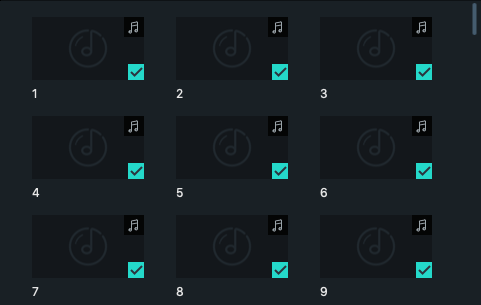
Import the downloaded video narration audio into your video editing software.
If you downloaded the entire audio file at once, just import that audio file.
If you used split download, the file names will be sequential like 0.mp3, 1.mp3, 2.mp3, so you can import them in order simply by dragging and dropping them into the video editing software.
6. Edit the timing and pauses of the narration audio
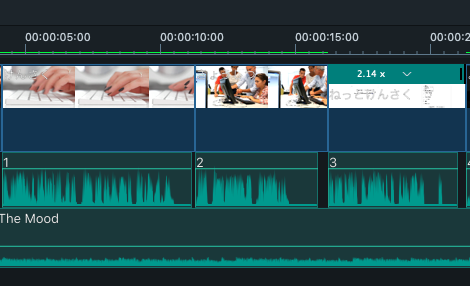
In videos, narration often requires specific pauses.
This is because reading everything all at once can sometimes make it difficult for viewers to understand.
To take pauses effectively, try spacing out the audio intervals little by little on the timeline of your video editing software.
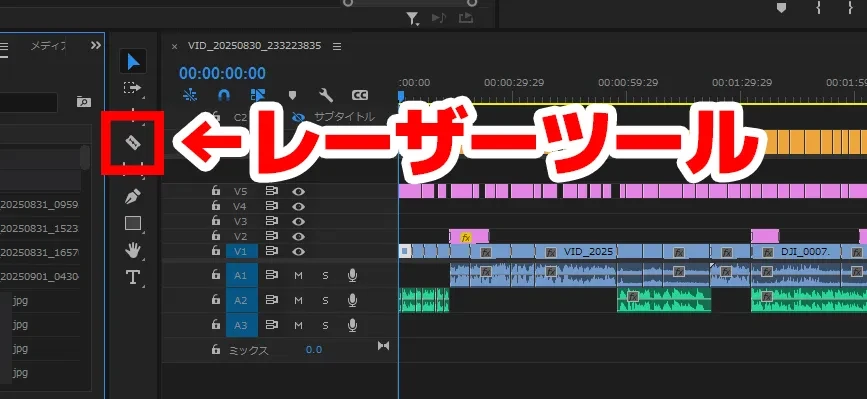
If you downloaded the entire audio file, split the parts where you want to add intervals using a "Cut Tool" or "Razor Tool".
For example, in the case of Adobe Premiere Pro, you can split it using the "Razor Tool" in the menu.
If you used split download, leave space between each audio file so that the interval is just right for each file.
By editing this way, the timing changes, resulting in a video that is easier to watch.
7. The YouTube video with easy-to-hear narration is complete!

By performing these tasks, the video narration is complete.
After this, please proceed with video editing as you like.
Why not try making video narration with 『Ondoku』?
This time, we introduced the method that 『Ondoku』 management staff usually use when making videos.
When making a YouTube video, a little bit of ingenuity leads to wonderful narration.
There might be even better methods, so if you know of any, please let us know.
The use of 『Ondoku』 audio has been increasing on YouTube as well.
The reading of text-to-speech software has evolved much more than before.
You can read aloud with realistic and easy-to-hear audio so wonderful that you might not even notice it is text-to-speech software.
Since you can create narration audio for YouTube videos for free, why don't you experience 『Ondoku』 for yourself?
■ AI voice synthesis software "Ondoku"
"Ondoku" is an online text-to-speech tool that can be used with no initial costs.
- Supports approximately 50 languages, including Japanese, English, Chinese, Korean, Spanish, French, and German
- Available from both PC and smartphone
- Suitable for business, education, entertainment, etc.
- No installation required, can be used immediately from your browser
- Supports reading from images
To use it, simply enter text or upload a file on the site. A natural-sounding audio file will be generated within seconds. You can use voice synthesis up to 5,000 characters for free, so please give it a try.

Text-to-speech software "Ondoku" can read out 5000 characters every month with AI voice for free.
You can easily download MP3s and commercial use is also possible.
If you sign up for free, you can convert up to 5,000 characters per month for free from text to speech.
Try Ondoku now.
HP:
ondoku3.com
Email: ondoku3.com@gmail.com
Email: ondoku3.com@gmail.com
Related posts
"Ondoku" is a Text-to-Speech service that anyone can use for free without installation. If you register for free, you can get up to 5000 characters for free each month. Register now for free
- What is Ondoku
- Start text-to-speech conversion
- Free registration
- Pricing
- Posts
- Try other free services