Best Text-to-Speech Software: 7 Free & Paid Tools for Commercial Use
Chrome Reading Mode: How to Use Text-to-Speech on PC and Fix Errors
Sept. 4, 2026


I want to know about the web page read-aloud function for the PC version of Chrome!
Have you ever wanted to listen to news articles or blogs via audio while reading them on a Windows PC or Mac?
In fact, the PC version of Google Chrome comes with "Reading Mode" as a standard feature, which reads web pages aloud.
By simply pressing the play button, you can play back only the main text, which is useful when you want to listen to an article while working on your PC.
In this article, we will explain how to launch Reading Mode in Google Chrome on a PC, along with how to use playback, speed control, and highlighting, using images.
What you will learn in this article:
- How to launch Reading Mode in Google Chrome on a PC (Compatible with Windows and Mac)
- How to use playback, speed control, and highlighting
- Weaknesses of the standard Google Chrome function and recommended read-aloud methods
What is Chrome's Read-Aloud Mode (Reading Mode)?
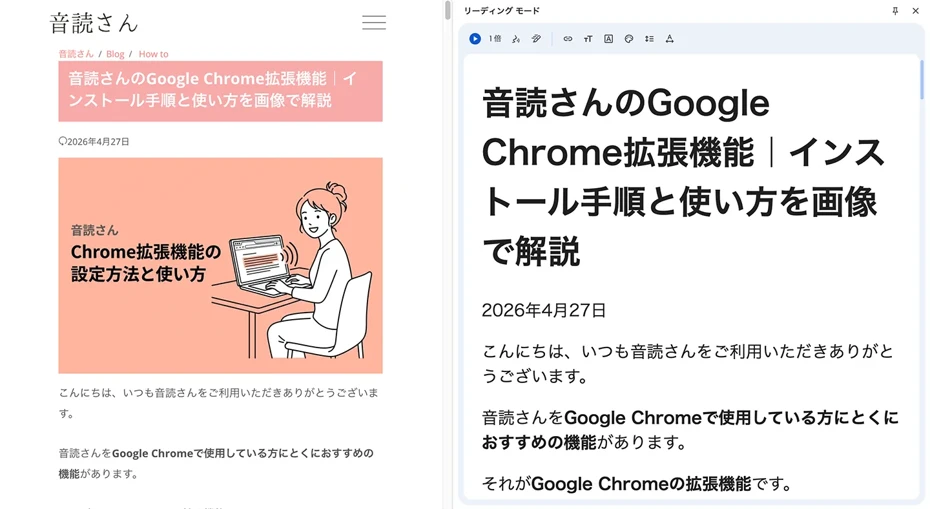
Google Chrome is equipped with a read-aloud mode called "Reading Mode."
In Reading Mode, you can display the page content in the browser's side panel and have the page read aloud.
Read-aloud function standard in the PC version of Chrome
Reading Mode is a read-aloud function added to the PC version of Google Chrome in 2024.
It can be used on any PC—Windows, Mac, Linux, or Chromebook—as long as Google Chrome is installed.
The key point is that you can start reading aloud immediately without having to install any extensions.
What can you do with Reading Mode?
By using Reading Mode in the PC version of Google Chrome, you can have only the main text of an article read aloud.
Since everything other than the main text, such as ads and related links, is automatically excluded, you can easily listen to just the content the article intends to convey.
The part being read aloud is highlighted on the screen.
Explaining how to use the Read-Aloud Mode in the PC version of Chrome
From here, we will explain the actual steps to open Reading Mode with images.
The operation is the same for both Windows and Mac versions of Chrome, so you can proceed regardless of the environment you are using.
How to use Reading Mode in the PC version of Chrome? (Common to Windows and Mac)
To use Reading Mode in Chrome, first, right-click on the page you want to read aloud.
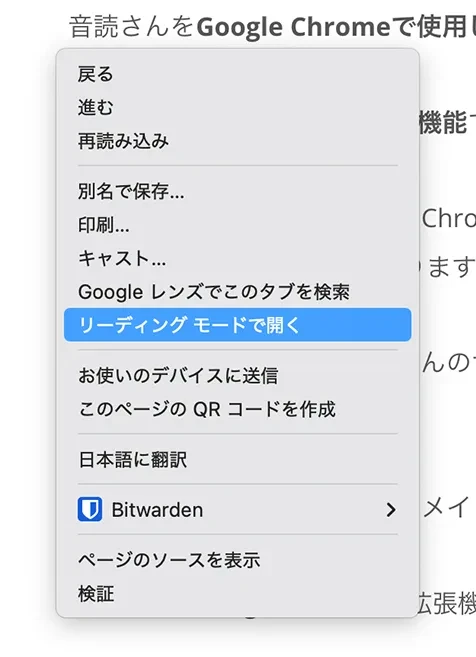
Click "Open in Reading Mode" in the right-click menu, and a side panel will open on the right side of the browser.
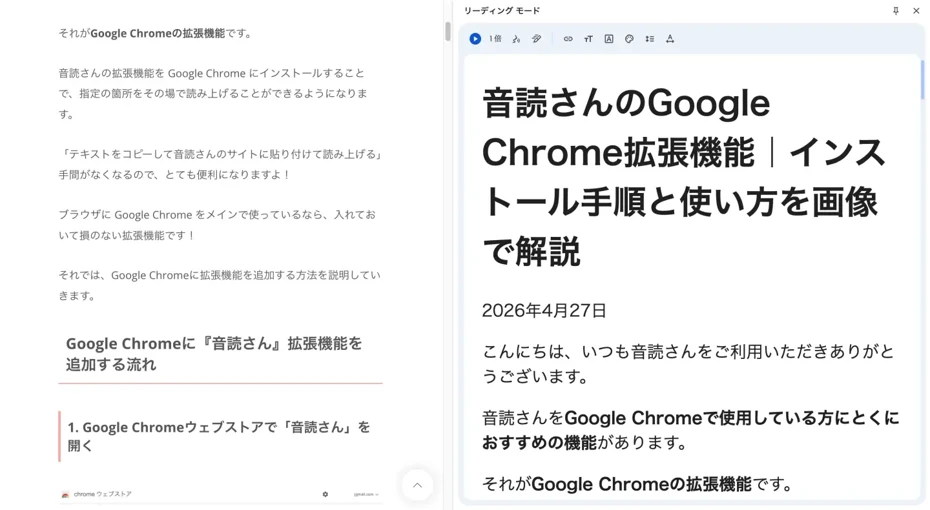
In the side panel, ads and related links are omitted, leaving only the main text extracted.
*If you cannot use right-click on a Mac, you can bring up the same menu by clicking while holding the Control key.
How to read text aloud in Reading Mode
When you open the Reading Mode side panel, there is a play button near the top.

When you press the play button, reading starts from the beginning of the text.
During playback, the play button changes to a pause button.
You can stop the audio by pressing the pause button.

If you press the play button again, the audio will resume from where it left off.
Also, by pressing the "<" and ">" buttons, you can move to the previous or next sentence.

Audio is automatically downloaded when used for the first time
The read-aloud voice for Reading Mode is automatically downloaded the first time you use it.
If you are using an optical fiber connection from a PC, you can start reading aloud immediately without waiting.
If the download fails or you are not connected to the internet, the default Windows or Mac voice will be used.
*Previously, languages other than English, such as Japanese, had to be downloaded manually, but now voices for each language are automatically downloaded according to the language of the page.
Read-aloud speed can also be changed
You can change the read-aloud speed by clicking the part displayed as "1x."
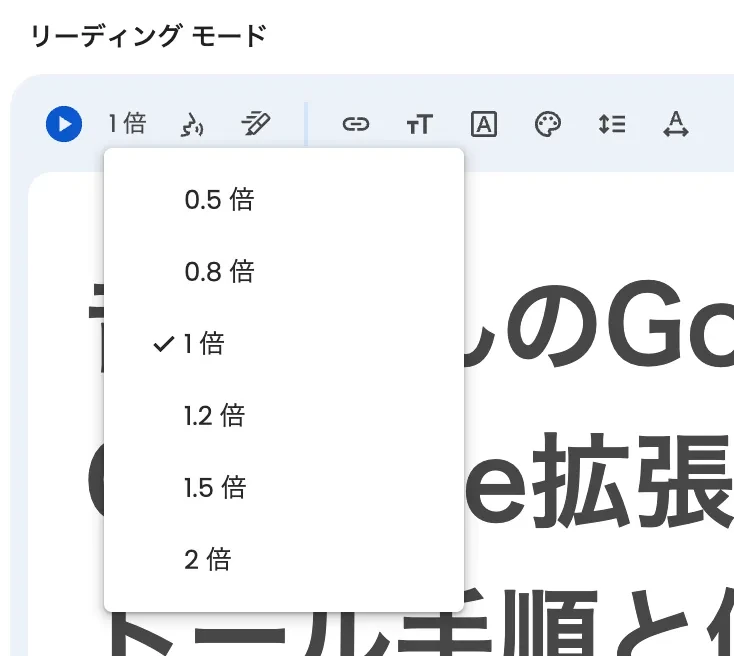
The read-aloud speed can be changed between 0.5x and 2x.
Changing the read-aloud voice
You can change the voice by clicking the mouth-shaped icon (Voice selection).
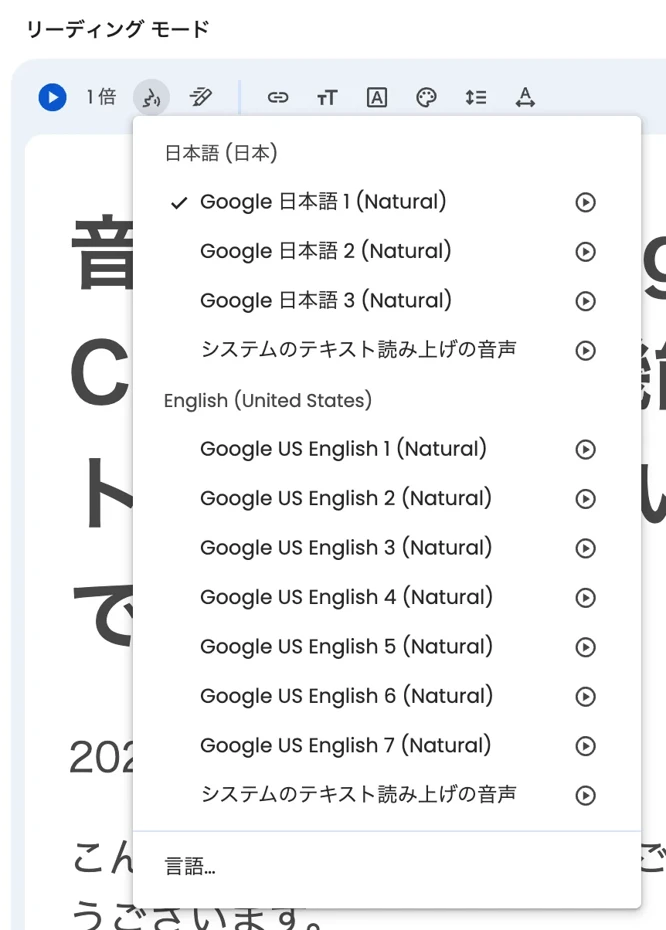
In the case of Japanese, you can choose from three types of Google voices and the system voices of Windows or Mac (as of 2026).
The part being read is highlighted
The part being read aloud is highlighted with a change in background color.
The method of highlighting can also be changed.
Highlighting can be selected from four types:
- Adaptive (Automatically adjusts the highlight range)
- Word
- Sentence
- Off
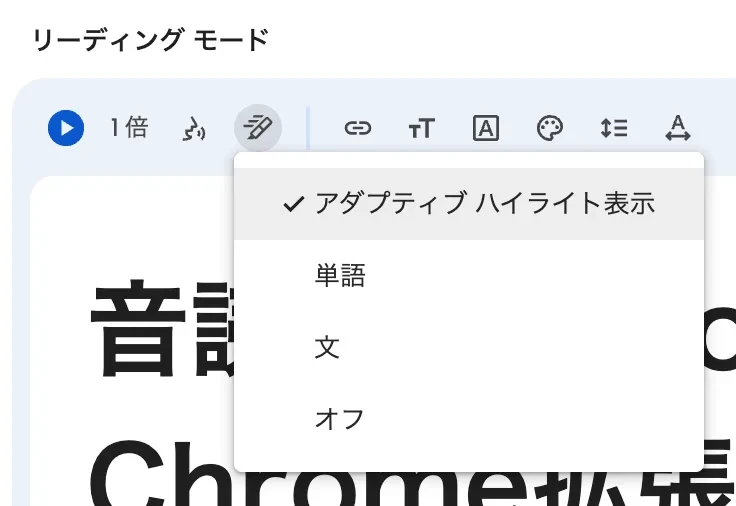
For example, if you select "Word," it will be highlighted word by word like this:

If you select "Sentence," it will be highlighted sentence by sentence like this:
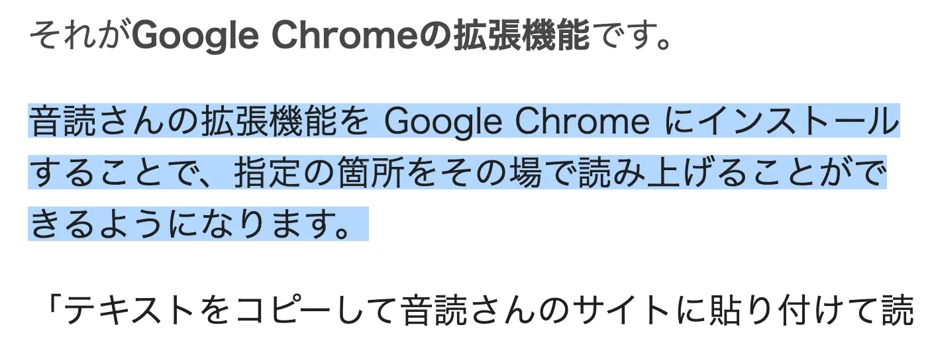
Since you can see at a glance where is being read, you will immediately know where playback will resume even when paused.
Points to note when using Chrome's Reading Mode on a PC
Google Chrome's Reading Mode is a convenient feature for easy reading aloud.
However, there are a few points you should know before using it.
There are pages where Reading Mode cannot open automatically
Depending on the page, Google Chrome may not be able to determine which part is the main text and may not be able to display it in Reading Mode.
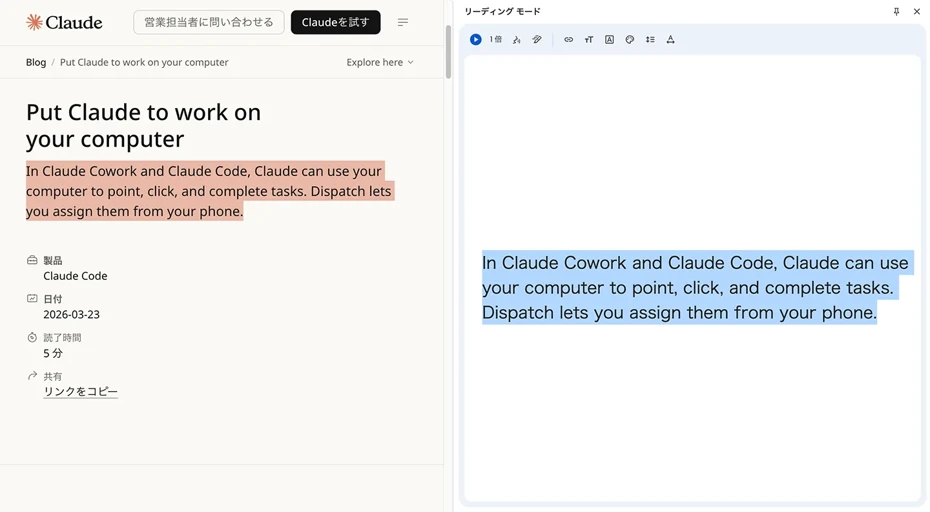
For example, in the case of the page in the image:
Select text to display in Reading Mode
Reading Mode cannot detect the main content of this page
This message is displayed, and it cannot be read aloud.
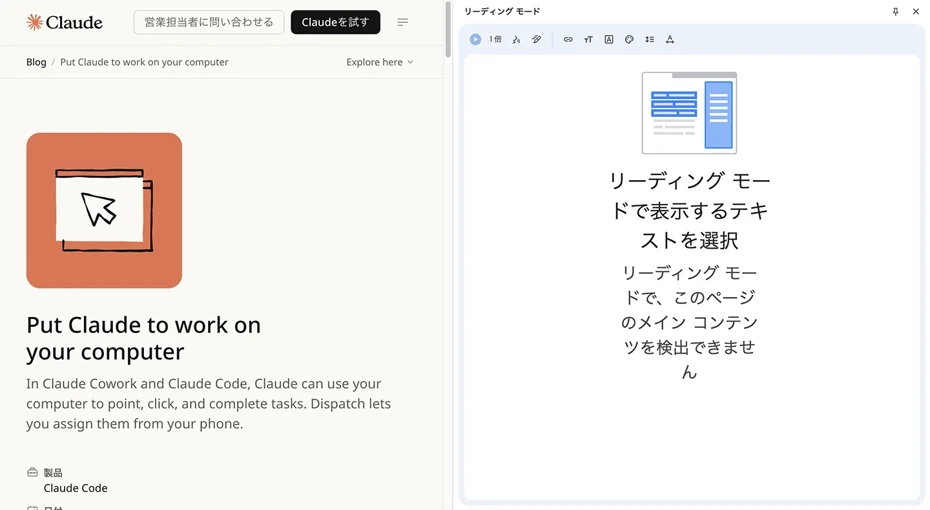
When this is displayed, you need to manually select the part you want to read aloud on the left side of the screen.
When you select text, only that part is displayed on the right side.
Playback cannot be started from a preferred spot
When you open Reading Mode in Google Chrome on a PC, it is read aloud in order from the beginning of the text.
Even if you click a spot where you want to start listening, playback cannot begin from that position.
Since you have to move sentence by sentence using the previous/next sentence buttons, it is difficult to advance to the desired position when you want to listen to a long article from the middle.
If Reading Mode has automatically recognized the text, you cannot play back only a specific range even if you select it.
Japanese voice quality is modest
The Japanese voice in Google Chrome's read-aloud mode uses the synthetic voice that Chrome provides as standard.
While it is sufficient for just listening to the content of an article, the intonation is monotonous, making it unsuitable for uses that require high sound quality.
It may also mispronounce proper nouns or technical terms.
When you want to listen comfortably with a natural voice, it is also recommended to use the Google Chrome extension "Ondoku," which specializes in reading aloud on a PC.
Recommended Chrome extension for natural Japanese read-aloud
As mentioned, while Google Chrome's Reading Mode is convenient, it is not good at playing from the middle or high-quality reading aloud.
When you want to read aloud websites on a PC more conveniently, the Google Chrome extension "Ondoku" is recommended.

Since you can select and read aloud only the parts you want to read, when you want to listen to a specific part of a long article, just drag the necessary range!
Moreover, it can read aloud with easy-to-hear AI voices that have more natural intonation and accent than the standard synthetic voice included in Google Chrome.
The installation method and usage of the extension are explained in this article.
Please take a look.
Summary of Reading Mode in the PC version of Google Chrome
As you can see, by using the "Reading Mode" read-aloud function for the PC version of Google Chrome, you can listen to web pages via audio without installing an extension.
However, the sound quality is modest, and you cannot play back from your preferred location.
When you want to "listen with more natural sound quality" or "play back only the parts you want to hear with pinpoint accuracy," the Ondoku Google Chrome extension is recommended.
Why not make Google Chrome even more convenient by using high-performance extensions?
■ AI voice synthesis software "Ondoku"
"Ondoku" is an online text-to-speech tool that can be used with no initial costs.
- Supports 81 languages and regions, including Japanese, English, Chinese, Korean, Spanish, French, and German
- Available from both PC and smartphone
- Suitable for business, education, entertainment, etc.
- No installation required, can be used immediately from your browser
- Supports reading from images
To use it, simply enter text or upload a file on the site. A natural-sounding audio file will be generated within seconds. You can use voice synthesis up to 5,000 characters for free, so please give it a try.

Text-to-speech software "Ondoku" can read out 5000 characters every month with AI voice for free.
You can easily download MP3s and commercial use is also possible.
If you sign up for free, you can convert up to 5,000 characters per month for free from text to speech.
Try Ondoku now.
HP:
ondoku3.com
Email: ondoku3.com@gmail.com
Email: ondoku3.com@gmail.com
Related posts
"Ondoku" is a Text-to-Speech service that anyone can use for free without installation. If you register for free, you can get up to 5000 characters for free each month. Register now for free
- What is Ondoku
- Start text-to-speech conversion
- Free registration
- Pricing
- Posts
- Try other free services