Best Text-to-Speech Software: 7 Free & Paid Tools for Commercial Use
How to Add Voiceovers to iPhone Videos Using Only iMovie
Sept. 4, 2026


I want to add narration to a video I took on my iPhone using an app!
When you want to add narration to a video shot on an iPhone, you might wonder which app is best to use.
In fact, Apple's genuine iMovie, which is pre-installed on the iPhone, is very convenient for such situations.
With iMovie, you can complete everything within a single app, whether you are recording narration on the spot or adding a pre-prepared MP3 file to your video.
In this article, we will explain how to add narration to a video using only an iPhone, using screens from iOS26.
What you will learn in this article:
- Apps to use when adding narration to videos on iPhone/iPad (iOS)
- How to add prepared audio files to a video
- How to record narration on the spot with iMovie
- Tips for recording clear narration
iMovie is Recommended for Adding Video Narration on iPhone
When you want to add narration to a video on an iPhone or iPad (iOS), it is recommended to use Apple's genuine video editing app, iMovie.
Since it is an app released for free by Apple, there are no additional costs and no advertisements are displayed.
In addition to cut editing and adding BGM, you can, of course, add narration as well.
It supports two methods, so you can:
- Add an audio file (such as MP3) saved on your iPhone to the video
- Record audio via the microphone on the spot using the voiceover function
You can add your preferred narration according to the style of the video you want to create.
Note that while the standard Photos app on iPhone also has video trimming and volume adjustment functions, you cannot add external narration audio.
Why not try using iMovie to add narration to your videos on iPhone or iPad?
How to Add Narration to a Video with iMovie (iPhone is All You Need)
Next, we will introduce the process of adding narration to a video using iMovie installed on your iPhone or iPad.
1. Create a New Project in iMovie
First, launch the iMovie app from your iPhone's home screen or App Library.
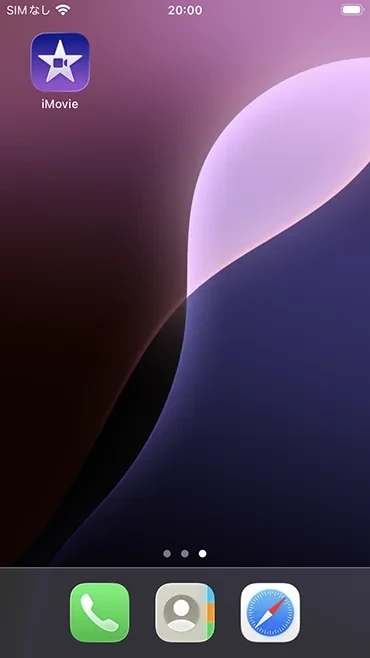
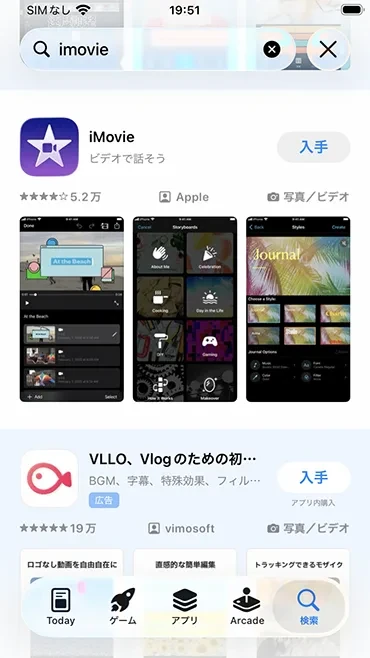
(If it is not installed, you can install it for free from the AppStore)
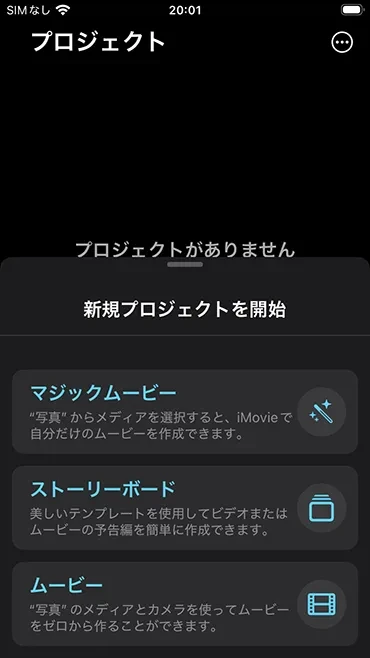
Tap "Movie" from "Start New Project."
A list of videos saved in the Photos app will be displayed, so select the video you want to add narration to and tap "Create Movie."
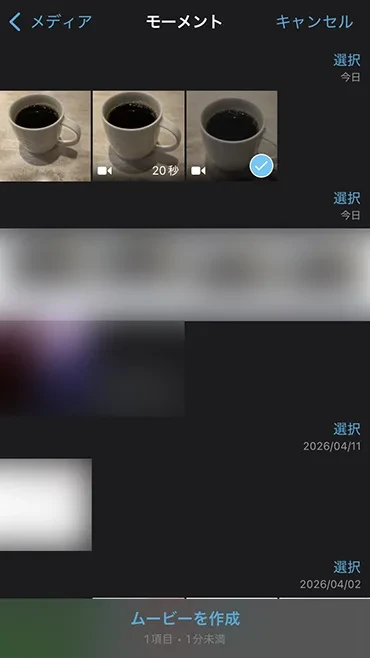
The editing screen is now open.
2. Add Narration to the Video
Add narration to the video on the editing screen.
There are two methods: adding an audio file such as an MP3, or recording narration on the spot. We will explain each one.
- Click here for how to add a prepared audio file (MP3) to the video
- Click here for how to record on the spot (Voiceover function)
How to Add a Prepared Audio File (MP3) to the Video
By using iMovie, you can import audio files in formats like MP3 and add them as narration to your video.
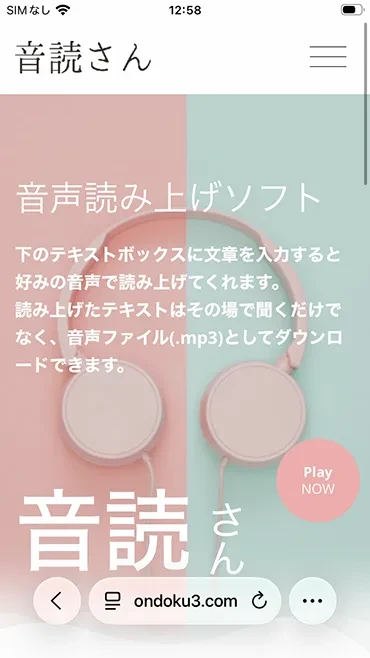
This time, we will add narration using audio created on the AI text-to-speech site Ondoku.
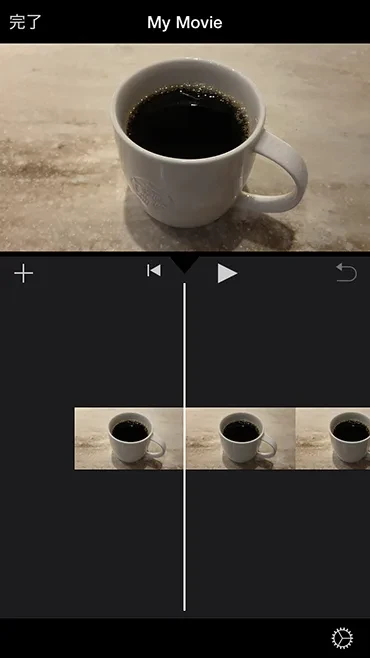
To add narration from an audio file, first, align the cursor (white line) at the position where you want to insert the audio in the "timeline" on the bottom half of the screen.
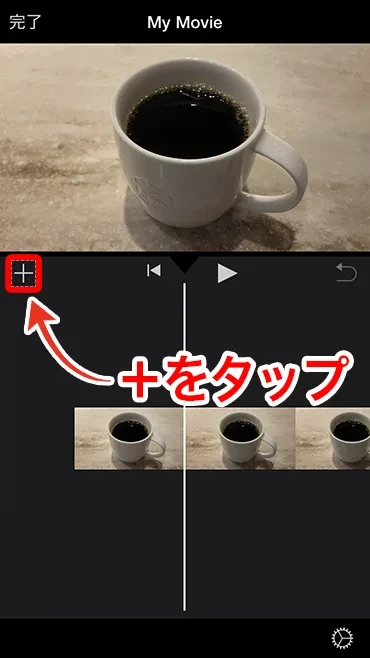
Tap the "+" (Add Media) button.
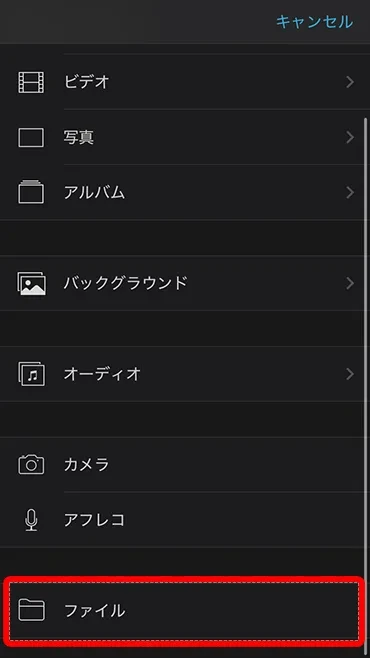
Scroll down and tap "Files."
A list of audio files within the Files app will be displayed, so tap the audio file you want to add.
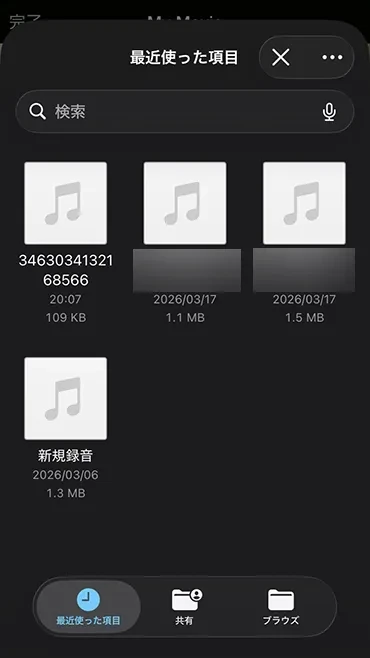
*If you cannot find it, please check the "Downloads" folder from "Browse" at the bottom right.
When you tap the audio file, the file is added to the timeline.
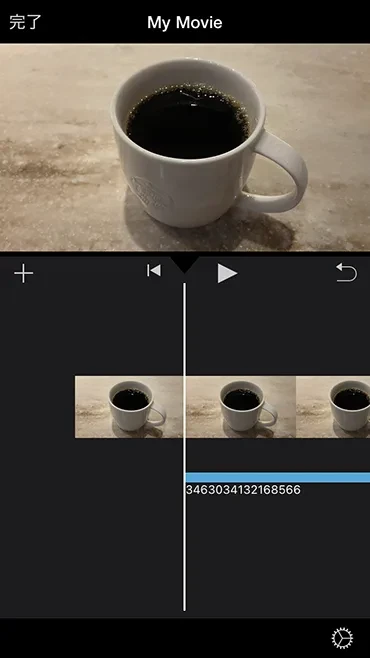
With this, you have successfully added narration to a video in iMovie using a prepared audio file.
If you want to change the starting position of the audio playback, you can adjust it by long-pressing and dragging the audio clip.
How to Record on the Spot (Voiceover Function)
Using iMovie, you can also record narration using your own voice.
To record narration on the spot and add it to the video, use the Voiceover function in iMovie.
First, align the cursor (white line) at the position where you want to insert the audio in the "timeline."
Next, tap the "+" (Add Media) button on the left side of the timeline.
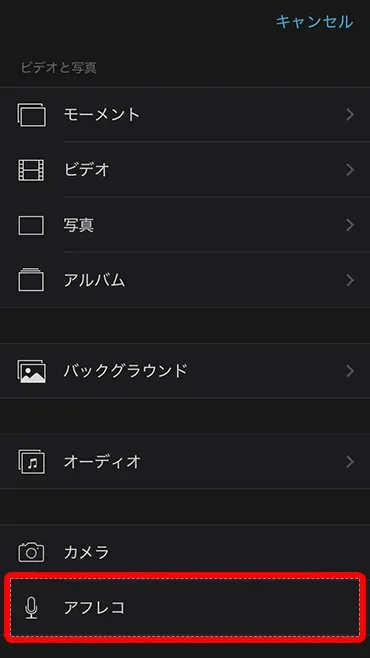
Select "Voiceover" from the options.
The first time you do this, you will be asked for permission to access the microphone, so tap "OK."
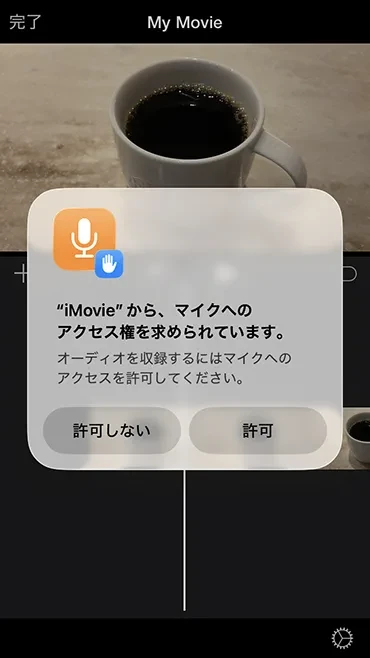
A volume meter will appear on the screen, indicating that it is waiting to record.
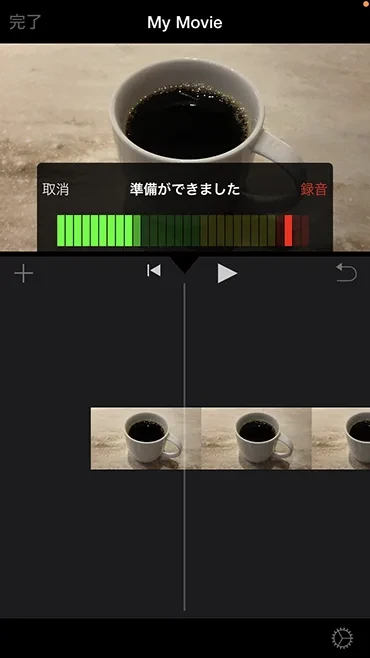
Tap "Record" to begin recording the narration.
Recording starts after a 3-second countdown.
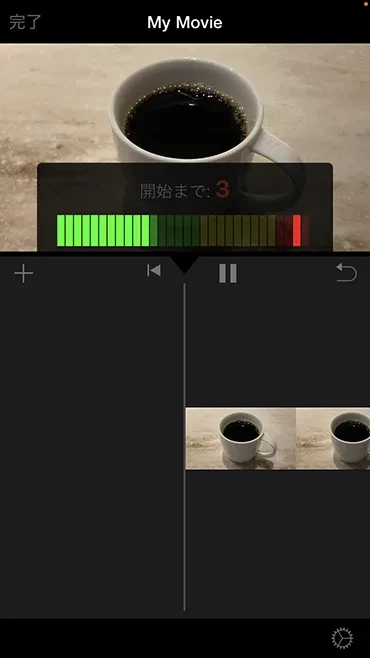
Speak into the microphone while watching the volume meter.
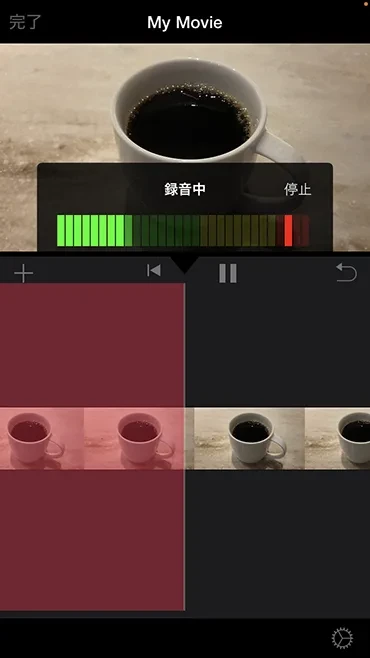
When you have finished recording, tap "Stop."
Once stopped, a confirmation screen will appear.
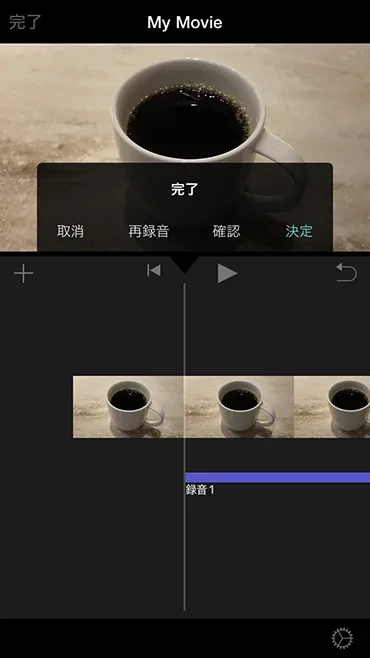
Tap "Accept" to save it to the timeline as an audio clip (purple bar).
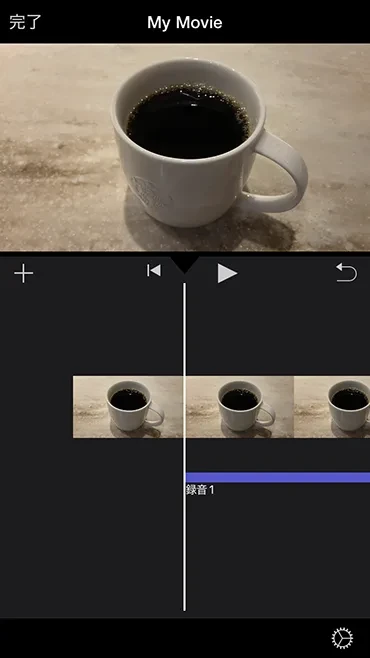
With this, you have successfully recorded and added narration to the video in iMovie.
3. Export and Save the Video
Once the narration is added, export it as a video file and save it to the Photos app.
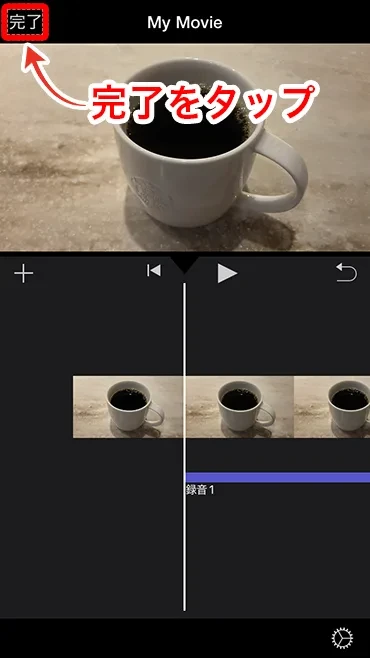
Tap "Done" at the top left of the screen.
Tap the "Share" icon at the bottom of the screen.
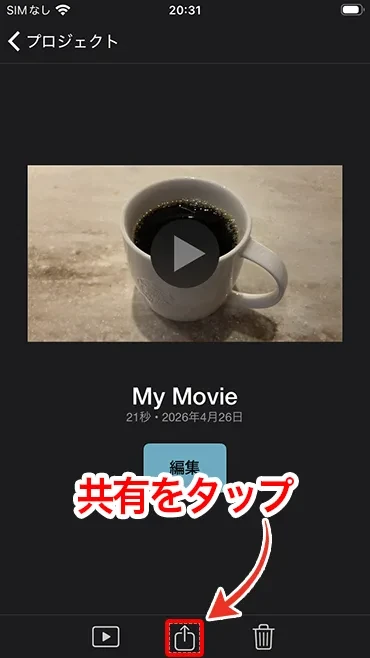
Select "Save or Share Video" from the options.
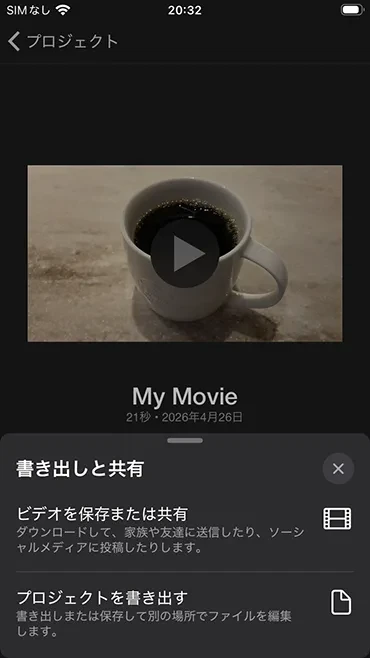
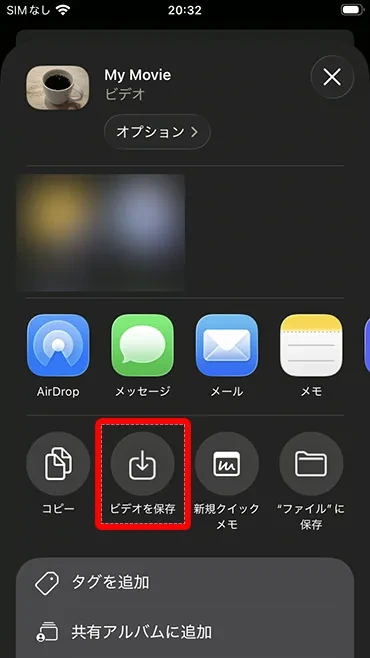
The save/share screen will open, so tap "Save Video."
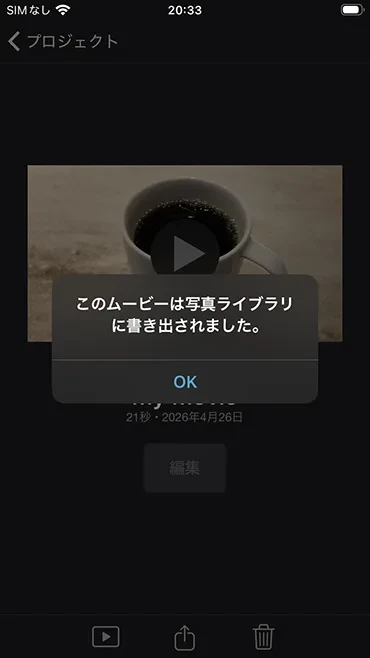
After the export process, the video will be saved to your photo library.
With this, you have successfully added narration to a video on your iPhone using iMovie.
Frequently Asked Questions About Adding Narration to Videos on iPhone
How do I add audio recorded with the Voice Memos app to a video?
Audio recorded with the standard "Voice Memos" app on iPhone can also be used as video narration.
To add narration from a voice memo, you need to export the voice memo as a file.
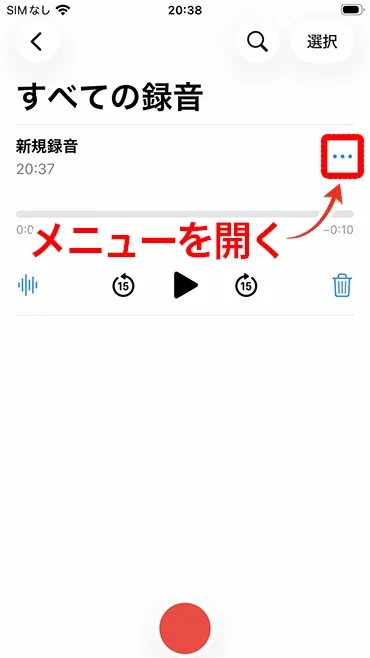
Once you open the recording in Voice Memos, tap the "..." at the top right to open the menu.
Tap "Save to Files" in the screen that opens when you tap "Share."
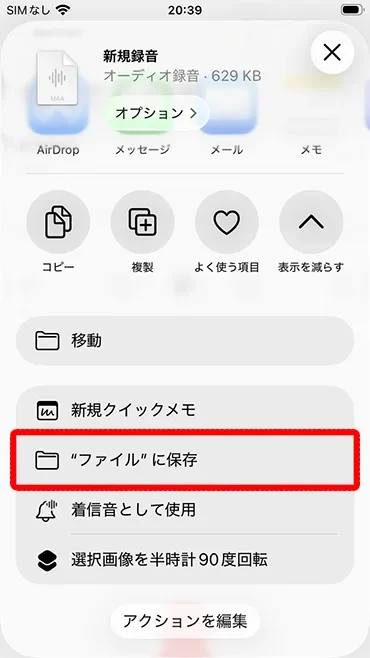
Then just tap "Save" and you're all set.
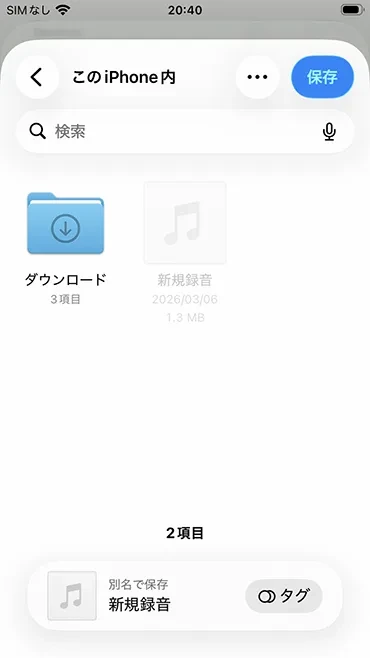
Now you can use audio recorded with the Voice Memos app to add narration in iMovie.
How can I adjust the volume of the video narration?
To adjust the volume of the narration, first quickly double-tap the narration in the timeline.
The narration audio will enter editing mode, and a menu will appear at the bottom of the screen.
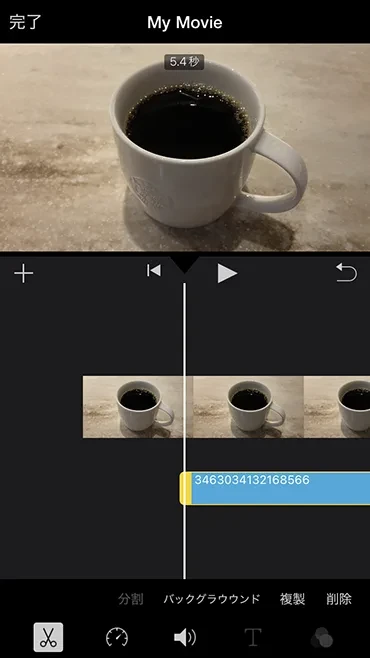
Tap the speaker icon to adjust the volume.
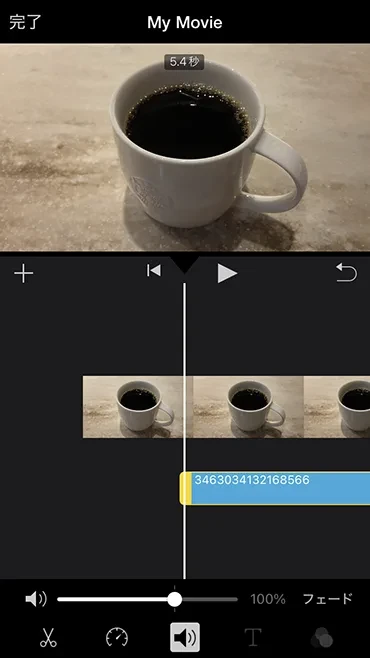
Your changes will be saved automatically.
Once adjusted, you can close the editing screen by tapping anywhere else on the screen.
Is it possible to layer multiple video narrations?
In iMovie, you can layer multiple audio clips, such as narrations.
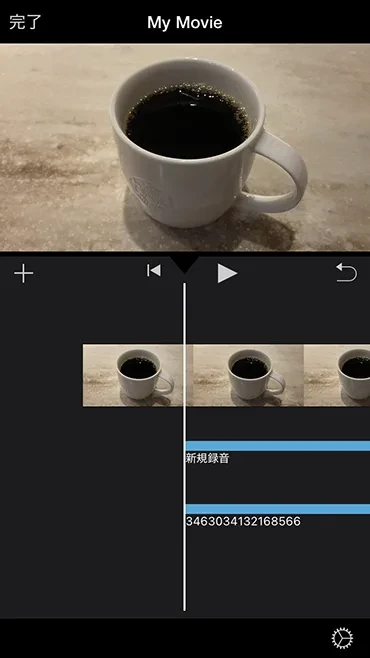
Since you can adjust each volume individually, it is easy to layer video narration and BGM.
How do I delete video narration?
If you want to delete narration after adding it to a video on the editing screen, quickly double-tap the narration in the timeline to open the menu at the bottom.
Tap "Delete" to remove the narration from the timeline.
How can I record clear audio with the iPhone voiceover function?
When using the voiceover function in iMovie on an iPhone, the recording environment is important.
The sound quality changes significantly depending on the recording environment, so it is recommended to record in a quiet room.
The iPhone microphone is located at the bottom of the device (next to the charging port).
Maintain a distance of about 15–20 cm between your mouth and the iPhone microphone, and try to record consistently without moving closer or further away.
Since it can be difficult to record clear, easy-to-hear narration yourself, it is also recommended to create narration on an AI text-to-speech site and import the MP3 file.
Recommended Method for Creating Video Narration Audio
As you can see, iMovie allows you to add narration to videos using only an iPhone or iPad.
However:
- It's difficult to create narration that is easy to hear.
- I feel embarrassed speaking myself.
In such cases where you have trouble creating good video narration audio, we recommend creating narration using AI.
The sample audio used in this article was created with the AI voice synthesis service Ondoku.
Ondoku is a voice synthesis service that allows you to create clear, easy-to-hear audio on its website.
Simply paste text and press the read-aloud button to instantly download natural Japanese audio.
Features of Ondoku include:
- A free plan is available for reading up to 5,000 characters per month. Registration is also free.
- Supports multiple languages, including Japanese and English.
- Audio created can be used for commercial purposes (Explained in detail in this article).
- MP3 files can be downloaded to an iPhone and added directly to videos.
It can also be used without member registration, so why not try creating narration audio with Ondoku for yourself?
Adding Narration to Videos on iPhone is Very Simple
As you can see, Apple's genuine iMovie is all you need to add narration to videos on an iPhone.
When you're in an environment where recording is difficult, or when you want to create high-quality, easy-to-hear audio, using the AI voice synthesis site Ondoku is recommended.
Since you can add narration to videos using just one iPhone, why not try making a video using iMovie and Ondoku today?
■ AI voice synthesis software "Ondoku"
"Ondoku" is an online text-to-speech tool that can be used with no initial costs.
- Supports 81 languages and regions, including Japanese, English, Chinese, Korean, Spanish, French, and German
- Available from both PC and smartphone
- Suitable for business, education, entertainment, etc.
- No installation required, can be used immediately from your browser
- Supports reading from images
To use it, simply enter text or upload a file on the site. A natural-sounding audio file will be generated within seconds. You can use voice synthesis up to 5,000 characters for free, so please give it a try.

Text-to-speech software "Ondoku" can read out 5000 characters every month with AI voice for free.
You can easily download MP3s and commercial use is also possible.
If you sign up for free, you can convert up to 5,000 characters per month for free from text to speech.
Try Ondoku now.
HP:
ondoku3.com
Email: ondoku3.com@gmail.com
Email: ondoku3.com@gmail.com
Related posts
"Ondoku" is a Text-to-Speech service that anyone can use for free without installation. If you register for free, you can get up to 5000 characters for free each month. Register now for free
- What is Ondoku
- Start text-to-speech conversion
- Free registration
- Pricing
- Posts
- Try other free services