![[Free] AI Summary and Meeting Minutes Creation Functions Released on Mojiokoshi-san! Detailed Guide | AI Transcription Service - Mojiokoshi-san](https://storage.googleapis.com/mojiokoshi3/post/image/%E6%96%87%E5%AD%97%E8%B5%B7%E3%81%93%E3%81%97%E3%81%95%E3%82%93AI%E8%A6%81%E7%B4%84%E8%AD%B0%E4%BA%8B%E9%8C%B2%E3%81%8B%E7%84%A1%E6%96%99.png)
Best Text-to-Speech Software: 7 Free & Paid Tools for Commercial Use
How to Read Vertical Images Aloud | Mojiokoshi-san and Ondoku
Aug. 7, 2026

I want to read aloud images of vertically written books and documents with Ondoku, but it's not going very well...
It would be convenient if you could listen to vertically written books and documents with your ears while on the move or during household chores, wouldn't it?
However, even if you upload vertically written images to an AI reading site, it may not be possible to correctly convert them to audio.
In such cases, we recommend converting them to text using an AI transcription service before reading them aloud!
By using Ondoku's sister service 『Mojiokoshi-san』, you can convert photos of vertically written books and documents into text with high accuracy.
Then, just paste the text into Ondoku and you're good to go!
In this article, we will explain how to read aloud vertically written images by combining Mojiokoshi-san and Ondoku.
Since the procedure is completed entirely within your browser, there is no need to install apps or purchase paid software.
What you will learn in this article:
- Why vertically written images cannot be read aloud with Ondoku
- How to convert vertically written images to text with Mojiokoshi-san
- How to paste text into Ondoku and read it aloud as audio
- How to convert vertically written books and documents into audio and utilize them
Can Vertically Written Images Be Read Aloud As They Are?

To start with the conclusion, even if you upload a vertically written image directly to Ondoku, it will not be read aloud properly.
This is because the image reading function of the AI reading site 『Ondoku』 does not support the recognition of vertical text.
But don't worry!
By using Ondoku's sister service 『Mojiokoshi-san』, you can convert vertically written images into audio.
『Mojiokoshi-san』 is an AI site that can convert vertically written text, such as newspapers, magazines, and books, into text with high accuracy.
By converting a vertically written image to text with Mojiokoshi-san and then pasting that text into Ondoku, you can read aloud the vertically written image with easy-to-hear audio.
Ondoku Does Not Support Vertically Written Image Reading
The AI reading site Ondoku has an "Image Reading Function" that reads characters in photos or images and converts them into audio.
However, this function can only read horizontally written characters, and vertically written images are not supported.
What Happens If You Upload a Vertically Written Image?
If you convert a vertically written book, newspaper, or document into an image and upload it to Ondoku, the order of characters may be rearranged or mixed with other lines.
If it is read aloud in that state, the audio will not make sense.
This is because vertical-specific character recognition processing is required to correctly interpret vertical columns and line breaks.
Horizontal Images Can Be Converted to Audio with Ondoku Alone
Conversely, for horizontally written paper materials or characters in photos, you can convert them to audio just by uploading the image to Ondoku.
The procedure for reading aloud horizontally written images is introduced in detail in this article.

How to Use Image Reading | How to OCR text in photos for free and turn it into audio
Explaining the function of 『Ondoku』 that can read characters in images or photos (OCR) and read them aloud. It can be used for free. On both PC and smartphone, reading is completed in just a few seconds simply by uploading an image.
Now, let's explain in order how to read aloud vertically written images using Mojiokoshi-san and Ondoku.
Convert Vertically Written Images to Text with Mojiokoshi-san
When converting vertically written images to text, 『Mojiokoshi-san』 is recommended!
Mojiokoshi-san is an AI transcription site that can convert images, audio, and videos into text for free.
Its special feature is that it also supports vertically written text such as newspapers, magazines, and books, allowing for high-precision text conversion while identifying columns and headings.
How to Read Vertically Written Images with Mojiokoshi-san
To convert a vertically written image to text, first open the Mojiokoshi-san top page in your browser.
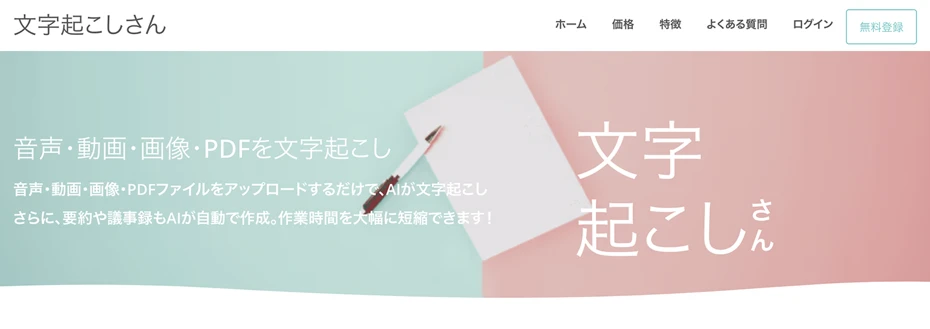
Press the "Select File" button or drag and drop the image to select the vertically written image file.
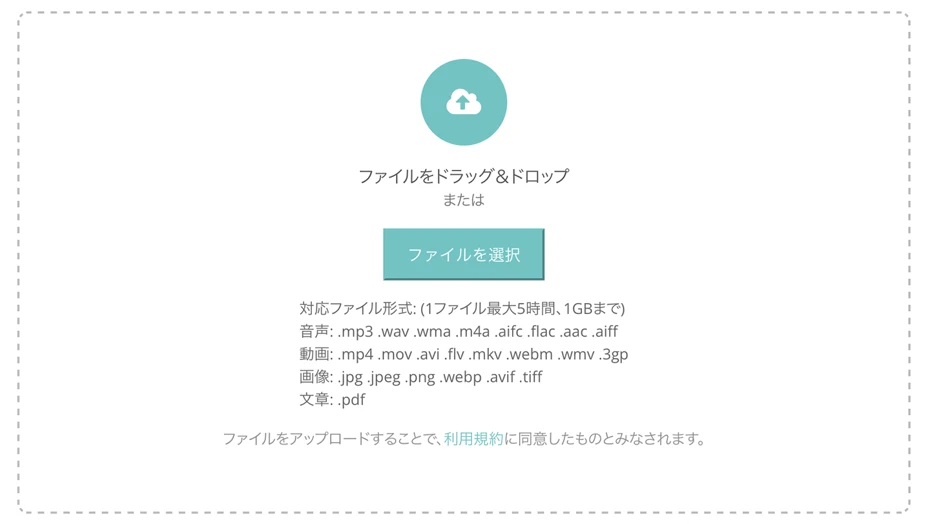
When transcribing from an iPhone (iOS) or Android smartphone, you can also take a photo on the spot and transcribe it.
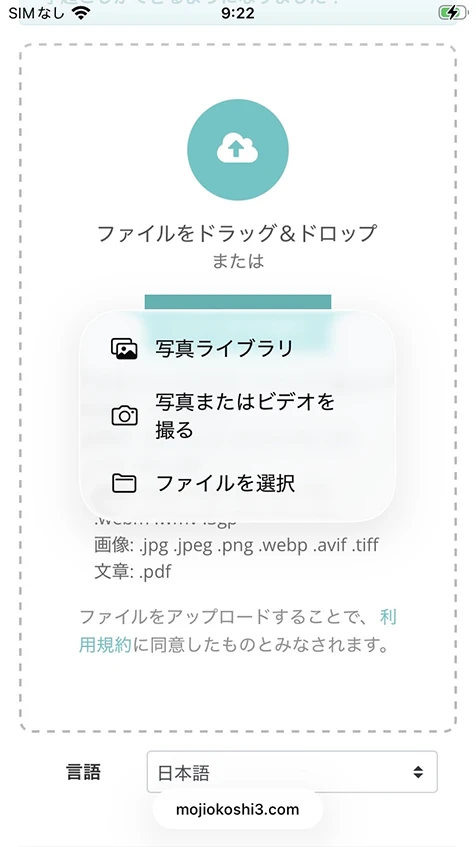
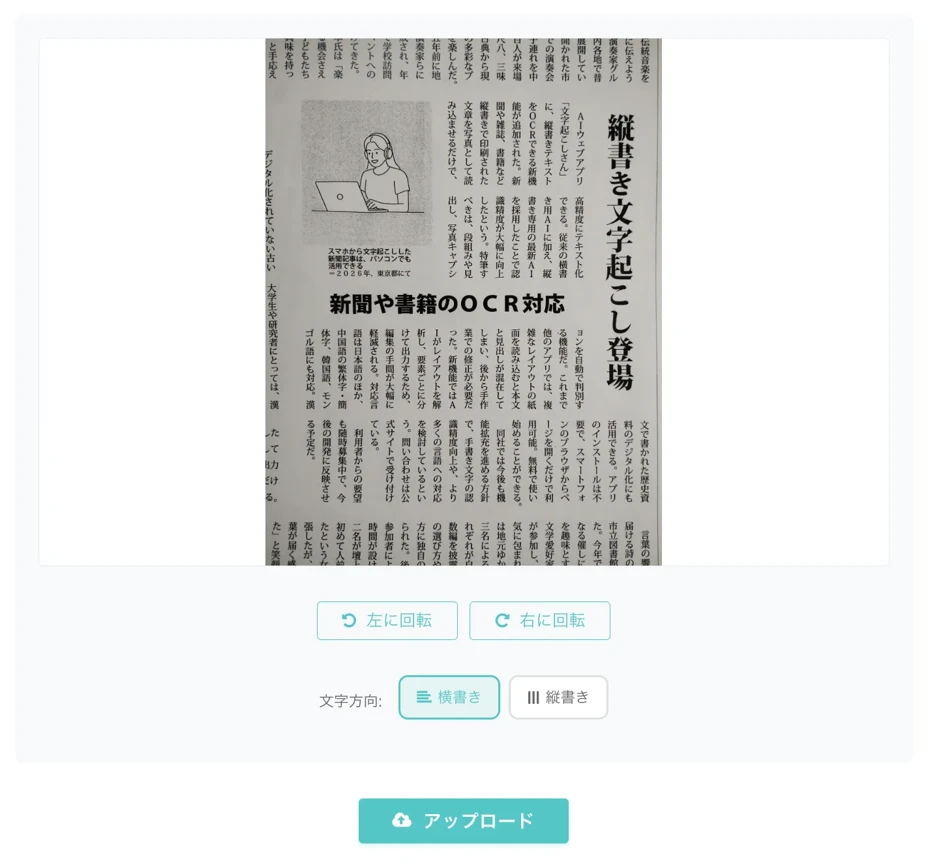
When you select a file or take a photo, the image will be displayed like this.
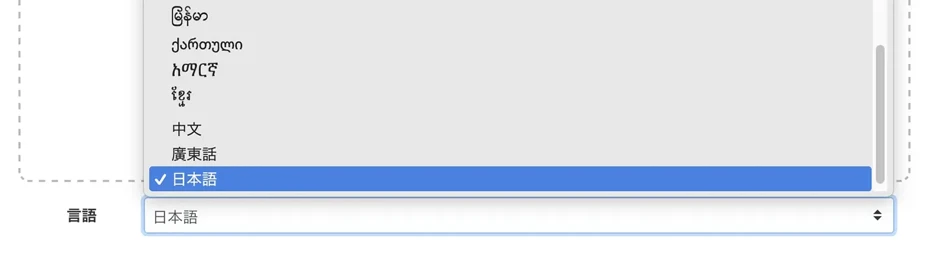
Check that the "Language" is set to the same language as the image (Mojiokoshi-san's vertical transcription function supports Japanese, Korean, Chinese, and Mongolian).
This is the important point.
When you set a language that supports vertical transcription, such as Japanese, the options for "Horizontal/Vertical" will appear, so select "Vertical."
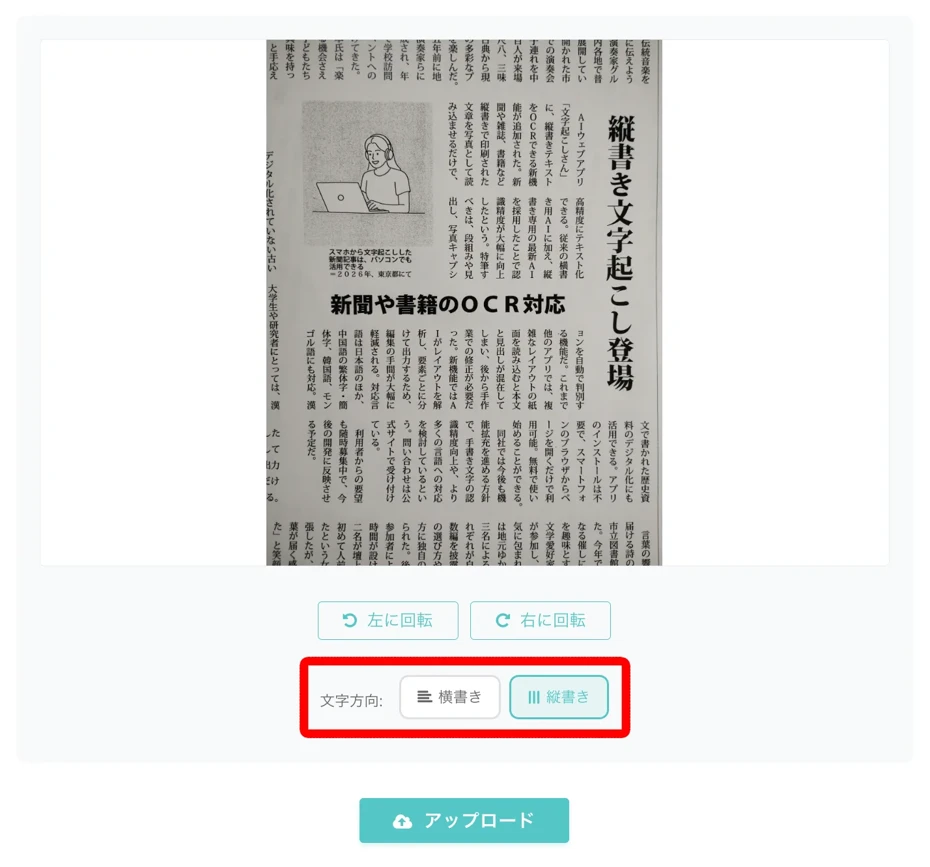
The preparation for transcribing the vertically written image is now complete!
Press the "Upload" button to upload the vertically written image.

Once the upload is finished, the transcription process starts automatically.
With the latest AI, text conversion is completed quickly, and the text read from the image is displayed on the screen.
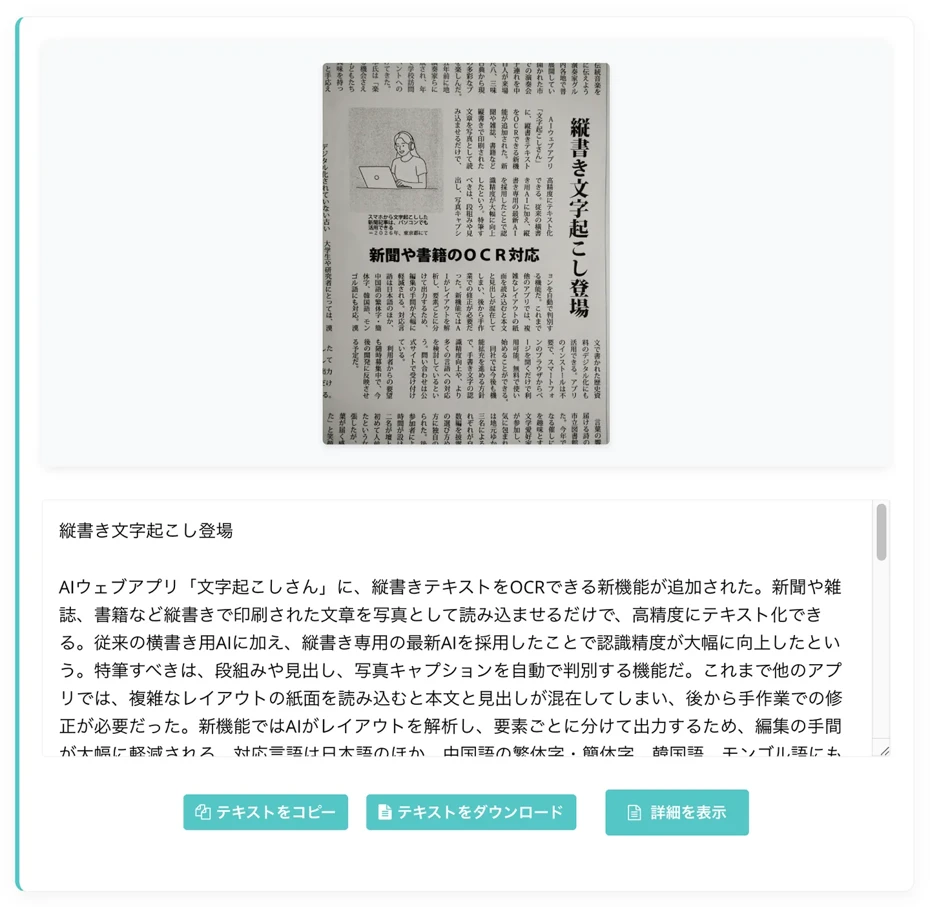
Check the content, and if there are no problems, click "Download Text" to save the file.

Mojiokoshi-san also has AI summary, analysis, and meeting minutes creation functions! You can use them by clicking "Show Details". Please see this article for details.
Paste Text into Ondoku and Read It Aloud
Once you've converted it to text with Mojiokoshi-san, convert it to audio with Ondoku!
『Ondoku』 is an AI reading site where you can read sentences aloud just by pasting text.
By registering as a free member, you can convert up to 5,000 characters into audio.
The created audio can be downloaded as an MP3 and saved to your computer or smartphone.
The generated audio is OK for commercial use (click here for details), so it can also be used for video narration and podcasts.
How to Read Aloud Text with Ondoku
To read aloud the text transcribed from an image, first open the Ondoku top page in your browser.
Paste the text into the text box.
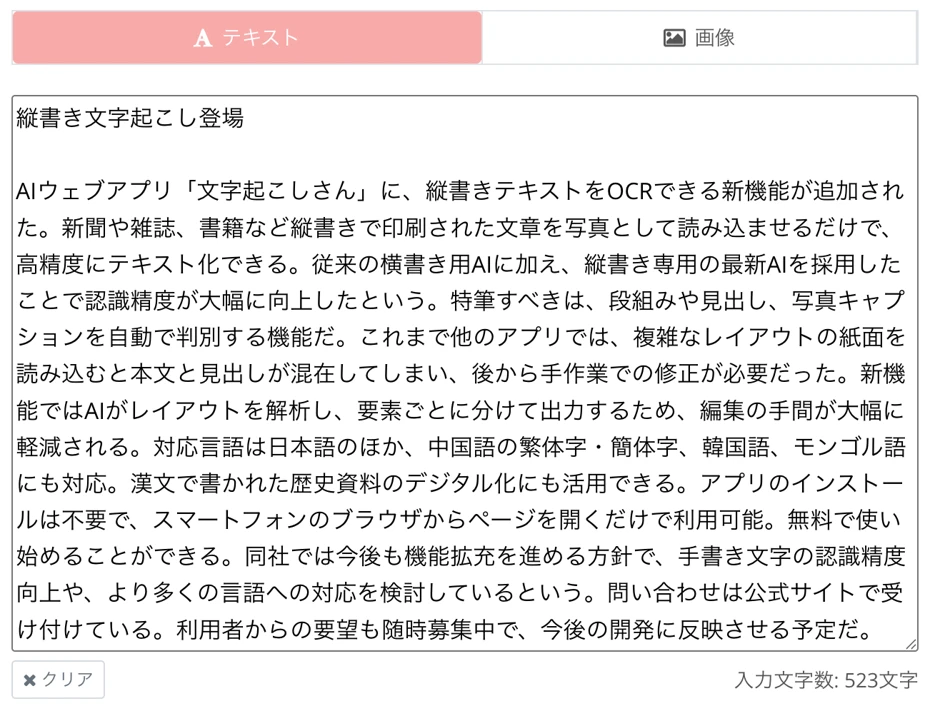
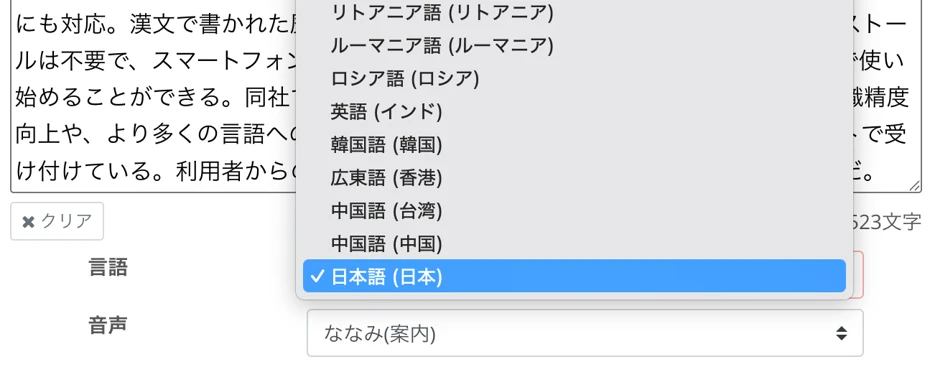
Select the language, such as Japanese or English.
Select the voice type (speaker).
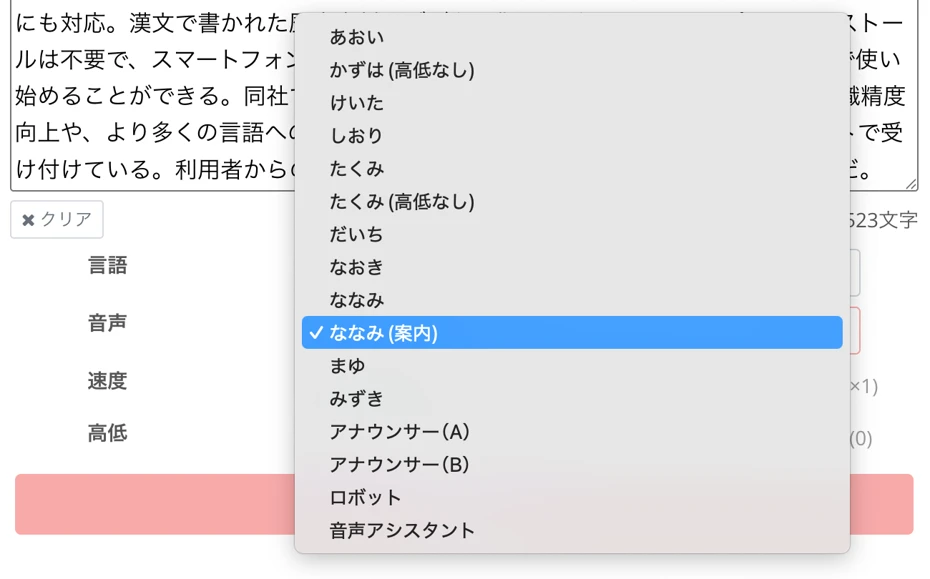
In Ondoku, you can select from a rich variety of voices, including women, men, and children.
You can listen to Japanese voice samples in this article, so please take a look.
The preparation for reading aloud the text is now complete.
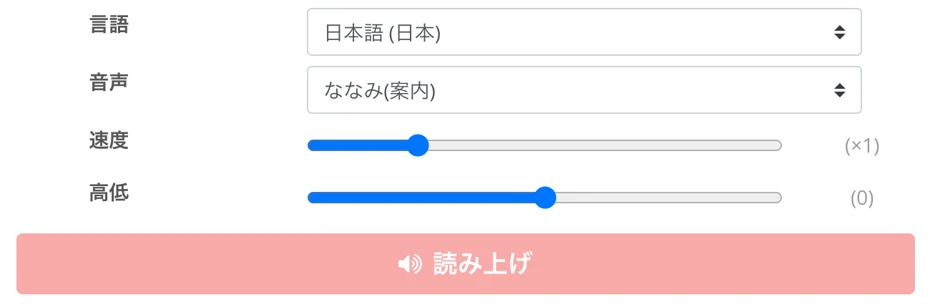
Press the "Read" button to generate audio.

The text-to-speech processing is completed quickly with the latest AI.
The screen changes, and the audio is played back.
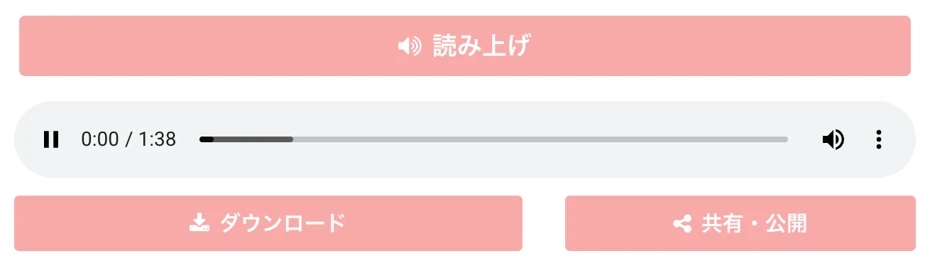
Listen to the audio, and if there are no problems, press the "Download" button to save the MP3 file.
Now you have successfully read aloud a vertically written image using Mojiokoshi-san and Ondoku.
Since it can be read aloud using a very simple method, why not start by converting vertically written images to text with 『Mojiokoshi-san』 and 『Ondoku』?
Convenient When You Want to Convert Vertically Written Documents or Books into Audio
The method of combining Mojiokoshi-san and Ondoku is perfect for listening to vertically written books and documents via audio.
For example, you can utilize it in scenes like this.
Check Vertically Written Documents with Your Ears
Some contracts, reports, and internal materials are still created in vertical writing today.
By converting such documents into text with Mojiokoshi-san and reading them aloud with Ondoku, you can check the content with your ears without having to follow with your eyes.
It's also very convenient when re-reading manuscripts you've written yourself.
Typos and unnatural phrases that are easily overlooked when reading silently can be easily found by listening to the audio.
Listen to Paper Books and Newspapers via Audio
There are times when you want to read a vertically written book, but you don't have much time to open it.
In such cases, using Mojiokoshi-san and Ondoku is recommended!
By taking a photo of a vertically written book and reading it aloud, you can create your own original audiobook.
You can enjoy the content during your commute, in the bath, or between chores.
Switching from reading to listening when your eyes are tired is also a recommended use.
Can Also Be Used to Convert Vertical PDFs into Audio
Besides paper documents and books, there may be times when you want to convert PDF materials created in vertical writing into audio.
By converting the PDF into an image and then letting Mojiokoshi-san read it, you can convert it into an MP3 file following the same procedure as in this article.
Reference: Horizontal Images and PDFs Can Be Converted to Audio with Ondoku Alone
Unlike the vertical case, horizontal images and PDF files can be converted to audio with Ondoku alone, so it's recommended to choose the method according to your needs.
The methods for directly reading aloud horizontal image files and PDF files are explained in these articles, respectively.
How to Use Image Reading | How to OCR text in photos for free and turn it into audio
Explaining the function of 『Ondoku』 that can read characters in images or photos (OCR) and read them aloud. It can be used for free. On both PC and smartphone, reading is completed in just a few seconds simply by uploading an image.
Two Ways to Convert PDF to MP3 | Free Audio Conversion with Mojiokoshi-san × Ondoku
Explaining two ways to convert PDF to MP3 for free with images. The recommended method is converting to text with Mojiokoshi-san → reading aloud with Ondoku. The key point is that you can edit the text before converting it to audio. There's also a method to convert to images using PDF-to-Image Converter-san for PDFs with many pages...
For Reading Vertically Written Images, Go from Mojiokoshi-san to Ondoku
To read aloud a vertically written image, it is recommended to convert it to text with Mojiokoshi-san and then paste it into Ondoku.
Finally, let's summarize the flow once more.
- Upload the vertically written image to 『Mojiokoshi-san』 and convert it to text
- Copy the text and paste it into 『Ondoku』
- Select the language and voice and read aloud → Download as MP3
From text conversion to audio conversion, everything can be done within the browser, and there's no need for paid software or apps.
Since you can easily convert vertical documents such as vertically written papers, books, and newspaper clippings into audio, why not try using 『Mojiokoshi-san』 and 『Ondoku』 for free?
■ AI voice synthesis software "Ondoku"
"Ondoku" is an online text-to-speech tool that can be used with no initial costs.
- Supports 81 languages and regions, including Japanese, English, Chinese, Korean, Spanish, French, and German
- Available from both PC and smartphone
- Suitable for business, education, entertainment, etc.
- No installation required, can be used immediately from your browser
- Supports reading from images
To use it, simply enter text or upload a file on the site. A natural-sounding audio file will be generated within seconds. You can use voice synthesis up to 5,000 characters for free, so please give it a try.

Text-to-speech software "Ondoku" can read out 5000 characters every month with AI voice for free.
You can easily download MP3s and commercial use is also possible.
If you sign up for free, you can convert up to 5,000 characters per month for free from text to speech.
Try Ondoku now.
HP:
ondoku3.com
Email: ondoku3.com@gmail.com
Email: ondoku3.com@gmail.com
Related posts
"Ondoku" is a Text-to-Speech service that anyone can use for free without installation. If you register for free, you can get up to 5000 characters for free each month. Register now for free
- What is Ondoku
- Start text-to-speech conversion
- Free registration
- Pricing
- Posts
- Try other free services