Best Text-to-Speech Software: 7 Free & Paid Tools for Commercial Use
2 Ways to Convert PDF to MP3 | Free Audio with Transcription-san × Ondoku
Aug. 7, 2026


Is there a way to turn the PDF I have on hand into MP3 audio and listen to it on my smartphone?
*This article was published on April 19, 2026.
It would be convenient if you could listen to a PDF with your ears while commuting or between chores, wouldn't it?
Actually, there is a way to convert PDF into MP3 audio for free!
There are two types of conversion methods.
- A method to convert PDF into text and then paste it into Ondoku
- A method to convert PDF into an image and then use Ondoku's image reading function
In this article, we will explain two PDF to MP3 conversion methods that can be used on both Windows and Mac, each with images.
Since it also supports scanned PDFs where text cannot be selected, it can be used for converting scanned paper documents or meeting minutes into audio.
What you will learn in this article:
- Two methods to convert PDF to MP3 and how to choose according to your purpose
- Steps to convert PDF to text with Mojiokoshi-san and read it with Ondoku (Recommended)
- Steps to convert PDF into images with PDF Image Converter-san and read them with Ondoku
What is the recommended method to convert PDF to MP3?

Ondoku is a free AI site that can generate audio from text and images.
Since it cannot read PDF files directly, you first need to convert the PDF into "text" or an "image."
The conversion methods are:
- "Mojiokoshi-san": An AI site that can convert PDF to text
- "PDF Image Converter-san": A web service that can convert PDF into images
These two types are convenient.
Method 1: Convert to text with Mojiokoshi-san and then read it (Recommended)
This is a method where you convert a PDF to text using "Mojiokoshi-san", and then paste that text into Ondoku to read it aloud.
The appeal is that since it is output as text, you can check the content and fix it yourself before converting it to audio.
It is recommended for those who want to organize the reading content themselves before turning it into audio.
Method 2: Convert to image with PDF Image Converter-san and then read it
This is a method where you convert a PDF into images (JPG/PNG) with "PDF Image Converter-san" and read them with Ondoku's image reading function.
Since there is no upper limit on the number of pages, it is convenient when you want to convert a long PDF into images and then into audio all at once.
Pre-editing of the text is not possible, but the operation from conversion to reading is simple.
Which one to choose? Usage based on purpose is recommended
When in doubt, Method 1 (Mojiokoshi-san) is recommended.
Since it is converted to text beforehand, you can check and correct the content before reading, and easily convert only the necessary parts into audio for free.
[Method 1 - Recommended] Convert to text with Mojiokoshi-san → Read with Ondoku
Now, let's look at the methods for converting PDF to MP3 in order.
First, we will explain the method of converting a PDF to text with Mojiokoshi-san, pasting it into Ondoku, and turning it into an MP3.
What is Mojiokoshi-san | A free-to-use AI transcription site
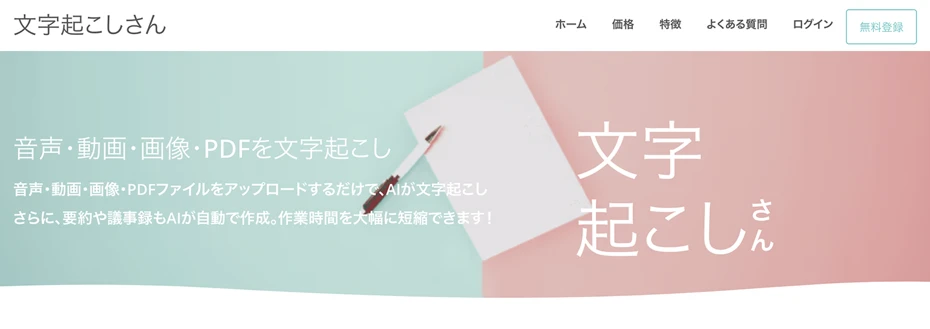
"Mojiokoshi-san" is a free web app that can transcribe audio, video, images, and PDFs using AI.
Just by uploading a PDF file, the AI can read the content and convert it into text.
A feature is that no installation is required, and it can be used immediately with just a browser.
Furthermore, if you register as a free member, you can convert up to 10 pages of PDF to text per day.
1. Upload PDF to Mojiokoshi-san and convert to text
Open the top page of "Mojiokoshi-san".

Click the "Select File" button and choose the PDF file you want to convert to text.
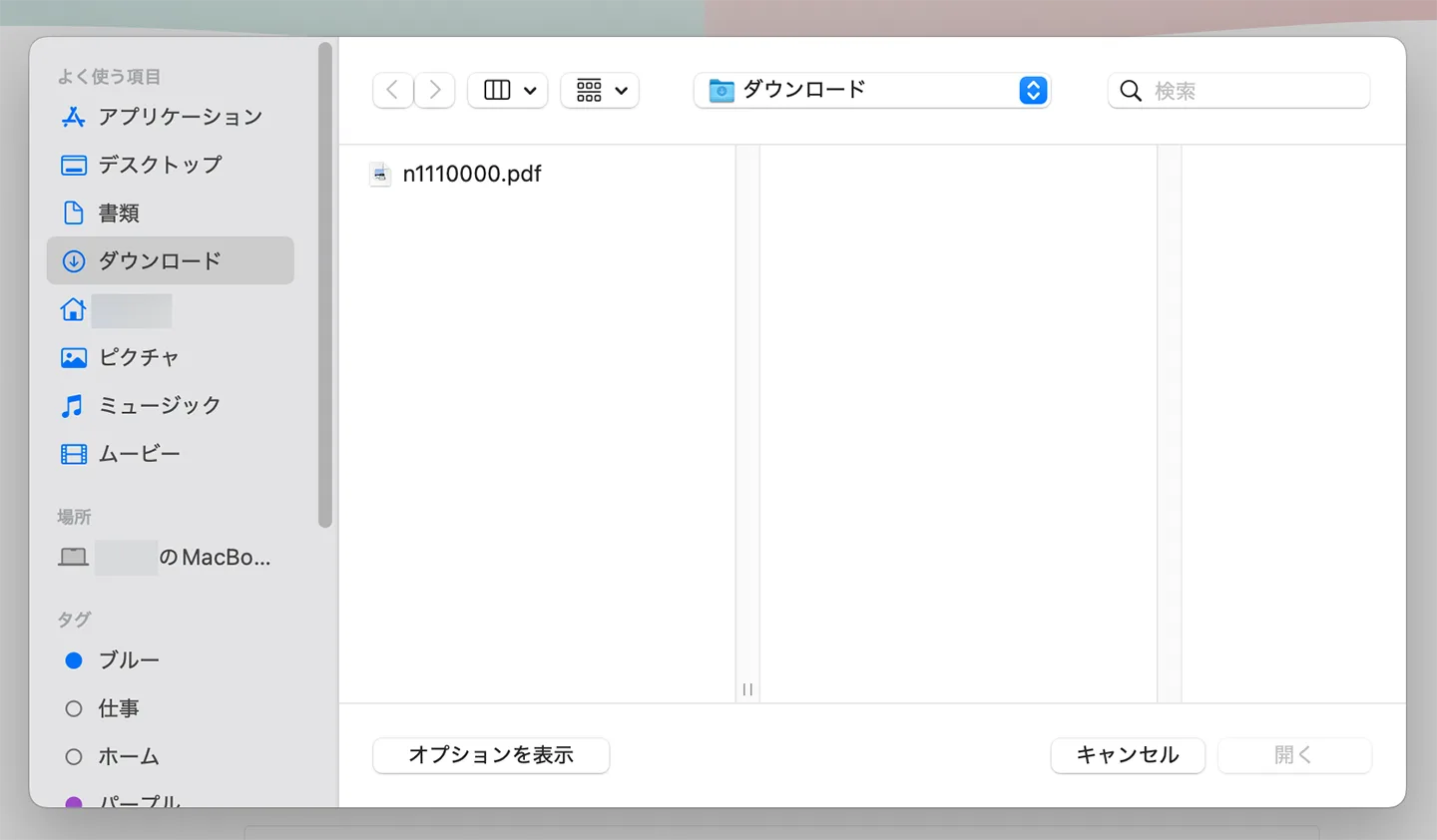
You can also upload by dragging and dropping.
After choosing the file, check the "Language."
Select "Japanese" for Japanese PDF files and "English" for English PDF files.
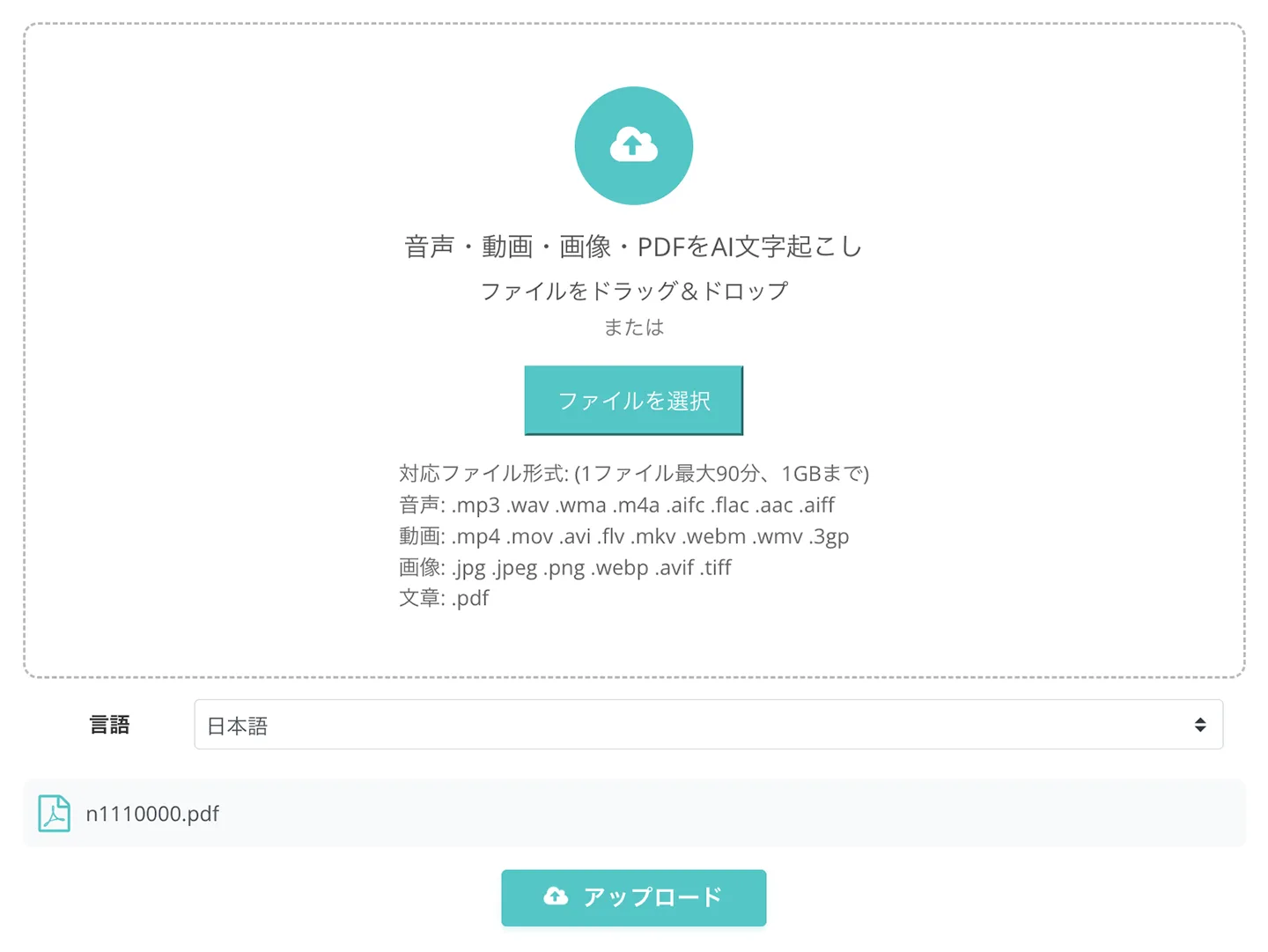
When ready, click the "Upload" button, and transcription will start automatically.

When the processing is finished, the transcribed content will be displayed on the screen.
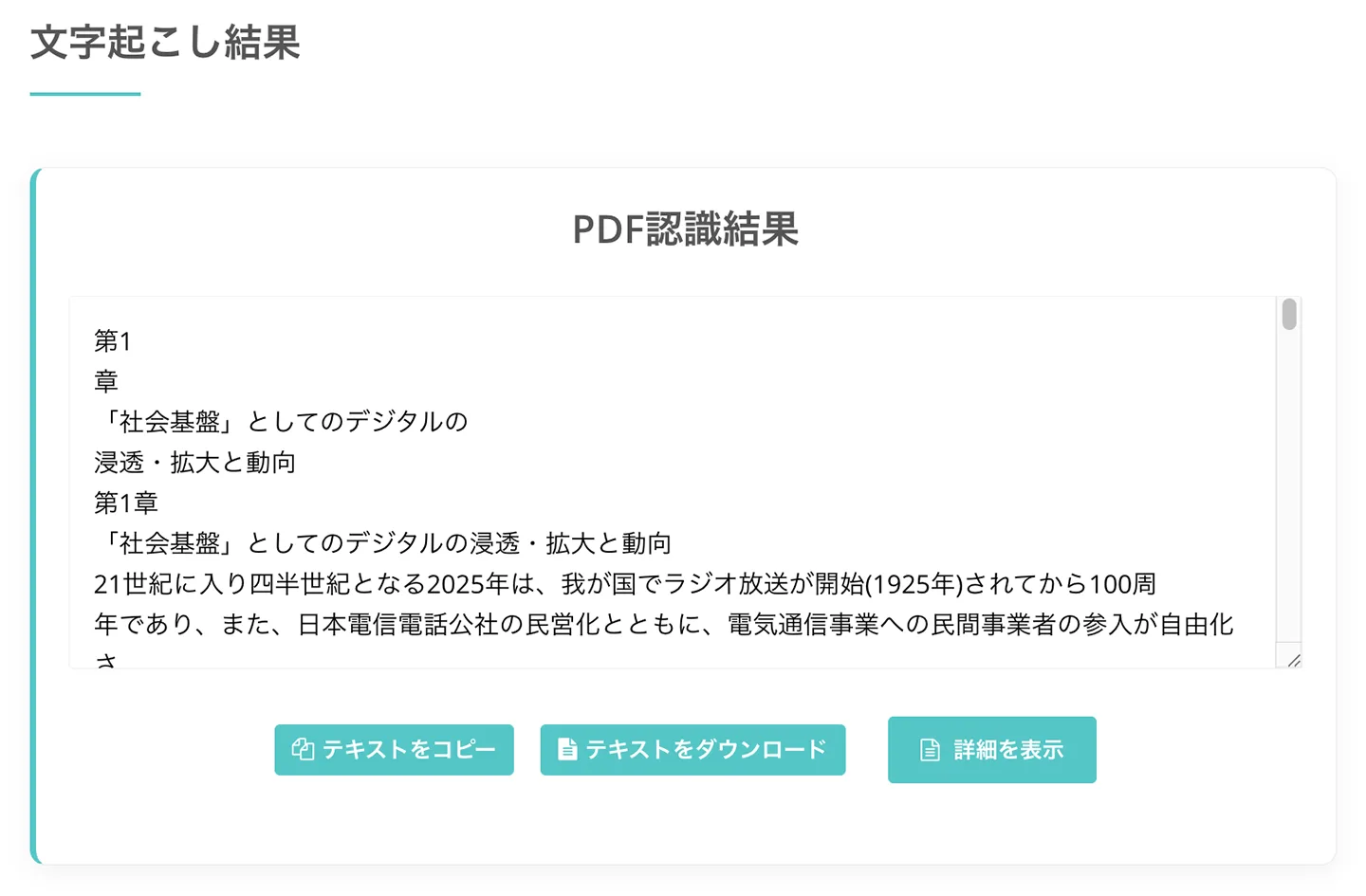
2. Check text and edit as necessary
Check the transcription result text, correct it as necessary, or delete unnecessary parts (headers, page numbers, etc.) to organize the content you want to read aloud.
Transcribed text can not only be downloaded as a text file, but you can also summarize or analyze it with the latest AI from the screen that opens by clicking the "Show Details" button.
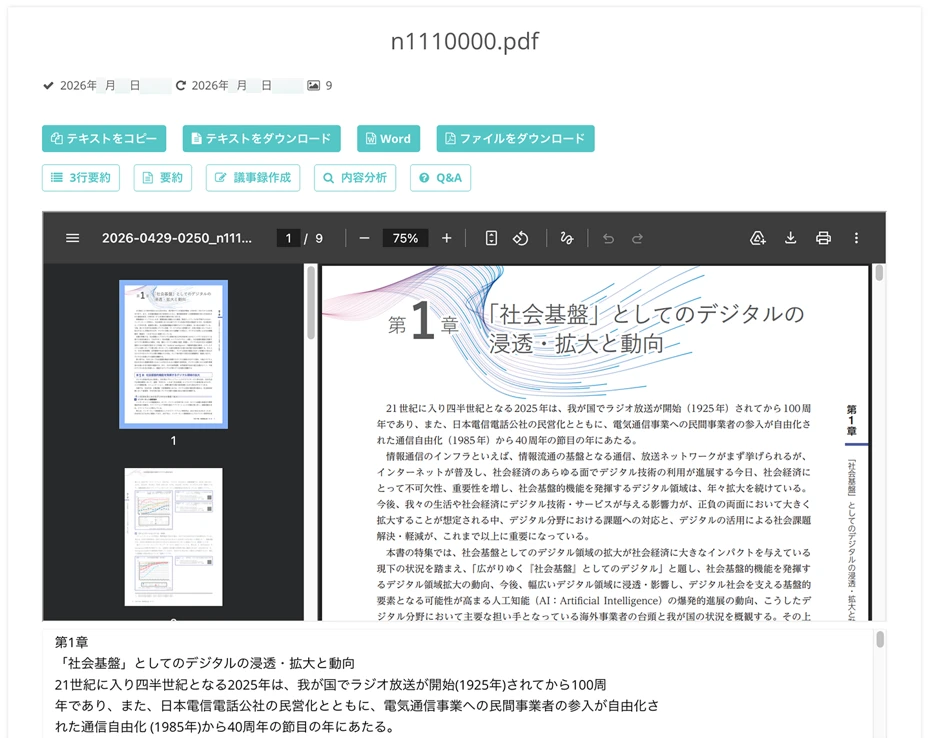
3. Convert text to MP3 file for free with Ondoku
Once the text is ready, open the top page of "Ondoku".

Paste the text extracted with Mojiokoshi-san into the text input field.
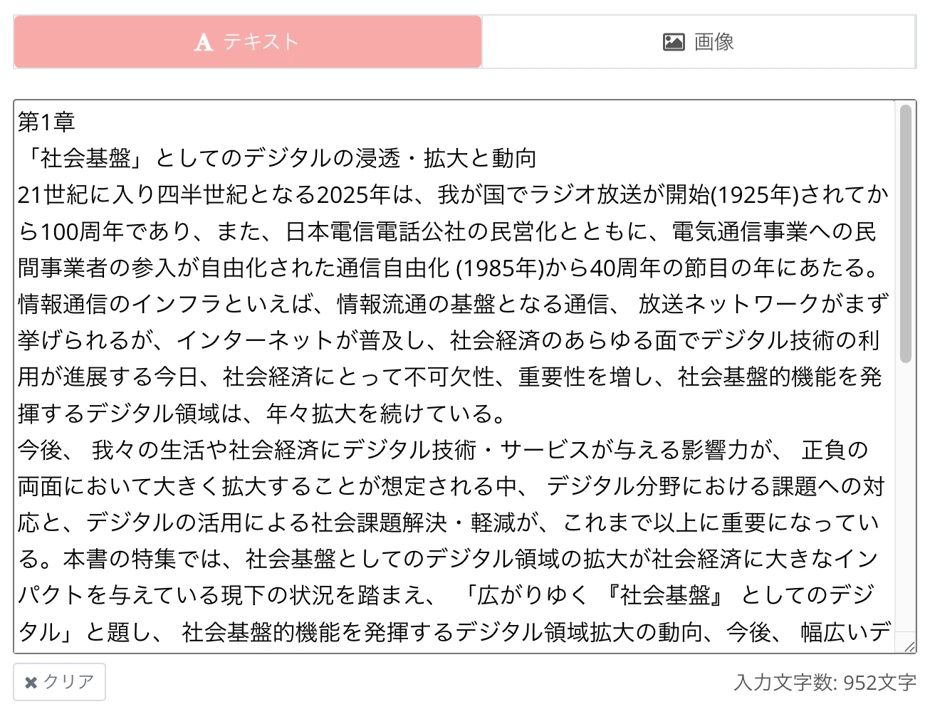
Select the language, such as Japanese or English, according to the PDF content.
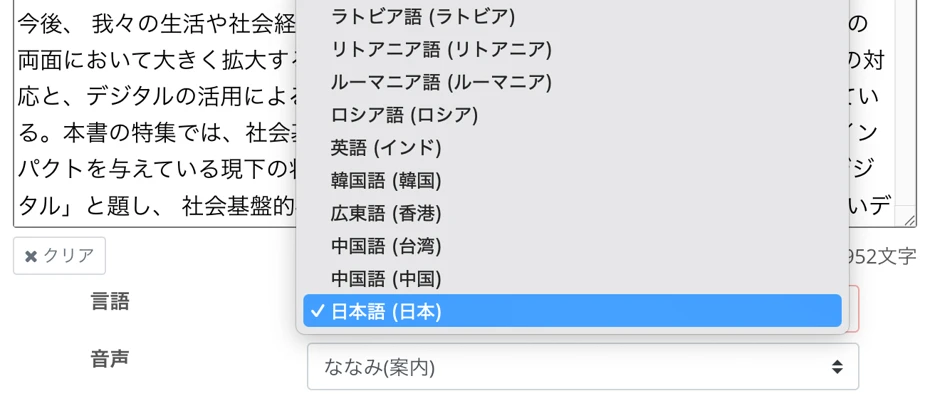
Choose the reading voice (speaker).
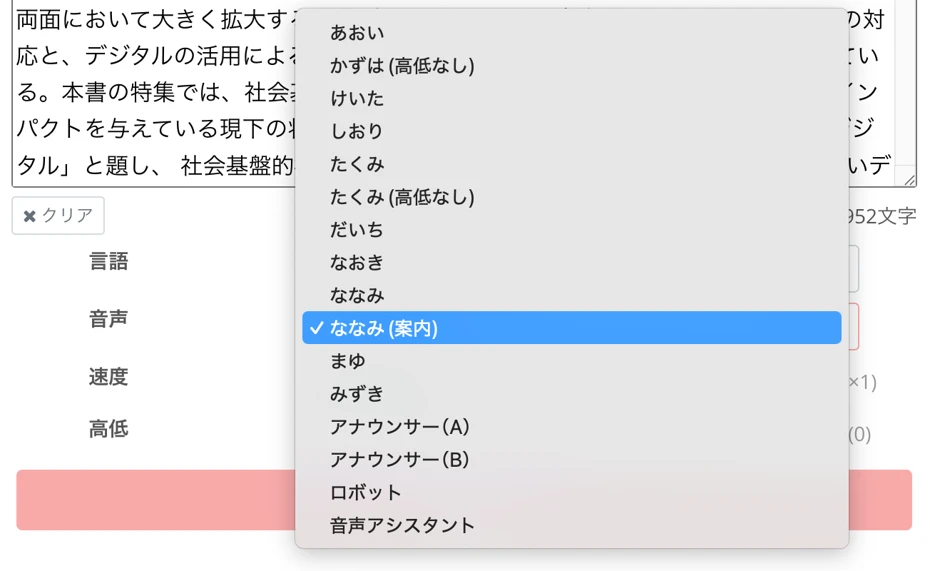
Ondoku has many voices prepared, including female, male, and children, so you can choose your favorite voice according to the content (Japanese voice samples are here).
Now the preparation is complete.
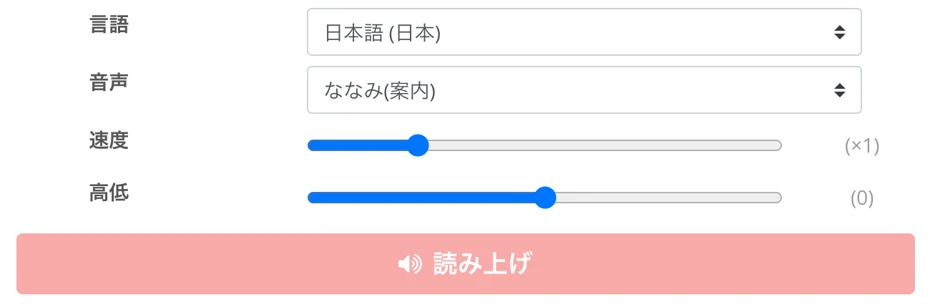
Press the "Read Aloud" button to start generating the audio.
When the audio generation is finished, the screen will switch and the audio will play automatically.

Check the content and, if there are no problems, click the "Download" button to save the MP3 file.
With this, the steps to read the PDF text transcribed with "Mojiokoshi-san" using "Ondoku" and convert it into an MP3 are complete.
"Ondoku" allows you to read up to 5,000 characters for free by registering an account.
The generated audio can also be used for commercial purposes (please provide credit notation when using for free commercial use).
You can quickly get the hang of it by trying it with a PDF you have on hand, so why not experience "Mojiokoshi-san" and "Ondoku" for yourself first?
[Method 2] Convert to image with PDF Image Converter-san → Read with Ondoku
Next, we will explain Method 2.
This is the flow of converting a PDF into images with PDF Image Converter-san, and then turning them into MP3 with Ondoku's image reading function.
This is suitable for PDFs with many pages or long PDFs that exceed the limit of Mojiokoshi-san.
What is PDF Image Converter-san
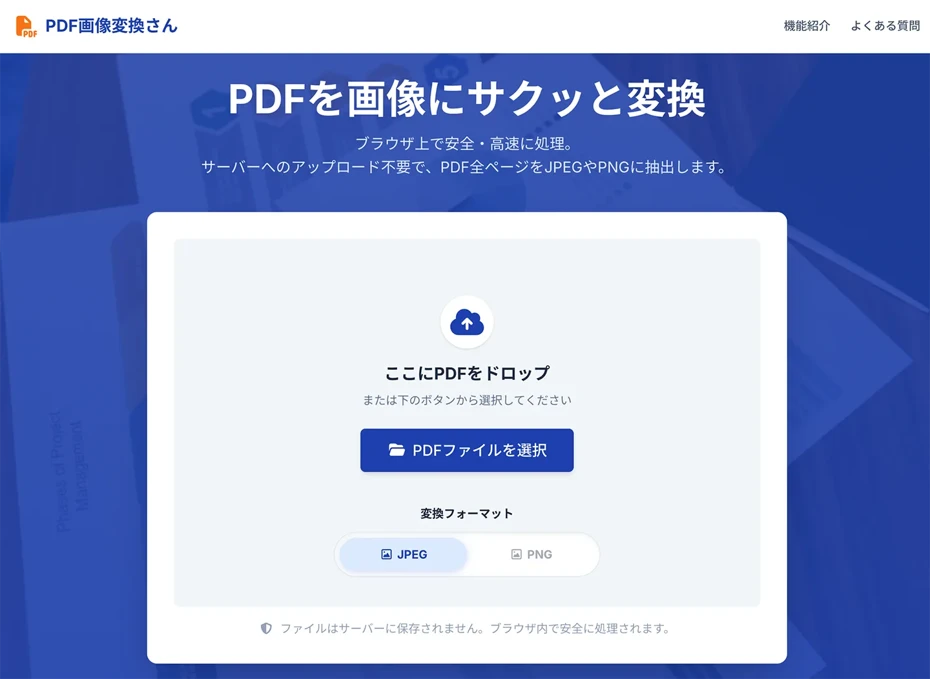
"PDF Image Converter-san" is a free web app that can convert PDF files into images such as JPG and PNG.
You can start converting immediately as it can be used with just a browser and no member registration.
Converted images are exported one by one for each page of the PDF and can be downloaded together in ZIP format.
1. Convert PDF to image with PDF Image Converter-san
First, open "PDF Image Converter-san" in your browser.
Once the page is open, choose the conversion format from JPEG or PNG.
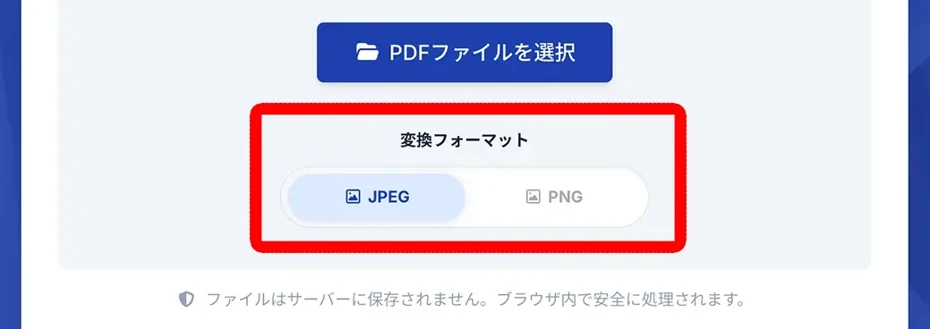
Click the "Select PDF file" button or drag and drop the file to choose the PDF you want to turn into audio.
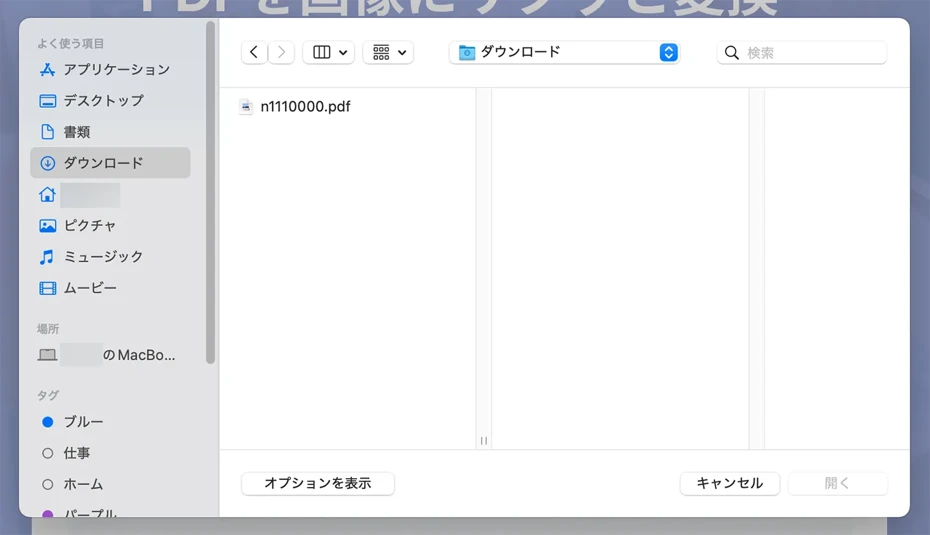
When you select a file, the conversion process to images starts automatically.

When the conversion is finished, the image files are downloaded together in ZIP format.
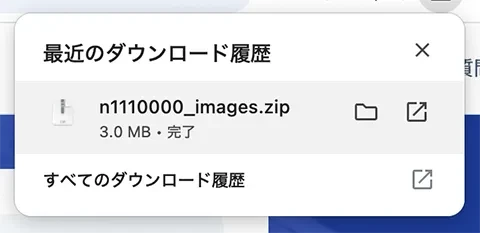
Before uploading to Ondoku, make sure to extract the ZIP file.
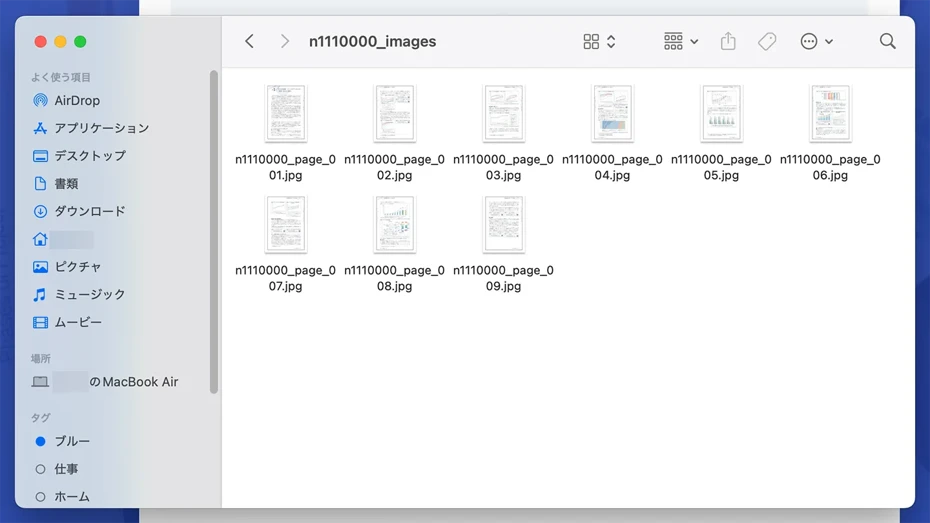
2. Read image with Ondoku and download MP3
Open the top page of "Ondoku" and click the "Image" tab above the text input field.
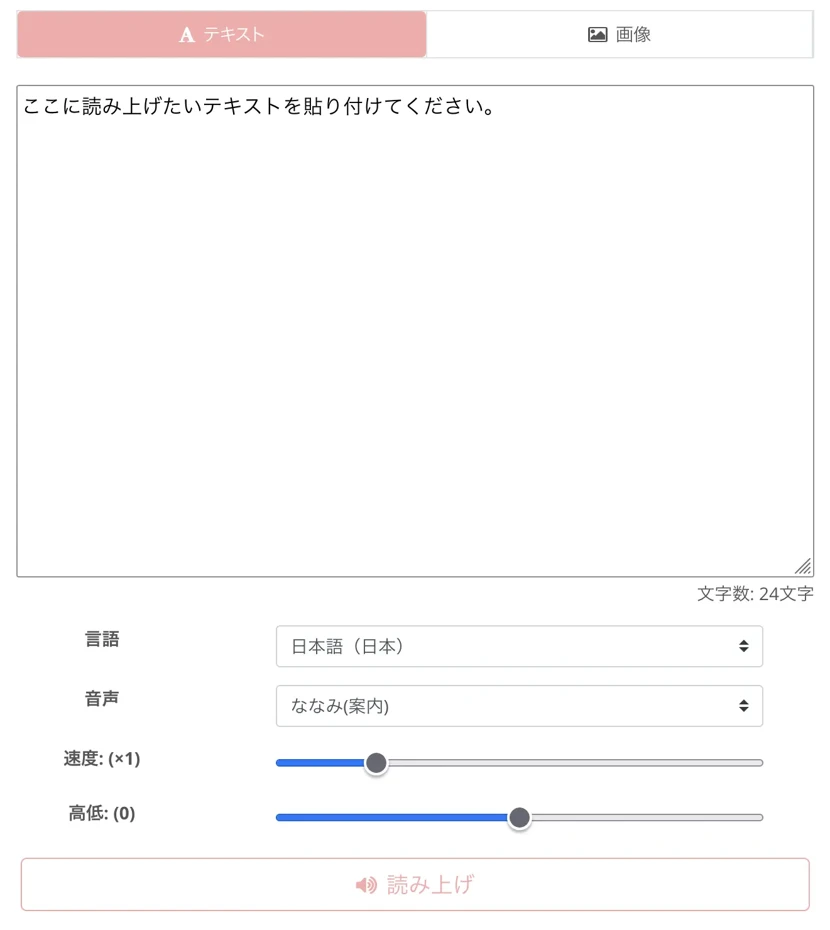
The screen will switch to the image upload screen, so choose the image file converted from the PDF via the "Select Image" button.

When you select an image, the text in the image is automatically read and displayed in the text box.

If there are errors in the recognition results, you can correct them directly in the text box.
After choosing the voice type and speed, click the "Read Aloud" button.

When the audio generation is finished, you can play it on the screen to check the content.

If you click the "Download" button, you can save it as an MP3 file.
With this, the steps to read a PDF turned into images with PDF Image Converter-san using Ondoku and convert it into an MP3 are complete.
Since it can be used for free, why not turn your PDF files into images and try reading them with Ondoku?
Frequently asked questions when converting PDF to MP3

PDFs where text can be copied can be pasted directly into Ondoku
If you can select and copy the body text of the PDF with a mouse, it is also possible to directly paste the text into Ondoku without using Mojiokoshi-san or PDF Image Converter-san.
If you open the PDF in a browser or Acrobat Reader, copy the body text, and paste it into Ondoku's "Text" tab, you can convert it to MP3 as is.
However, since the headers or paragraphs of the copied text may get corrupted, check the content once after pasting.
For PDFs where text cannot be selected or documents with many diagrams, using Method 1 (Mojiokoshi-san) or Method 2 (PDF Image Converter-san) introduced in this article is more reliable.
What if the text in the image is not recognized well?
When reading a PDF turned into an image using Method 2, the accuracy of character recognition changes depending on the image resolution and character clarity.
Since blurred images increase misrecognition, the trick is to specify as high a resolution as possible when converting the PDF into an image.
Handwritten characters, extremely stylized fonts, or thin, faded printing may not be read correctly.
In such cases, convert it into audio after correcting the recognition result in the text box.
Detailed instructions on how to use Ondoku's image reading function are explained in this article.

How to use Image Reading | Method to free OCR text in photos and turn them into audio
Explaining the function of "Ondoku" which can read text from images and photos (OCR) and read them aloud. It can be used for free. Whether on a PC or smartphone, just upload the image and the reading is completed in a few seconds.
What is Mojiokoshi-san's vertical transcription function?
When you OCR vertical text such as in books, magazines, or newspapers, headers and columns are sometimes not recognized well.
In such cases, "Mojiokoshi-san" is recommended!
Because it is equipped with an AI dedicated to vertical writing, it can automatically judge columns, headers, and captions, and transcribe them into text in the correct order with high accuracy.
Detailed information on how to transcribe vertical books, magazines, and materials is introduced in this article.
Please take a look.
Summary of methods to convert PDF to MP3
There are two ways to convert PDF to MP3: the method of converting to text with Mojiokoshi-san and the method of converting to images with PDF Image Converter-san.
After that, if you read the text or images with Ondoku, you can download them as MP3.
Converting to text with "Mojiokoshi-san" is recommended if you want to turn it into audio after editing the content, and converting into images with "PDF Image Converter-san" is recommended if you want to convert PDFs with many pages together.
Why not try converting the PDF file you have on hand into an MP3 by following the steps introduced in this article?
■ AI voice synthesis software "Ondoku"
"Ondoku" is an online text-to-speech tool that can be used with no initial costs.
- Supports 81 languages and regions, including Japanese, English, Chinese, Korean, Spanish, French, and German
- Available from both PC and smartphone
- Suitable for business, education, entertainment, etc.
- No installation required, can be used immediately from your browser
- Supports reading from images
To use it, simply enter text or upload a file on the site. A natural-sounding audio file will be generated within seconds. You can use voice synthesis up to 5,000 characters for free, so please give it a try.

Text-to-speech software "Ondoku" can read out 5000 characters every month with AI voice for free.
You can easily download MP3s and commercial use is also possible.
If you sign up for free, you can convert up to 5,000 characters per month for free from text to speech.
Try Ondoku now.
HP:
ondoku3.com
Email: ondoku3.com@gmail.com
Email: ondoku3.com@gmail.com
Related posts
"Ondoku" is a Text-to-Speech service that anyone can use for free without installation. If you register for free, you can get up to 5000 characters for free each month. Register now for free
- What is Ondoku
- Start text-to-speech conversion
- Free registration
- Pricing
- Posts
- Try other free services