Best Text-to-Speech Software: 7 Free & Paid Tools for Commercial Use
What is Irodori-TTS? Features, Setup, and Usage Guide
Sept. 8, 2026

What kind of AI text-to-speech software is Irodori-TTS?
Many people might be curious about the new AI text-to-speech software "Irodori-TTS."
In this article, we will provide an easy-to-understand explanation of **Irodori-TTS's features, what it can do, precautions, and how to use it**.
Furthermore, for those who feel that "setup seems difficult," we also introduce a **speech synthesis method that requires no installation and can be used immediately**.
What you will learn in this article
- What kind of software is Irodori-TTS?
- What you can do with Irodori-TTS and precautions
- How to use Irodori-TTS (from setup to voice adjustment)
- Recommended methods when environment construction is difficult
What is Irodori-TTS? Explaining the Japanese AI speech synthesis software

First, we will briefly explain what kind of AI speech synthesis software Irodori-TTS is and its features.
Irodori-TTS is an AI speech synthesis model that runs locally
Irodori-TTS is an AI speech synthesis software specialized for Japanese.
The developer is Aratako, and it is released for free as open source (MIT license).
The biggest feature is its "local operation," where speech synthesis is completed entirely on your own PC.
Since all voice generation processing is performed on your local PC, texts and generated voice data are never sent to external servers.
After the initial setup, you can generate speech without an internet connection, and there are **no limits on the number of generations**.
However, setup requires programming tools such as Python and Git.
Also, a high-performance PC equipped with a GPU (graphics card) is recommended for high-speed operation.
What Irodori-TTS Can and Cannot Do

Next, we will explain what Irodori-TTS can and cannot do.
What you can do with Irodori-TTS
Since Irodori-TTS runs in a local environment, you can **generate speech an unlimited number of times**.
Even in environments without an internet connection, you can freely create voices once the initial setup is complete.
There are multiple ways to instruct what kind of voice to create, and by using the caption function, you can create your preferred voice quality just with text instructions.
It is also possible to reproduce existing voices through voice cloning or add emotional expressions using emojis.
Since it is under the MIT license, **commercial use of generated voices is also possible**.
Precautions for Irodori-TTS
On the other hand, there are precautions you should know before using Irodori-TTS.
Audio created at one time is limited to about 30 seconds
**A single generation can read up to approximately 30 seconds**.
If you want to read a long text, you need to split the text and generate it multiple times.
It is difficult to achieve the exact voice or speaking style you want
While Irodori-TTS offers high flexibility, it does not come with a default voice (base voice).
Therefore, unless you specify captions or reference audio, the gender and age will change randomly each time you generate.
**If you want to read in the same voice, you need to load reference audio**.
Additionally, there is no function to manually adjust inflection or intonation.
Supported language is Japanese only
The supported language is only Japanese; it does not support foreign languages like English.
Also, please note that misreadings of Kanji can occur.
High-spec PC with GPU recommended
Depending on PC specs, voice generation can take time.
**On PCs without a GPU, even short sentences take about a minute to generate.**
With entry-class CPUs like Celeron or N100, practical use feels difficult.
How to use Irodori-TTS (Setup Flow)
From here, we will briefly explain how to use Irodori-TTS.
The overall setup flow is as follows:
- Install necessary software
- Create a working folder
- Clone Irodori-TTS from GitHub
- Install necessary packages
- Launch Irodori-TTS
- Load AI model
- Read text
1. Install the necessary software for Irodori-TTS
Preparations are required to set up Irodori-TTS.
First, install these three types:
- Python 3.10 or higher: programming language
- Git: version control system (needed to download Irodori-TTS)
- uv: Python package manager
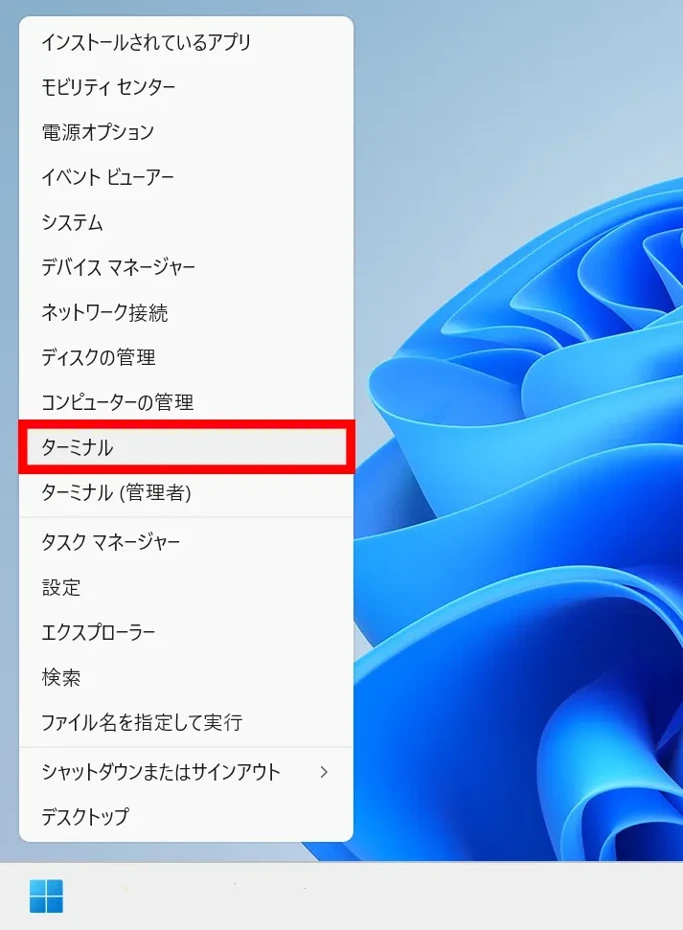
To install Python, Git, and uv, first right-click the Start menu and click "Terminal" (you do not need to run as administrator).
Then the Terminal (PowerShell) screen will open.
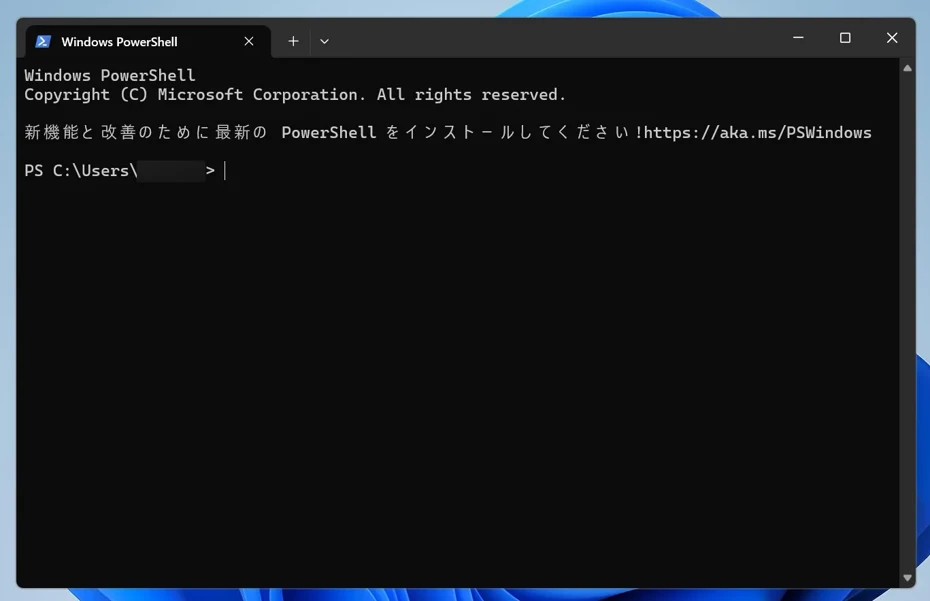
Enter and execute the following commands in this screen.
winget install --id Git.Git -e
winget install --id=astral-sh.uv -e
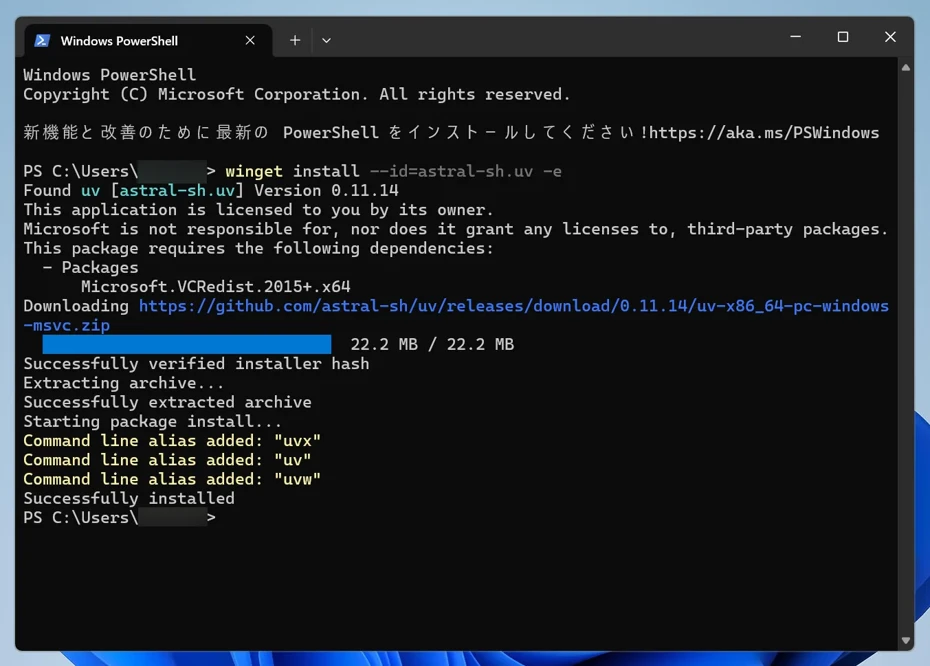
Now you have installed what is necessary to set up Irodori-TTS.
*Note: Python is managed by uv, so it will be installed automatically during setup.
**After installation, close Terminal (PowerShell) once and reopen it (to "set the path").**
2. Create a working folder
Next, create a working folder.
Irodori-TTS will be installed here.
For this example, we created a folder named "irodori-tts" directly under the C drive.
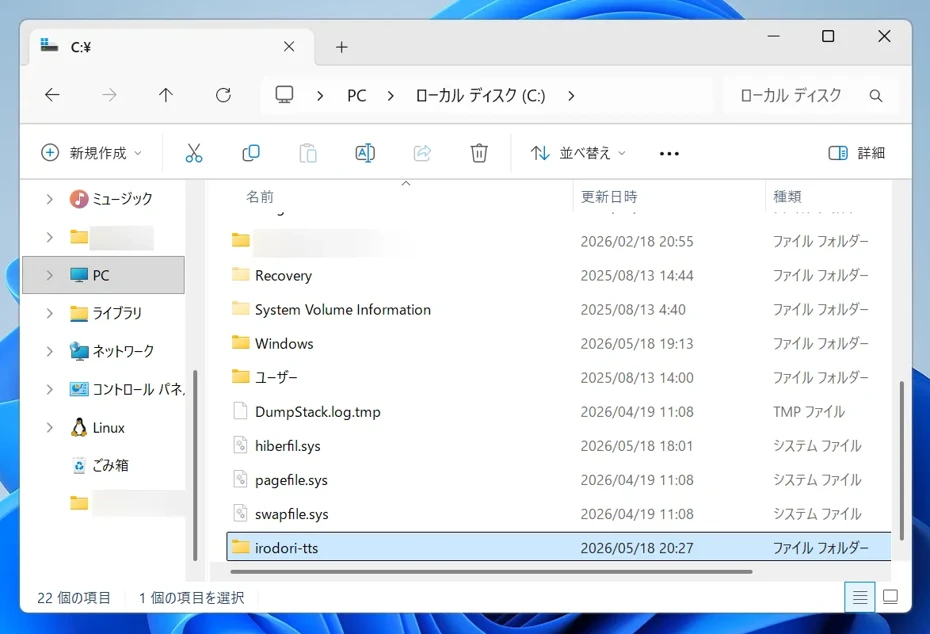
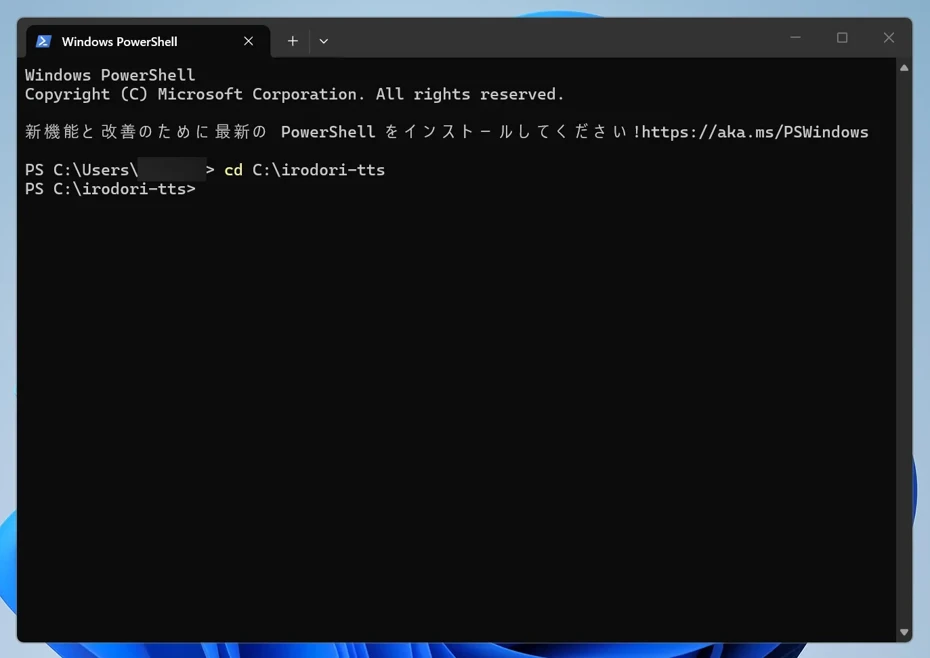
After creating the folder, move to that folder in Terminal.
cd C:\irodori-tts
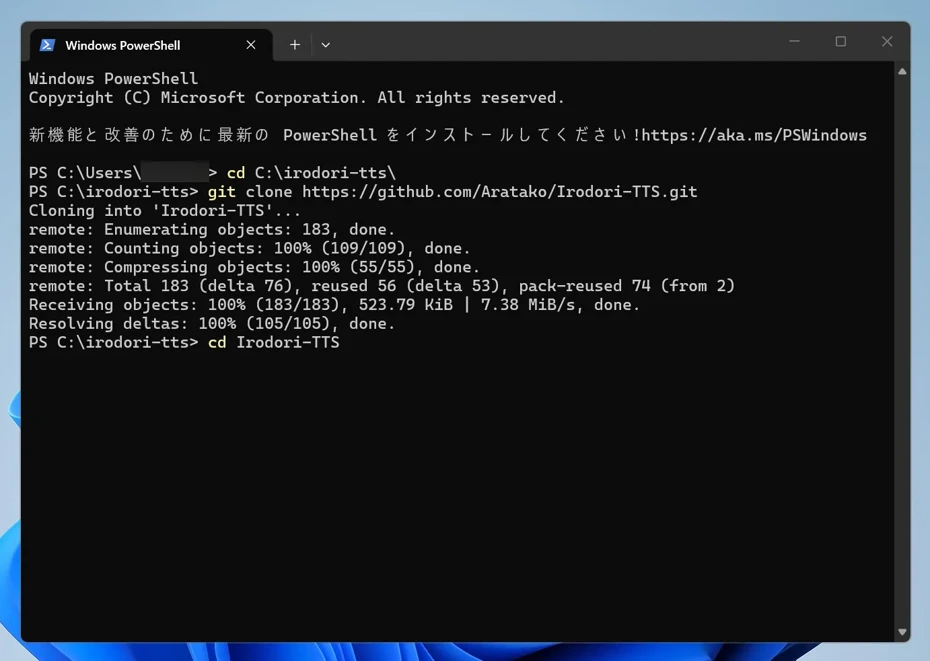
3. Clone Irodori-TTS from GitHub
Enter the following command in Terminal to clone the Irodori-TTS repository from GitHub.
git clone https://github.com/Aratako/Irodori-TTS.git
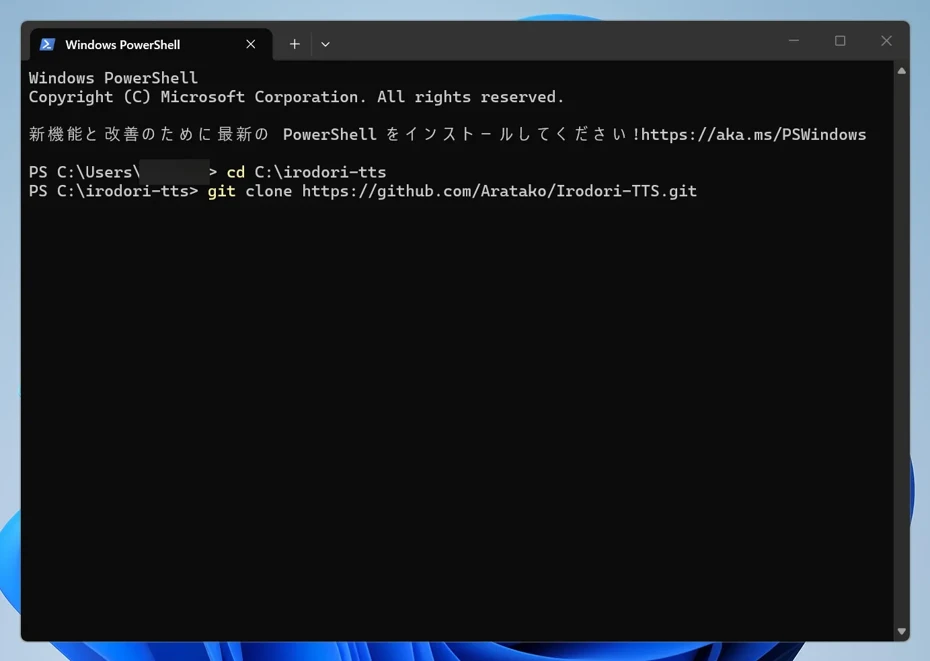
Cloning the repository will finish quickly in a few seconds.
Enter the following command to move to the cloned repository folder.
cd Irodori-TTS
4. Install necessary packages
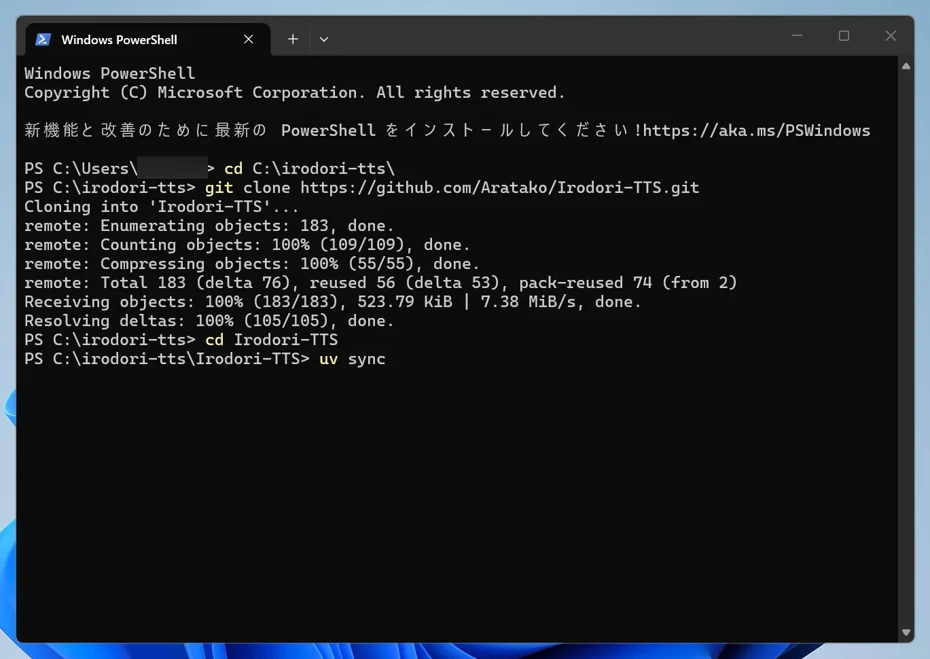
Enter and execute the following command to install the necessary packages to run Irodori-TTS.
uv sync
It will take time because it downloads and installs a large number of packages.
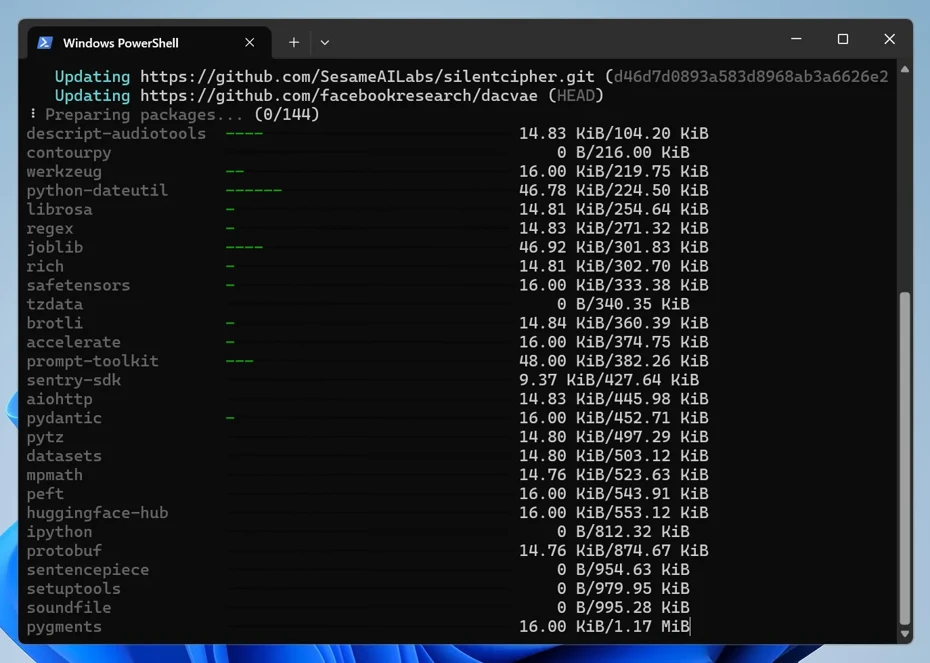
The Python core itself is also installed here.
Wait without closing the Terminal screen while downloading and installing.
Since you will be downloading files nearly 3GB in size, we recommend setting up in a place with a good internet connection.
5. Launch Irodori-TTS
Once the package download and installation are finished, **setup is complete**.
Launch Irodori-TTS.
Enter the following command and execute it, then wait a little for it to launch.
uv run python gradio_app.py --server-name 0.0.0.0 --server-port 7860
When the following is displayed in the Terminal, the launch is complete.

Running on local URL: http://0.0.0.0:7860
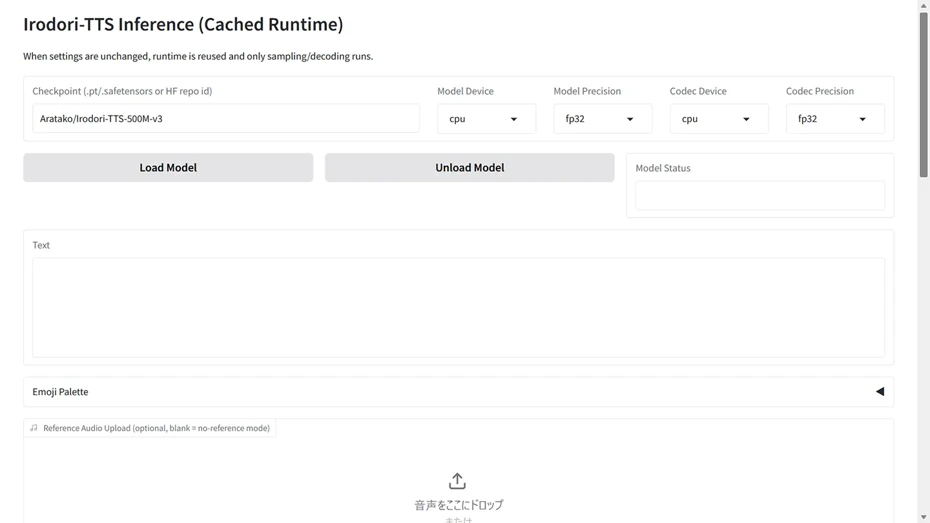
Open a web browser and access http://localhost:7860.
The Irodori-TTS screen (WebUI) will open like this.
6. Load AI model
Click "Load Model" to load the AI model used for text-to-speech.
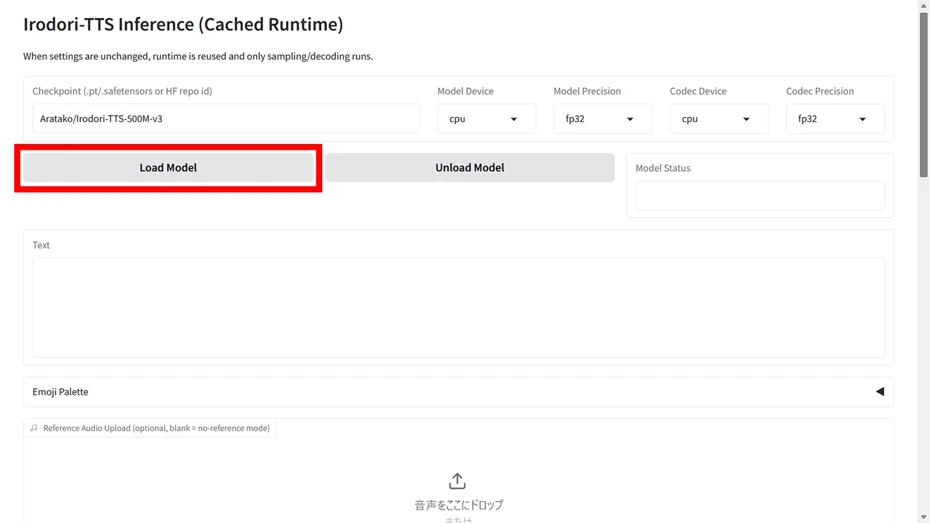
When using it for the first time, pressing this button will start the AI model download.
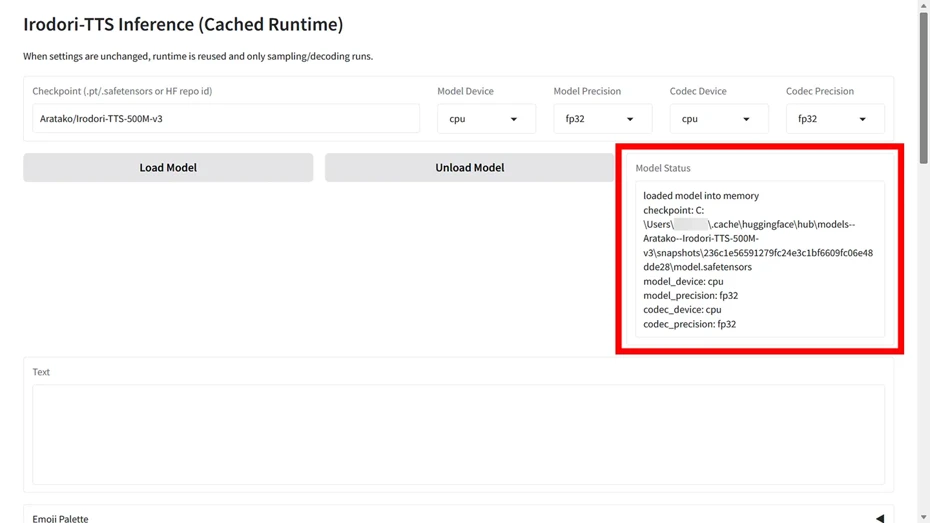
Once the completion message appears in the Model Status (the area circled in red in the next image), the AI model loading is complete.
7. Read text with Irodori-TTS
Irodori-TTS allows you to give instructions on how to read, including emotional expressions, but first, as an example, let's try reading without instructions.
Scroll down to find the text input field, and enter the sentence you want to read.
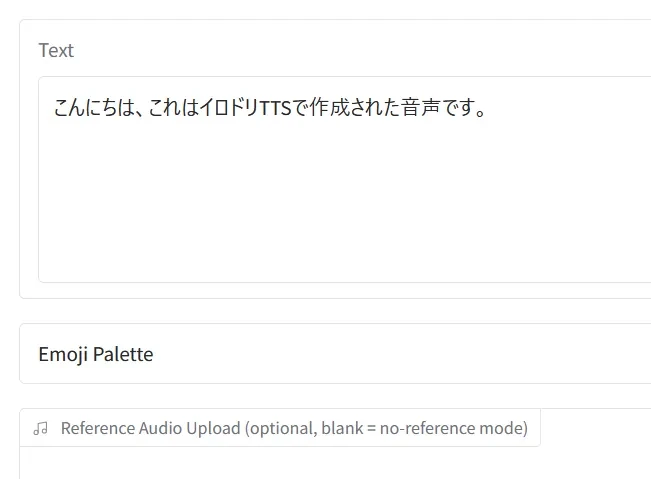
This time, we will try reading "こんにちは、これはイロドリTTSで作成された音声です。" (Hello, this is a voice created with Irodori-TTS).
(Since writing "Irodori-TTS" in alphabet resulted in incorrect reading, I wrote it in Katakana as "イロドリTTS")
Pressing the "Generate" button starts the voice generation.
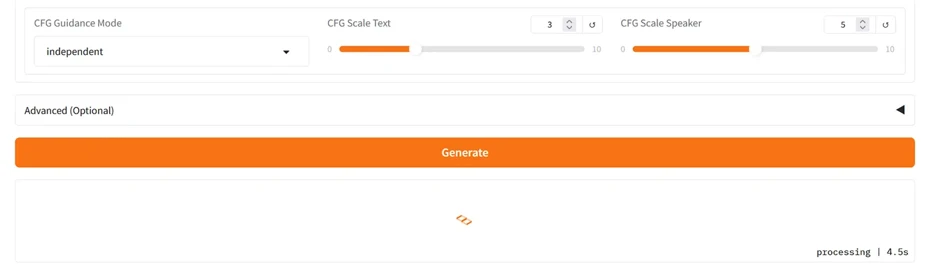
Irodori-TTS generates voice using your local PC's CPU or GPU (graphics card).
Therefore, **the time it takes for generation varies greatly depending on the PC's performance**.
Since this was generated on a laptop without a GPU, it took about a minute to generate, even for a short sentence.
Reference: Test generation was performed in an environment with CPU: Ryzen 5 4650U Memory: DDR4 32GB Windows 11 Pro 24H2.
Once generation is complete, the voice waveform is displayed like this, and you will be able to play the audio.
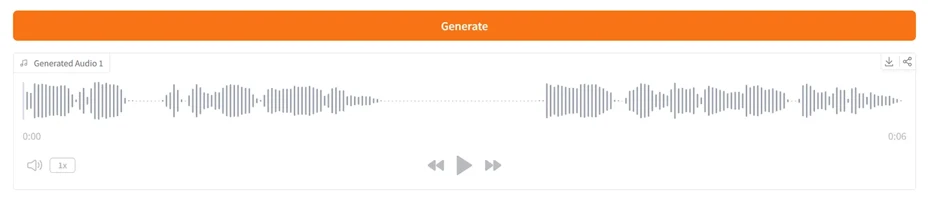
Example of reading "こんにちは、これはイロドリTTSで作成された音声です。"
If it sounds good after listening, press the download button (downward arrow icon) to save the audio file.
The audio file is saved in WAV format.
With this, you have **successfully synthesized speech using Irodori-TTS**.
How to adjust Irodori-TTS voices
In Irodori-TTS, you can adjust expressions such as gender and emotion in various ways.
Specify emotional expressions with emojis
Clicking "Emoji Palette" below the text input field allows you to select emojis.
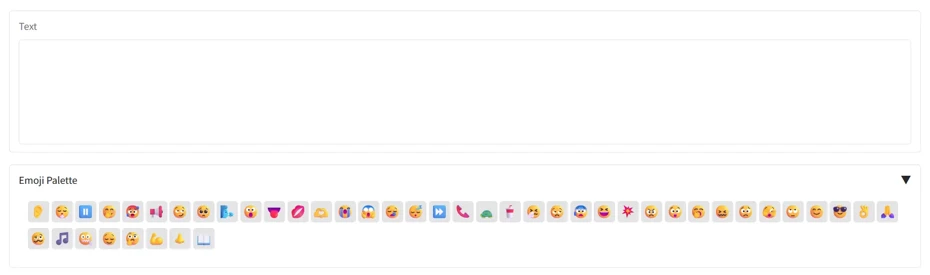
Each emoji is assigned an emotional expression.
- 😊 Joyful, Happy
- 😭 Sobbing, Crying
- 😰 Hurried, Agitated
- ⏩ Fast-talking
- 📖 Narration, Soliloquy
**Simply by putting an emoji in the text input field, it can read aloud with the specified emotional expression**.
Example of reading "😊 こんにちは、これはイロドリTTSで作成された音声です。"
Example of reading "📖 こんにちは、これはイロドリTTSで作成された音声です。"
However, just by specifying emojis, you cannot specifically designate gender or age.
Loading reference audio to read in the same voice
In Irodori-TTS, you can load a reference audio file and have it read based on that voice.
Load the reference audio from the section that says **"Drop audio here - or - Click to upload."**
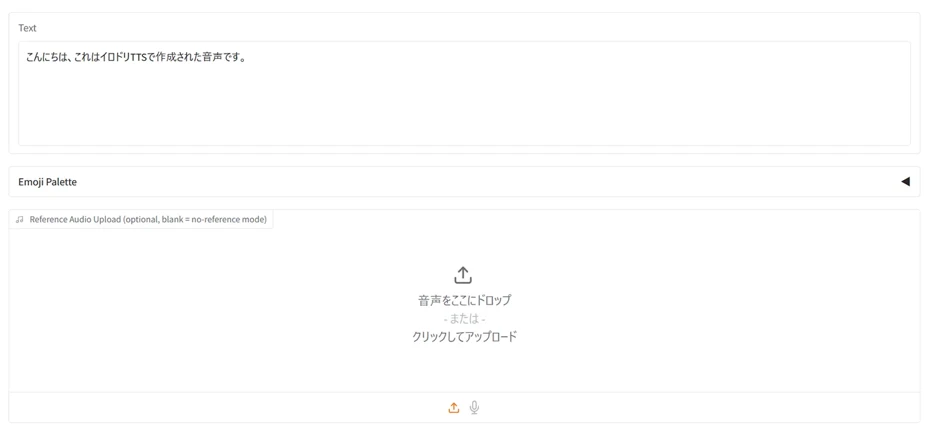
Not only can it read in the same voice, but it can also read with clearer sound quality compared to when nothing is specified.
It is also possible to adjust the reading style directly with the caption function
In Irodori-TTS, you can also **directly specify in text what kind of voice you want it to read with**.
When using the caption function, you need to launch the "VoiceDesign version," and the command to launch Irodori-TTS in the Terminal changes.
uv run python gradio_app_voicedesign.py --server-name 0.0.0.0 --server-port 7861

Executing this command launches the VoiceDesign version operation screen.
Since the VoiceDesign version uses a different AI model from the standard version, **when using it for the first time, you must click "Load Model" and download the model separately from the standard version.**
Since the AI model size is about 2GB, we recommend downloading in a place with a good internet connection.
The VoiceDesign version operation screen has a "Caption / Style Prompt (optional)" text box.
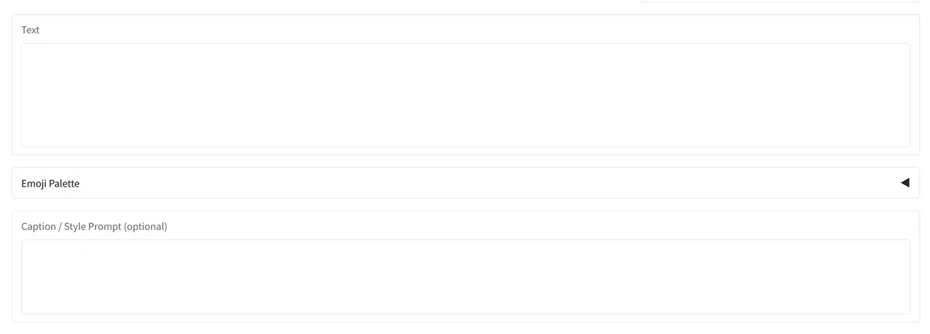
Here, enter a sentence describing what kind of voice you want it to read with.
- Please read naturally and softly with a calm female voice, with a sense of close proximity.
- Please speak brightly and clearly with a cheerful male voice.
- Please read flatly like a news anchor with a low male voice.
In this way, you can specify what kind of voice to read with.
For example, when reading with **"Please read naturally and softly with a calm female voice, with a sense of close proximity,"** the voice became like this.
Example specifying "Please read naturally and softly with a calm female voice, with a sense of close proximity."
This also successfully read back easy-to-hear audio with clear sound quality.
However, there are precautions regarding the caption function.
**The caption function takes more time for voice generation compared to other reading methods.**
**When generated on a laptop this time, it took about 5 minutes to generate this short sentence.**
We recommend a high-spec PC equipped with a GPU when using the caption function.
What happens if you read English text?
Irodori-TTS is reading software that only supports Japanese.
So, what happens when you try to read English text?
Let's try entering a simple example sentence.
Example of reading "Hello, this is a voice recording created using Irodori-TTS."
As shown, "Hello" was pronounced as "ハロー" in Katakana, and parts like "recording" became unintelligible, so it could not read correctly.
**If you want to read English text, we recommend using an AI reading service that supports foreign languages.**
Recommended speech synthesis methods when "setup seems difficult"
After reading this far, some of you might feel that setting up Irodori-TTS seems a bit difficult.
If you are not familiar with Terminal operations, the steps of preparing tools like Python and Git, installing packages, and downloading AI models alone can take time.
Also, if you don't have a PC with a GPU, each speech synthesis session takes too long, making it difficult to use for purposes like video narration.
Long texts must be divided into approximately 30-second segments and generated multiple times.
For those who want to create voice from text without installation or setup, we will now introduce **AI speech synthesis services that can be used in a browser**.
"Ondoku" - AI voice that can be used without installation

When you want to easily synthesize speech with the latest AI, we recommend the AI speech synthesis service **Ondoku**.
**Ondoku** is an AI speech synthesis service where you can **create voice simply by opening a browser and pasting text**.
You can create voices for free right now on PC, smartphone, or tablet.
Since voice generation is performed in the cloud (server-side), it is not a problem even if your PC does not have a GPU.
Since **multiple voices such as male, female, and child voices are provided from the start**, you can read aloud immediately just by selecting one, without needing to prepare reference audio or captions.
Long texts can also be read as they are.
**What's more, Ondoku also supports English!**
It supports multiple languages such as French, Spanish, Korean, and Chinese, so it can be used for reading in languages other than Japanese.
Furthermore, you can experience even more natural reading with the **next-generation AI voice (OndokuBeta)**.
When you are looking for a way to read text as speech, why not try **Ondoku**, which is free and easy to use?
Comparing the differences between Ondoku and Irodori-TTS
Finally, we compare the main differences between Ondoku and Irodori-TTS.
You can scroll horizontally
| Item | Ondoku | Irodori-TTS |
|---|---|---|
| Operation Method | Cloud (Operated in browser) | Local (Processed on your own PC) |
| Setup | Not required | Environment construction like Python/Git required |
| Supported Languages | 81 languages and regions | Japanese only |
| How to choose voice | Just choose from multiple voices | Specify by voice cloning, captions, or emojis |
| Generation limit per session | Supports long texts | Up to about 30 seconds |
| Commercial Use | Possible (Credit required for free use) | Possible (MIT License) |
| Supported Devices | PC, Smartphone, Tablet | PC (GPU recommended) |
| Fees | Free plan available (Character count increases with paid plans) | Free (Due to local operation) |
In comparison, you can use them differently: **Ondoku for ease of use and immediate availability, and Irodori-TTS if you have a high-performance PC and want to create voices in detail**.
For those who want voice right now, need multilingual reading, or want to use it on a smartphone or tablet, **Ondoku** is recommended.
It is also suitable for those who want to read long texts as they are, those who don't want to spend time on setup, and those whose PCs are not equipped with a GPU.
Since you can generate high-quality voice immediately just by opening a browser, why not try **Ondoku** for **free**?
Summary of Irodori-TTS features, setup, and usage
In this article, we explained Irodori-TTS, a local-operation AI speech synthesis software specialized for Japanese.
Irodori-TTS is an attractive tool for those who want to be particular about vocal expressions, such as voice design through voice cloning and captions, and emotional control using emojis.
However, **the setup method and usage are for advanced users**, and setup requires environment construction for Python and Git.
Also, on PCs without a GPU, voice generation takes time.
For those who "want to use speech synthesis easily right now," **Ondoku**, which can be used just in a browser, is recommended.
Why not try creating high-quality voices yourself with this easy-to-use, free AI speech synthesis?
■ AI voice synthesis software "Ondoku"
"Ondoku" is an online text-to-speech tool that can be used with no initial costs.
- Supports 81 languages and regions, including Japanese, English, Chinese, Korean, Spanish, French, and German
- Available from both PC and smartphone
- Suitable for business, education, entertainment, etc.
- No installation required, can be used immediately from your browser
- Supports reading from images
To use it, simply enter text or upload a file on the site. A natural-sounding audio file will be generated within seconds. You can use voice synthesis up to 5,000 characters for free, so please give it a try.

Text-to-speech software "Ondoku" can read out 5000 characters every month with AI voice for free.
You can easily download MP3s and commercial use is also possible.
If you sign up for free, you can convert up to 5,000 characters per month for free from text to speech.
Try Ondoku now.
HP:
ondoku3.com
Email: ondoku3.com@gmail.com
Email: ondoku3.com@gmail.com
Related posts
"Ondoku" is a Text-to-Speech service that anyone can use for free without installation. If you register for free, you can get up to 5000 characters for free each month. Register now for free
- What is Ondoku
- Start text-to-speech conversion
- Free registration
- Pricing
- Posts
- Try other free services