How to Add Audio Files to Slides and Presentations like PowerPoint: Recommended Software and Instru…
How to Embed Audio in PowerPoint: From Narration to Insertion
Sept. 4, 2026
When you're making PowerPoint slides, they can gradually become repetitive, or you might feel like they're missing a little something extra.
That's where we recommend adding audio to your slides.
Just by adding narration audio, you can make your presentations smoother and create slides that truly surprise your audience.
How to insert audio files into PowerPoint
Video description: From 1:55~
Creating audio files to put into slides like PowerPoint is actually easy.
What you will need
- The script you want read aloud,
- The slides you want to add audio to,
- The Ondoku website.
Creating narration
1. Prepare the script you want read aloud
First, prepare the script you want read aloud.
The script can be in the PowerPoint notes, or it’s fine to prepare it in another software.
2. Copy and paste the script into Ondoku

Next, open the Ondoku home page and copy and paste the script into Ondoku.
It is easier to work later if you divide the audio files to some extent, such as by slide.
3. Insert into the slide
Finally, insert the audio files into the slides.
Inserting audio files into PowerPoint
Video description: From 2:35~
Audio file formats that can be inserted into PowerPoint are wma, wav, mp3, m4a/mp4 (PowerPoint 2013 or later only), mid/midi, au, and aiff.
Precautions when inserting audio files
Ondoku supports downloads in mp3 and wav formats.
Due to compatibility issues, when inserting mp3 files downloaded from Ondoku, the last few seconds may sometimes be cut off.
In such cases, please download and insert wav files instead.

【Update】How to download Ondoku audio files in WAV format
You can now download Ondoku audio in WAV format! However, you cannot download in WAV format simply by clicking download normally. We will introduce how to download in WAV format and how to use it.
If the problem persists, please try converting it to a different format before inserting.
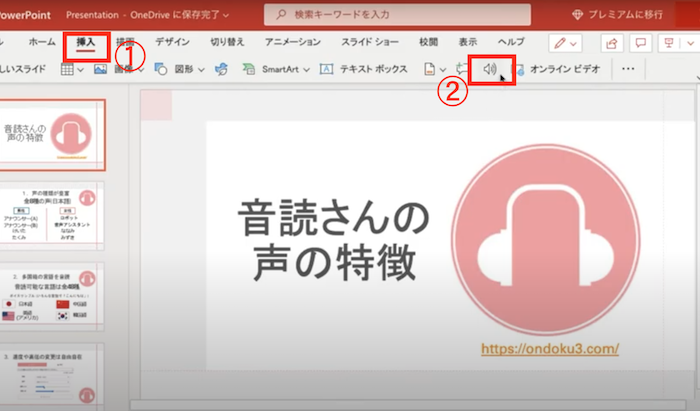
From the toolbar, please select:
- Insert
- Audio
- Audio on My PC
Then, a screen to select the audio file will appear, so please select your preferred audio file.
When the audio file is selected and inserted into the slide, a speaker icon (?) appears.
Click this icon to set when you want it to play.
Changing the start position of the audio file
To choose how the audio file starts, select the dropdown arrow and choose an option:
Automatically
Plays automatically when you advance to the slide where the audio file is placed.
When Clicked
Plays only when the icon is clicked.
*To choose how to play the audio file in the presentation, select one of the following options:
Playback options
Play Across Slides
One audio file plays across all slides.
Loop until Stopped
One audio file plays repeatedly until you stop it manually by clicking the [Play/Pause] button.
Rewind after Playing
Rewinds the audio after playback finishes.
Changing playback options
To change the options:
Select the speaker icon (?), and from the toolbar, select the [Playback] tab.
Choose your preferred options.
Option Details
Trimming
You can also trim the audio. If you want to trim, select [Trim Audio] and use the red and green sliders to trim the audio file to the appropriate length.
Fade
You can fade the audio in or out.
Change the values in each box for [Fade Duration].
Volume Control
To adjust the volume, select [Volume] and choose your desired setting.
Easily create PowerPoint audio with Ondoku
Now, you've successfully added audio to PowerPoint using Ondoku!
Why don't you also use Ondoku to create slides that are one level above the rest?
Pros and Cons of using Ondoku with PowerPoint
There are several other ways to add audio to PowerPoint.
Among them, what are the pros and cons of using Ondoku?
Pros
- Easy to use
- Easy to download
- Can be used commercially
1. Easy to use
Ondoku is very easy to use.
Enter the text you want read aloud into the text box.
Click the read aloud button.
With just that, you can create narration.
Since there are several types of voices, you can choose your favorite voice to create the narration.
2. Easy to download
Downloading is also very easy.
After clicking the read aloud button, just click the download button that appears.
That's all it takes.
No strange advertisements will appear.
3. Can be used commercially
When using it for work, commercial use is always a concern.
With speech synthesis software, the rules for commercial use can be detailed and complicated, and sometimes commercial use is not allowed at all.
In that regard, Ondoku is very simple.
It can be used in presentations like PowerPoint.
If using it for free, commercial use is possible by including credit notation.

What you can do with Ondoku. Commercial use (business use) and prohibited items.
Commercial use (business use) is possible with Ondoku. Any use for the purpose of obtaining profit, such as money, directly or indirectly, regardless of whether you are an individual or a corporation, is considered commercial use. However, please note that prohibited acts are established in Ondoku. This time, we will introduce what you can and cannot do with Ondoku...
Cons
- Slides can sometimes become heavy
- Credit notation is required for free use
1. Slides can sometimes become heavy
When you insert narration audio as mp3 or wav files, the files inevitably tend to be large and heavy.
Consequently, the file size of the slide becomes heavy as well, which can make it difficult to edit.
If you are concerned about the file size becoming large, please try the other methods introduced below. They may be slightly more difficult to use, but you can somewhat prevent the file size from increasing.
2. Credit notation is required for free use
If you use Ondoku for free in presentations, credit notation is required.
In a business setting, such credit notation can sometimes get in the way.
In that case, there is a workaround where you don't have to provide credit notation if you become a paid Ondoku member (from 980 yen/month).
Other methods of inserting audio
In addition to using text-to-speech sites like Ondoku to add narration to PowerPoint slides, there are two other methods.
- How to insert using a macro
- How to create and insert audio using PowerPoint's standard functions
How to insert using a macro
Environment
- Windows 10 Home 1909
- PowerPoint for Microsoft 365 Version 2008 (Build 13127.20409) 64bit
On the site below:
PowerPoint including note-reading function
is being distributed. You can synthesize speech and insert narration into PowerPoint by downloading it and setting up a macro.
Please check the site below for detailed instructions and downloads.
https://kunsen.net/2020/09/18/post-3309/
How to create and insert audio using PowerPoint's standard functions
1. Setting up the PowerPoint Speak command
First, add the [Speak] command to PowerPoint.
- Open PowerPoint and click [Customize Quick Access Toolbar] next to the Quick Access Toolbar.
- Select "More Commands."
2. Speaking aloud
Try reading the text aloud using the Speak icon displayed in step 1.
- Use the mouse to select the text you want to read (the text box within the slide or the notes).
- Click the [Speak icon] to start the reading.
*In PowerPoint, you cannot change the audio narrator.
As is often the case with YouTube videos, watching videos that are only text can lead to boredom or eye fatigue from reading.
If there is narration at such times, it adds variation to the slides!
Please make use of inserting audio into PowerPoint to help create great slides.
■ AI voice synthesis software "Ondoku"
"Ondoku" is an online text-to-speech tool that can be used with no initial costs.
- Supports 81 languages and regions, including Japanese, English, Chinese, Korean, Spanish, French, and German
- Available from both PC and smartphone
- Suitable for business, education, entertainment, etc.
- No installation required, can be used immediately from your browser
- Supports reading from images
To use it, simply enter text or upload a file on the site. A natural-sounding audio file will be generated within seconds. You can use voice synthesis up to 5,000 characters for free, so please give it a try.

Text-to-speech software "Ondoku" can read out 5000 characters every month with AI voice for free.
You can easily download MP3s and commercial use is also possible.
If you sign up for free, you can convert up to 5,000 characters per month for free from text to speech.
Try Ondoku now.
HP:
ondoku3.com
Email: ondoku3.com@gmail.com
Email: ondoku3.com@gmail.com
Related posts
"Ondoku" is a Text-to-Speech service that anyone can use for free without installation. If you register for free, you can get up to 5000 characters for free each month. Register now for free
- What is Ondoku
- Start text-to-speech conversion
- Free registration
- Pricing
- Posts
- Try other free services