Best Text-to-Speech Software: 7 Free & Paid Tools for Commercial Use
How to Set Up Two-Factor Authentication in Ondoku | Enable or Disable It with Images
July 22, 2026
Thank you for always using “Ondoku.”
We have introduced two-factor authentication to better protect your important data.
What is two-factor authentication?
Two-factor authentication is a security feature that prevents unauthorized access by third parties. In addition to your password, you enter a verification code sent to your smartphone or another device.
Even if your password is leaked, your account can still be protected.
How to enable two-factor authentication on “Ondoku”
Enabling two-factor authentication on “Ondoku” is very simple.
You can complete the setup in about one minute from the Settings page.
1. Open the “Ondoku” Settings page
First, open the “Ondoku” Settings page.
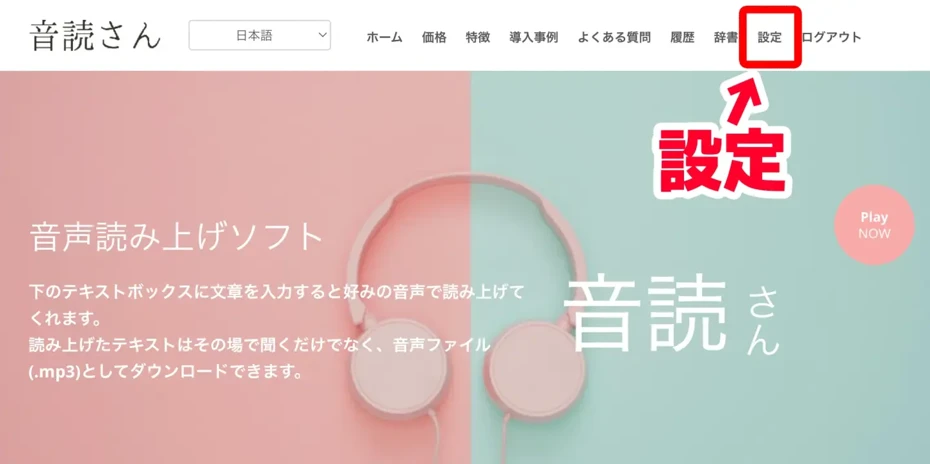
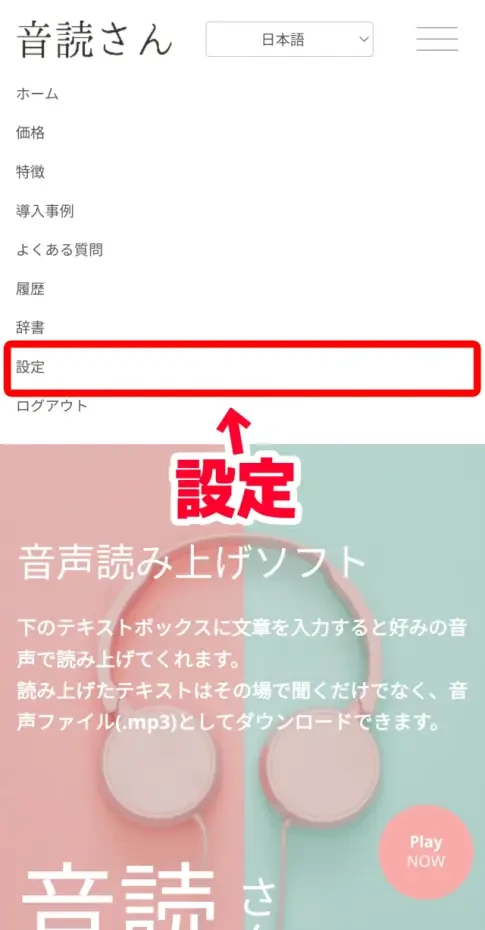
You can open the Settings page from “Settings” in the menu.
On a PC
On an iPhone (iOS) or Android smartphone
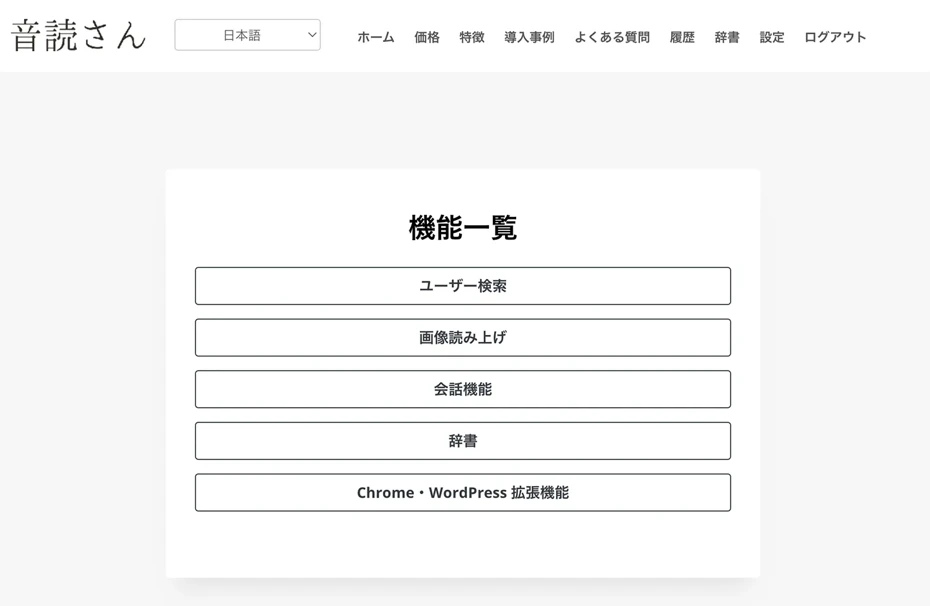
The Settings page is now open.
Scroll down the Settings page to find “Two-factor authentication” under “Security.”
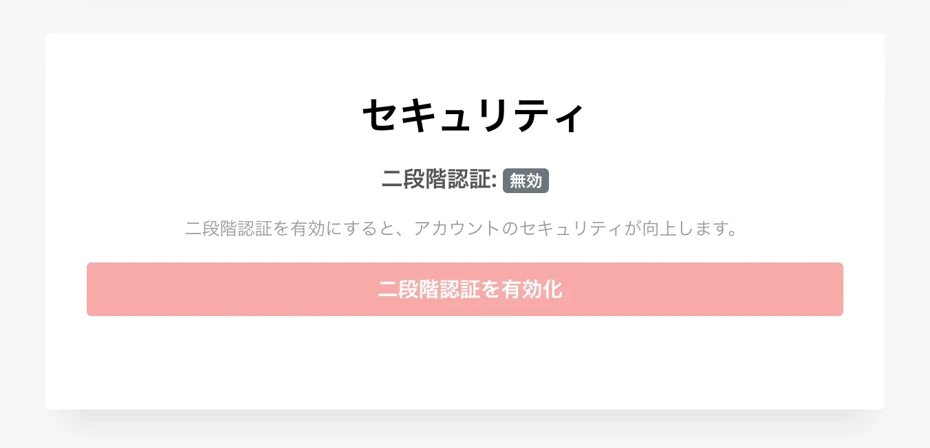
Click the “Enable two-factor authentication” button to open the “Enable two-factor authentication” screen.
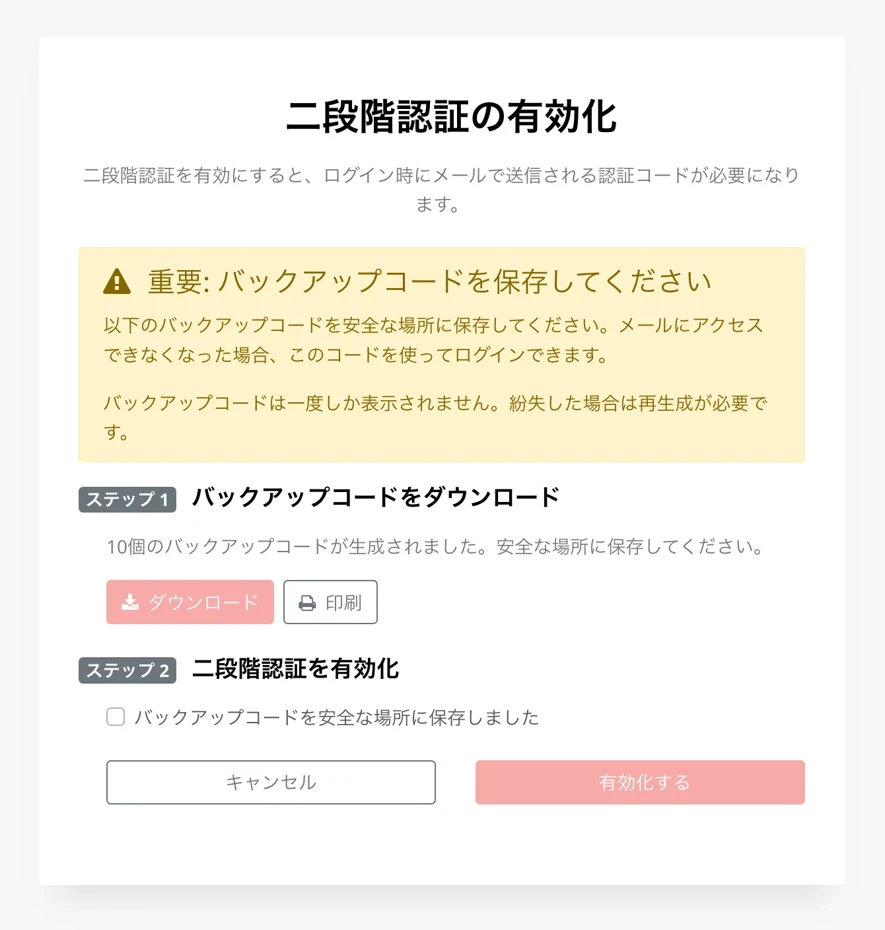
2. [Important] Download your backup codes
When the “Enable two-factor authentication” screen opens, first download your “backup codes”.
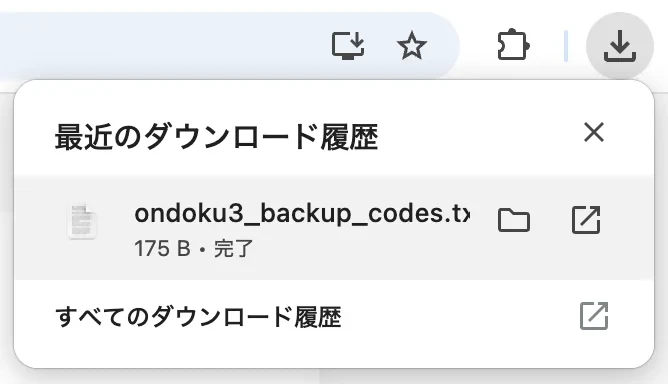
Backup codes are codes you can use to log in if you can no longer access your email address.
These backup codes are displayed only once.
If you lose them, you will need to generate new ones.
Please note that if you can no longer use either your email address or your backup codes, you will be unable to log in to “Ondoku”!

After downloading your backup codes and saving them in a safe place, check the confirmation message.
3. Enable two-factor authentication
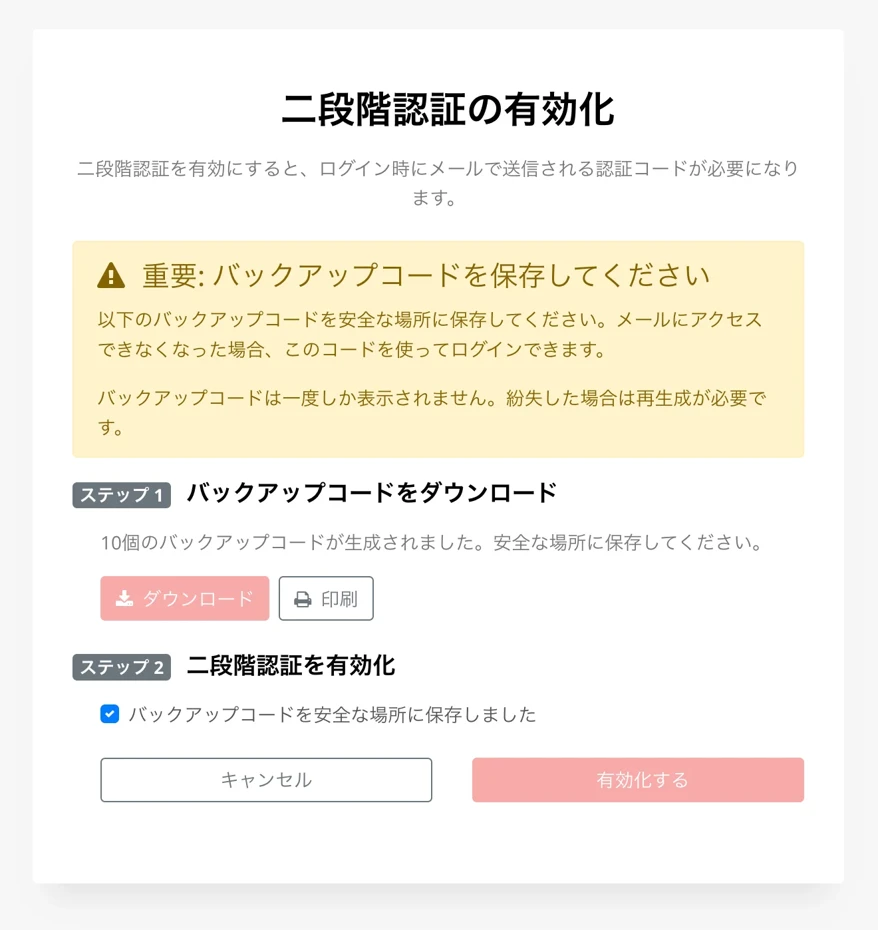
Click “Enable” to turn on two-factor authentication.
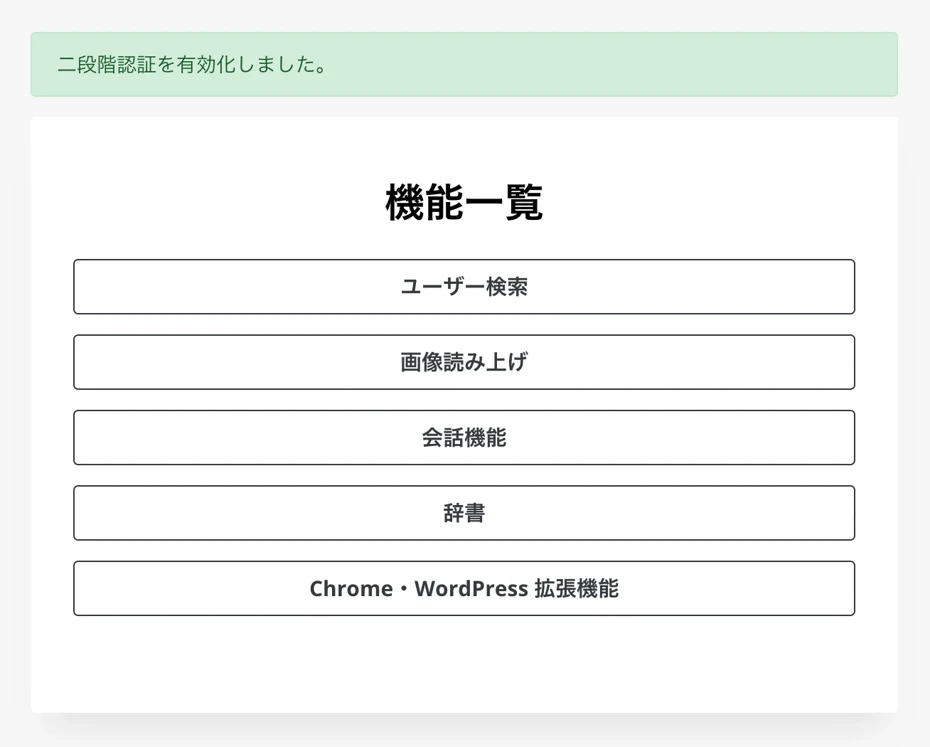
The screen will change and display “Two-factor authentication enabled.”
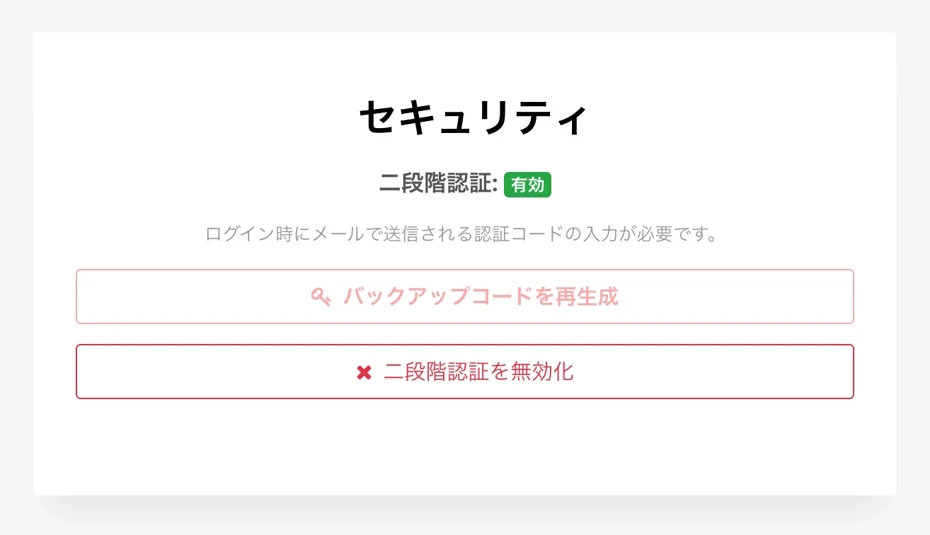
You can check the status of your two-factor authentication settings on the Settings page.
When enabled, “Two-factor authentication: Enabled” will be displayed as shown here.
How to log in using two-factor authentication
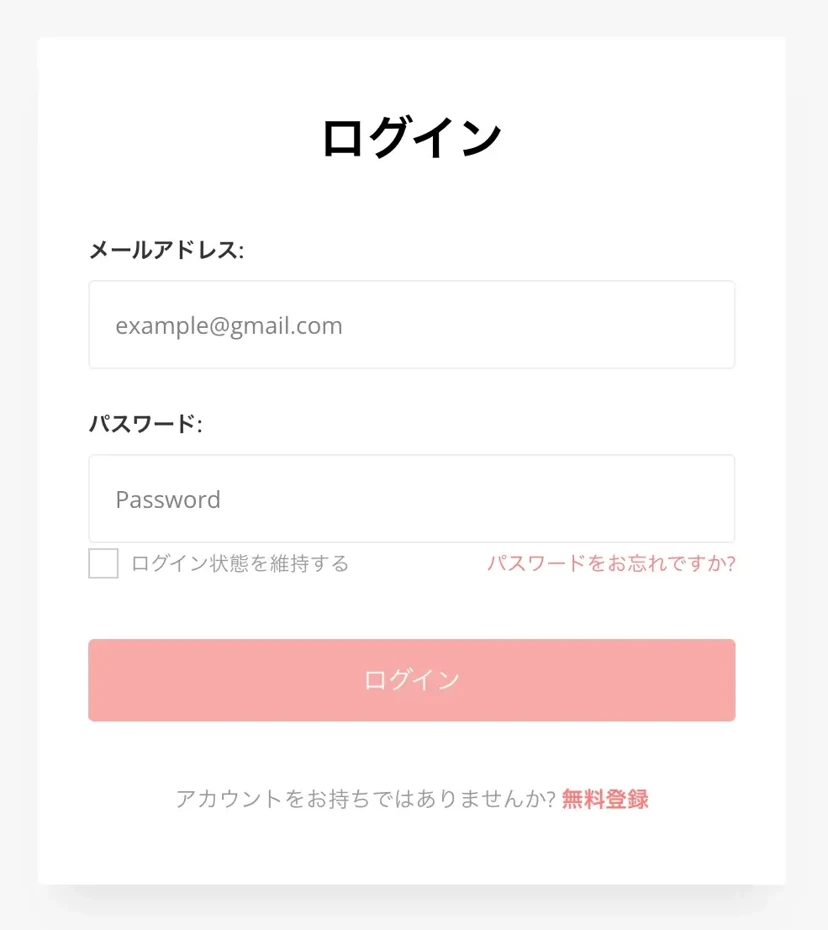
To log in to “Ondoku” using two-factor authentication, first enter your email address and password, then click “Log in.”
The two-factor authentication screen will then open.
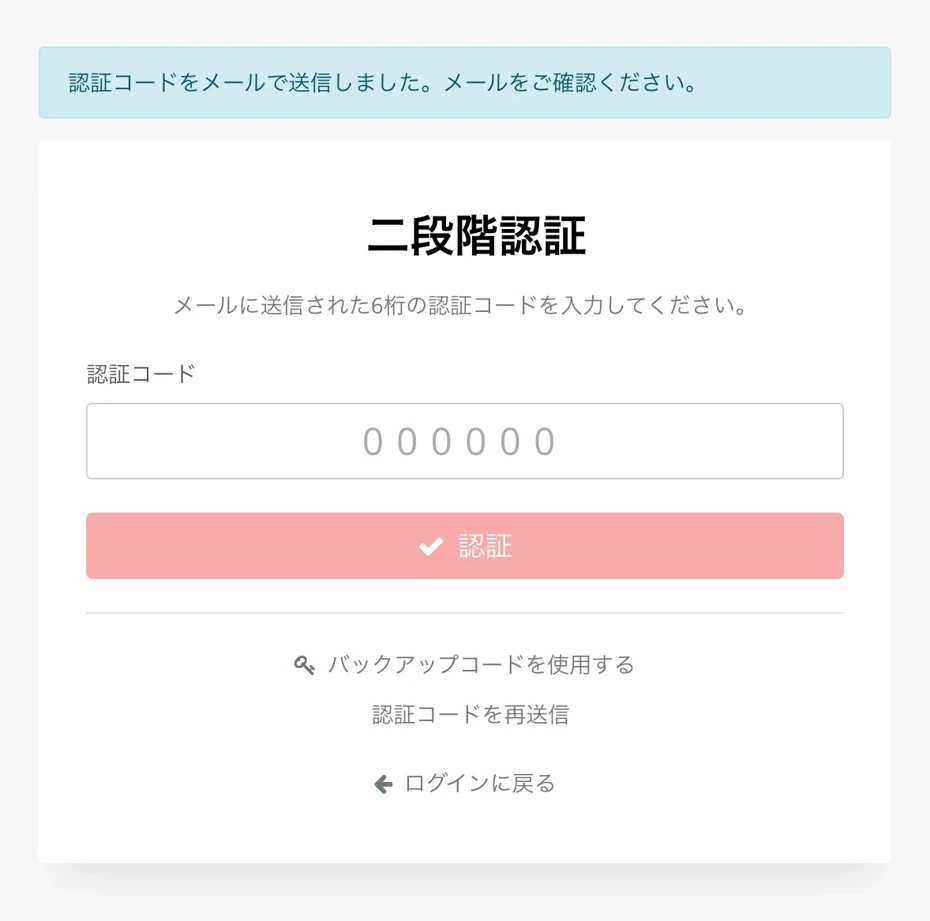
A two-factor authentication code will be sent to the email address you use to log in.
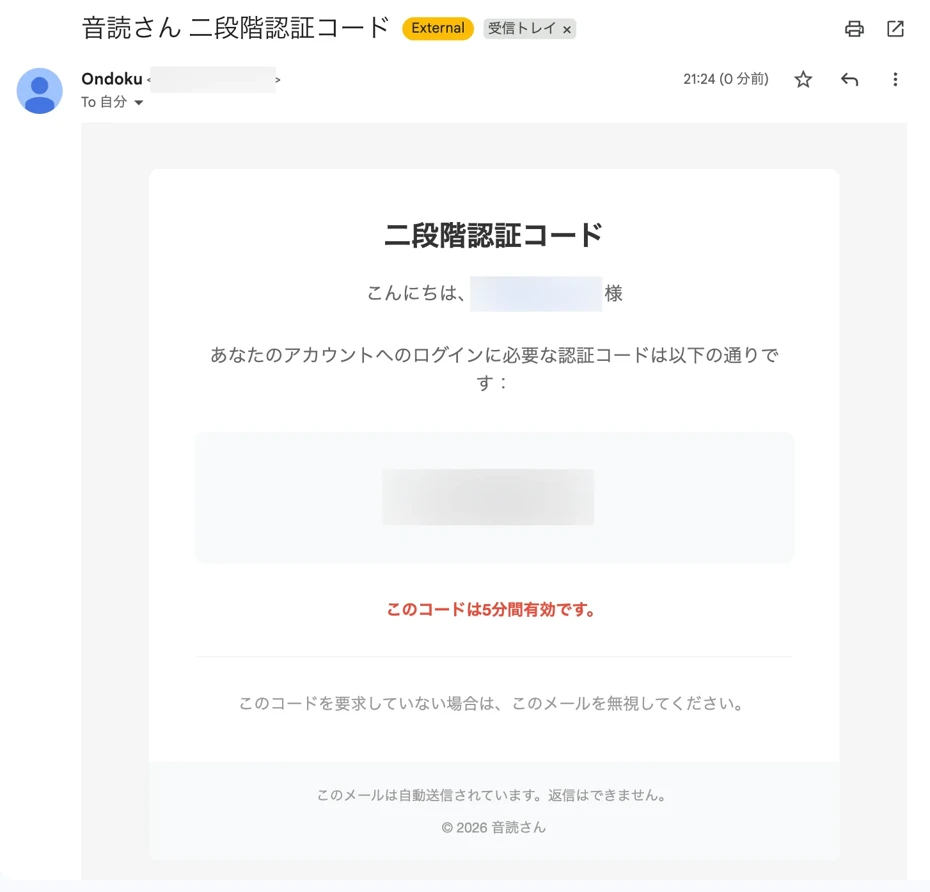
Enter the two-factor authentication code and click “Verify” to log in.
※The two-factor authentication code is valid for 5 minutes.
How to disable two-factor authentication on “Ondoku”
You can disable two-factor authentication from “Disable two-factor authentication” on the “Settings” page of “Ondoku.”
※We strongly recommend using two-factor authentication to improve your account security.
Click “Disable two-factor authentication” to open the confirmation screen.
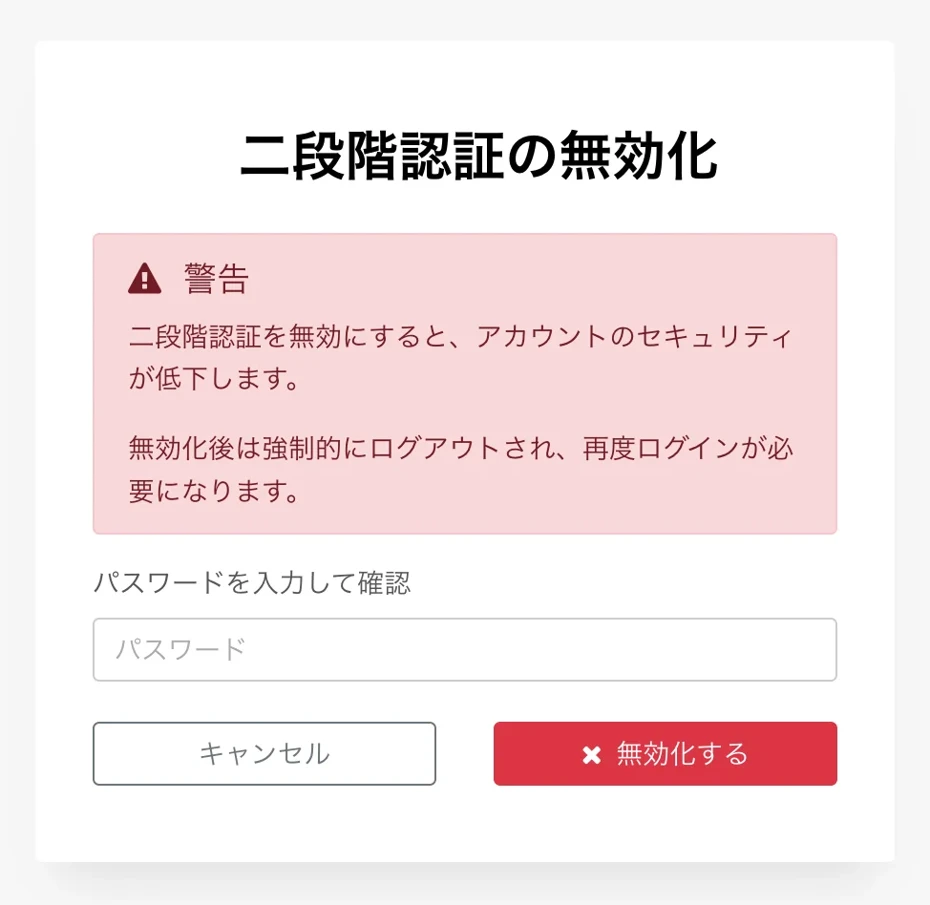
Enter your password on this screen to disable two-factor authentication.
※Disabling two-factor authentication will automatically log you out, and you will need to log in again.
We encourage you to use two-factor authentication on “Ondoku”
As you can see, setting up two-factor authentication on “Ondoku” is easy.
We strongly recommend enabling two-factor authentication to improve your account security.
For more details about “Ondoku” security measures, please see this article.

How secure is Ondoku? Detailed answers about our servers and more
How secure is Ondoku? Is the text you enter stored on servers? Which servers does Ondoku use? Is your account set up so that only you can access it? Is there any risk of third parties viewing stored data? Security...
We will continue to strengthen our security so that you can keep using “Ondoku” as the best text-to-speech software for you.
■ AI voice synthesis software "Ondoku"
"Ondoku" is an online text-to-speech tool that can be used with no initial costs.
- Supports 81 languages and regions, including Japanese, English, Chinese, Korean, Spanish, French, and German
- Available from both PC and smartphone
- Suitable for business, education, entertainment, etc.
- No installation required, can be used immediately from your browser
- Supports reading from images
To use it, simply enter text or upload a file on the site. A natural-sounding audio file will be generated within seconds. You can use voice synthesis up to 5,000 characters for free, so please give it a try.

Text-to-speech software "Ondoku" can read out 5000 characters every month with AI voice for free.
You can easily download MP3s and commercial use is also possible.
If you sign up for free, you can convert up to 5,000 characters per month for free from text to speech.
Try Ondoku now.
HP:
ondoku3.com
Email: ondoku3.com@gmail.com
Email: ondoku3.com@gmail.com
Related posts
"Ondoku" is a Text-to-Speech service that anyone can use for free without installation. If you register for free, you can get up to 5000 characters for free each month. Register now for free
- What is Ondoku
- Start text-to-speech conversion
- Free registration
- Pricing
- Posts
- Try other free services