Best Text-to-Speech Software: 7 Free & Paid Tools for Commercial Use
How to Recreate Drum's Voice with a Free Text-to-Speech Site
Nov. 18, 2026


I want to make my phone talk in a voice like Drum's! Which app should I use?
While watching the hit drama "VIVANT," you may have wanted to recreate the voice that comes from the smartphone of "Drum," played by Tomisakae Drum.
But when you actually search for "the translation app Drum uses," many people probably can't figure out how to get that voice.
The truth is, with the free text-to-speech site "Ondoku," you can easily create a voice like Drum's right from your smartphone!
No app installation is needed. Just type your text and choose a voice and pitch!
In this article, we explain how to create Drum's voice with Ondoku in detail, from choosing a voice to adjusting the pitch, using smartphone screenshots.
What you will learn in this article:
- Is there an app that can create a voice like Drum's?
- How to create Drum's voice with Ondoku
- How to write your text so it sounds even more like Drum's translation app
Is There an App That Can Recreate Drum's Voice? A Free Site You Can Use

If you want to create a voice like the one from Drum's smartphone, we recommend using a free text-to-speech site!
First, knowing what kind of voice it actually is will make it easier to create your ideal voice.
Drum's Voice in VIVANT Was Recorded by a Voice Actor
In the drama, Drum doesn't use his own voice. He talks through the voice that plays from the translation app on his smartphone.
In fact, that voice is not the automatic voice of a text-to-speech app. It was specially recorded by voice actor Megumi Hayashibara.
For that reason, no existing translation app or text-to-speech app can create exactly the same voice.
So the key is to aim not for that exact voice, but for a voice with a similar "translation app" feel.
By choosing a slightly mechanical voice from a text-to-speech site and raising its pitch, you can create a voice with a similar atmosphere.
With the Free Text-to-Speech Site "Ondoku," You Can Create a Voice Close to Drum's
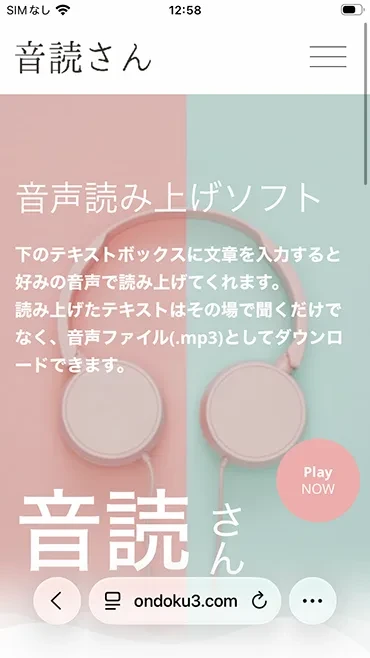
"Ondoku" is a free site that reads the text you enter aloud in a natural-sounding AI voice.
No app installation is needed at all!
You can use it directly from your smartphone's browser.
What's more, you can have text read aloud right away just by typing it, even without signing up.
All you need to do is choose a voice close to Drum's, such as "Nanami," "Robot," or "Voice Assistant," and adjust the pitch, so no difficult settings are required!
You can recreate the feel of a translation app speaking, just like Drum's voice.
Why not try creating a voice for free first?
How to Create a Voice Like Drum's with Ondoku
From here, we walk you through how to create a voice like Drum's translation app with Ondoku step by step, using smartphone screenshots!
The overall flow has the following 5 steps.
- Open the Ondoku page
- Choose a voice
- Adjust the pitch
- Enter your text
- Read it aloud, then play and download it
1. Open the Ondoku Page
First, open the "Ondoku" page in your smartphone's browser.
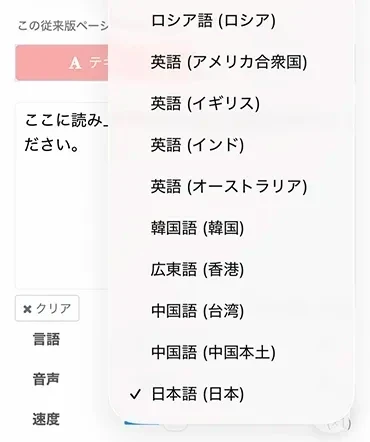
Make sure that "Language," below the input field, is set to "Japanese."
If it is set to a language other than Japanese, tap it and change it to Japanese.
2. Choose a Voice (Nanami, Robot, or Voice Assistant)
Next, tap "Voice" and choose a voice.
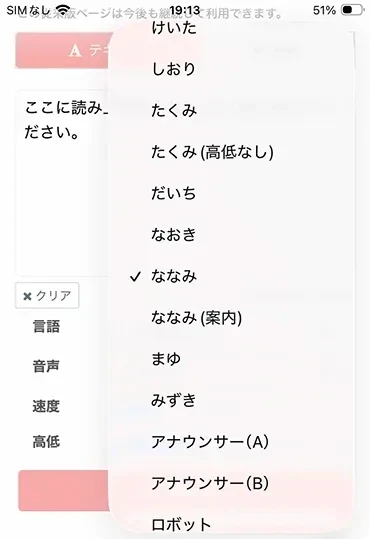
For a reading with an atmosphere close to Drum's voice, we recommend these 3 voices: "Nanami," "Robot," and "Voice Assistant."
"Nanami" is a soft, natural female voice.
It is very neutral and easy to use.
Example of Nanami (pitch 3) reading "Hello. I'm speaking from inside the smartphone."
"Robot" is a voice that keeps a slight AI or machine-like quality.
We recommend it when you want the feel of a translation app speaking.
Example of Robot (pitch 3) reading "Where did you buy that hat?"
"Voice Assistant" is a calm-toned voice like a smartphone's voice guidance.
Example of Voice Assistant (pitch 3) reading "I called a taxi. Please wait in front of the entrance."
We recommend trying all 3 voices and choosing the one you like best.
3. Adjust the Pitch
Move the "Pitch" slider for the voice to adjust how high the voice is.
Here, we set the number to "3" to make the voice a little higher.
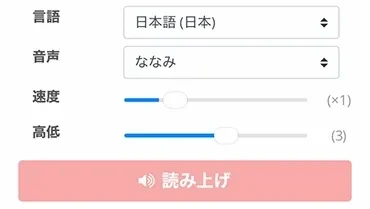
"Pitch" is the setting that changes how high the voice is, and it starts at "0."
Raising the pitch to "3" makes the voice a little higher, which brings it closer to the feel of the app Drum uses.
You can leave the "Speed" setting as it is.
4. Enter Your Text
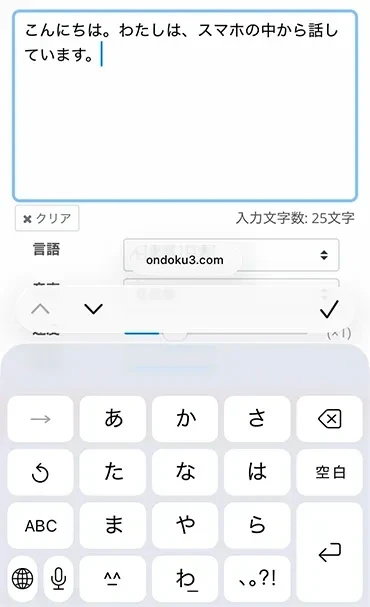
Tap the input field on the screen and enter the text you want the voice to say.
5. Read It Aloud, Then Play and Download It
Now you're all set.
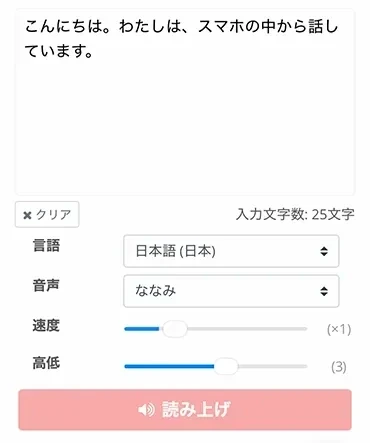
Tap the "Read Aloud" button.
The audio is generated right away and starts playing automatically.
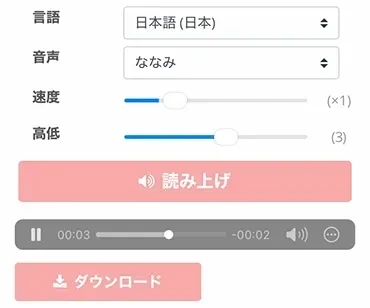
If you tap "Download," you can save the audio you created as an MP3 file.
That completes a voice in the style of Drum's translation app!
Why not enter whatever you like into Ondoku and make your smartphone talk?
Make It Sound Even More Like Drum! How to Write Text in a Translation App Style

To recreate Drum's voice, how you write your text matters too.
Even with the same voice type and pitch settings, the way you write your text can change the atmosphere dramatically.
Keep Sentences Short and Separate Them with Punctuation
Drum's translation app voice is characterized by reading short sentences out one at a time.
The key is to split long sentences into short ones and add commas and periods often.
Ondoku pauses to take a breath at punctuation marks, so you can recreate the distinctive tempo of an AI app speaking.
Before splitting: Let me know when you get to the station I'll come pick you up
After splitting: When you get to the station, let me know. I'll come, to pick you up.
End Your Sentences with "yo" and "ne"
Ending sentences with "~da yo" or "~ne" is another key point.
Compared with sentences that end in "desu" or "masu," this lets you recreate even more of the feel of the app Drum uses.
Got it. I'll be ready, in 5 minutes.
Ahead, it's under construction, so it's dangerous. Let's take a detour.
We also recommend repeating the same word twice!
Hurry, hurry. The train, comes in 3 minutes.
Even with the same voice settings, simply changing the sentence endings and tempo makes it sound much more like Drum!
Ways to Use a Text-to-Speech Voice Like Drum's

The AI voice you create with Ondoku can be used in many situations, not just played on your smartphone.
Play It on Your Smartphone for Everyday Conversation
If you play the voice you created on your smartphone, you can have a conversation without speaking, just like Drum!
Using it in a casual chat with family or friends is sure to liven things up.
If you create and download audio for phrases you use often in advance, you can play them right away whenever you need them.
We also recommend using AI text-to-speech as a substitute for your voice when it is hard to speak because of illness or other reasons.
Please also take a look at this article.
Use It as Narration for Videos on TikTok and Other Platforms
You can also import the downloaded MP3 audio into a video editing app such as CapCut and use it as narration.
Ondoku's voices can be used commercially, even on the free plan, by crediting Ondoku!
This article explains in detail the steps for adding AI narration to short videos on YouTube, TikTok, and other platforms, so please take a look.
Points to Keep in Mind When Posting Videos to Social Media
The video, audio, and images of the drama are protected by copyright.
When you post a video to social media or YouTube using audio that recreates Drum's voice, be careful not to use the drama's video, audio, or images.
To avoid it being mistaken for an official recording or the actor's own voice, it is a good idea to note "AI voice created with Ondoku" in the video description or a similar place.
Frequently Asked Questions About Recreating a Voice Like Drum's
How Many Characters Can Ondoku Read Aloud for Free?
Even without signing up, Ondoku can read up to 1,000 characters per month for free.
In addition, if you sign up and log in for free, you can have up to 5,000 characters per month read aloud.
If you only need short phrases like the ones Drum uses in conversation, you can create plenty of them within the free allowance.
Do I Need to Download a Text-to-Speech App?
When you use Ondoku, you do not need to download or install any app.
Ondoku is a website you can use directly from your browser, so on both iPhone and Android, you can start using it right away just by opening it in Safari or Chrome.
Can I Translate Text into a Foreign Language and Have It Read Aloud?
For translation, you need a translation app such as Google Translate or DeepL.
If you paste text translated with a free translation app such as Google Translate, it can be read aloud in a natural voice for that language.
Ondoku supports more than 81 languages and regions, and it can also read Mongolian text aloud.
Choose the language you want to hear in the "Language" setting, then enter your text and try reading it aloud.
Summary: Why Not Try Reading Text Aloud in a Voice Like Drum's?
As you can see, with the free AI text-to-speech site "Ondoku," you can easily create a voice like Drum's from the drama "VIVANT"!
- Open the Ondoku page
- Choose a voice
- Adjust the pitch
- Enter your text
- Read it aloud, then play and download it
That's all it takes to generate audio quickly and easily.
No troublesome app installation is needed, and you can start using it right now from your smartphone.
For Ondoku's voice types and foreign-language samples, please also see this article.

Have your favorite phrases spoken in a voice like Drum's, and enjoy everyday conversation and video making even more!
■ AI voice synthesis software "Ondoku"
"Ondoku" is an online text-to-speech tool that can be used with no initial costs.
- Supports 81 languages and regions, including Japanese, English, Chinese, Korean, Spanish, French, and German
- Available from both PC and smartphone
- Suitable for business, education, entertainment, etc.
- No installation required, can be used immediately from your browser
- Supports reading from images
To use it, simply enter text or upload a file on the site. A natural-sounding audio file will be generated within seconds. You can use voice synthesis up to 5,000 characters for free, so please give it a try.

Text-to-speech software "Ondoku" can read out 5000 characters every month with AI voice for free.
You can easily download MP3s and commercial use is also possible.
If you sign up for free, you can convert up to 5,000 characters per month for free from text to speech.
Try Ondoku now.
HP:
ondoku3.com
Email: ondoku3.com@gmail.com
Email: ondoku3.com@gmail.com
Related posts
"Ondoku" is a Text-to-Speech service that anyone can use for free without installation. If you register for free, you can get up to 5000 characters for free each month. Register now for free