Best Text-to-Speech Software: 7 Free & Paid Tools for Commercial Use
Complete VOICEVOX Guide: Features, Usage, and Commercial Rules
Sept. 9, 2026

I want to know the features and usage of VOICEVOX.

VOICEVOX is speech synthesis software that you install and use on Windows, Mac, or Linux PCs.
Since VOICEVOX does not have an official app for iPhone or Android smartphones, if you want to create read-aloud audio using only a smartphone, please check the article explaining how to use alternatives to VOICEVOX on a smartphone.
With the latest AI-based speech synthesis technology, it can generate read-aloud audio by entering text, which is why it is widely used among video creators and content creators.
A notable feature is the ability to read aloud in the voice of "Zundamon," who is popular on YouTube and Nico Nico Douga.
In this article, we will provide a detailed explanation of the information needed for those who want to start using VOICEVOX, including the features of the speech synthesis software VOICEVOX, installation methods for Windows, usage, and precautions for commercial use.
- Thinking about using VOICEVOX
- Looking for a text-to-speech method
In such cases, why not find the perfect speech synthesis software or read-aloud method by referring to this article?
[Free / Commercial Use OK] Recommended Latest AI Text-to-Speech Services

There is a recommended free text-to-speech service for you who want to create read-aloud audio!
That is the latest AI service, "Ondoku."
"Ondoku" is a text-to-speech service that can be used for free.
It can be used in any environment, including Windows, Mac, and Linux, as well as iPhone and Android smartphones.
It is also easy to use—just enter the text!
It can be used immediately without installation and allows for comfortable text-to-speech regardless of PC specs.
Moreover, "Ondoku" allows commercial use for free!
Why not try making a video for free using the clear and realistic audio of "Ondoku"?
What is the Speech Synthesis Software VOICEVOX? Explaining AI Text-to-Speech Software
First, let's briefly explain VOICEVOX.
What kind of AI text-to-speech software is VOICEVOX?

The speech synthesis software VOICEVOX is text-to-speech software that utilizes AI-based deep learning technology.
By entering Japanese text, you can use AI to read it aloud in character voices.
VOICEVOX is free software and can be used for commercial purposes.
However, appropriate credit attribution is required for commercial use.
It can be used for personal use, monetization through video posting on YouTube and Nico Nico Douga, and use in companies, but it is also necessary to follow the terms of use for characters such as "Zundamon," "Shikoku Metan," and "Kasukabe Tsumugi."
High-Quality Speech Synthesis Technology Using AI
AI speech synthesis technology has been advancing very rapidly in recent years.
VOICEVOX is one of the softwares that has adopted AI speech synthesis technology, allowing it to read aloud in a more natural voice compared to conventional mechanical text-to-speech software.
Intonation can be adjusted character by character on the operation screen, and while it takes time and effort, it is possible to create highly expressive audio.
It is also equipped with an emotional expression function, allowing for changes in tone according to joy, anger, sorrow, and pleasure.
By using character voices such as "Zundamon," it is possible to produce audio content that attracts the listener's interest.
Multi-Platform Support
VOICEVOX is compatible with three types of OS: Windows, Mac, and Linux.
In particular, speech synthesis software that supports Linux is rare, making it one of the few choices for users creating videos or audio content in a Linux environment.
What are the Features of VOICEVOX?

Ability to Read Aloud with Many Character Voices
One of the features of VOICEVOX is the availability of character voices rich in personality.
The most famous character is "Zundamon."
A character provided as part of the Tohoku Zunko Project, characterized by a cute, high-pitched voice.
In addition to Zundamon, many characters with different voice qualities and personalities, such as "Shikoku Metan," "Kasukabe Tsumugi," and "Namine Ritsu," are included.
Each character has detailed settings, including age, height, and personality, allowing you to select a character that matches the world-view of your video or content.
In VOICEVOX, characters are released several at a time, so they are categorized by release period as "1st Generation," "2nd Generation," and so on.
VOICEVOX Nemo (No Character Setting) Also Released
"VOICEVOX Nemo," released in November 2023, is a voice library without character settings.
Developed for use in business scenes and educational settings, it features a calm voice quality suitable for a wide range of situations.
Unlike the standard VOICEVOX voices with strong character traits, it is suitable for more formal uses such as corporate presentations, educational content, and official announcements.
VOICEVOX Nemo also has multiple voice qualities available, allowing you to choose from both male and female voices.
It is possible to choose the most suitable voice according to the content and target audience.
Equipped with Emotional Expression and Customization Functions
VOICEVOX has a function to reflect eight types of emotional styles in the audio.
Styles such as "Amaa-ama," "Namidame," "Bibiri," and "Sasayaki" are available, but the styles that can be used depend on the character.
In addition, audio parameters such as accent, intonation, and length can be adjusted and combined.
There is also a function to change the emotion or adjust the reading of only specific parts of a sentence, allowing for fine-tuned adjustments of expression.
By pre-registering the reading of proper nouns or technical terms in the accent dictionary function, you can also reduce read-aloud errors.
Singing Voice Synthesis Function Also Introduced
In January 2024, a singing voice synthesis function was added to VOICEVOX, making it possible to have characters sing.
29 characters support the "Humming" function (as of June 2025).
The humming function can generate audio where the character sings along to a melody.
The "Song" function is currently only supported by Namine Ritsu, but it allows for more full-fledged singing voice synthesis.
[Commercial OK!] Recommended AI Speech Synthesis Software You Can Use for Free Right Now
There is a recommended read-aloud method for those looking for speech synthesis software.
It is the AI speech synthesis web app, "Ondoku"!
"Ondoku" is an AI speech synthesis service that can be used for free.
As it is a web app used from a browser, you can easily read aloud from any environment, whether it's Windows, Mac, Linux, or a smartphone.
Create Realistic and Easy-to-Understand Read-Aloud Audio with Latest AI
"Ondoku" is a read-aloud service that synthesizes voice with the latest AI.
It can generate clear and realistic audio, as if a real narrator or voice actor were reading it.
There are 16 types of voices available for Japanese read-aloud in "Ondoku."

Listen to 16 types of Japanese voices of text-to-speech software Ondoku for free. Change impressions by adjusting pitch.
Ondoku has 16 types of Japanese voices. Of course, male and female voices are available. We have made it possible to listen to 8 types of commonly used Japanese voices and how they sound when the pitch of each voice is adjusted.
With voices for men, women, and children, there is a range of voices suitable for everything from business to hobby use.
It can be useful for various purposes, such as YouTube, Instagram, and TikTok videos, or in-store announcements.

How to quickly create narration for videos like YouTube with text-to-speech software. Tips and points.
Explaining how to quickly create YouTube video narration with Ondoku. From how to write a script to how to use Ondoku, adjust natural intonation, and tips for editing in video editing software. A must-see for those who want to streamline video production with text-to-speech software!
"Ondoku" also allows you to adjust the pitch and read aloud conversations using multiple voices!
You can generate audio exactly as you imagine and create attractive video audio.

How to use Ondoku's conversation/dialogue function. Make listening materials and long text creation more convenient with speech synthesis!
How to use Ondoku's conversation function! Explaining how to use the conversation function with images. Introducing specific examples of what purposes the conversation function can be used for.
Speech Synthesis Service Ready to Use Immediately Without Installation
To use VOICEVOX, you need to download the software from the official website and perform the installation.
To install and use the software, knowledge of PCs such as Windows and Mac is required.
Also, when installing VOICEVOX for the first time, you need to download a file of about 1.5GB.
- Using a low-performance or old PC
- Home internet connection is slow
- Can only use tethering
In cases like these, it is often difficult to install VOICEVOX.
In such cases, "Ondoku" is recommended!
The usage of "Ondoku" is very simple.
Since "Ondoku" can be used immediately as long as you have a web browser, no complicated configuration work is required at all.
You can create audio immediately just by opening the top page, so even beginners can use it with peace of mind.
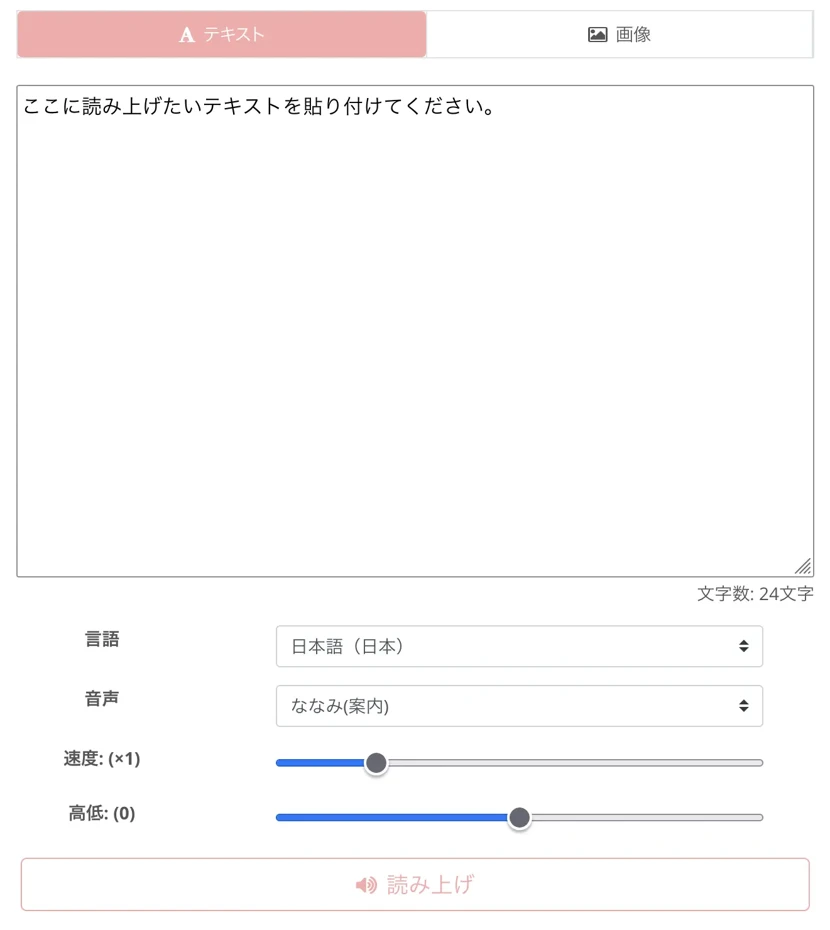
Since no download is required, you can finish generating and downloading audio while someone else is still installing VOICEVOX.
"Ondoku" is Multi-Language Compatible. Easily Create YouTube Videos for Foreign Audiences
VOICEVOX is text-to-speech software exclusively for Japanese.
Therefore, the reading of sentences containing mixed loanwords or English can sometimes be unnatural.
"Ondoku" supports 81 languages and regions, including Japanese, English, Korean, Chinese, Spanish, and Vietnamese!
![[Ondoku] Preview voice types and sample audio for supported languages](https://storage.googleapis.com/ondoku3/image/%E5%A4%9A%E6%A7%98%E6%80%A7_930.webp)
[Ondoku] Preview voice types and sample audio for supported languages
Here we will introduce Ondoku's supported languages and sample audio.
The reading of foreign languages is also natural, and it can be used for producing multi-language content on YouTube.
In addition, it can be used in various situations such as foreign language announcements in stores or facilities, multi-language educational content, and presentation materials for global companies.
Convenience for Commercial Use
When using VOICEVOX for commercial purposes, credit attribution is always required.
Therefore, in cases where credit is difficult, such as in-store broadcasts, people often respond by reading out the credit within the audio, like "Presented by Kasukabe Tsumugi of VOICEVOX."
However, there are also cases where it is not appropriate to display credits in corporate official videos or product introduction videos, or where credit attribution is difficult due to design constraints.
In such cases, "Ondoku" is recommended!
"Ondoku" allows commercial use, and if you use a paid plan, credit attribution is no longer required.
It can be freely utilized for any commercial purpose, such as corporate use, product sales, or YouTube monetization.

What you can do with Ondoku. Regarding commercial use (business use) and prohibited acts.
Commercial use (business use) is possible with Ondoku. Use for the purpose of obtaining direct or indirect monetary profit, regardless of whether it is by an individual or a corporation, is commercial use. However, please note that prohibited acts are established in Ondoku. This time, we will explain what can and cannot be done with Ondoku...
Since commercial use is possible even with the free plan by just providing credit attribution, it is possible to try it for free first and then consider a paid plan.
Why not experience "Ondoku," which can be used for free first?
With the free AI read-aloud service "Ondoku," downloading large files and troublesome installation work are unnecessary!
When you want to create audio, you can immediately create read-aloud audio with the latest AI.
Why don't you also experience "Ondoku's" AI text read-aloud?
Detailed Explanation of How to Install VOICEVOX [Windows 11]
Next, we will explain the installation method and usage of VOICEVOX.
To use VOICEVOX, you need to download and install the software from the official website.
First, taking a Windows PC as an example, we will explain the installation procedure for VOICEVOX.
*Explanation uses Windows 11 24H2.
VOICEVOX Download and Installation Procedure
First, access the VOICEVOX official website and download the installation file.
On the download screen, you can select:
- Windows: GPU version and CPU version
- Mac: Intel version and Apple Silicon version
- Linux: GPU version and CPU version
This time, we will select the Windows version.

Also, for the Windows version, you can choose between the Installer version and the ZIP version, but usually, downloading the Installer version is fine.
*Depending on the security settings of Windows or the web browser, the download may be blocked. In that case, allow the download and save it.
Once downloaded, start the installation on Windows 11.

Double-click the downloaded file to start the setup wizard.

Click "Next" to start downloading the setup files.

*Because it downloads a total of about 1.5GB of files, it may take some time depending on your connection speed.
It took about 30 minutes to download on my home connection.


It's also recommended to try "Ondoku" while downloading!
Once the download is finished, the setup wizard will resume.
Select the installation user.

Select the installation folder.
Usually, it is installed in the Windows Program Files folder.

Click "Install" to begin the installation.

Wait a while for the installation to complete.

Launching VOICEVOX
Launch VOICEVOX.
If "Run VOICEVOX" was checked at the end of the installation, it will launch automatically after completion.
It can also be launched from the Windows Start menu or a desktop shortcut.

Initial Settings for VOICEVOX
When you launch VOICEVOX for the first time, you need to agree to the terms of use.

If there are no problems, click "Agree and Start Using."
A screen introducing additional characters will open, so click "Complete."

A screen for consenting to software usage data collection will open.

Click "Allow" or "Deny."
The initial setup is now complete.
The operation screen for entering text and reading it aloud will open.

Basic Usage of VOICEVOX
You have now successfully installed VOICEVOX on your Windows PC.
Next, we will explain the basic usage for actually converting text into voice.
How to Use Basic Voice Generation Functions
When you open the VOICEVOX screen, character icons and a text input field are displayed.
Click the text input field (the part with the green underline).
It switches to the editing screen.

Enter the text.

Press the play button at the bottom left of the screen to play the audio and check the generation result.
Clicking the "+" on the text input screen allows you to add a new text input field.

Clicking a character icon opens the character selection menu.

By default, "Shikoku Metan" is displayed, but you can change it to your preferred character, such as "Zundamon" or "Kasukabe Tsumugi," by clicking on it.

By assigning different characters to multiple text lines, you can also create conversation-style audio.

However, to use this function effectively, you need to understand the differences in voice quality for each character and select appropriate combinations.
Also, because fine-tuning work such as the tempo of conversation and timing of pauses is required, it takes a certain amount of time and experience until you get used to it.
How to Use VOICEVOX's Audio Export Function
Next, we will explain how to use the audio export function.
How to Use "Export Audio Separately"
To export audio:
Select "File" → "Export Audio."
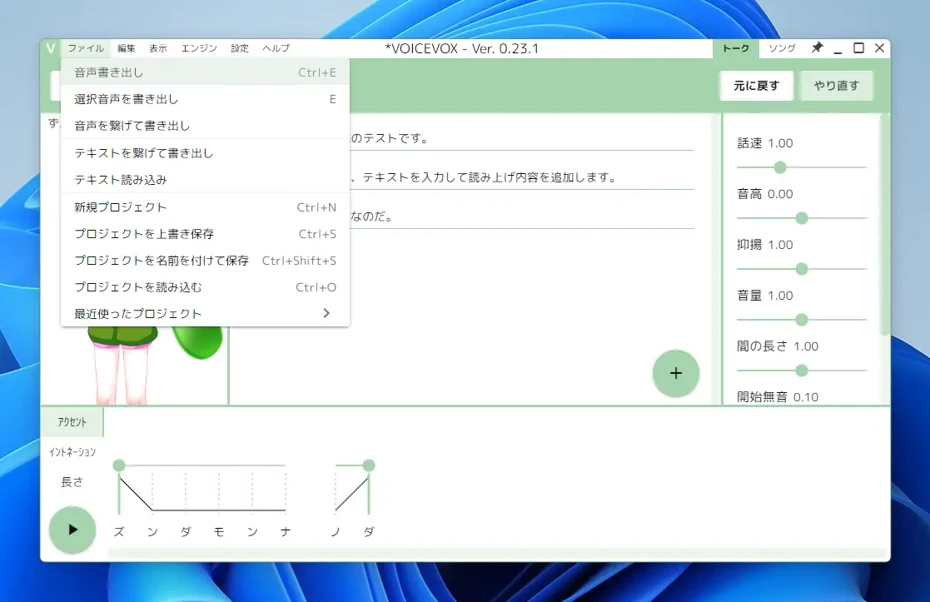
Select the export destination folder.

The audio will then be exported separately for each line.
How to Use "Export Audio Connected"
VOICEVOX also allows you to export audio connected together.
Selecting "File" → "Export Audio Connected" opens the file saving screen.

Enter the file name and save.

How to Use Emotional Styles and Parameter Adjustments
As an advanced usage, VOICEVOX also has a function to change expression using emotional styles.
Depending on the character, emotional styles such as "Normal," "Amaa-ama," "Tsun-tsun," "Sexy," "Sasayaki," "Hiso-hiso," "Excited," and "Namidame" are available.

By changing the emotional style, you can generate audio with a completely different impression even for the same text, making it possible to use them differently according to the content or production.
To change the emotional style, move the mouse cursor over the ">" on the right side of the character selection menu.
Choices will be displayed, so click to select.
In addition, three parameters—accent, intonation, and length—can be adjusted individually.
Accent Editing:

Intonation Editing:

Length Editing:

Each item can be switched at the bottom left of the screen.
Each can be adjusted for each sound, allowing for reading aloud with more realistic pronunciation.
[Important] Regarding Commercial Use of VOICEVOX: Confirmation of Terms is Crucial
![[Important] Regarding Commercial Use of VOICEVOX: Confirmation of Terms is Crucial](https://storage.googleapis.com/ondoku3/image/20250617_voicevox_002_930.webp)
When using VOICEVOX for commercial purposes, attention to the terms is required.
It is necessary to correctly understand the terms of use and provide appropriate credit attribution.
From here, we will explain important points for the correct usage of VOICEVOX for commercial purposes in detail.
Basic Commercial Use Rules
When using audio generated by VOICEVOX, appropriate credit attribution is required for both commercial and non-commercial use.
When providing credit, it must be clear that VOICEVOX was used and which character was used.
For example, if Zundamon's voice was used, it is noted as "VOICEVOX:Zundamon," and if Shikoku Metan's voice was used, it is noted as "VOICEVOX:Shikoku Metan."
When used in a video such as on YouTube, it is listed in the video description or within the video.
When there are only audio means for credit, such as in telephone audio, insert an audio credit such as "Kasukabe Tsumugi from VOICEVOX is being used" within the audio.
Usage Restrictions for VOICEVOX by Character
Different terms of use are set for each VOICEVOX character.
Some characters have special restrictions.
While many characters can be used commercially with proper credit attribution, some characters have restrictions on commercial use.
Characters related to the Tohoku Project (Zundamon, Tohoku Kiritan, Tohoku Itako, etc.) are basically allowed for commercial use, but use in political content or adult content is prohibited.
For some characters, use on affiliate sites or as the voice of an original character may be prohibited.
If you plan for commercial use, it is important to check the individual terms of use for the character you plan to use in advance.
Pay Attention to Illustration Licenses if Using Standing Pictures in Videos
Furthermore, when using standing pictures for characters such as "Zundamon" in videos, also pay attention to the illustration terms of use.
Terms of use separate from VOICEVOX and the character itself are set for the illustrations.
It is also necessary to check the terms of use for the illustrations beforehand.
Confirmation in Advance is Extremely Important as Licenses are Complex
A point that requires particular caution regarding the commercial use of VOICEVOX is that different license systems exist for each character.
Because usage conditions vary greatly by character, it is necessary to individually check the terms of use for each character when using multiple characters.
In particular, note that the terms of use differ between Tohoku Project-related characters and other original characters.
Also, when new characters are added in the future, it is possible that different terms of use will be set for them.
When considering use in a corporation, confirmation by the legal department may be necessary, and it may take time before usage can begin.
Because of such a complex license system, confirming terms of use becomes a major burden when wanting to use it for business purposes or commercial use such as YouTube monetization.
Why Not Try Free Read-Aloud with "Ondoku"?
So far, we have explained the features of VOICEVOX, the installation method for Windows, and its usage in detail.
However, it often takes time for downloading and installation, and the terms of use are complex and can be difficult to use.
In such cases, the easy-to-use, multi-functional speech synthesis service "Ondoku" is recommended!
"Ondoku" is an online AI read-aloud service that can be used for free.
Amazingly, you can synthesize speech for up to 5,000 characters for free just by registering your email address!
It can be used from Windows, Mac, Linux, and even smartphones, and it can be used for any purpose, including business, education, and entertainment.
Since commercial use is OK, it also supports YouTube monetization!
Usage is also very simple!
Since it can be used immediately from a browser without installation, you can create high-quality audio immediately when the thought occurs!
Even if you are currently downloading the VOICEVOX installation file, why not experience "Ondoku" in the meantime?
Multi-Language Read-Aloud Possible with High-Quality AI Voice
The 16 types of Japanese voices in "Ondoku" are varied, with male, female, and child voices!
Listen to 16 types of Japanese voices of text-to-speech software Ondoku for free. Change impressions by adjusting pitch.
Ondoku has 16 types of Japanese voices. Of course, male and female voices are available. We have made it possible to listen to 8 types of commonly used Japanese voices and how they sound when the pitch of each voice is adjusted.
Of course, it also supports conversation read-aloud using multiple voices.
"Ondoku" supports 81 languages and regions, including Japanese, English, Chinese, Korean, Spanish, French, and German.
[Ondoku] Preview voice types and sample audio for supported languages
Here we will introduce Ondoku's supported languages and sample audio.
Since you can produce global content, you can increase YouTube views by targeting the world.
Available Immediately Without Installation or Download!
The usage of "Ondoku" is very simple.
Once you open the top page, all you have to do is enter text and press the read-aloud button!
A natural audio file will be generated in seconds.
Speech synthesis for up to 5,000 characters can be used for free, so why not experience "Ondoku" first?
Why Not Create Realistic Read-Aloud Audio Yourself with Latest AI that is Commercial-OK?
In this article, we explained the features of VOICEVOX, the installation method for Windows, and its usage in detail.
The greatest appeal of VOICEVOX is the ability to create videos using famous characters, starting with "Zundamon."
However, there are also points where usage is difficult, such as downloads, installation, and terms of use.
If you want to read aloud text using the latest AI, the web service "Ondoku" is also recommended.
Why don't you also create video audio with "Ondoku," which can be used immediately without download?
■ AI voice synthesis software "Ondoku"
"Ondoku" is an online text-to-speech tool that can be used with no initial costs.
- Supports 81 languages and regions, including Japanese, English, Chinese, Korean, Spanish, French, and German
- Available from both PC and smartphone
- Suitable for business, education, entertainment, etc.
- No installation required, can be used immediately from your browser
- Supports reading from images
To use it, simply enter text or upload a file on the site. A natural-sounding audio file will be generated within seconds. You can use voice synthesis up to 5,000 characters for free, so please give it a try.

Text-to-speech software "Ondoku" can read out 5000 characters every month with AI voice for free.
You can easily download MP3s and commercial use is also possible.
If you sign up for free, you can convert up to 5,000 characters per month for free from text to speech.
Try Ondoku now.
HP:
ondoku3.com
Email: ondoku3.com@gmail.com
Email: ondoku3.com@gmail.com
Related posts
"Ondoku" is a Text-to-Speech service that anyone can use for free without installation. If you register for free, you can get up to 5000 characters for free each month. Register now for free
- What is Ondoku
- Start text-to-speech conversion
- Free registration
- Pricing
- Posts
- Try other free services