Best Text-to-Speech Software: 7 Free & Paid Tools for Commercial Use
A.I.VOICE2 Complete Guide: Features, Installation & Usage of the VOICEROID Successor
Sept. 9, 2026
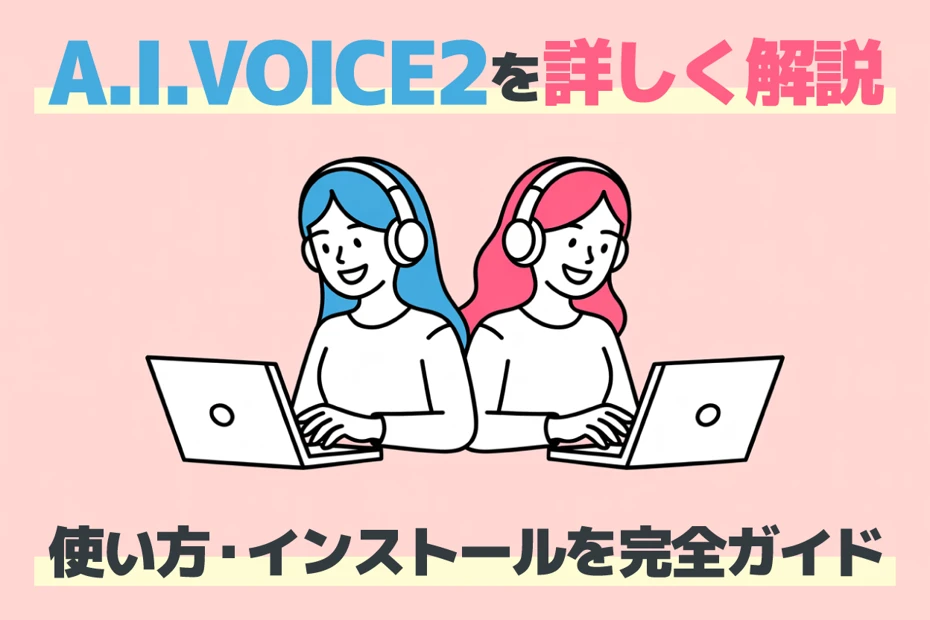
What is the difference between A.I.VOICE2 and VOICEROID?

A.I.VOICE2 is the latest AI speech synthesis software and the successor to the VOICEROID series.
You can read text aloud with natural voices using characters familiar from VOICEROID videos, such as "Yuzuki Yukari" and "Kotonoha Akane/Aoi."
A key feature is that it is compatible with both Windows and macOS.
Many people are likely curious about what has changed from VOICEROID and which characters they should choose.
In this article, we will
- Features of the speech synthesis software A.I.VOICE2
- Differences from VOICEROID
- Installation method and usage
- Recommended AI text-to-speech services
provide detailed explanations of the information needed for those who want to start using A.I.VOICE2!
If you are thinking about using A.I.VOICE2, considering switching from VOICEROID, or looking for a way to read text aloud, please use this article as a reference to find the perfect speech synthesis software for you.
[Free/Commercial Use OK] Recommended Latest AI Text-to-Speech Services

There is a free text-to-speech service recommended for those who want to create voiceovers.
It is the latest AI service, "Ondoku"!
"Ondoku" is a text-to-speech service that can be used for free.
It can be used in any environment, including Windows, Mac, and Linux, as well as iPhone and Android smartphones.
It is easy to use—just enter your text!
It can be used immediately without installation and allows for comfortable reading regardless of PC specs.
What's more, "Ondoku" is free and OK for commercial use!
Why not try making a video for free using the easy-to-listen and realistic voices of "Ondoku"?
What is the Speech Synthesis Software A.I.VOICE2? Explaining the Differences from VOICEROID
First, let's briefly explain A.I.VOICE2.
A.I.VOICE2 is the Successor Software to the VOICEROID Series

A.I.VOICE2 is a speech synthesis software for individuals developed and sold by AI Inc.
It is the latest version of the product series where the company is expanding its "AITalk" speech synthesis engine—previously provided for other brands—under its own brand for individual users.
"A.I.VOICE" appeared in 2021, and the currently available "A.I.VOICE2" began sales in 2023.
A.I.VOICE2 uses AITalk6, which has improved performance over the speech synthesis engines used in the previous VOICEROID series (VOICEROID, VOICEROID2) and A.I.VOICE.
This has made it possible to generate speech that is even more human-like and natural than before.
Latest Software Where You Can Use VOICEROID Series Characters
A.I.VOICE2 features a lineup of characters that were previously sold as "VOICEROID" and "VOICEROID2."
Even now, popular characters like "Yuzuki Yukari," "Kotonoha Akane/Aoi," and "Kizuna Akari" are often referred to as "VOICEROID" or "Boiro."
Because of this,

I want to read text using VOICEROID characters, but which one should I buy?
many people may feel confused.
In conclusion, as of 2025, if you want to read text using VOICEROID characters, you just need to buy A.I.VOICE2.
By purchasing A.I.VOICE2, you can use popular characters from VOICEROID gameplay videos to read your text.
By the way, videos using A.I.VOICE and A.I.VOICE2 are still often referred to as "VOICEROID videos" or "VOICEROID commentary."
![[2026 Edition] VOICEROID Complete Guide! Detailed Explanation of History, Characters, Usage, and Boiro Culture](https://storage.googleapis.com/ondoku3/image/voiceroid_tmb_930.webp)
[2026 Edition] VOICEROID Complete Guide! Detailed Explanation of History, Characters, Usage, and Boiro Culture
Introducing the history, characters, and latest usage for 2026 of VOICEROID. We also explain popular characters like Yuzuki Yukari and Kotonoha Akane/Aoi, Boiro culture, Boichebi, and software talk.
Evolution Points from the VOICEROID Series to A.I.VOICE2
The major difference from previous VOICEROID and VOICEROID2 is the advancement of the generation of the built-in speech synthesis engine.
A.I.VOICE2 uses the latest high-performance engine called AITalk6, compared to the previous VOICEROID and VOICEROID2.
As a result, it has become capable of more natural reading compared to VOICEROID.
It utilizes deep learning technology to achieve more human-like vocalization.
Since it now supports macOS in addition to Windows, it has become available to a wider range of users.
A.I.VOICE2 is Paid Software
A.I.VOICE2 is paid software, just like the previous VOICEROID, VOICEROID2, and A.I.VOICE.
You need to purchase the software to use it for reading text.
A.I.VOICE2 is available in package versions and download versions.
The package version is sold starting from 16,280 yen, and the download version starts from 12,980 yen.
*Prices are as of 2025.
Points to Note Regarding Licenses and Commercial Use
When you purchase A.I.VOICE2 for text-to-speech use, you must use it according to the license.
What you particularly want to be careful about is the number of installations.
The paid package of A.I.VOICE2 is only permitted for installation on up to 2 PCs.
If you want to install it on another PC, you must uninstall it from a PC where it is already installed.
Furthermore, when using A.I.VOICE2 for commercial purposes, you must also follow the license.
If an individual produces a video and publishes it on a video site or monetizes it, purchasing the paid package is sufficient.
However, even for individual use, an individual commercial license is required for paid distribution of video or audio, or for use in automated voice guidance such as telephones.
Additionally, corporations must contract a corporate license for use.
Note that for both individuals and corporations, a commercial license is mandatory for work-related use.
Also Pay Attention to the Terms of Use for Each Character
In addition to the A.I.VOICE2 main unit license, you must also be careful with the terms of use for each character.
Since different terms of use are set for each character, if you use multiple characters, you need to check each individual terms of use separately.
When using character illustrations (standing pictures) in videos, you must also follow the terms of use for those illustrations separately.
[Free] Recommended AI Reading Method for Easy Commercial Use by Individuals and Corporations
There are cases where it is not appropriate to display credits in official corporate videos or product introduction videos, or where credit notation is difficult due to design constraints.
In such cases, "Ondoku" is recommended!
"Ondoku" is an AI text-to-speech service that can be used commercially for free.
By using a paid plan, credit notation becomes unnecessary.
It can be utilized for any commercial purpose, including corporate use, product sales, and YouTube monetization.
Even with the free plan, commercial use is possible with only credit notation, so it is possible to try it for free before considering a paid plan.
Why not first experience "Ondoku" which can be used for free?
Popular Characters Available in A.I.VOICE2
A.I.VOICE2 includes original characters from AI Inc. and third-party characters owned by other companies.
Here is a brief explanation of the particularly popular characters.
Kotonoha Akane & Kotonoha Aoi | Popular Sister Characters in VOICEROID Videos

Kotonoha Akane and Kotonoha Aoi are original characters from AI Inc.
They are representative characters released as the first installment of A.I.VOICE2 and are loved by many creators.
The pink-haired Kotonoha Akane is an energetic character who speaks in the Kansai dialect, and her bright, active personality is charming.
The blue-haired Kotonoha Aoi is set as a calm character who speaks in standard Japanese, giving a cool and intellectual impression.
Since it is easy to divide roles within a video, they are ideal for those who want to start making VOICEROID videos.
Iori Yuzuru | A Male Character with an Easy-to-Use Voice

Iori Yuzuru is also an original character from AI Inc.
He can read text in a gentle and calm yet emotionally rich male voice.
This is also one of the characters released as the first installment of A.I.VOICE2, and his elegant and clear voice is appealing.
He is an easy-to-use character for formal situations such as business use and educational content.
Yuzuki Yukari | A Character with a Calm Voice Popular in VOICEROID Videos

Yuzuki Yukari is a popular third-party character in VOICEROID commentary.
She is characterized by an emotional voice and is a favorite of many video posters.
She is widely loved as "Yukari commentary" on YouTube and Nico Nico Douga.
She is applicable to a wide range of content.
The A.I.VOICE2 version includes special voice styles in addition to the standard Yuzuki Yukari.
"Shizuku" was recorded with the image of her voice at age 13, resulting in a more youthful and cute sounding voice.
"Nagi" is a voice style recorded with a calmer tone.
Kizuna Akari | A Third-Party Character Popular on Video Sites

Kizuna Akari is also one of the third-party characters.
Her bright and cute yet gentle voice is very appealing.
With a voice suitable for bright videos and fun content creation, she has a characteristic of easily giving a sense of familiarity to viewers.
In the A.I.VOICE2 version, voice styles imagined for different ages are included in addition to the standard Kizuna Akari.
"Tsubomi" was recorded with the image of her voice at age 10, giving a younger and cuter impression.
"Moe" was recorded with the image of her voice at age 5, resulting in a very youthful sounding voice.
How to Download & Install A.I.VOICE2 [Windows 11]
Next, we will briefly explain how to purchase and install A.I.VOICE2!
*Explained using Windows 11 24H2.
How to Purchase and Download A.I.VOICE2
A.I.VOICE2 can be purchased on the A.I.VOICE official website or various online shopping sites.
You can choose between a package version and a download version, though some characters may only be available as a download.
Also, A.I.VOICE2 has a trial version that can be used for free.
This time, we will explain the download and installation method using the trial version as an example.
When you open the A.I.VOICE2 website, there is a button that says "Click here to download the trial version."
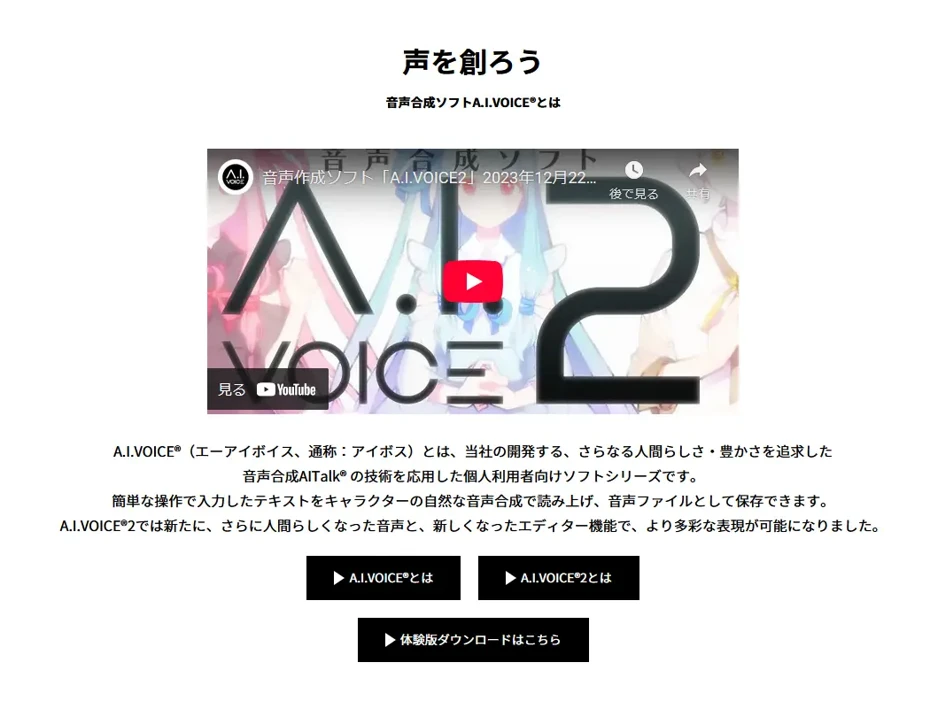
Clicking it opens the download page of the A.I.VOICE user support site.
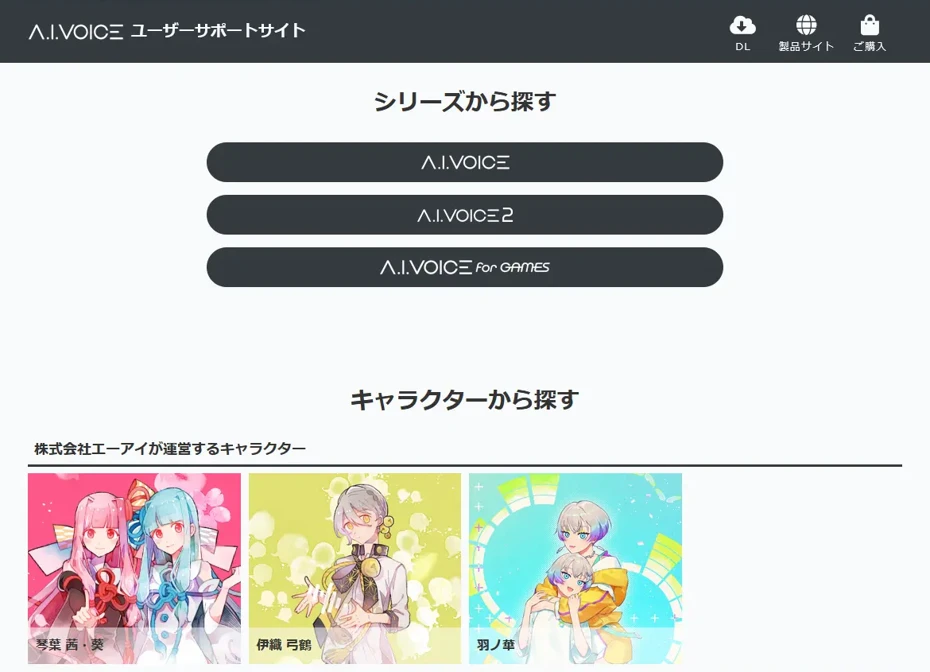
Click on the character you want to use to open the individual download page for that character.
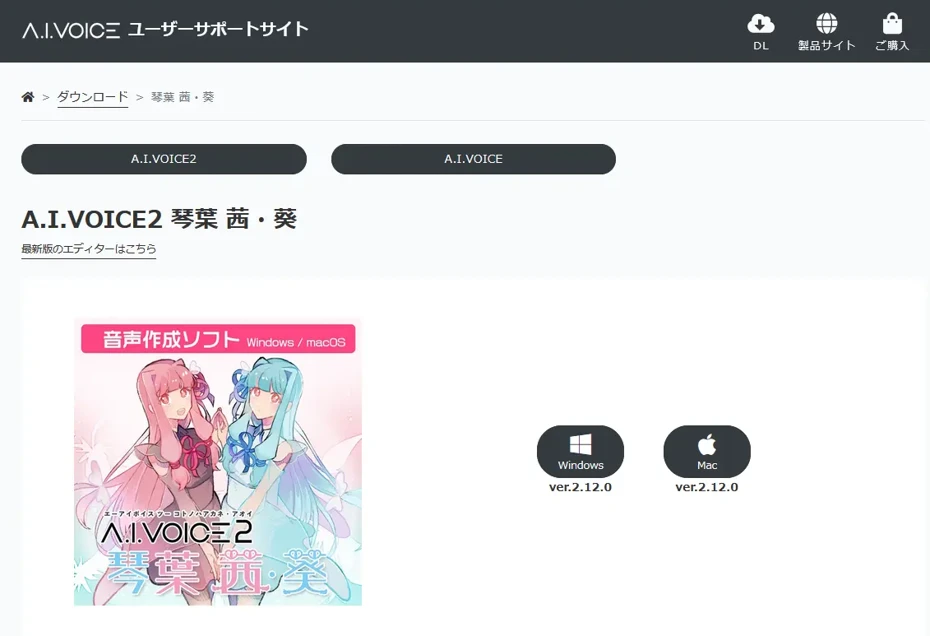
This time, we will download the trial version of Kotonoha Akane and Kotonoha Aoi.
Click on Windows or Mac, depending on the computer you are using, to download the file.
Since we are using Windows 11 this time, we click the Windows icon.
The file you download at this time has a small download size, so the download will finish quickly.
Data such as the speech synthesis engine will be downloaded after the installer is launched.
A.I.VOICE2 Installation Steps
Once the download is complete, unzip the ZIP file.
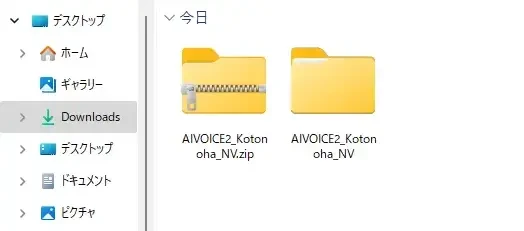
Double-click setup.exe in the folder to launch the installer.
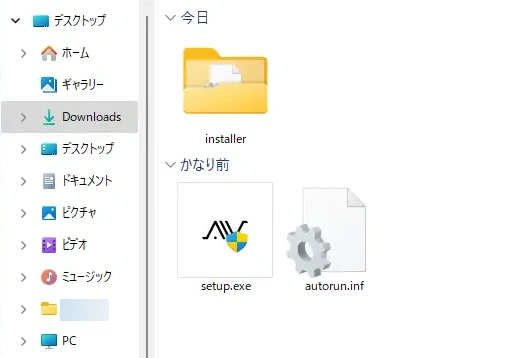
A Windows security warning may appear, but since it is a file downloaded from the official site, select "Run" to proceed.
From the options in the installer, click the software you want to install.
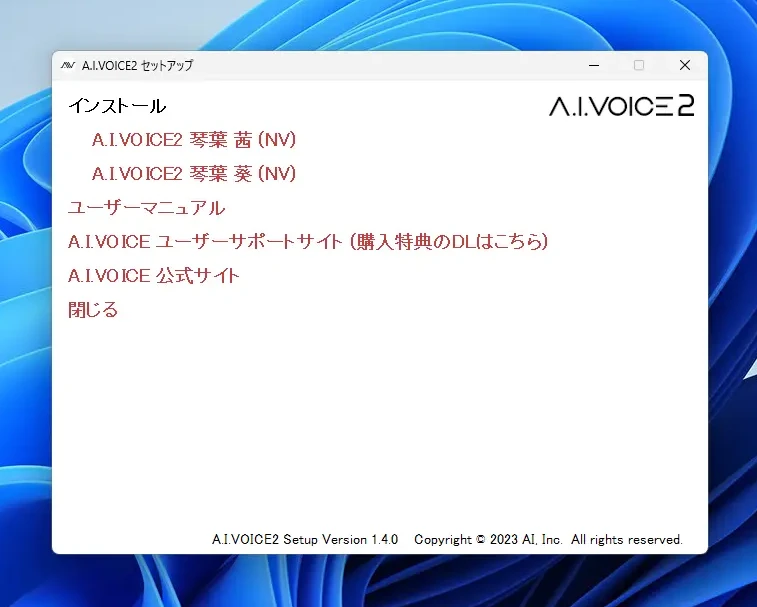
As an example, we will install "A.I.VOICE2 Kotonoha Akane (NV)."
Clicking it will launch the setup wizard.
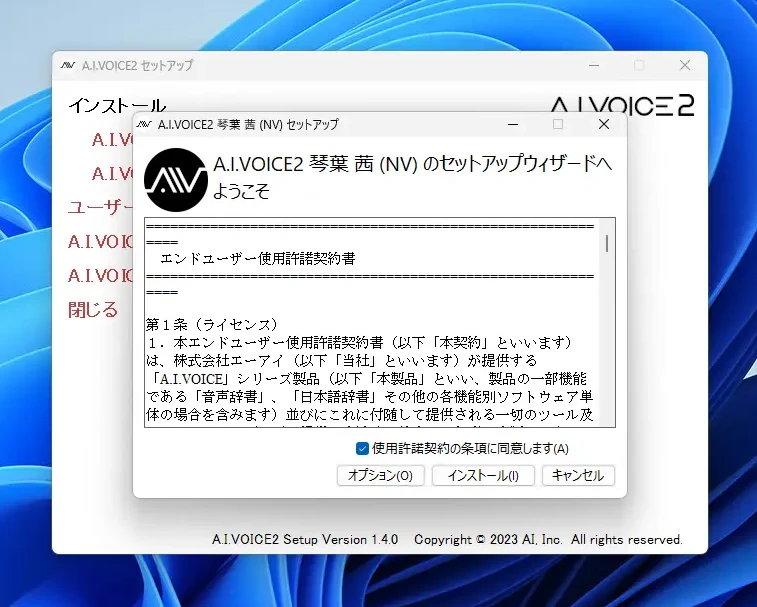
After reading the license agreement, check "I agree to the terms in the license agreement" and click "Install."
The installation will begin.
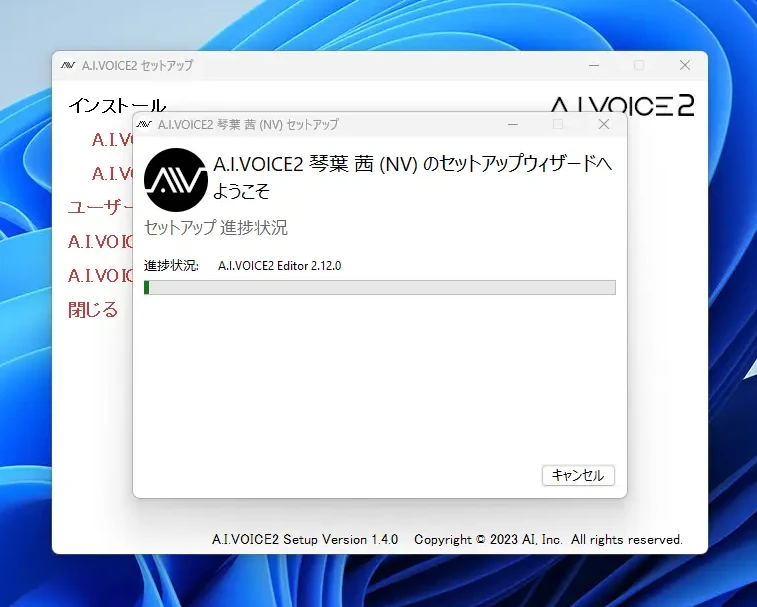
At this time, because it downloads several hundred MB of files such as the editor and speech synthesis engine, it is recommended to work in a location with a good internet connection.
A progress bar will be displayed during installation, which takes about a few minutes to complete.
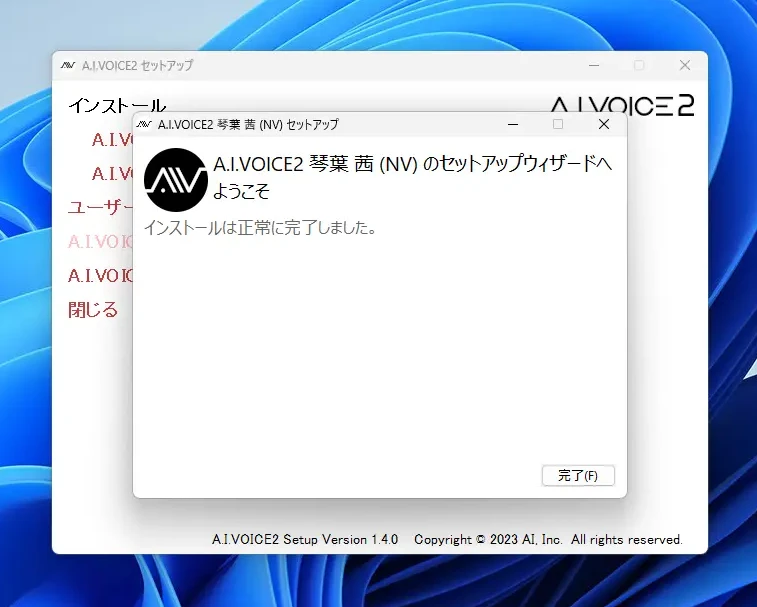
When the installation completion screen appears, click "Finish" to close the installer.
First Launch and Activation of A.I.VOICE2
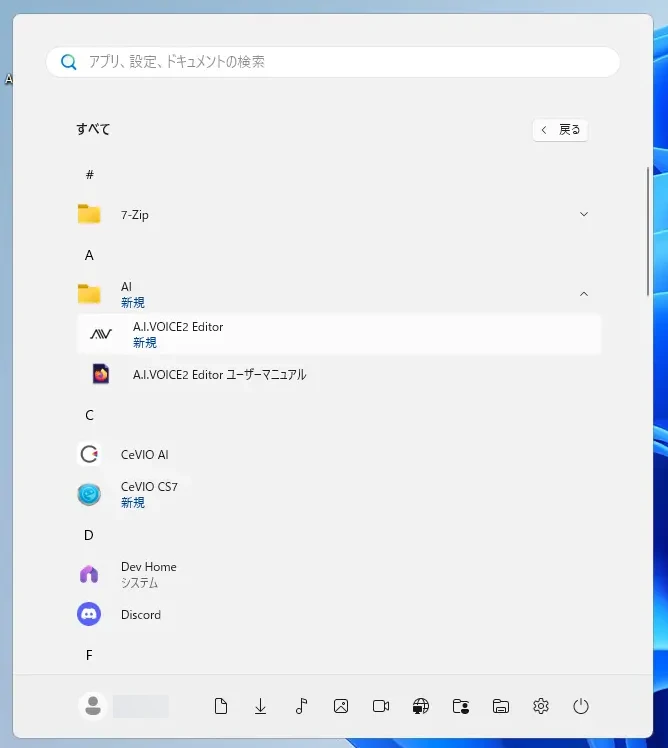
Launch the software from "A.I.VOICE2 Editor" in the "AI" folder of the Start menu.
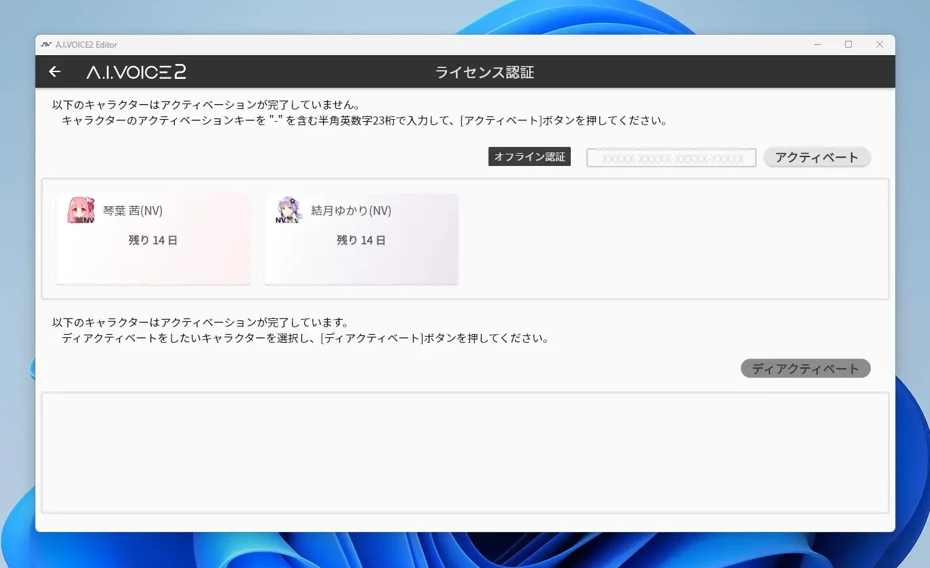
Upon launching, a confirmation dialog "There are unauthenticated characters. Do you want to activate?" will be displayed.
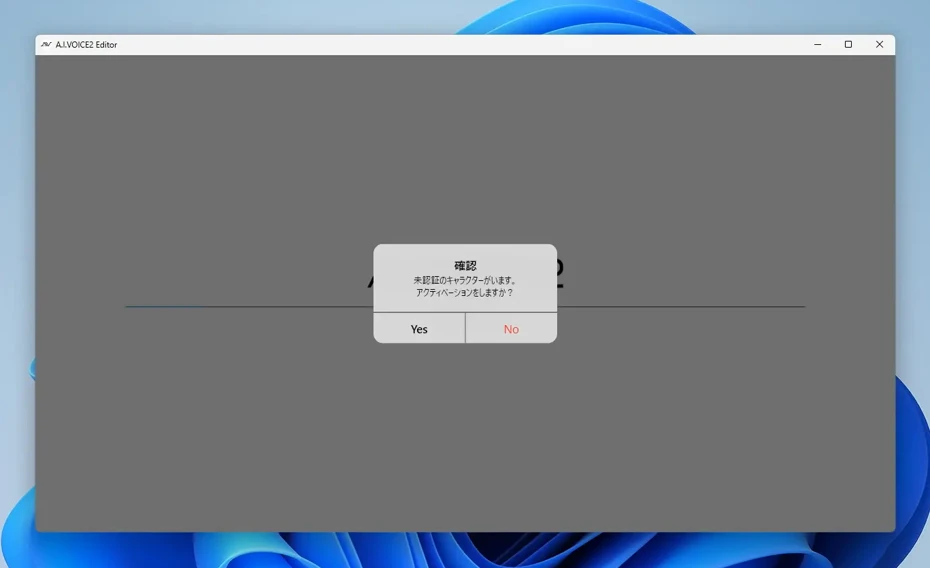
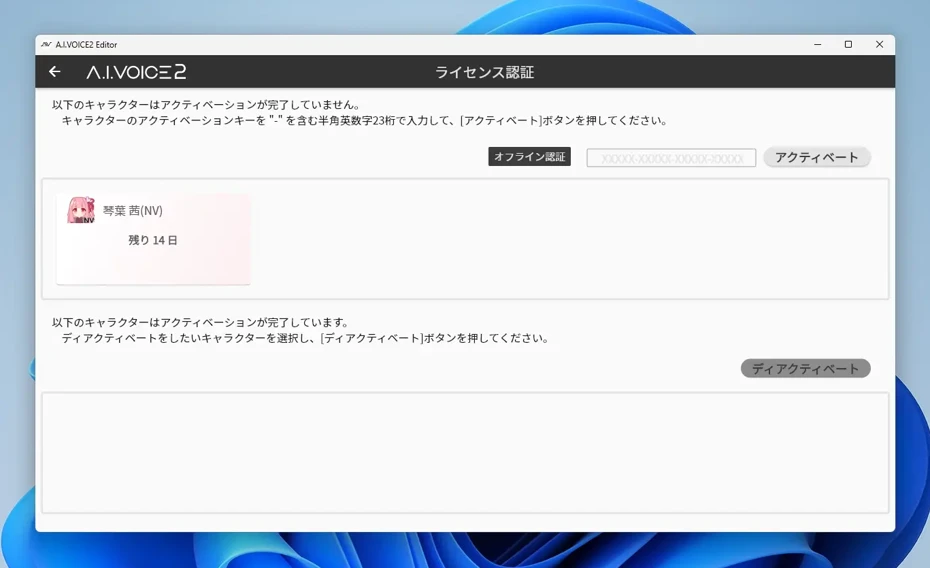
If you have already purchased it, clicking "Yes" allows you to activate (authenticate) the license.
Pressing "No" will launch the trial version as is.
The trial version can be used for 14 days.
Basic Usage of A.I.VOICE2
A.I.VOICE2 has now been successfully installed on the Windows 11 PC.
Next, we will explain the basic usage for actually reading text aloud.
Basic Operations for Voice Generation
When you open the A.I.VOICE2 screen, a character icon and a text entry field are displayed.
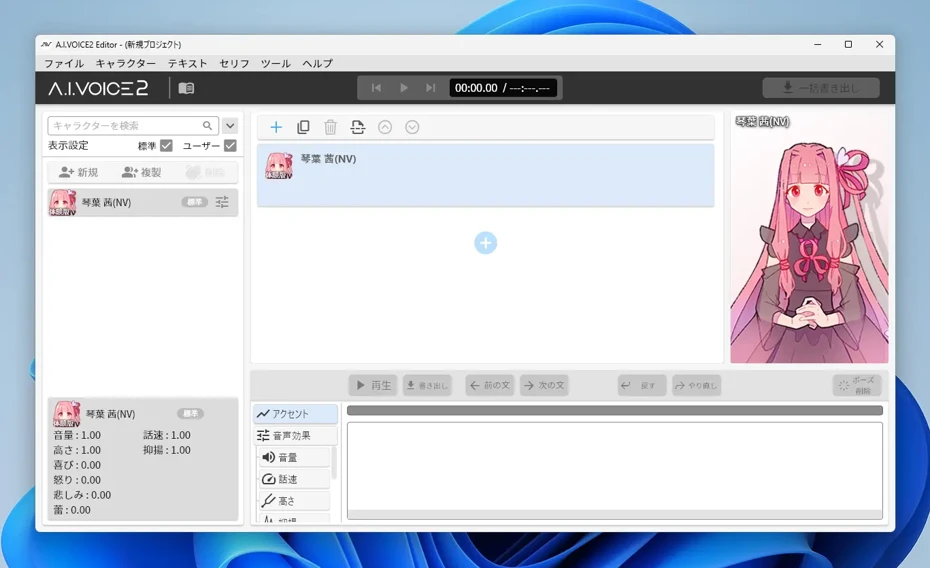
Clicking the text entry field allows you to enter text.
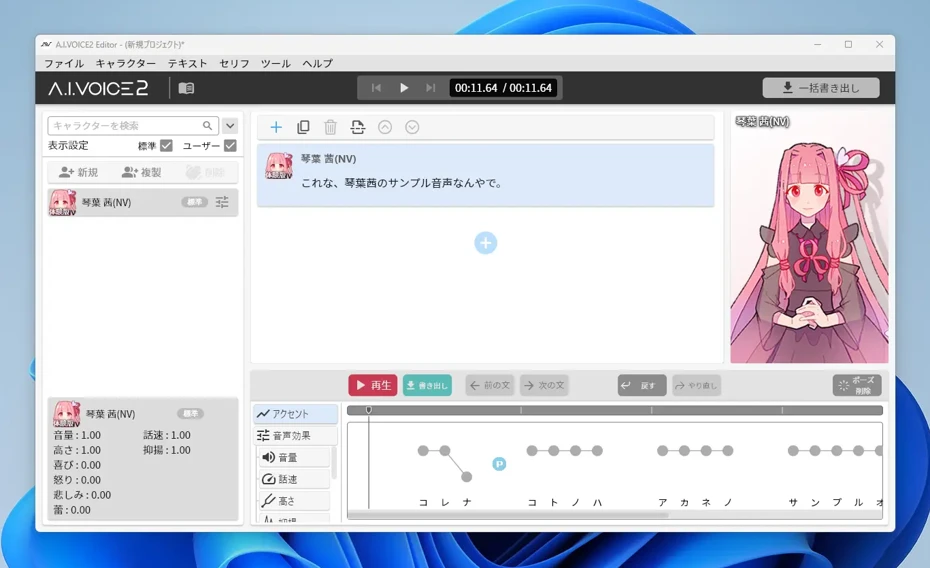
Clicking the "+" on the text entry screen allows you to add a new text entry field.
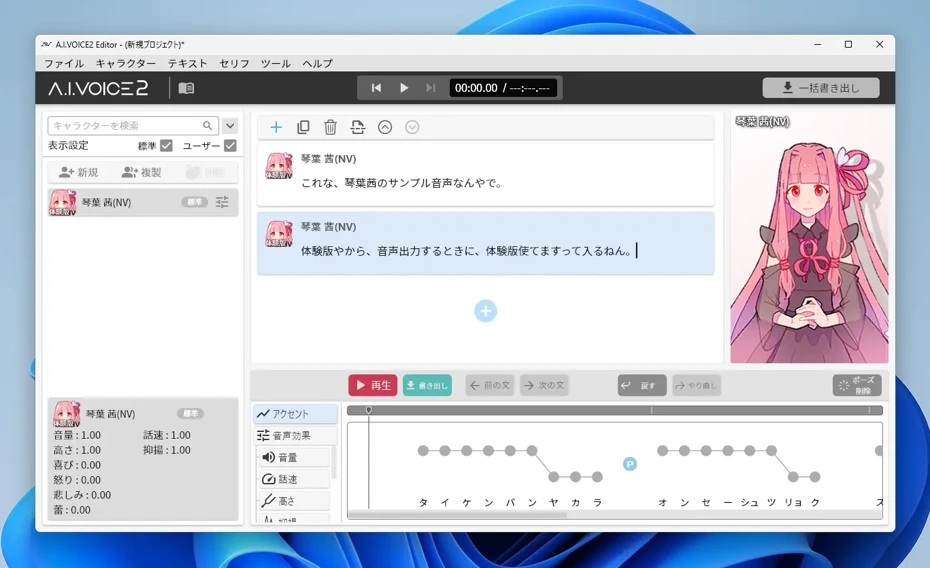
Pressing the "Play" button plays the audio so you can check the generation result.
At this time, the triangular play button at the top of the screen plays everything, while the red button labeled "Play" at the bottom plays only the selected part.
Adding Characters
In A.I.VOICE2, you can add and install more characters.
The method for adding characters is the same as the first installation.
Download the installer for the character you want to use and perform the installation in the same way.
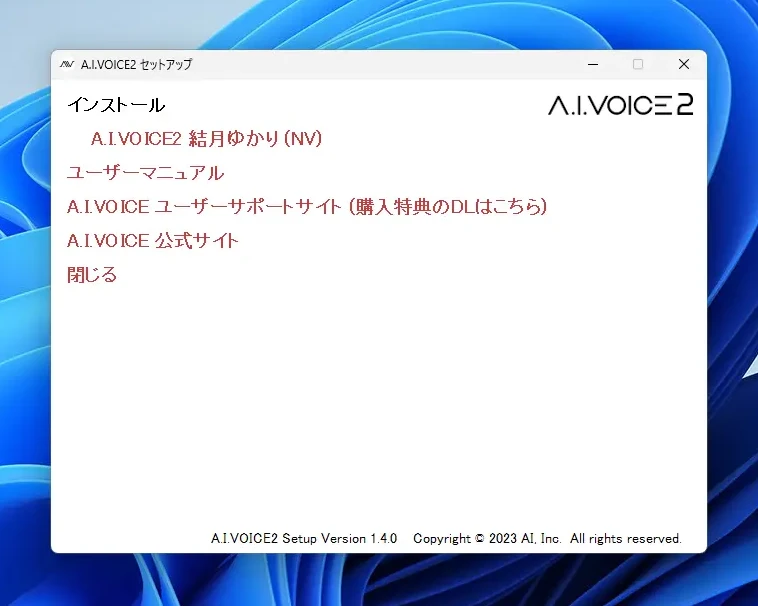
This time, we installed "Yuzuki Yukari" as an addition.
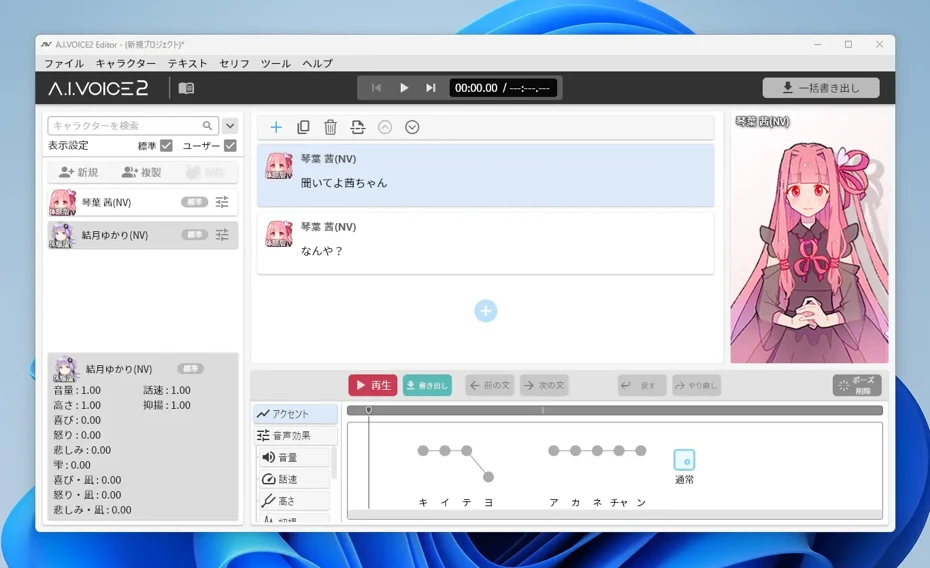
When you launch A.I.VOICE2 after installation is complete, the number of installed characters will have increased like this.
Even on the editing screen, Yuzuki Yukari is displayed in the character list on the left side of the screen like this.
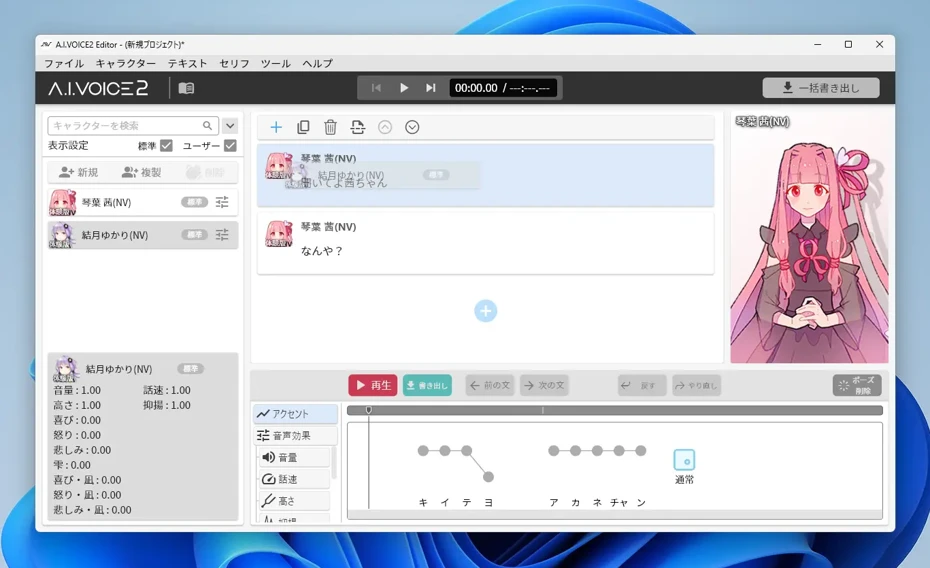
While clicking Yuzuki Yukari in the character list on the left, drag and drop her onto a line in the editing screen on the right.
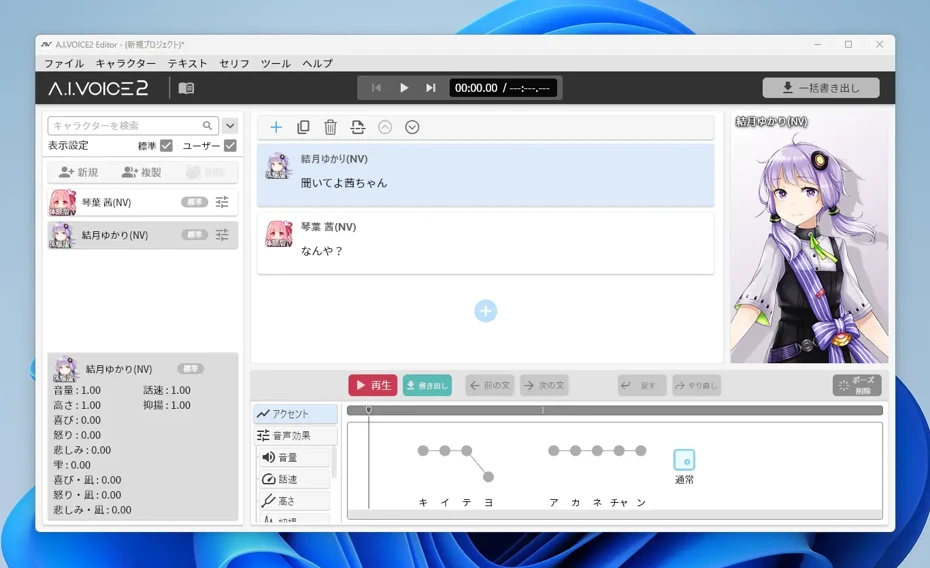
The character for the line where you dragged and dropped her has then changed from Kotonoha Akane to Yuzuki Yukari.
Also, when you click "+", a line is added with the character selected in the character list on the left.
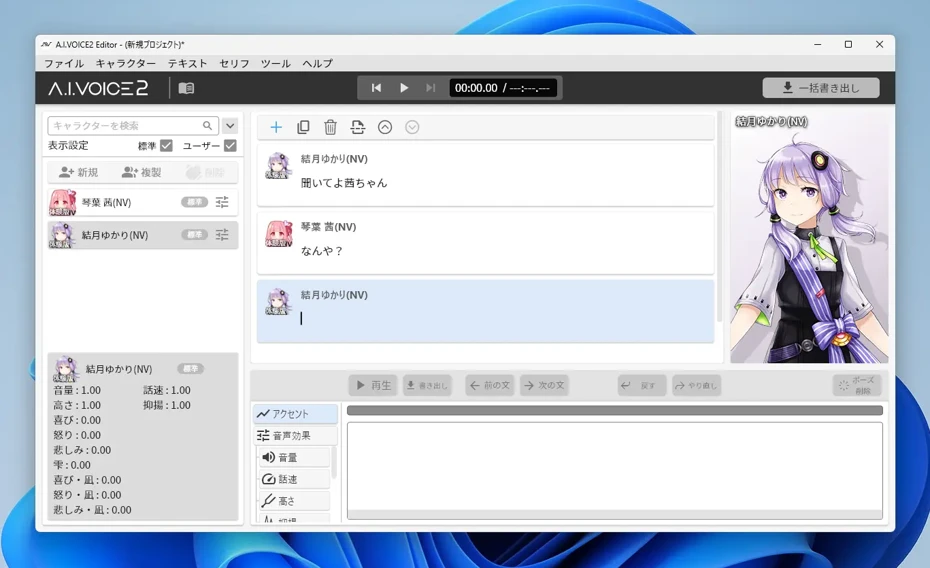
In this way, by adding multiple characters, you can create voice-over audio in a conversation format.
Saving Projects
In A.I.VOICE2, it is possible to save projects from "File" in the menu.
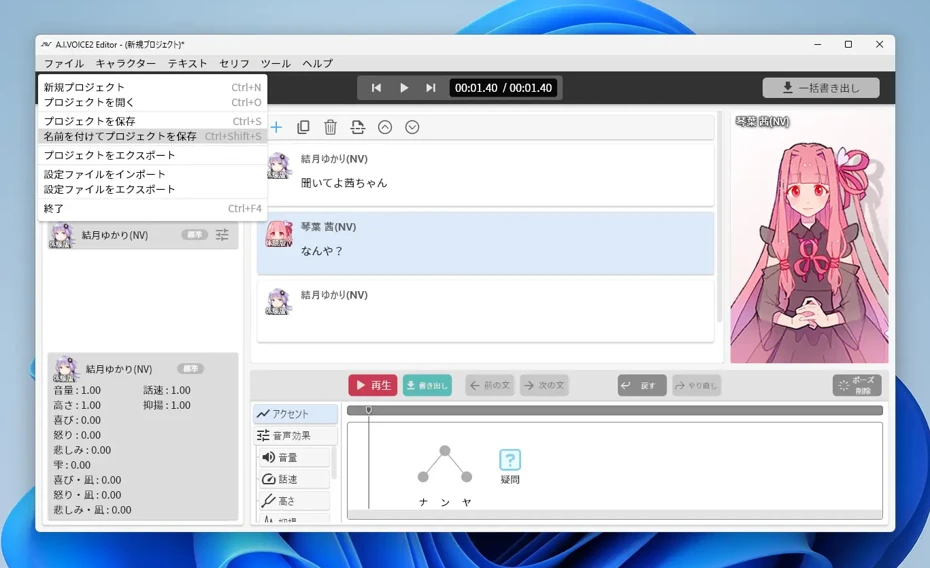
Also, like many Windows software, you can save with "Ctrl + S."
(On Mac, you can save with "Command + S")
Exporting Audio
To export audio in A.I.VOICE2, there are
- Batch export
- Export by line
two methods.
How to Batch Export in A.I.VOICE2
Clicking the "Batch Export" button at the top right of the screen allows you to export the entire audio at once.
Clicking the button opens a window to select the destination.
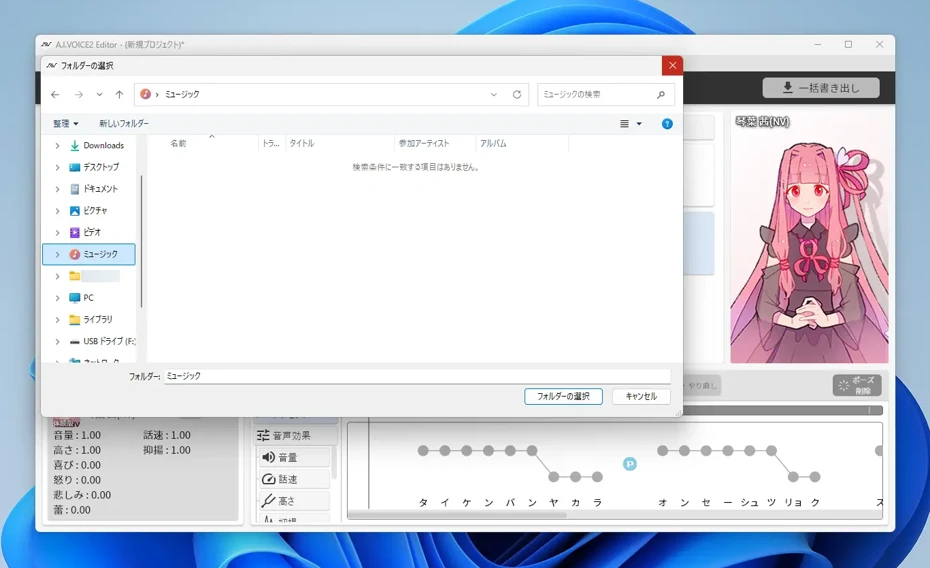
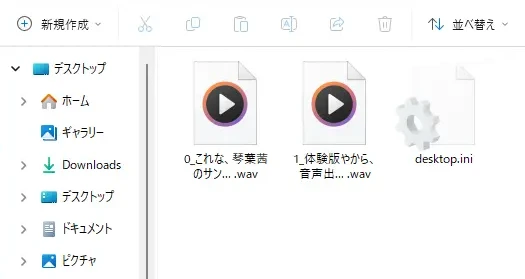
Once you select a destination, the read content is saved as WAV files.
With "Batch Export," it is saved as separate files for each line like this.
How to Export by Line in A.I.VOICE2
To export by line, first click the line you want to export to put it in a selected state (light blue state).
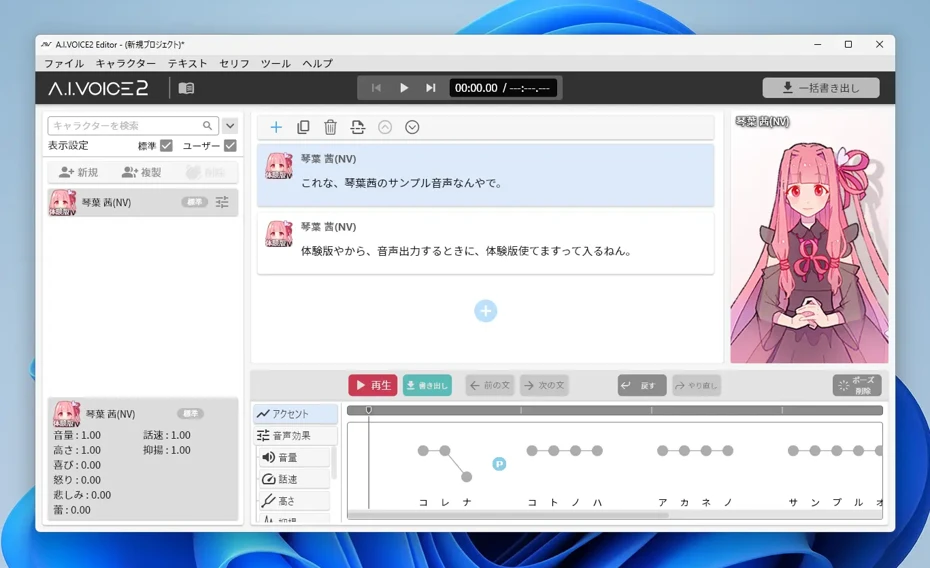
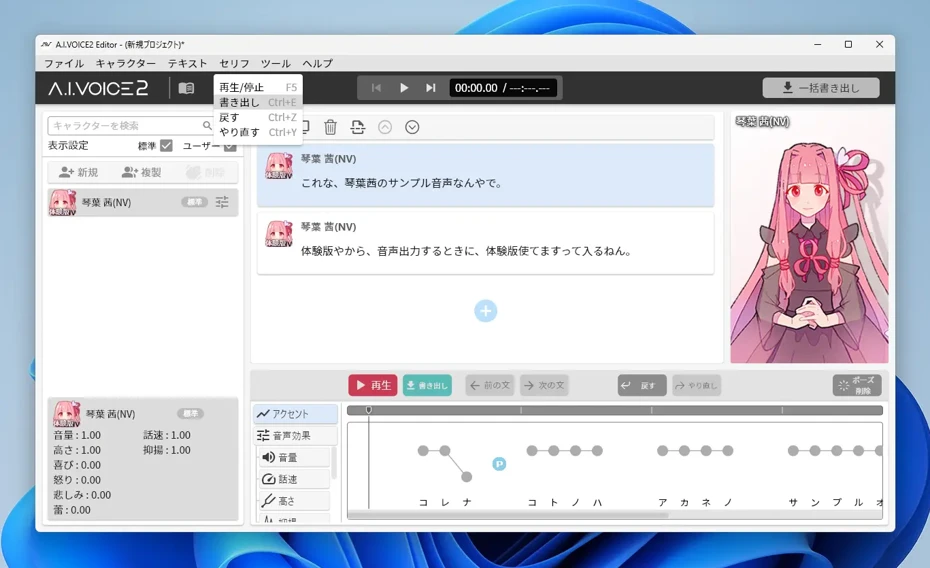
Next, click "Speech" → "Export" from the menu at the top of the screen.
A window to select the destination will open.
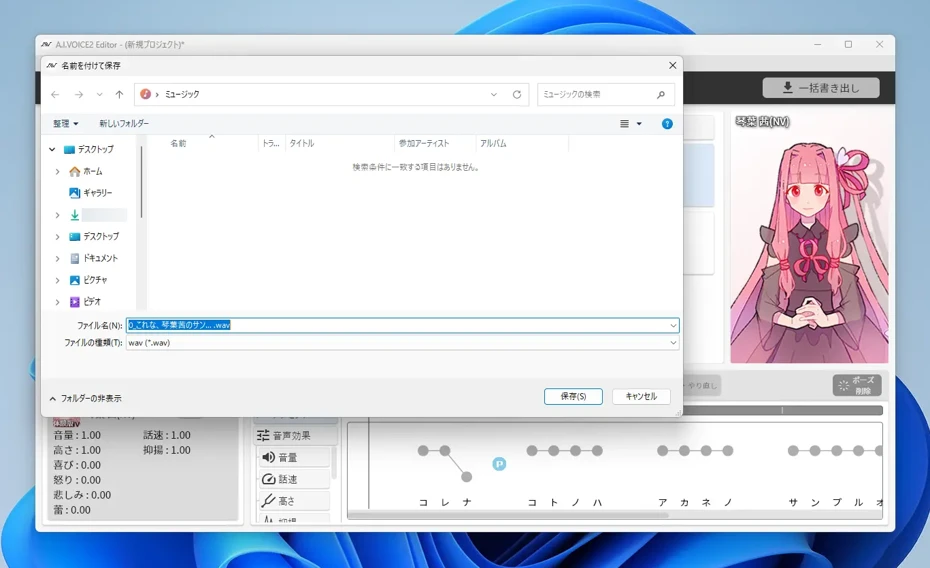
Clicking "Save" will save only the selected audio.
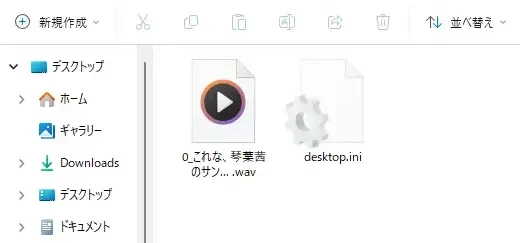
Exporting with the Trial Version Records "This is a demo voice" Overlaid
Although the export function can be used in the trial version, "This is a demo voice" is recorded repeatedly so as to overlap with the audio content.
(It is not inserted before or after the audio, but recorded completely overlapping it)
Since the trial version is provided to check operations and functions, purchasing the product is necessary to actually use it in videos, etc.
In this way, by using A.I.VOICE2, you can read text in the voices of popular characters such as Kotonoha Akane/Aoi and Yuzuki Yukari.
However, since A.I.VOICE2 is paid software, it cannot be used for free.
Additionally, even if you install the trial version, you cannot export audio for use.
If you want to produce voice-over audio for free, using reading software that can be used from a browser is also recommended.
Recommended AI Text-to-Speech Software for Free Use [Commercial Use OK]
"Ondoku" is an AI text-to-speech software that can be used for free and is commercial OK!
As a web app used from a browser, anyone can easily create high-quality audio.
The 16 types of Japanese voices in "Ondoku" are rich in variety, including male, female, and children's voices!
Of course, like A.I.VOICE2, conversation reading using multiple voices is also possible.
You can listen to samples on this page, so please check it out.
Listen to 16 types of voices from the text-to-speech software Ondoku for free. Change the impression with pitch changes
Ondoku has 16 types of Japanese voices. Of course, male and female voices are available. We have made it possible to listen to 8 commonly used Japanese voices and voices when the pitch of each voice is adjusted.
Furthermore, "Ondoku" supports 81 languages and regions, including Japanese, English, Chinese, Korean, Spanish, French, and German.
Since you can produce global content, you can increase YouTube views by targeting the world.
![[Ondoku] Listen to voice types and sample audio for supported languages](https://storage.googleapis.com/ondoku3/image/%E5%A4%9A%E6%A7%98%E6%80%A7_930.webp)
[Ondoku] Listen to voice types and sample audio for supported languages
Here, we introduce the supported languages and sample audio for Ondoku.
Commercial Use OK for Both Individuals and Corporations! Easily Monetize YouTube
The terms of use for "Ondoku" are very simple.
Even with the free plan, commercial use is OK with only credit notation.
Furthermore, with a paid plan, credit notation becomes unnecessary.
Since it can be used not only by individuals but also by corporations, it can be used for business with peace of mind.
With "Ondoku", you can use it commercially without worrying about complex regulations, from YouTube monetization to in-store announcements.

What you can do with Ondoku. Regarding commercial use (business use) and prohibited acts.
Commercial use (business use) is possible with Ondoku. Regardless of whether you are an individual or a corporation, use for the purpose of obtaining profits such as money directly or indirectly is commercial use. However, please note that prohibited acts are established in Ondoku. This time, we will explain what you can and cannot do with Ondoku...
Available for Free Use Now without Installation or Download!
Using "Ondoku" is very simple.
After opening the top page, just enter the text and press the read-aloud button.
A natural audio file is generated in just a few seconds.
Since speech synthesis up to 5,000 characters can be used for free, why not first experience "Ondoku"?
Why Not Try Free Reading with "Ondoku"?
In this article, we explained in detail the features of A.I.VOICE2, the differences from VOICEROID, the installation method, and how to use it.
The greatest appeal of A.I.VOICE2 is that you can make videos using popular characters, including "Kotonoha Akane and Kotonoha Aoi."
However, there are also inconvenient aspects, such as the need to purchase it because it is paid software and restrictions on commercial use.
If you want to use the latest AI to read text aloud, the web service "Ondoku" is also recommended.
Why don't you try creating video audio for free with "Ondoku", which can be used immediately without installation?
■ AI voice synthesis software "Ondoku"
"Ondoku" is an online text-to-speech tool that can be used with no initial costs.
- Supports 81 languages and regions, including Japanese, English, Chinese, Korean, Spanish, French, and German
- Available from both PC and smartphone
- Suitable for business, education, entertainment, etc.
- No installation required, can be used immediately from your browser
- Supports reading from images
To use it, simply enter text or upload a file on the site. A natural-sounding audio file will be generated within seconds. You can use voice synthesis up to 5,000 characters for free, so please give it a try.

Text-to-speech software "Ondoku" can read out 5000 characters every month with AI voice for free.
You can easily download MP3s and commercial use is also possible.
If you sign up for free, you can convert up to 5,000 characters per month for free from text to speech.
Try Ondoku now.
HP:
ondoku3.com
Email: ondoku3.com@gmail.com
Email: ondoku3.com@gmail.com
Related posts
"Ondoku" is a Text-to-Speech service that anyone can use for free without installation. If you register for free, you can get up to 5000 characters for free each month. Register now for free
- What is Ondoku
- Start text-to-speech conversion
- Free registration
- Pricing
- Posts
- Try other free services