Best Text-to-Speech Software: 7 Free & Paid Tools for Commercial Use
AI Narration for Corporate Videos: How to Enhance Your Brand's Appeal
Sept. 9, 2026
How can I add narration to a company introduction video?

In this article, we will introduce how to add narration to company introduction videos.
Company introduction videos are where adding narration is particularly effective.
Narration has the effect of strongly appealing to human emotions, allowing you to effectively deliver content to more people.
Previously, adding narration to a video required paying high fees to narrators or voice actors, but now you can create narration audio for free using the latest AI!
We will also explain how to create audio using AI text-to-speech services, so why not use this article as a reference to add narration to your company introduction videos for free?
Recommended AI Text-to-Speech Service for Company Introduction Video Narration
There is a recommended AI text-to-speech service for adding narration to company introduction videos!
That is Ondoku.
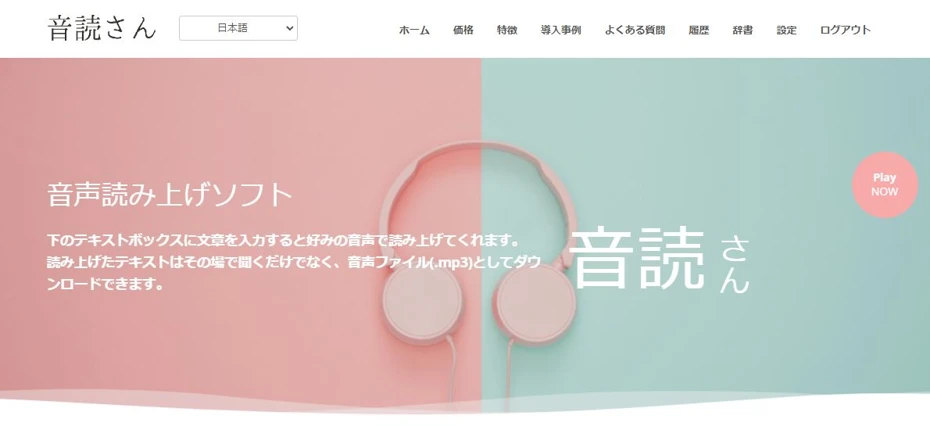
Ondoku is a web service that can read aloud in realistic and easy-to-hear voices.
It is free and requires no installation; anyone can easily create narration audio from this page.
The number of characters you can read aloud for free is:
- Without registration: 1,000 characters (approx. 4 minutes)
- With registration: 5,000 characters (approx. 15 minutes)
Therefore, the audio for company introduction videos can be created completely for free!
When you want to add narration to a company introduction video, why not start by using Ondoku from here?
Narration is Recommended for Attractive Company Introduction Videos!

I'm making a company introduction video, but something feels missing...
If you want to promote a company's appeal more effectively through video, we recommend utilizing narration.
By using the latest AI, anyone can easily add video narration for free.
Reasons to Add Narration to Company Introduction Videos

When creating a company introduction video, adding narration can increase its appeal and more strongly showcase the company's charms.
Images (visuals) can convey information in detail and breadth, but they are less effective than audio at leaving a strong impression during crucial moments.
In contrast, audio (auditory) allows for expressions that appeal more to emotions, such as speaking slowly with pauses at important points or changing the tone of voice depending on the video scene.
By adding narration, you can create a video that leaves a strong impression, rather than just conveying information.
Enabling Broader Appeal

Additionally, adding narration makes it possible to appeal to a wider range of consumers and businesses.
For example, by adding narration in foreign languages to a video, you can appeal to overseas markets.
Since you only need to replace the narration audio with a foreign language, it is much easier than producing a video from scratch.
Furthermore, by conveying information through audio as well as visuals, you can improve accessibility for the visually impaired.
To promote the company more broadly and improve accessibility, we recommend adding narration to your videos.
Narration Can Be Easily Produced with AI

Previously, to add narration to a company introduction video, it was necessary to hire professional narrators or voice actors, which required high costs.
It was certainly possible to record your own voice, but in that case, the audio often ended up being very difficult to hear.
But that's different now!
With the advancement of AI, it has become possible to automatically create easy-to-hear audio files based on input text!
The latest AI text-to-speech services allow anyone to easily generate professional-quality, easy-to-hear audio.
Additionally, AI text-to-speech services can read in foreign languages, including English.
By reading aloud foreign language scripts created with AI translation services, you can easily produce company introduction videos for international audiences.
AI Enables Free Narration Production
Moreover, AI text-to-speech services are available for free!
If you are making narration for a company introduction video, AI text-to-speech services are recommended.
Why not showcase your company's appeal to more customers with high-quality narration?
How to Choose a Recommended AI Text-to-Speech Service
There are many types of text-to-speech services using AI and software that you install on your PC.
We will briefly explain the key points to consider when choosing a method for creating narration for company introduction videos.
1. Choose a service that allows commercial use

Narration for company introduction videos falls under commercial use.
Care must be taken as some text-to-speech services or software may prohibit commercial use.
Additionally, some services or software may charge high additional fees for commercial use.
When creating narration for a company introduction video, it is best to choose a service that allows commercial use for free.
* Ondoku can be used commercially for free (credit attribution required). Paid plans do not require credit.

What you can do with Ondoku. About commercial use (business use) and prohibited items.
Commercial use (business use) is possible with Ondoku. Regardless of whether you are an individual or a corporation, using it for the purpose of obtaining direct or indirect financial profit constitutes commercial use. However, please note that Ondoku has established prohibited acts. This time, we will cover what you can and cannot do with Ondoku...
2. Services without set characters are recommended

Some text-to-speech services and software, such as VOICEROID, have character illustrations set.
While attractive for hobbyist videos and creative works, characters are unsuitable for company introduction video narration.
The reason is that the character's impression remains stronger than the company's impression.
Additionally, text-to-speech services or software with character illustrations often have stricter terms of use.
When creating narration for a company introduction video, we recommend choosing one without characters.
3. Choose a service that can read in foreign languages

To appeal more broadly, we recommend choosing a service that can read aloud in foreign languages.
Depending on the service or software, it may only be able to read one language, such as just Japanese or just English.
On the other hand, there are services like Ondoku that can read aloud in many languages, such as 81 languages and regions.
If you want to promote your company worldwide, we recommend using a text-to-speech service that supports many languages.
Recommended AI Text-to-Speech Service: Ondoku
If you're creating narration for a company introduction video, Ondoku is recommended!
Ondoku is a web service that uses the latest AI to read aloud in realistic and easy-to-hear voices.
For free,
- Without registration: 1,000 characters
- With registration: 5,000 characters
can be read aloud.
Moreover, you can use many features for free!
17 Types of Japanese Voices
There are 17 types of Japanese voices: male, female, and child!
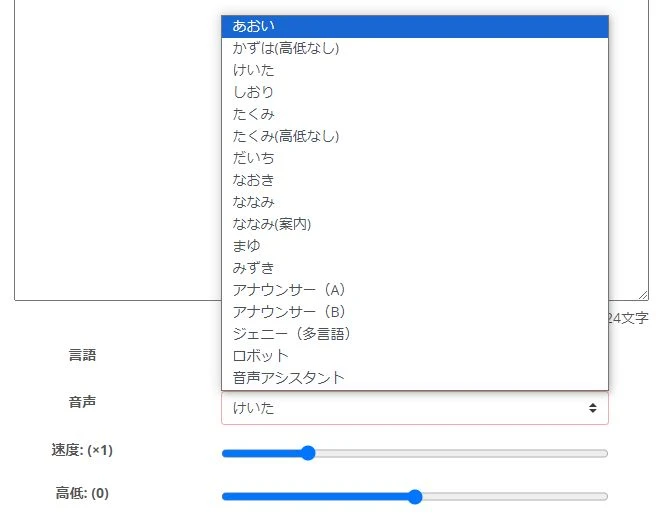
It is also easy to use different voices for different parts of the company introduction video!
Supports 81 languages and regions
Ondoku supports a total of 81 languages and regions, including Japanese, English, Chinese, and Korean!
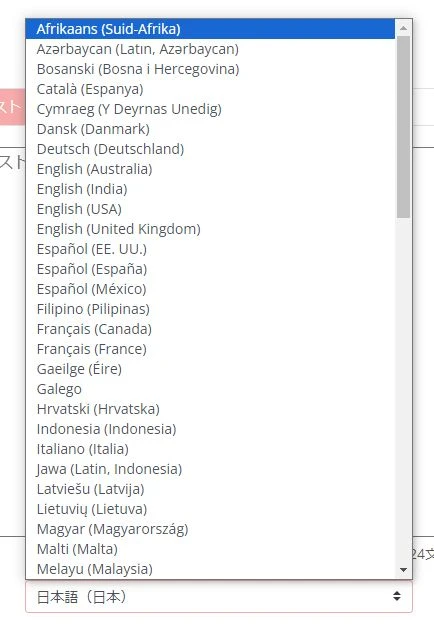
Of course, all languages can be used for free.
When you want to create a company introduction video for overseas audiences, we recommend creating the narration with Ondoku.
![[Ondoku] Listen to voice types and sample audio for supported languages](https://storage.googleapis.com/ondoku3/image/%E5%A4%9A%E6%A7%98%E6%80%A7_930.webp)
[Ondoku] Listen to voice types and sample audio for supported languages
Here, we will introduce Ondoku's supported languages and sample audio.
Audio Download Available for Free
Some AI text-to-speech services do not allow audio file downloads on free plans, but with Ondoku, there is no such concern.
Even when reading aloud for free, you can, of course, download the audio file in MP3 format!
Ondoku is recommended for adding narration to company introduction videos.
Why not use this page to create narration audio using Ondoku?
The Process of Creating Narration for a Company Introduction Video with Ondoku

I want to know the process of creating narration!
We will explain the process of creating narration for a company introduction video for free using Ondoku!
1. Create a Script

First, create a script for the company introduction video.
The tool for creating the script can be anything:
- Word processing software like Word
- Text editors like Notepad
- Cloud services like Google Documents
Since script data can be used for other purposes like YouTube subtitles, be careful to take frequent backups.
When determining the script length, a point to remember is the standard number of characters when speaking Japanese.
The standard narration speed is 300 characters per minute.
- 5-minute video: 1,500 characters
- 10-minute video: 3,000 characters
is a rough guide.
Separate sentences with a "。"
When writing a script for reading aloud with Ondoku, the key point is to always enter a "。" at the end of a sentence.
Ondoku has a function to split and download the reading results, and at that time, "。" becomes the file's split point.
Separating sentences with a "。" is recommended because it is convenient during video editing.
*The split download function will be explained in the latter half!
2. Read Aloud with Ondoku
Once the script is finished, read it aloud using Ondoku.
To read aloud, first open the Ondoku homepage from here.
Paste the script text into the text box on the homepage.

Select the voice.

*Voice samples are introduced in this article.
Now the preparation is complete.
Press the "Read Aloud" button to start the reading.

For a script for one video, the reading will be completed in just a few seconds!
3. Check the Audio and Download
When the reading is finished, an audio player will be displayed.
Play back the reading results and check if there are any issues.

If there are no problems, press the "Download" button to save the audio file.

What if a correction is needed?
If you find a part that needs correction, you don't have to re-read the whole thing; it's okay to generate the audio for just that part separately later.
In that case, you cut and join the audio when editing the video.
Audio Split Download is Also Possible
Ondoku allows for split downloads of audio!
To split and download audio, first open "History" from the menu.

Opening the history page will display a list of reading results.
Select "Split" on the right side.
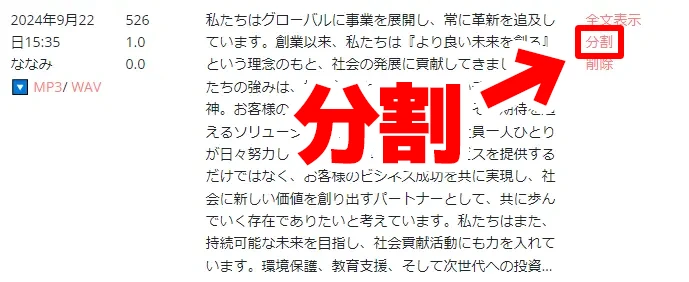
The split download screen will open.
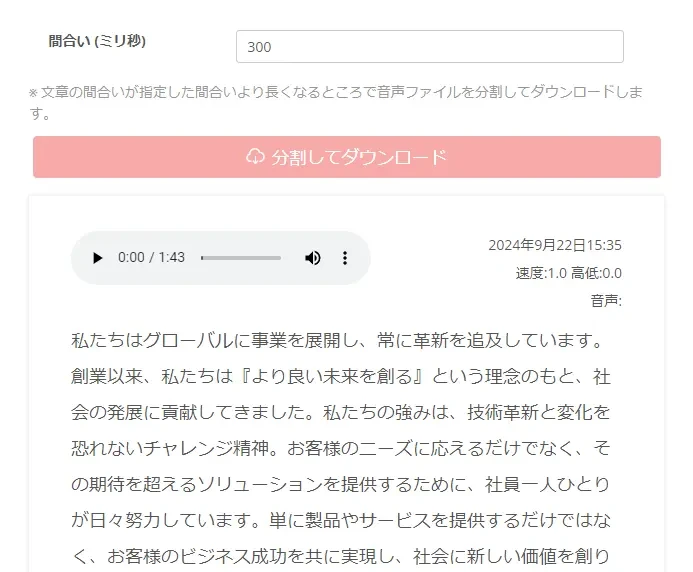
Selecting "Split and Download" will start the file splitting.

When the splitting is finished, the download will start automatically.
The files are compressed in ZIP format.
When you unzip the downloaded ZIP file, the audio files will be split by sentence like this.

Since it is convenient to use as video editing material, we recommend making use of it!
![[Ondoku] How to use the split function. Automatically split created audio files at set intervals.](https://storage.googleapis.com/ondoku3/image/CutLemon_930.webp)
[Ondoku] How to use the split function. Automatically split created audio files at set intervals.
The Ondoku split function is a feature that splits audio once it's created into set intervals and allows you to download each as a separate audio file. In this blog, we will introduce how to use the split function in detail.
4. Import Audio Files Into Video Editing Software
Import the audio files into the video editing software you are using to produce the company introduction video.
Here, we will introduce the case of Adobe Premiere as an example.
Importing Audio Files into Adobe Premiere
In the case of Adobe Premiere, first drag and drop the narration audio file into the project panel.

Next, drag and drop the audio file from the project panel to the timeline.

Now, the narration audio file has been imported into the video.


How to quickly create narration for YouTube and other videos with text-to-speech software. Tips and points
Explaining how to quickly create YouTube video narration with Ondoku. Easy-to-understand explanations from how to create a script to using Ondoku, adjusting natural intonation, and editing tips in video editing software. A must-see for those who want to streamline video production with text-to-speech software!
5. Edit the Video
Finally, edit the video along with the video materials.
There are various methods for video editing, but if the narration audio is completed before the video is filmed,
- it is easy and recommended to cut and edit the footage based on the narration!
If you want to have more pauses, it's okay to cut the silent parts of the audio on the timeline and insert spaces in between.
The process of creating a company introduction video is now complete.
Since you can create narration audio easily and for free, why not try using Ondoku to make your company introduction video?
■ AI voice synthesis software "Ondoku"
"Ondoku" is an online text-to-speech tool that can be used with no initial costs.
- Supports 81 languages and regions, including Japanese, English, Chinese, Korean, Spanish, French, and German
- Available from both PC and smartphone
- Suitable for business, education, entertainment, etc.
- No installation required, can be used immediately from your browser
- Supports reading from images
To use it, simply enter text or upload a file on the site. A natural-sounding audio file will be generated within seconds. You can use voice synthesis up to 5,000 characters for free, so please give it a try.

Text-to-speech software "Ondoku" can read out 5000 characters every month with AI voice for free.
You can easily download MP3s and commercial use is also possible.
If you sign up for free, you can convert up to 5,000 characters per month for free from text to speech.
Try Ondoku now.
HP:
ondoku3.com
Email: ondoku3.com@gmail.com
Email: ondoku3.com@gmail.com
Related posts
"Ondoku" is a Text-to-Speech service that anyone can use for free without installation. If you register for free, you can get up to 5000 characters for free each month. Register now for free
- What is Ondoku
- Start text-to-speech conversion
- Free registration
- Pricing
- Posts
- Try other free services