[Update] How to Download Ondoku Audio Files in WAV Format
[Ondoku] Fix Audio Download and Playback Issues
Aug. 7, 2026
![[Ondoku] Fix Audio Download and Playback Issues](https://storage.googleapis.com/ondoku3/image/Laptop-star_930.webp)
Hello, in this article, we will explain troubleshooting for downloading and playing Ondoku files.
Most people who use Ondoku have likely used the download function at least once.
Converting text to speech and downloading it as an mp3. This feature is very convenient, isn't it?
The intended use of downloaded files varies by user.
- For YouTube videos
- For internal training videos
- For studying for qualifications
- For making use of spare time during commutes
It is no exaggeration to say that the download function is the most valued feature within Ondoku.
Such an important download.

The downloaded file doesn't play properly! I can't download it!
We have received inquiries like this.
In such cases, we will introduce how to solve the problem.
Normal behavior of voice downloads in Ondoku
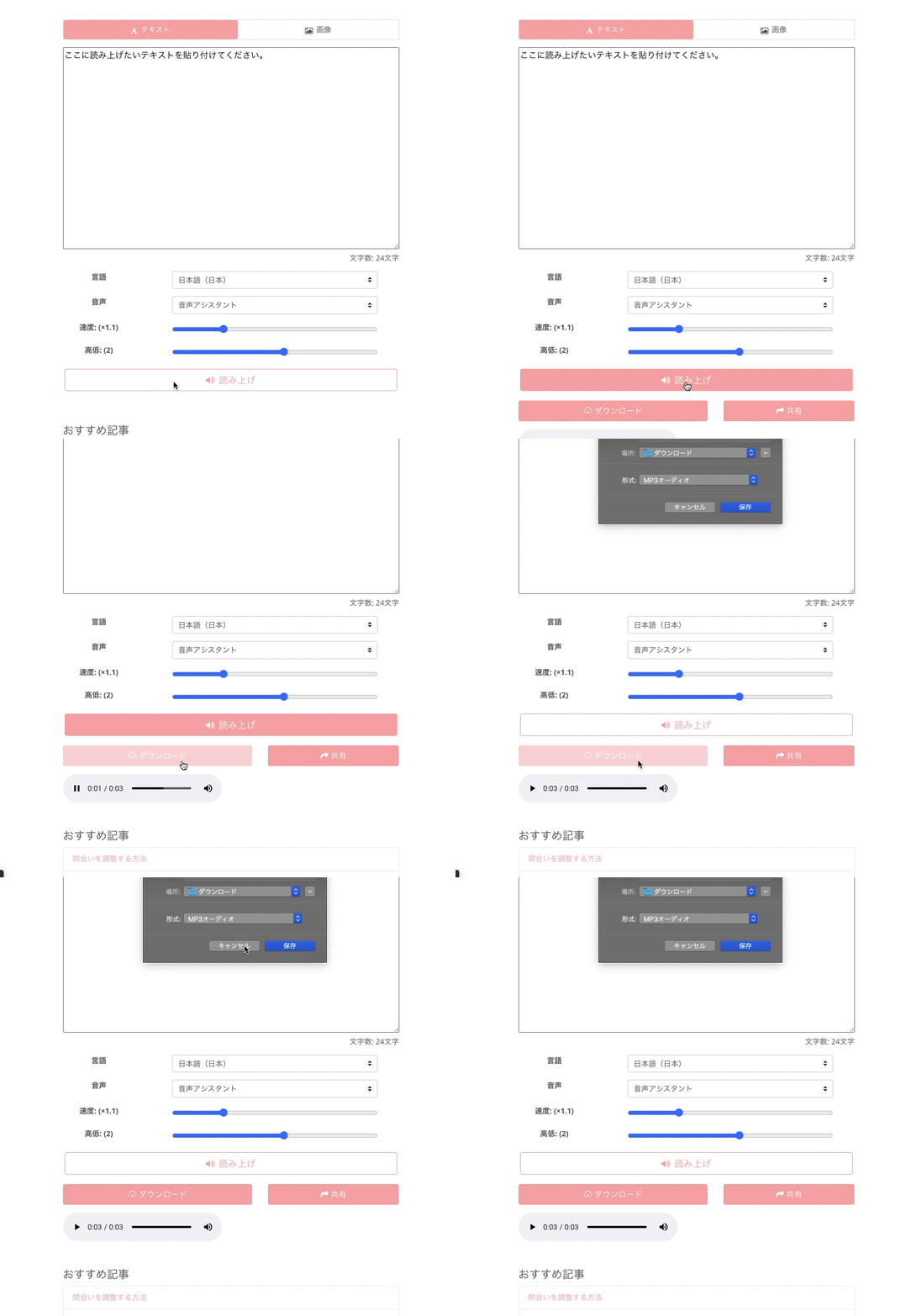
In Ondoku, when downloading, you can easily do so using the download button as shown in the image.
- Click the read-aloud button
- Download from the download button
It is a very easy and simple mechanism.
You can also download text that has been read aloud once before from your history.
However, if an error occurs, you will not be able to download it as described here.
For example, are you experiencing these symptoms?
- The download button is not displayed.
- The download button exists, but the screen to select the save location is not displayed.
- An error message appears, and the desired audio cannot be downloaded.
- The text read aloud just before is downloaded.
- The audio sounds correct when pressing the play button on the web, but the audio is cut off when downloaded.
These five problems can be solved very easily.
We will show you how to solve them.
The download button is not displayed

If an error occurs where the download button is not displayed even after clicking the "Read Aloud" button, there are two possible causes.
- Some kind of blocking function exists in the usage environment
- An error has occurred on the server.
The download button may not be displayed due to compatibility with the network environment, PC antivirus software, etc. Please review your usage environment.
If the download button still does not appear, there is a high possibility of a server error, so please contact us via email through our inquiry form.
The download button exists, but the screen to select the save location is not displayed.
If the download button is displayed but the screen to choose a save location does not appear, it is an error on the user's browser.
When using Google Chrome

First, open the settings screen from "chrome://settings" or the "Settings" menu.
Once you have opened the settings screen, please turn on downloads from the Google Chrome browser settings.
For other browsers
Search for "[Your Browser Name] download settings" and check the configuration method.
An error message appears, and the desired audio cannot be downloaded
If an error message appears and you cannot download the desired audio, there are three possible causes.
- The maximum number of characters allowed has been reached.
- Characters that cannot be used are included, so it cannot be read aloud.
- There is a problem with the user's usage environment, so it cannot be read aloud.
The maximum number of characters allowed has been reached
The maximum number of characters allowed is 5,000 for free members. For paid members, it is between 200,000 and 1,000,000 characters depending on the plan.
When the number of characters that can be read aloud is exceeded, an error message saying "Reached the character limit for reading aloud" will play.
If you want to read aloud right away, please purchase a paid plan to add more characters.
When unusable characters are included
In this case, the error message "Some kind of error has occurred" will play.
This type of error occurs when you try to read aloud text that includes special characters.
Please remove special characters and try reading aloud again.
When there is a problem with the user's usage environment
Due to compatibility issues with the browser or network connection being used, an error saying "Some kind of error has occurred" may appear when trying to read aloud text on Ondoku.
In such cases, please:
- Change the browser
- Change the device
- Clear the cache
For details, please check this page.

When an error occurs in Ondoku and you don't know what to do
Explains how to handle cases where an error occurs in Ondoku and text cannot be read aloud. Introduces check points divided into two categories: problems with the text being read and problems with the usage environment. Also provides guidance on how to contact us if the problem is not resolved.
The text read aloud just before is downloaded
This is often due to a simple mistake by the user.
Ondoku converts text to audio by clicking the "Read Aloud" button.
When reading many sentences in a row, it's easy to accidentally forget to press the "Read Aloud" button.
Since the download button is displayed, downloading it results in the phenomenon where the previous text is played.
Forgetting to press the "Read Aloud" button
This is a major cause.
Please remember to click the "Read Aloud" button.
Alternatively, you can download sentences previously read aloud from your history.
Please check if you can download normally from there.
The audio sounds correct when pressing the play button on the web, but the audio is cut off when downloaded
If it sounds normal when listening on the web, the created download file is also normal.
Most likely, there is a high possibility of an issue with the audio player.
- Change the audio player and play the audio file again.
- Or try playing the audio on a different device.
Most problems are solved by these two methods.
At Ondoku, we take the inquiries we receive seriously and provide various forms of support.
Your feedback helps Ondoku grow even further.
We hope you continue to use Ondoku in the future.
We are happy to continue being the best text-to-speech software for you.
■ AI voice synthesis software "Ondoku"
"Ondoku" is an online text-to-speech tool that can be used with no initial costs.
- Supports 81 languages and regions, including Japanese, English, Chinese, Korean, Spanish, French, and German
- Available from both PC and smartphone
- Suitable for business, education, entertainment, etc.
- No installation required, can be used immediately from your browser
- Supports reading from images
To use it, simply enter text or upload a file on the site. A natural-sounding audio file will be generated within seconds. You can use voice synthesis up to 5,000 characters for free, so please give it a try.

Text-to-speech software "Ondoku" can read out 5000 characters every month with AI voice for free.
You can easily download MP3s and commercial use is also possible.
If you sign up for free, you can convert up to 5,000 characters per month for free from text to speech.
Try Ondoku now.
HP:
ondoku3.com
Email: ondoku3.com@gmail.com
Email: ondoku3.com@gmail.com
Related posts
"Ondoku" is a Text-to-Speech service that anyone can use for free without installation. If you register for free, you can get up to 5000 characters for free each month. Register now for free
- What is Ondoku
- Start text-to-speech conversion
- Free registration
- Pricing
- Posts
- Try other free services
![[Ondoku] Fix Audio Download and Playback Issues](https://storage.googleapis.com/ondoku3/image/irodori-tts_tmb_140.webp)
![[Ondoku] Fix Audio Download and Playback Issues](https://storage.googleapis.com/ondoku3/image/tategaki-image-yomiage_howto_tmb_140.webp)
![[Ondoku] Fix Audio Download and Playback Issues](https://storage.googleapis.com/ondoku3/image/iphone-video-narration_tmb_140.webp)
![[Ondoku] Fix Audio Download and Playback Issues](https://storage.googleapis.com/ondoku3/image/chrome-reading-mode-pc_tmb_140.webp)
![[Ondoku] Fix Audio Download and Playback Issues](https://storage.googleapis.com/ondoku3/image/pdf-to-mp3-howto_tmb_140.webp)