Best Text-to-Speech Software: 7 Free & Paid Tools for Commercial Use
[2026 Latest] 8 Best Text-to-Speech Apps for iPhone Compared
Sept. 9, 2026
![[2026 Latest] 8 Best Text-to-Speech Apps for iPhone Compared](https://storage.googleapis.com/ondoku3/image/20250430_iphone_text_to_speech_app_tmb_930.webp)
Which auto text-to-speech app is recommended for iPhone?

A must-read for those who want to use auto text-to-speech apps on iPhone!
The auto text-to-speech function, which is useful in various scenes such as reading, learning, and business, is significantly changing modern smartphone life.
If you are an iPhone user, you have probably thought at least once, "It would be convenient if there were an app that reads text aloud."
Auto text-to-speech apps are a strong ally for busy modern people, allowing them to obtain information even when their hands or eyes are occupied, such as during commutes, while doing housework, or during relaxing time before bed.
Therefore, in this article, we have carefully selected 8 of the latest auto text-to-speech apps that can be used on iPhone.
We will thoroughly explain the recommended points.
Based on the latest information for 2026, we will compare them from various angles such as ease of use, sound quality, and pricing plans, so you will surely find the perfect reading app for you!
Why not try using convenient apps for iPhone and iPad (iOS) by referring to this article?
Basic Knowledge of Auto Text-to-Speech Apps for iPhone and iPad (iOS)

What are the features of iPhone's auto text-to-speech?
First, we will briefly explain auto text-to-speech apps for iPhone and iPad (iOS).
What is an iPhone Auto Text-to-Speech App? The Mechanism of Converting Text to Speech on a Smartphone
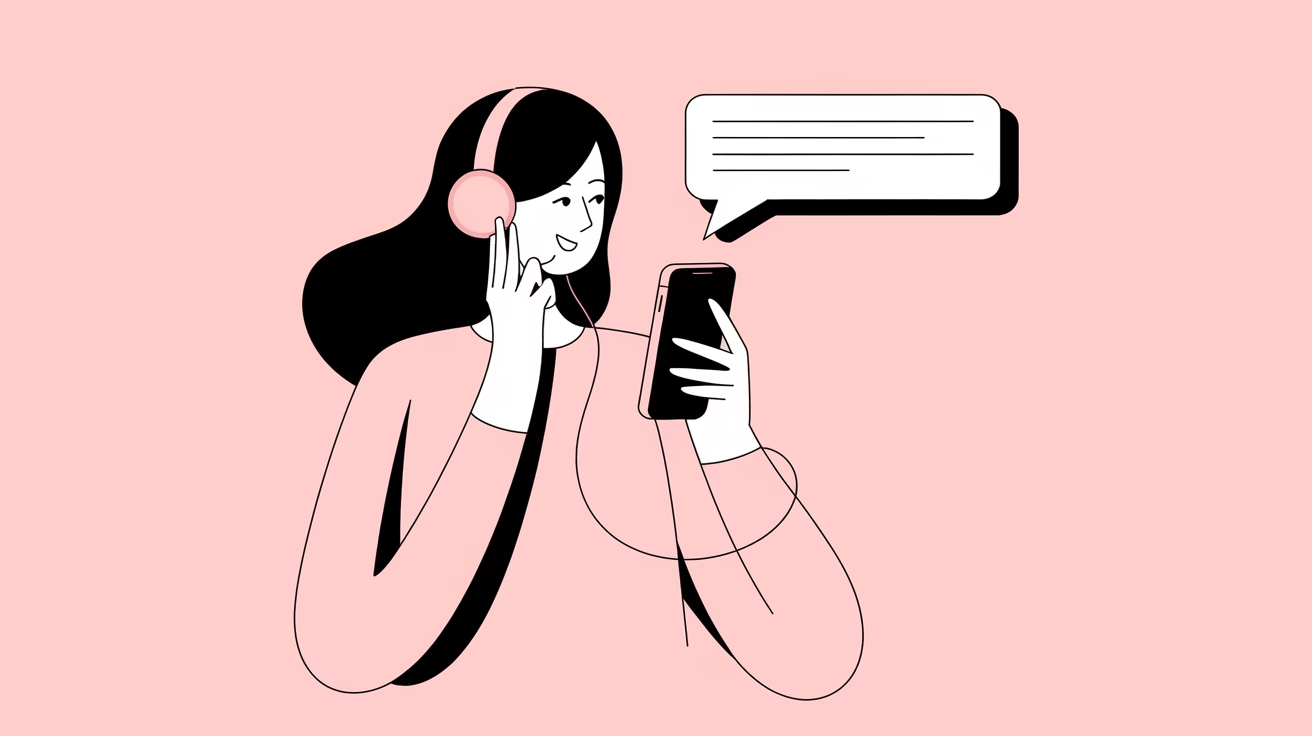
Convenient AI reading apps available for iOS on iPhone and iPad.
The auto text-to-speech technology used in these AI apps is called "TTS (Text-to-Speech)."
This is a technology that converts text data into human speech, and with recent advances in AI technology, incredibly natural reading has become possible.
Unlike previous mechanical voices, an increasing number of modern auto text-to-speech apps achieve human-like quality in terms of intonation and pausing, making them less tiring to listen to for long periods.
In particular, reading apps utilizing the latest AI technology achieve natural speech that sounds as if an actual narrator is reading.
There are Limitations to the Standard Reading Function Built into the iPhone
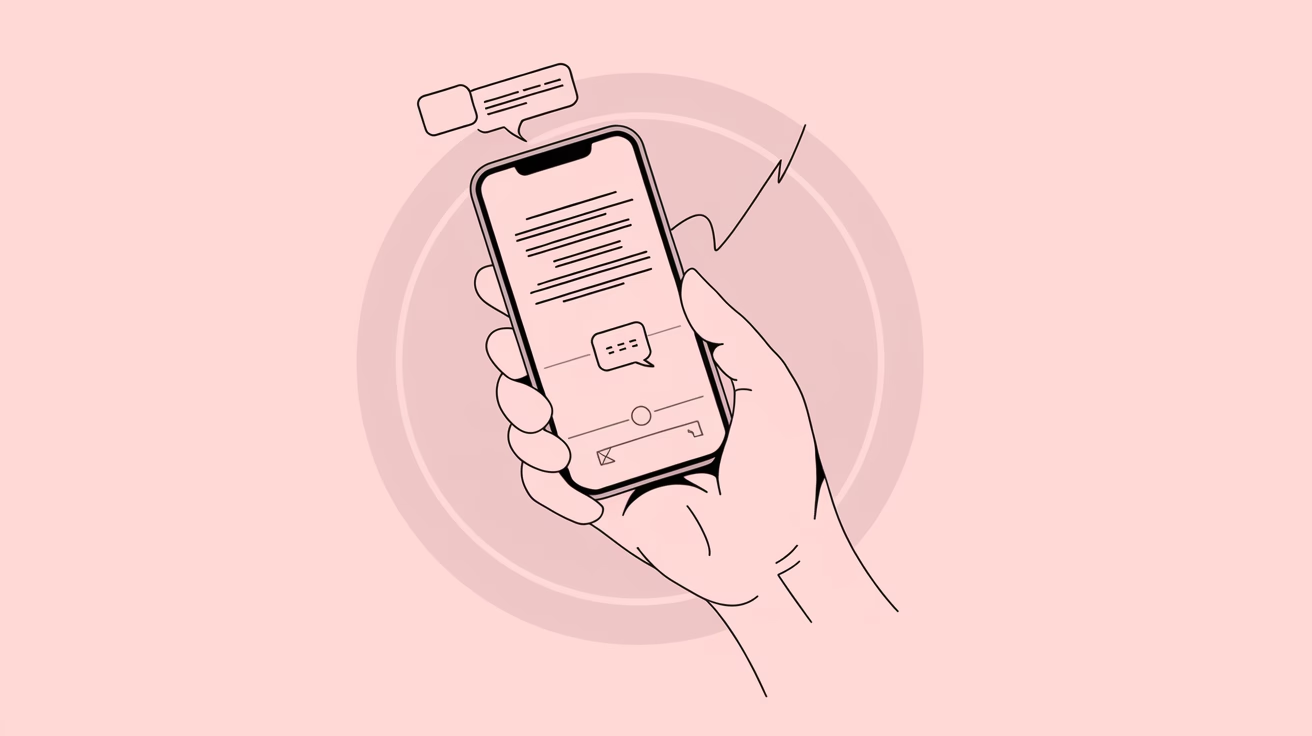
The iPhone comes with a standard reading function, but this function has several inconvenient points.
First, the operation is complex.
It needs to be enabled from the Accessibility settings, which is a bit of a high hurdle for beginners.
Furthermore, the quality of the reading voice is inferior compared to dedicated apps.
It can only read in a voice that feels a bit monotonous for listening to long texts continuously.
Additionally, with the standard function, you cannot save the read speech as a file, which is inconvenient if you want to listen to it again later.
In this way, the iPhone's standard function is designed primarily as an accessibility feature and has limitations.
To read text automatically on iPhone more comfortably, it is recommended to use dedicated AI reading services or apps.
What is the Difference Between iOS App-type and Browser-based Type?

There are two types of auto text-to-speech services available for iPhone and iPad (iOS): app-type and browser-based type.
The app-type is the type you download and use from the App Store; it takes some effort to install but has the advantage of being usable offline.
On the other hand, the browser-based type (web app type) is the type you access directly from a browser like Safari, and its appeal is that it can be used immediately without installation.
For example, Ondoku is a representative example of a browser-based type (web app type), and can be accessed immediately from Safari on an iPhone.
The biggest advantage is that you can use high-quality reading functions without tedious installation work.
For iPhone users concerned about storage capacity, a browser-based reading service that can be used without installation is a very convenient choice.
If you want to compare a wide range of reading apps and methods for iPhone and iPad, please also see this article: "8 Recommended Reading Apps for iPhone and iPad! How to Easily Read Text Aloud on a Smartphone?".
What Can You Do with Text-to-Speech? Recommended Ways to Use iPhone Reading Apps
iPhone auto text-to-speech apps can be utilized in many situations.
During commutes, you can make effective use of travel time by having articles, blogs, or e-books read to you.
It is also possible to input information without using your hands while doing housework or cooking.
In language learning, it is useful for improving listening and speaking skills because you can listen to accurate pronunciation repeatedly.
In business settings, checking long emails or reports by voice can reduce eye strain while processing information efficiently.
Furthermore, for people with visual impairments or the elderly, reading aloud the text displayed on the iPhone screen makes accessing digital content easier.
In this way, iPhone reading apps are very convenient tools that support our lives in various scenes.
8 Recommended Auto Text-to-Speech Apps (Services) for iPhone
I want to know the recommended iPhone apps and services!

Now, let's specifically explain the recommended iOS apps and services that can be used on iPhone and iPad!
- Ondoku
- Voice Dream Reader
- iPhone Standard Reading Function
- NaturalReader
- Speechy
- Yukkuri Bouyomi Talk
- Voice Aloud Reader
- Zunda Voice
1. Ondoku: [Free/Recommended] Auto Text-to-Speech App Easily Usable from a Browser on iPhone
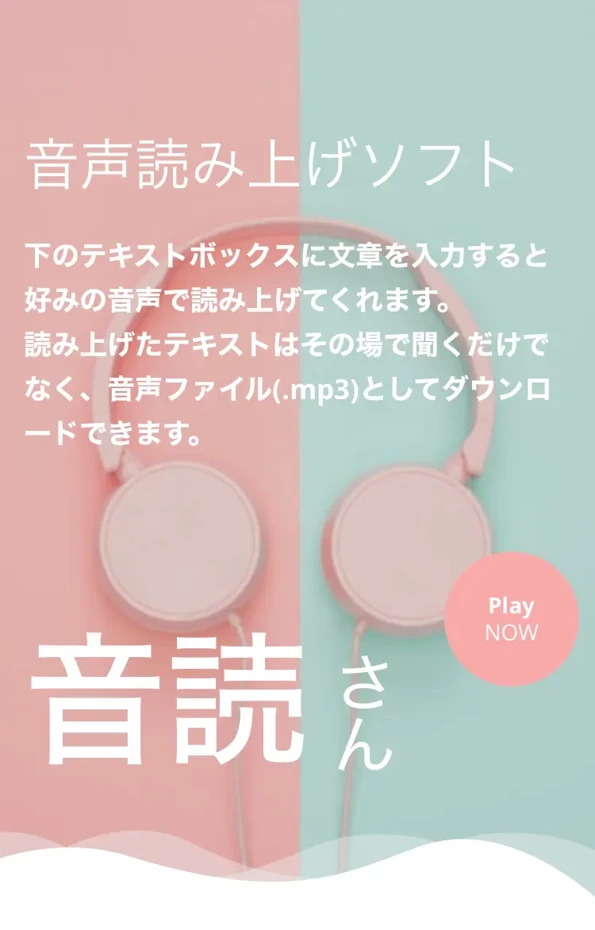
Ondoku is an installation-free auto text-to-speech service that can be accessed directly from a browser on iPhone or iPad.
With natural speech using the latest AI technology, it achieves high-quality reading as if a human were reading.
In the case of Japanese, more than 16 types of voices are available, so you can select the most suitable voice according to the content or your preference.
Listen to 16 types of voices from the text-to-speech software Ondoku for free. Change impressions by adjusting pitch.
Ondoku has 16 types of Japanese voices. Of course, both male and female voices are available. We have made it possible to listen to 8 commonly used Japanese voices and the voices when the pitch of each is adjusted.
Use from iPhone or iPad is also very simple; it is ready to use just by opening the website in the Safari browser.
It is possible to read up to 1,000 characters without registration, and up to 5,000 characters for free if you register, so you can try it out casually.
Since commercial use is also possible, you can utilize it in business scenes or use the read speech as narration for YouTube videos.
Furthermore, it is packed with very attractive features for iPhone users, such as reading in a conversational format using multiple voices and supporting 81 languages and regions.
With a simple interface that even beginners can use without hesitation, it is ideal as an introduction to reading apps on iPhone.
If you are unsure which reading app to choose for iPhone or iPad (iOS), why not try Ondoku first?
2. Voice Dream Reader: An Auto Text-to-Speech App for iPhone with Performance Equivalent to PC Apps

Voice Dream Reader is a paid reading app that you install and use on your iPhone.
It is an established app that has been around for a long time.
It supports various file formats (PDF, Word, EPUB, web pages, etc.), allowing you to read various documents saved on your iPhone.
However, it is necessary to note that the basic app is paid and additional voices must be purchased separately, which could lead to increased costs.
It is also recommended for students studying with an iPhone because it is rich in features for learning support, such as text highlighting, reading speed adjustment, and auto-scrolling.
Since it can be used offline, a major advantage is that it can be used without worrying about iPhone data communication volume.
3. iPhone Standard Reading Function: The Advantage is Being Able to Read Text Automatically Without Installation
The reading function (accessibility function) standardly installed in iPhone and iPad can also be utilized as a solid reading app.
It can be used by turning on "Accessibility" → "Spoken Content" → "Speak Screen" from the iOS Settings app.

The biggest advantage is that there is no need to install additional apps, and it does not consume iPhone storage capacity.
Reading speed and voice type can also be changed from the settings, but options are limited compared to third-party apps.
Also, a disadvantage compared to dedicated auto text-to-speech apps is that it is difficult to save as an audio file.
If you want an audio file, such as for video editing materials, it is recommended to use another app or service.
It is recommended for iPhone users who want to use a simple reading function for free or for those who find the minimum necessary functions sufficient.
4. NaturalReader: A Reading Service Available from Both Browser and App
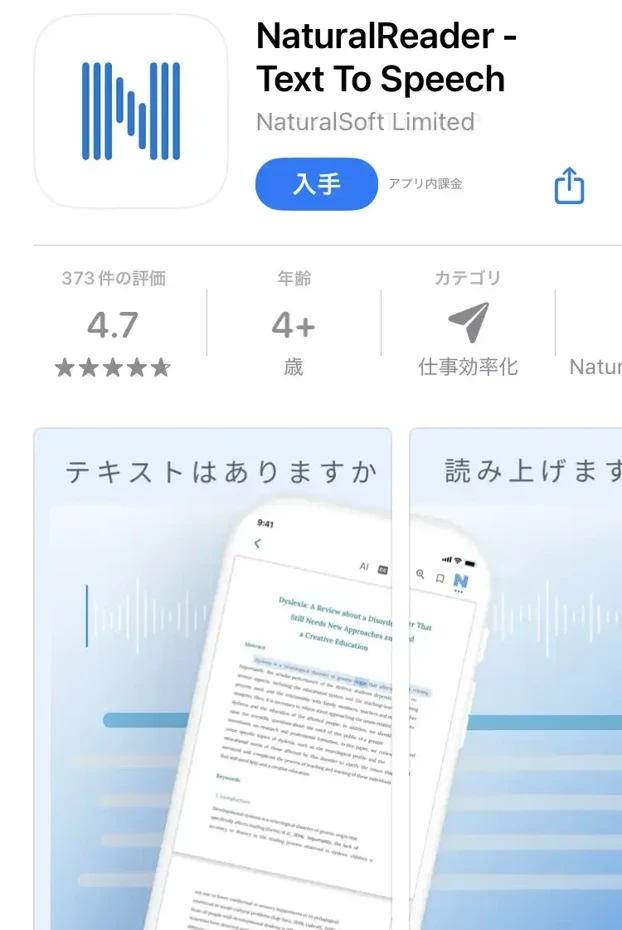
NaturalReader is a service that provides both a browser-based reading service and an iPhone app.
It is equipped with an OCR function, allowing it to read text from documents or photos taken with the iPhone camera.
Characterized by natural voice quality and multi-language support, it is an auto text-to-speech app that is particularly popular in English-speaking countries.
The free version allows you to use basic reading functions, but high-quality voices and advanced functions are only available in paid plans.
The iPhone app is easy to use with a simple design, and can be operated comfortably even in a mobile environment, from loading text to converting to MP3.
Because work can be continued across devices with the cloud synchronization function, it is convenient when using both an iPhone and a computer.
5. Speechy: An iPhone App Recommended for Long Listening with Natural Reading Voice
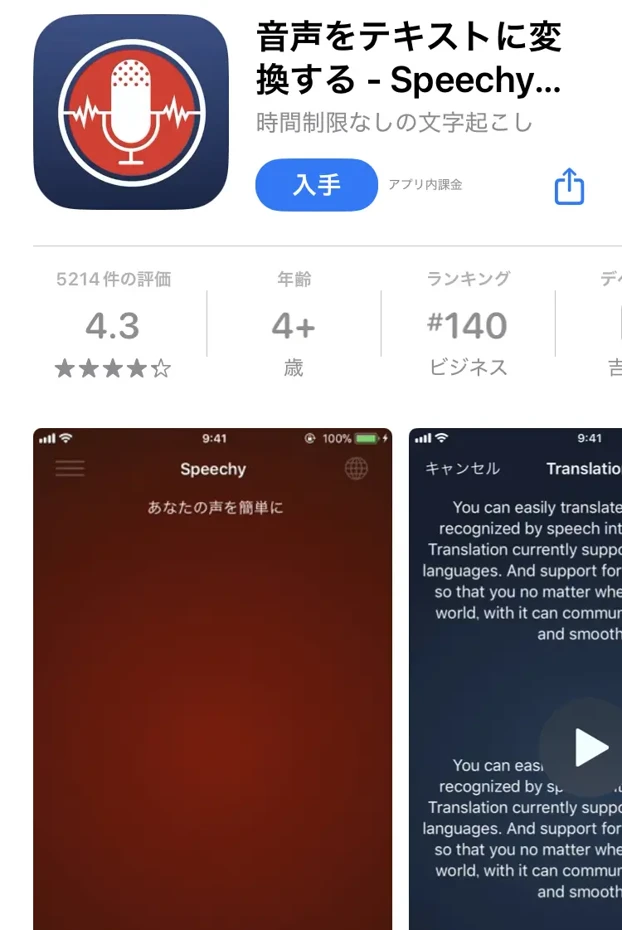
Speechy is a reading app characterized by natural reading voices that make full use of AI voice technology.
The UI for iPhone is refined and the operation is smooth, so even beginners can master it intuitively.
While a free version is offered, high-quality voices and advanced functions are only available through a paid subscription.
Developed for people with learning disabilities, another feature is its richness in functions that aid understanding, such as text highlighting.
The function to directly scan and read printed materials using the iPhone camera is also convenient.
However, since it is a monthly subscription, the ongoing cost is a point to consider.
6. Yukkuri Bouyomi Talk: An App That Can Read in a "Yukkuri" Voice on iPhone
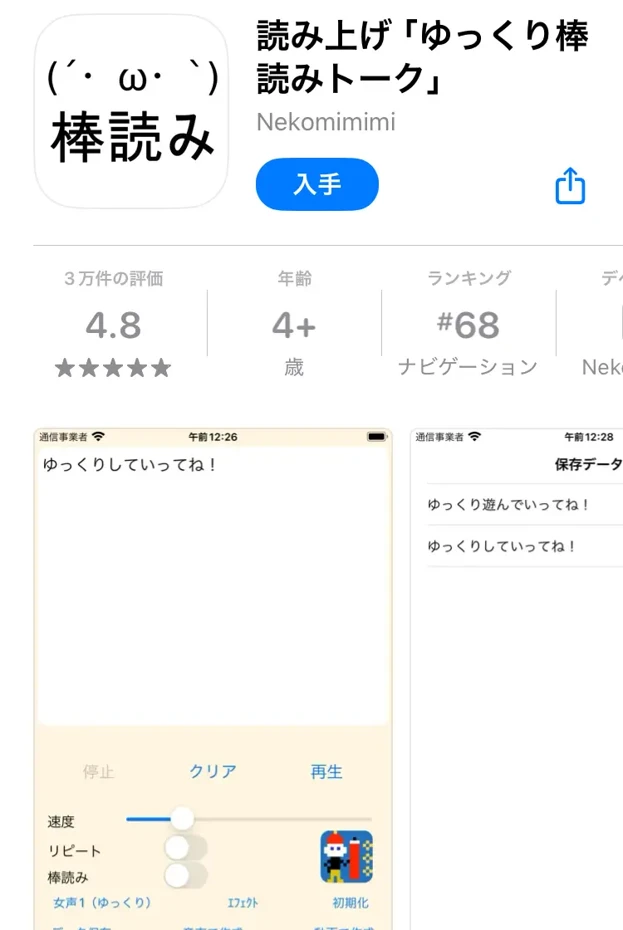
Yukkuri Bouyomi Talk is a simple iPhone app that reads entered text in a mechanical voice.
The main functions of the app include setting reading text, starting and stopping reading, changing speed, repeat settings, selecting voice types, and "bouyomi" settings.
Voice types can be selected from a variety of voices, including "Female 1 (Yukkuri)," other female and male voices, and even robot voices.
Speed and pitch can also be adjusted freely, allowing for customization according to the application.
Since this app uses the voice synthesis library "AquesTalk" by Aquest Co., Ltd., it is necessary to follow the terms of use.
Use within the scope of personal hobbies is free, but a license for the relevant library is required for commercial use.
7. Voice Aloud Reader: A Simple Auto Text-to-Speech App for iPhone
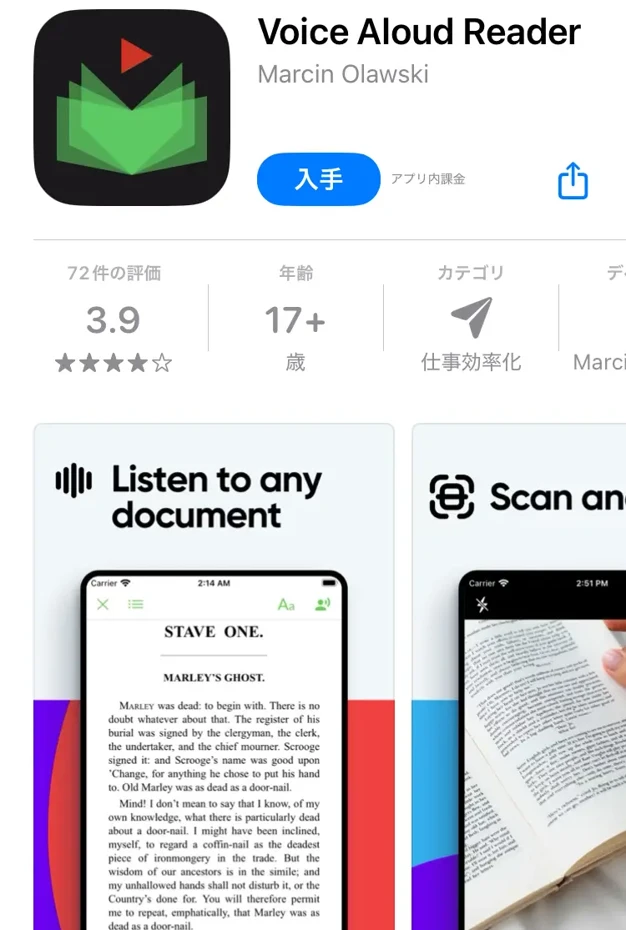
Voice Aloud Reader is a simple and easy-to-use reading app for iPhone.
It supports reading various contents such as text files, web pages, and PDFs.
The free version displays advertisements, but the basic reading functions are fully usable, making it suitable for those who want to keep costs down.
It is convenient that it integrates with the iPhone's share function, allowing you to send text directly from other apps to be read.
It has a function to save the read speech, allowing you to save it as an MP3 file to listen to later.
Because it is focused on simple functions, the processing load on the iPhone is low, and battery consumption is relatively restrained.
This is a recommended iPhone app for those using an auto text-to-speech app for the first time or for those for whom basic functions are sufficient.
8. Zunda Voice: Read in "Zundamon" Voice on iPhone or iPad
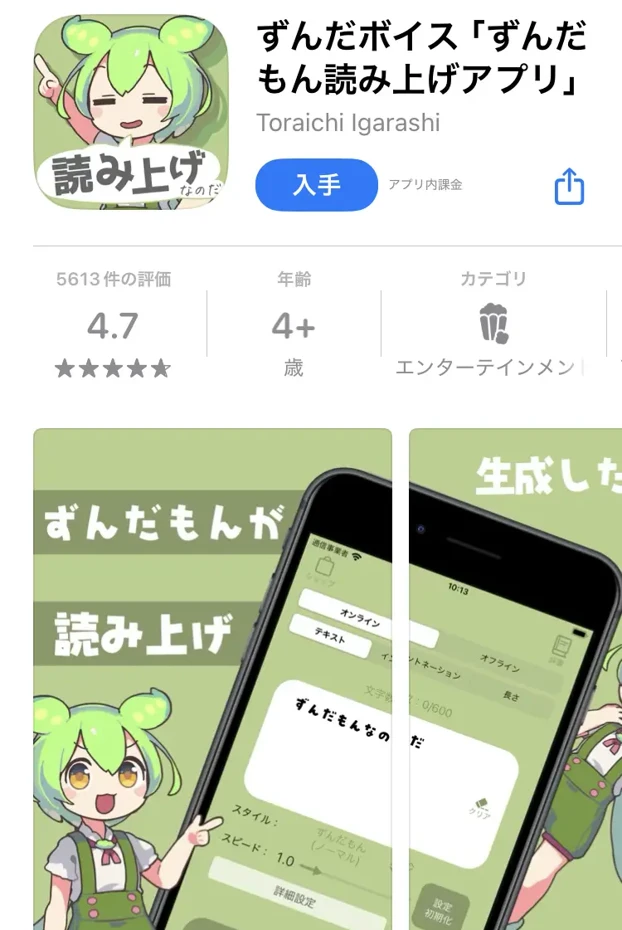
Zunda Voice is an iPhone app that reads text in the character voice of Zundamon.
Its feature is that it can read the entered text in Zundamon's voice.
Furthermore, it is equipped with a function that allows you to use all 99 types of voices by spinning a "gacha."
When generating speech, you can freely adjust intonation, speed, tone, and word length.
The generated speech can be saved and used for video editing or sent to friends.
It also features a bonus function where you can chat with AI Zundamon, and it will read the reply aloud.
How to Master "Ondoku" on iPhone
For First-time Users! 3-Step Guide to Using Ondoku on iPhone
Ondoku can be used on iPhone or iPad just as easily as on a computer.
First, access the Ondoku official website using the Safari browser on your iPhone or iPad.
Next, paste the text you want to have read into the input field or type it in directly.
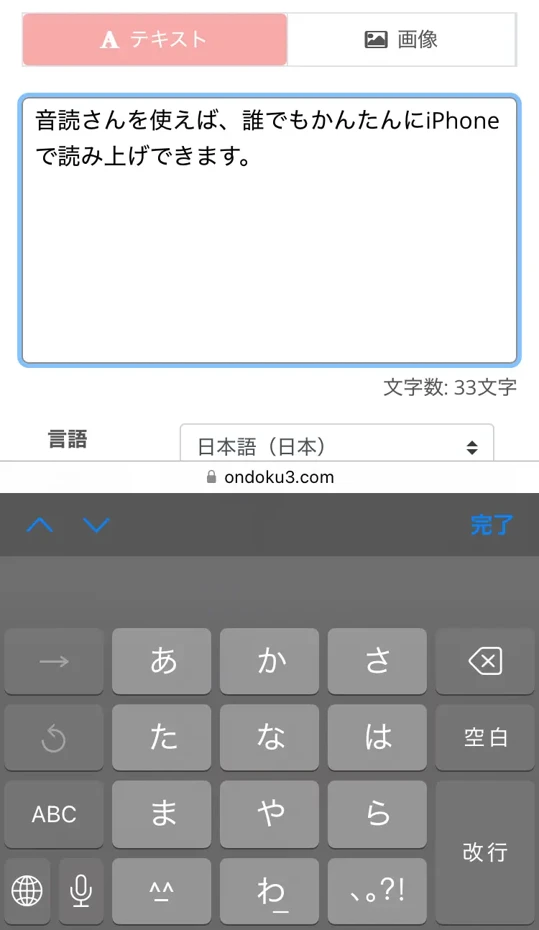
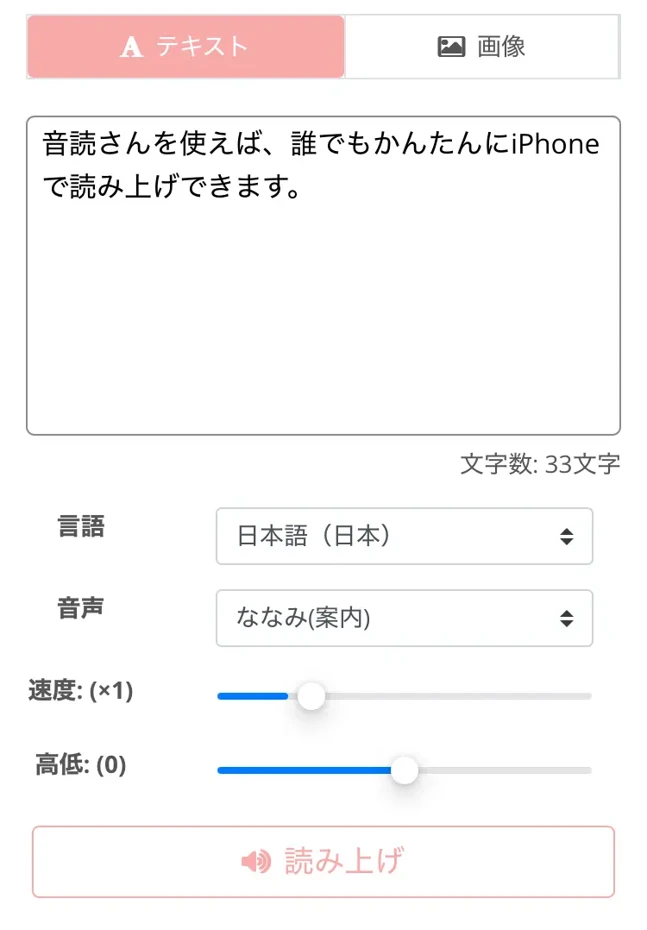
Then, simply tap the "Read" button to start the high-quality auto text-to-speech.
Once the reading process is complete, the read speech will play automatically.
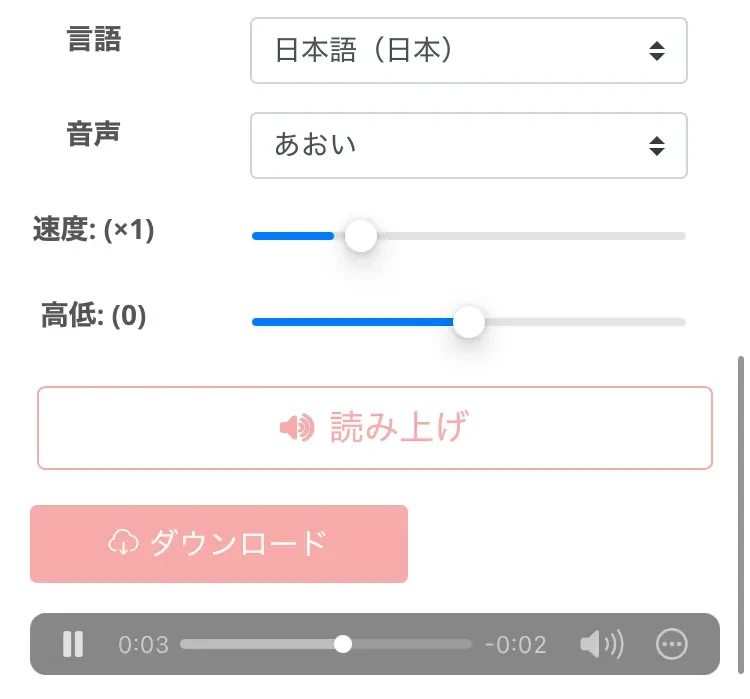
Ondoku can be used for free for up to 1,000 characters without registration, but if you register your email address, the free quota is expanded to 5,000 characters, so registration is recommended if you want to read long texts.
The speech can be downloaded in MP3 format, so you can save the read speech to your iPhone or iPad and listen to it offline.
How to Add to the iPhone/iPad Home Screen and Use it Like an App
Ondoku is a browser-based service, but it can also be used like an app on an iPhone or iPad.
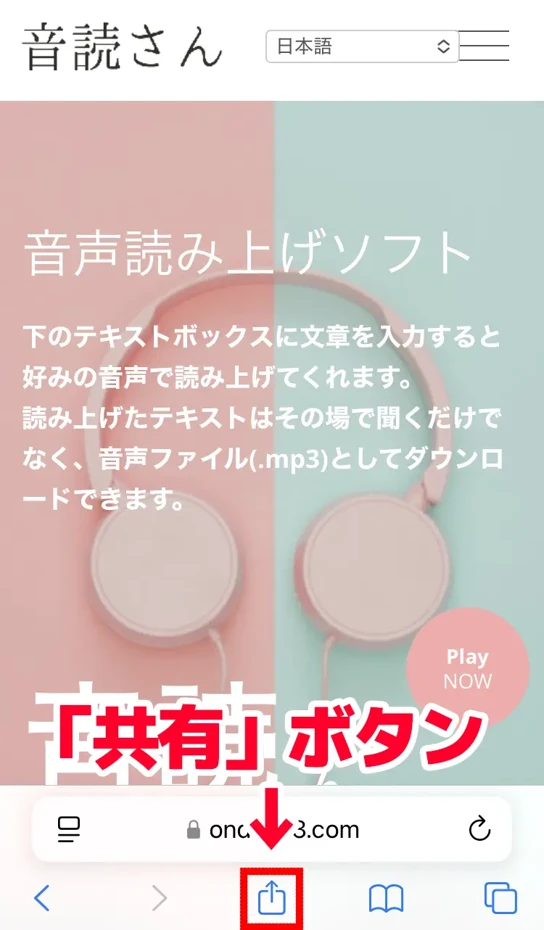
First, tap the "Share" button (the icon of a square with an upward arrow) at the bottom of the Safari screen.
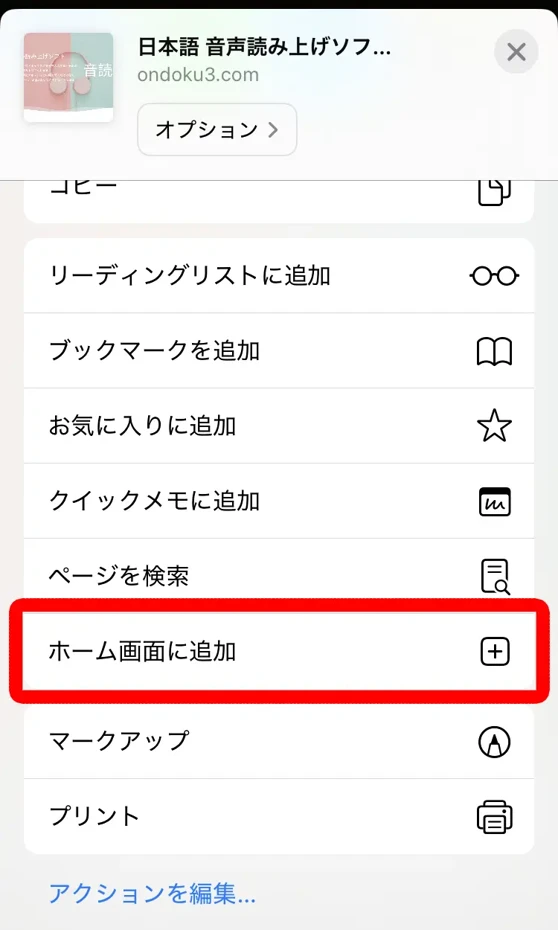
From the displayed menu, select "Add to Home Screen."
The edit screen will open, so tap "Add."
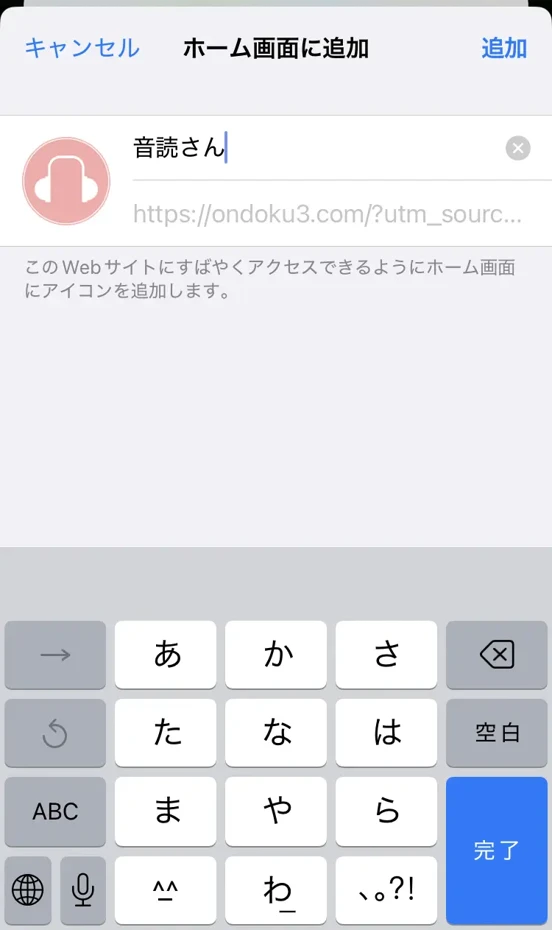
The Ondoku icon has now been added to the home screen of your iPhone or iPad, and you can now access it with just one tap, just like an app.
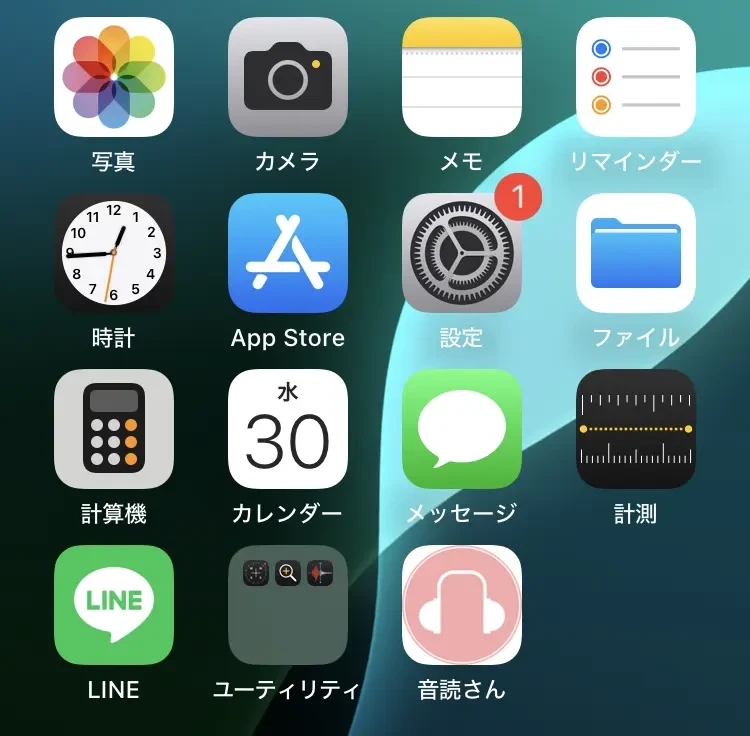
By using this method, you can use Ondoku more comfortably without having to enter the URL in the browser every time.
Accessing from the home screen icon opens it in "App Mode," where Safari tabs and the address bar are not displayed, allowing for more focused use.
This method is especially recommended for those who want to make effective use of screen space on their iPhone or iPad.
How to Customize Voice and Reading Speed
With Ondoku, you can easily customize the voice and reading speed even from an iPhone or iPad.
The type of reading voice can be selected from the "Voice" drop-down menu, and for Japanese, you can choose from 17 types of voices.
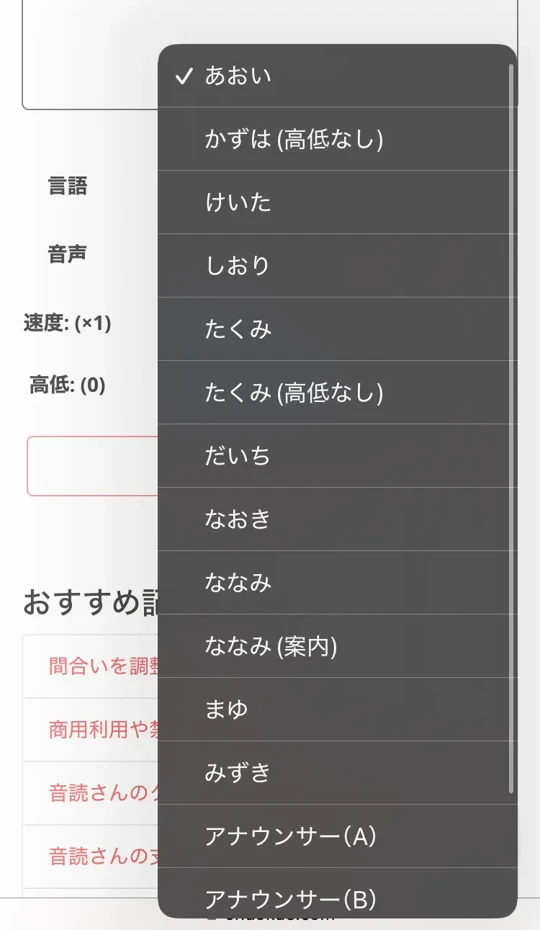
The reading speed can be adjusted with the "Speed" slider, and can be changed from 0.5x (slow) to 2.0x (fast).

The pitch of the voice can also be adjusted with the "Pitch" slider, changing it to a lower or higher voice.
Because these fine adjustments are possible, you can find your preferred voice settings that won't make you tired even after listening for a long time on your iPhone.
Ondoku is a Multi-language Compatible Text-to-Speech Web App for iPhone
Another point is that Ondoku supports multiple languages.
Languages can also be selected from the drop-down menu like this.
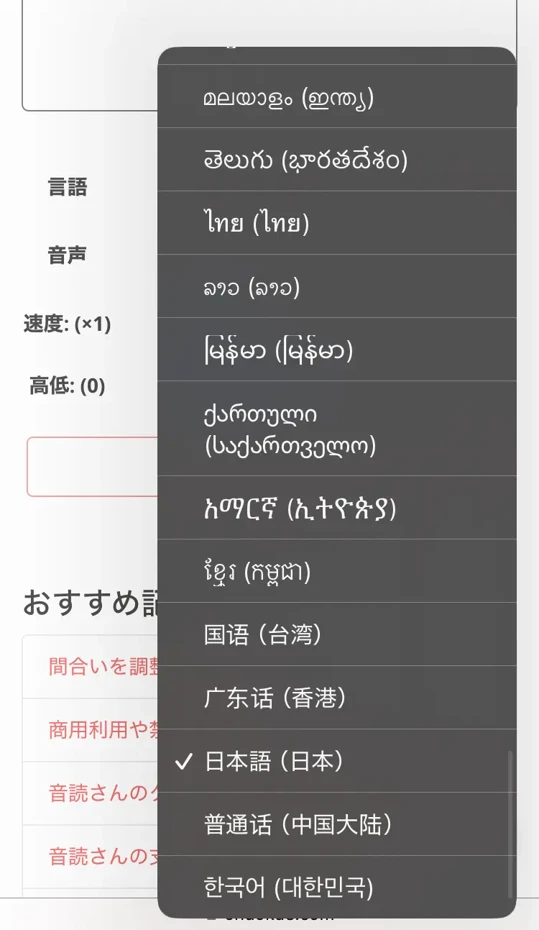
Since Ondoku allows you to change the playback speed, it is ideal for language learning.
In language learning particularly, listening at a slow speed makes it easier to catch, and once you get used to it, you can increase the speed for practical listening practice.
The appeal is also the UI design that is easy to operate even on the small screen of an iPhone, allowing you to change settings without stress.
As you can see, Ondoku is convenient and easy to use!
If you are looking for a way to read text on your iPhone, why not experience Ondoku first?
How to Choose an Auto Text-to-Speech App for iPhone/iPad (iOS) Users
Next, we will explain how to choose an auto text-to-speech app for iPhone and iPad (iOS).
Choose by Voice Quality and Naturalness
When choosing a reading app to use on iPhone or iPad (iOS), one of the most important points is voice quality and naturalness.
Mechanical reading makes long-term use painful, and unnatural intonation makes understanding the content difficult.
Reading apps like Ondoku, which use the latest AI technology, read with natural intonation as if a human were speaking, so a characteristic is that your ears are less likely to get tired even during long listening sessions.
Especially in Japanese reading, it is important whether it can appropriately handle language-specific complexities such as how to read kanji and the handling of particles.
If you plan to read a lot of Japanese content on your iPhone, we recommend choosing an app that is strong in Japanese processing.
Compare Ease of Use and UI
Considering that you will be operating on the small screen of an iPhone, a reading app with a simple and intuitive UI design is desirable.
Apps that require complex settings or cumbersome operations are not suitable for use on a smartphone.
Browser-based services like Ondoku are designed with a simple interface so that even beginners can use them without hesitation.
Also, the ease of access to frequently used functions, text input methods, and reading voice control methods are important factors that affect ease of use on an iPhone.
By choosing an app with a UI optimized for the iPhone's display size, you will be able to utilize the reading function without stress.
Choose by Differences in Pricing Plans and Cost-Effectiveness
Reading apps for iPhone and iPad have various pricing structures, from free ones to expensive monthly subscriptions.
While some free apps provide sufficient functions, there may be cases where you seek advanced functions or refined voice quality unique to paid apps.
Services like Ondoku, which can be used for free, can be said to be excellent in cost-performance.
Many iOS apps for iPhone and iPad, even if labeled as free versions, require payment for actual use.
It is important to check in advance whether the truly necessary functions can be used for free, or if there is a possibility that an upgrade to a paid plan will be needed in the future.
Check Battery Consumption and Impact on Performance
The battery life of an iPhone or iPad is very important.
Some reading apps consume a large amount of battery due to background processing or always-on execution functions.
In particular, apps that perform advanced voice processing tend to put a load on the iPhone processor, leading to faster battery consumption.
Lightweight services like browser-based Ondoku perform processing only when needed, so it can be said that the impact on iPhone battery life is relatively small.
If you plan on long reading sessions, we recommend choosing an app with low battery consumption or taking measures such as carrying a charger or mobile battery when going out.
What are the Practical Ways to Use iPhone/iPad Reading Apps?
Make Effective Use of Commuting Time! Easily Collect Information While Moving

iPhone reading apps are powerful tools for making effective use of commuting and school travel time.
Even if it is difficult to open a book and read in a crowded train or bus, you can obtain information via voice using earphones.
By using browser-based reading services like Ondoku to copy and have the text of news articles or blogs you are interested in read before leaving for work, you can listen to them during your commute.
Even in the short time during a commute, you can secure tens of minutes of learning time a day by using a reading app.
It is also, of course, recommended for those commuting by car.
Using a reading app allows you to obtain information safely, so you don't end up wasting time.
Utilize iPhone Text-to-Speech Apps for Language Learning!

iPhone reading apps are also very effective for language learning.
Using multi-language compatible reading services like Ondoku, you can have foreign language texts read to you with accurate pronunciation.
Listening to the same text repeatedly leads to improved listening skills and the acquisition of natural pronunciation.
The learning method called shadowing, where you read aloud yourself while having the foreign language text read to you, is also recommended.
![[Complete Guide] How to do English shadowing? Also explains how to make free materials!](https://storage.googleapis.com/ondoku3/image/20250522_shadowing_tmb_02_930.webp)
[Complete Guide] How to do English shadowing? Also explains how to make free materials!
Efficiently boost your English skills with shadowing! A learning method that simultaneously improves listening, pronunciation, and speaking, explained for beginners. Also introduces how to create materials with free AI voices.
Since iPhone reading apps allow for speed adjustment, beginners can start slowly, and once used to it, increase the speed for practical listening practice.
If combined with language learning apps, you can listen to phrases and grammar learned in the app within actual context, enabling more effective learning.
The great appeal of reading apps is that you can create a learning environment with just an iPhone, as if a native speaker were right next to you.
Efficiently Check Business Documents and Emails
For business professionals, iPhone reading apps can be powerful tools for streamlining the process of checking emails and documents.
Having long business emails or reports read by apps like Ondoku allows you to take in information through hearing as well as sight, deepening your understanding of the content.
By preparing while having materials read to you before a meeting, you can input information efficiently.
Listening by voice makes it easier to notice nuances of expression or awkwardness that you might not have noticed with text alone.
Especially in proofreading work, small mistakes that are often overlooked when reading by eye can often be discovered by listening to the voice.
By combining with iPhone's Siri shortcuts, it is also possible to have the latest emails read aloud with just a voice command like "Read today's emails."
For business professionals who travel a lot, iPhone reading apps can be said to be an essential tool for making effective use of time.
Achieve "Reading While Doing"! Information Input During Housework or Exercise

iPhone reading apps enable "reading while doing," taking in information hands-free during housework or exercise.
Even while doing housework such as cooking, cleaning, or laundry, you can listen to the content of books or articles using reading apps like Ondoku.
During exercise such as jogging or walking, combining an iPhone with wireless earphones allows you to input information without using your eyes.
The simple operability of Ondoku is also suitable for a bit of operation between housework or exercise.
For busy housewives or dual-income households who cannot actually take the time to read using their eyes, iPhone reading apps provide precious "reading time."
You can efficiently take in information by utilizing all the gap times in daily life, such as morning preparation or the routine before bed.
Why not start by making an audiobook with Ondoku?
![[Free] Make an audiobook with voice synthesis! Summary of self-publishing methods using reading services](https://storage.googleapis.com/ondoku3/image/20240815-audiobook06_930.webp)
[Free] Make an audiobook with voice synthesis! Summary of self-publishing methods using reading services
We explain in detail the method and flow of making audiobooks using free AI reading services/software, and recommend services and software.
Troubleshooting iPhone/iPad Reading Functions
Causes and Solutions for "No Sound" Trouble
While using a reading app on iPhone or iPad iOS, trouble where no sound comes out can occur.
The first thing to check is whether the iPhone or iPad is in "Silent Mode."
If the silent switch on the side of the main body is in the orange state, silent mode is enabled.
Next, confirm that the volume is set appropriately.
You can adjust it with the volume buttons on the iPhone or iPad or check from the Control Center.
If you are using Bluetooth earphones or speakers, it is also necessary to confirm that they are correctly connected and whether the audio is being output to another device.
For browser-based services like Ondoku, please confirm whether audio is permitted in the browser settings.
Check if it is set to "Allow" in "Website Settings" → "Auto-Play" from Safari settings.
If these checks do not solve the problem, restarting the iPhone often resolves the issue.
Adjustment Methods When Japanese Reading is Unnatural
If the Japanese reading on the iPhone feels unnatural, there are several adjustment methods.
While services using the latest AI technology like Ondoku are good at natural Japanese reading, there are tips to further improve naturalness.
If the reading of kanji is wrong, it may improve if you write it in hiragana or katakana.
For example, if "今日は雨です" is read unnaturally, entering "きょうはあめです" may result in correct reading.
The placement of punctuation is also important.
By putting punctuation marks in appropriate positions, it can be read with more natural intonation and pauses.
Trying to change the reading voice is also recommended.
With Ondoku, you can easily change the type of voice, so you can immediately find a voice that sounds more natural.
Please also see here for how to adjust the voice.
Methods you should try when you want to adjust intonation and inflection in Ondoku
If you want to adjust intonation even a little in Ondoku, you can adjust intonation and inflection to some extent by making full use of hiragana, katakana, kanji, alphabets, and punctuation marks.
Optimal Settings to Restrain Battery Consumption

When using a reading app on an iPhone or iPad, there are several settings to restrain battery consumption.
First, lowering the screen brightness can significantly restrain battery consumption.
It can be easily adjusted from the Control Center.
During reading, you can further save battery by locking the screen and turning off the display.
For browser-based services like Ondoku, you can restrain battery consumption by downloading the read speech in advance and playing it later in a music app.
Enabling Low Power Mode limits background processing and automatic updates, improving battery life.
This is especially effective if you plan on long reading sessions.
It is also effective to check which apps are consuming battery from iPhone/iPad "Settings" → "Battery" and close unnecessary apps.
Also, since battery consumption tends to be lower when connected to Wi-Fi than during mobile data communication, we recommend using it in a Wi-Fi environment if possible.
Summary: Why Not Utilize Text-to-Speech Apps on iPhone/iPad?
When using iPhone or iPad auto text-to-speech functions for the first time, we recommend starting with browser-based services like Ondoku.
Because it can be easily tried without installation, you can experience the basic usage and convenience of the reading function.
Start with short sentences first to check the operational feel of the reading and the naturalness of the voice.
Once you get used to it, we recommend gradually challenging long texts and various contents and finding a way to use it that suits your application.
Why don't you also try using text-to-speech apps for iPhone and iPad, including Ondoku?
■ AI voice synthesis software "Ondoku"
"Ondoku" is an online text-to-speech tool that can be used with no initial costs.
- Supports 81 languages and regions, including Japanese, English, Chinese, Korean, Spanish, French, and German
- Available from both PC and smartphone
- Suitable for business, education, entertainment, etc.
- No installation required, can be used immediately from your browser
- Supports reading from images
To use it, simply enter text or upload a file on the site. A natural-sounding audio file will be generated within seconds. You can use voice synthesis up to 5,000 characters for free, so please give it a try.

Text-to-speech software "Ondoku" can read out 5000 characters every month with AI voice for free.
You can easily download MP3s and commercial use is also possible.
If you sign up for free, you can convert up to 5,000 characters per month for free from text to speech.
Try Ondoku now.
HP:
ondoku3.com
Email: ondoku3.com@gmail.com
Email: ondoku3.com@gmail.com
Related posts
"Ondoku" is a Text-to-Speech service that anyone can use for free without installation. If you register for free, you can get up to 5000 characters for free each month. Register now for free
- What is Ondoku
- Start text-to-speech conversion
- Free registration
- Pricing
- Posts
- Try other free services
![[2026 Latest] 8 Best Text-to-Speech Apps for iPhone Compared](https://storage.googleapis.com/ondoku3/image/irodori-tts_tmb_140.webp)
![[2026 Latest] 8 Best Text-to-Speech Apps for iPhone Compared](https://storage.googleapis.com/ondoku3/image/tategaki-image-yomiage_howto_tmb_140.webp)
![[2026 Latest] 8 Best Text-to-Speech Apps for iPhone Compared](https://storage.googleapis.com/ondoku3/image/iphone-video-narration_tmb_140.webp)
![[2026 Latest] 8 Best Text-to-Speech Apps for iPhone Compared](https://storage.googleapis.com/ondoku3/image/chrome-reading-mode-pc_tmb_140.webp)
![[2026 Latest] 8 Best Text-to-Speech Apps for iPhone Compared](https://storage.googleapis.com/ondoku3/image/pdf-to-mp3-howto_tmb_140.webp)