How to insert audio into PowerPoint! Elevate your presentations using Ondoku.
How to Add Audio Files to Slides and Presentations like PowerPoint: Recommended Software and Instructions
Jan. 26, 2026

Watch this article in video format ↓
Hello, thank you for always using Ondoku.
Creating slides and presentations in PowerPoint can be quite a challenge, can't it?
How to make them easy to understand and how to convey the appeal to the audience are constant sources of concern for slide creators.
In slides like PowerPoint, you can make your presentation even easier to understand by adding audio in addition to illustrations and photos.
Furthermore,
- You lack confidence in your own articulation.
- You want to speak in a clear and easy-to-understand manner.
- You want to create a sense of presence by using a variety of male and female voices.
In such cases, it is very effective to use text-to-speech software to create narrations for your presentations and slides.
This method is rapidly gaining attention in some circles!
At Ondoku, we have also started receiving inquiries such as "Is it okay to use the audio for internal company slides?"
Ondoku is, of course, OK for commercial use! (For the free plan, please include credit attribution)
- Internal presentations
- Tasks involving reading text during work
It can be used for these purposes as well.
※For more details on commercial use, please see here.
In this article, we will introduce how to input audio using text-to-speech software to create attractive slides.
Text-to-speech software that can insert audio into slides

If you are looking for audio creation software for making slides, "Ondoku" is recommended!
There are three reasons why we recommend Ondoku.
- Commercial use is possible
- No software installation required
- Easy audio download
These are the points.
When using a company computer, there are often restrictions on downloading software from the perspective of protecting internal confidentiality.
In such cases, Ondoku is ideal.
Since no installation is required and everything is completed on the web, it can be used conveniently.
The fact that downloading audio files is very easy is another reason we recommend it!
First, why not try creating an audio file for your slides with "Ondoku"?
[Free] How to create audio files for slides using Ondoku

Creating audio files to put into slides like PowerPoint is actually very simple.
The things to prepare are
- The manuscript you want to read aloud,
- The slides where you want to put the audio,
That's it.
First, prepare the manuscript you want to read aloud.
You can write the manuscript in the PowerPoint notes, or you can create it in another software.
Next, copy and paste the manuscript into Ondoku.
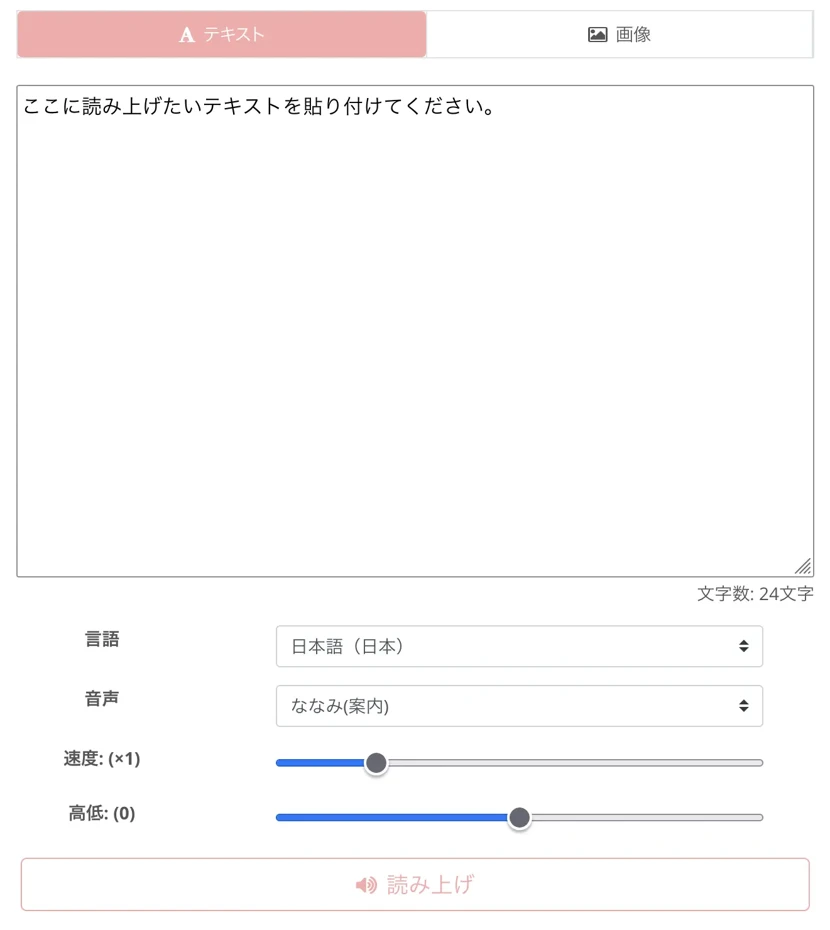
The subsequent work will be easier if you create the audio files by dividing them to some extent, such as per slide.
Finally, insert the audio files into the slides.
Inserting audio files into PowerPoint
The audio file formats that can be inserted into PowerPoint are wma, wav, mp3, m4a/mp4 (PowerPoint 2013 and later only), mid/midi, au, and aiff.
From the toolbar, please select
- Insert
- Audio
- Audio on My PC...
Then, a screen to select the audio file will appear, so select the audio file you created.
A "?" mark (audio icon) will then appear.
Click this icon and set when you want it to play.
Changing the start position of the audio file
To select how to start the audio file, select the dropdown arrow and choose an option.
In Click Sequence
The audio file plays automatically when you click anywhere.
Automatically
The audio file plays automatically when you move to the slide where it is placed.
When Clicked On
The audio file plays only when the icon is clicked.
※To select how to play audio files in the presentation, select one of the following options:
Play Across Slides
One audio file will play across all slides.
Loop until Stopped
One audio file will play repeatedly until you manually stop it by clicking the [Play/Pause] button.
Play in Background
The audio will play continuously in the background across all slides.
Changing playback options
How to change options
- Select the "?" mark (audio icon) and select the [Playback] tab from the toolbar.
- Select your preferred options.
Option Details
Trim Audio
You can also trim the audio. If you want to trim it, select [Trim Audio] and use the red and green sliders to trim the audio file to the appropriate length.
Fade Out
You can fade the audio in or out.
Change the values in each box for [Fade Duration].
Volume Adjustment
To adjust the volume, select [Volume] and choose your desired setting.
Deliver the best presentation with slides utilizing Ondoku!

There are trends in how to make slides and differences in how they are made depending on the company.
Within those limitations,
- How to communicate attractively,
- How to make it easy for the other person to understand,
is a very important challenge.
We would be very happy if text-to-speech software could help solve that challenge even just a little.
Please try the text-to-speech function on the Ondoku site.
You will surely be surprised by how easy it is to use!
Why don't you also utilize Ondoku to create the best slides?
■ AI voice synthesis software "Ondoku"
"Ondoku" is an online text-to-speech tool that can be used with no initial costs.
- Supports approximately 50 languages, including Japanese, English, Chinese, Korean, Spanish, French, and German
- Available from both PC and smartphone
- Suitable for business, education, entertainment, etc.
- No installation required, can be used immediately from your browser
- Supports reading from images
To use it, simply enter text or upload a file on the site. A natural-sounding audio file will be generated within seconds. You can use voice synthesis up to 5,000 characters for free, so please give it a try.

Text-to-speech software "Ondoku" can read out 5000 characters every month with AI voice for free.
You can easily download MP3s and commercial use is also possible.
If you sign up for free, you can convert up to 5,000 characters per month for free from text to speech.
Try Ondoku now.
HP:
ondoku3.com
Email: ondoku3.com@gmail.com
Email: ondoku3.com@gmail.com
Related posts
"Ondoku" is a Text-to-Speech service that anyone can use for free without installation. If you register for free, you can get up to 5000 characters for free each month. Register now for free
- What is Ondoku
- Start text-to-speech conversion
- Free registration
- Pricing
- Posts
- Try other free services