

Best Text-to-Speech Software: 7 Free & Paid Tools for Commercial Use
How to Add AI Narration to TikTok & Instagram | Free & Commercial Use
Sept. 9, 2026

I want to add narration to TikTok and Instagram, but I don't want to use my own voice...
Are you struggling with how to add narration when making TikTok or Instagram videos?
In that case, AI narration is recommended.
You can create short videos for TikTok or Instagram Reels without using your own voice.
Plus, it is free and commercial use OK, so you can monetize with peace of mind.
In this article, we will clearly explain how to add AI narration to short videos in 3 steps: Scriptwriting → Voice Generation → Video Editing.
What you will learn in this article
- Benefits of using AI narration for short videos
- Differences between CapCut text-to-speech and dedicated AI narration apps
- How to create short videos with AI narration 【3 Steps】
- Tips for viral short video narration
What are the benefits of using AI narration for short videos?
Actually, an increasing number of creators are using AI narration for short videos such as TikTok, Instagram Reels, and YouTube Shorts.
First, let's introduce the reasons why.
Post short videos without showing your face or using your voice
The biggest advantage of AI narration is that you can create short videos without using your own voice.
On TikTok and Instagram, there are many creators active without showing their faces or using their voices.
With AI narration, you can generate natural speech just by entering text.
You can post short videos while protecting your privacy.
Another point is that there are many types of voices, such as female and male voices, so you can choose a voice that matches the atmosphere of your video.
Higher quality and more natural than CapCut text-to-speech
Many people likely use CapCut for editing short videos.
While CapCut also has a text-to-speech function, using a dedicated AI narration app allows you to create even higher-quality narration.
With a dedicated app, you can finely adjust the reading speed and tone, resulting in narration that perfectly fits the content of your short video.
Commercial use OK for worry-free monetization
If you aim to monetize on TikTok or Instagram, whether the narration voice can be used for commercial purposes is also an important point.
CapCut's text-to-speech function has restrictions on commercial use.
On the other hand, the AI narration app 『Ondoku』 is commercial use OK.
Even with the free plan, you can use it for commercial purposes by providing credit, allowing you to monetize your short videos safely without spending money.
What is the difference between CapCut text-to-speech vs. dedicated AI narration apps?
What is the difference between CapCut's text-to-speech function and a dedicated app like Ondoku?

CapCut's text-to-speech function is easy and convenient to use, but there are several differences compared to dedicated AI narration apps.
CapCut has limitations on its text-to-speech function
The main attraction of CapCut's text-to-speech is that you can add audio directly within the app.
However, the types of voices you can choose from are limited, and it is not suitable for fine adjustments such as speed or pitch.
The supported voices for Japanese are also limited.
Since there are also restrictions on commercial use, caution is required if you are considering monetization.
Dedicated apps allow you to create natural narration for free
The characteristic of dedicated AI narration apps is the ability to create natural narration using a high-quality AI speech synthesis engine.
You can choose a voice that fits your video from a wide variety of options and finely adjust the reading speed and pitch.
『Ondoku』 is commercial use OK even on the free plan, so you can monetize with peace of mind.
Furthermore, because it supports 81 languages and regions, it can also be used for short videos targeted at overseas audiences.
If you prioritize ease of use, CapCut is recommended; if you prioritize audio quality, customizability, and the security of commercial use, a dedicated AI narration app is recommended.
Narration audio created with 『Ondoku』 can be downloaded as an MP3 file, so you can easily import and use it in your favorite video editing apps like CapCut or InShot.
How to create short video AI narration 【3 Steps】

I want to try making a short video with AI narration right away!
Here, we will introduce how to create short video narration using the AI narration app 『Ondoku』.
You can create a short video with AI narration in just 3 steps.
Step 1: Write a script for the AI narration

First, create a script for the narration.
Short videos are short clips of 15 to 90 seconds.
Guidelines for the number of characters in the script are as follows:
- 15-second video: Approx. 60–80 characters
- 30-second video: Approx. 120–160 characters
- 60-second video: Approx. 250–320 characters
- 90-second video: Approx. 380–480 characters
In short videos, it is very important to grab the viewer's interest in the first 3 seconds.
Include a hook at the beginning of the script, such as "Did you know?" or "Actually...".
The key is to place a period "。" at the end of the script text.
AI narration apps recognize periods as breaks, resulting in a narration with natural pauses.
Step 2: Generate the AI narration voice
Once the script is ready, generate the narration voice with 『Ondoku』.
Usage is simple.
First, open the 『Ondoku』 website.
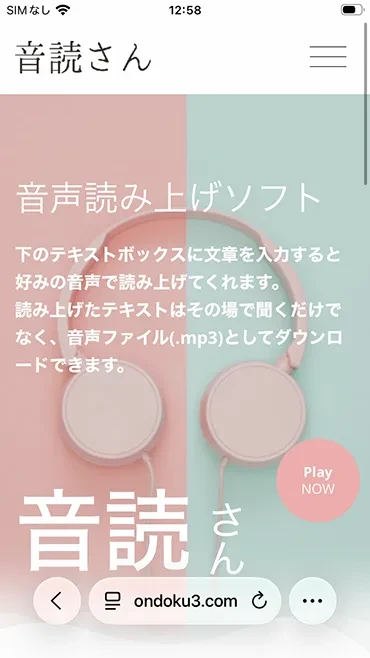
This time, we will read the script text using Ondoku's new high-performance AI voice, 『OndokuBeta』.
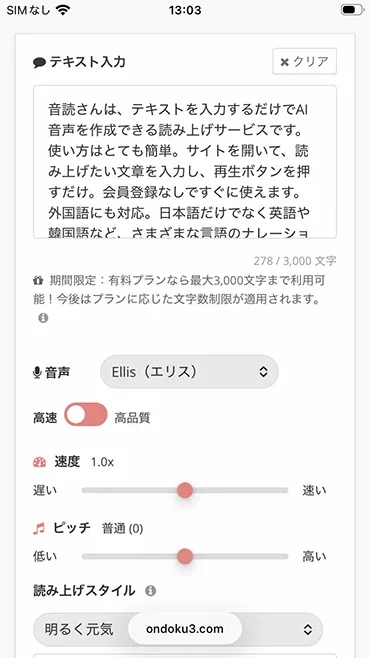
Next, paste the script into the text input field.
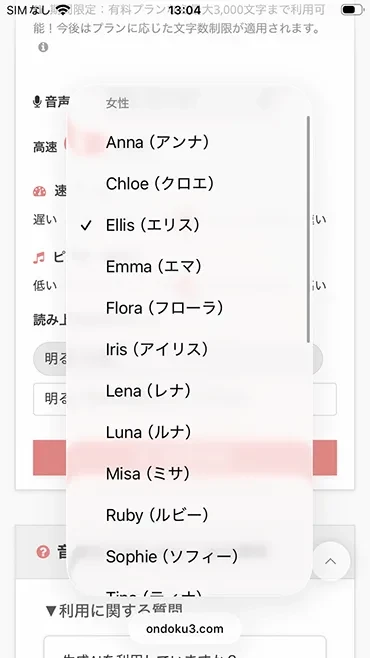
Choose your preferred voice (you can listen to voice samples here).
After entering the text, press the "Read" button.
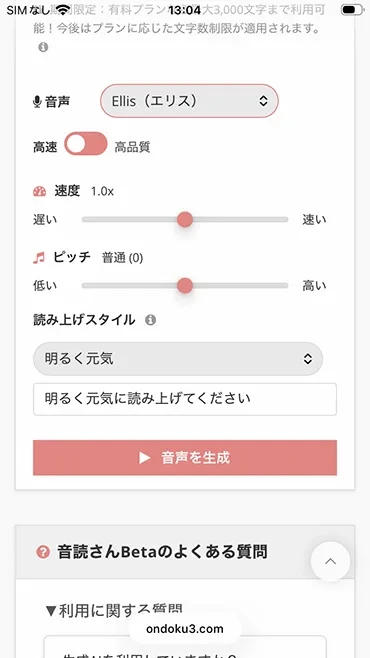
The audio will be generated immediately, so wait with the screen open.
Once the voiceover is complete, the screen will switch and the audio will play.
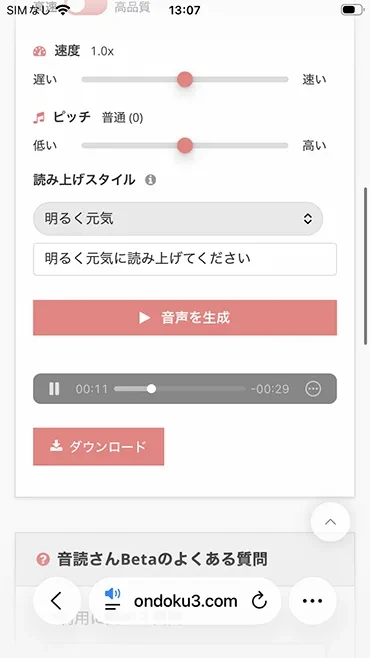
If you've listened and it's OK, download the MP3 file.
By reading the script text this time, we were able to generate audio like this!
Audio Sample
Step 3: Combine using a video editing app
Import the downloaded MP3 file into your video editing app, and it's complete.
Here are the main apps you can use for editing short videos:
- CapCut: A standard app that can be used for free. Smooth integration with TikTok.
- InShot: An app that allows for easy editing on a smartphone.
- Adobe Premiere Rush: An Adobe app that can be used on both PC and smartphone.
- VN: A free and high-performance video editing app.
In any app, you can add narration simply by adding the MP3 file downloaded from Ondoku to the BGM track.
Adding telops (subtitles) synchronized with the narration is recommended as it conveys the content even to viewers who have their sound turned off.
In this way, using Ondoku makes it easy to create narration for TikTok and Instagram short videos.
Why don't you try creating narration for free using Ondoku first?
Creating SRT subtitle files with the latest AI apps is also recommended
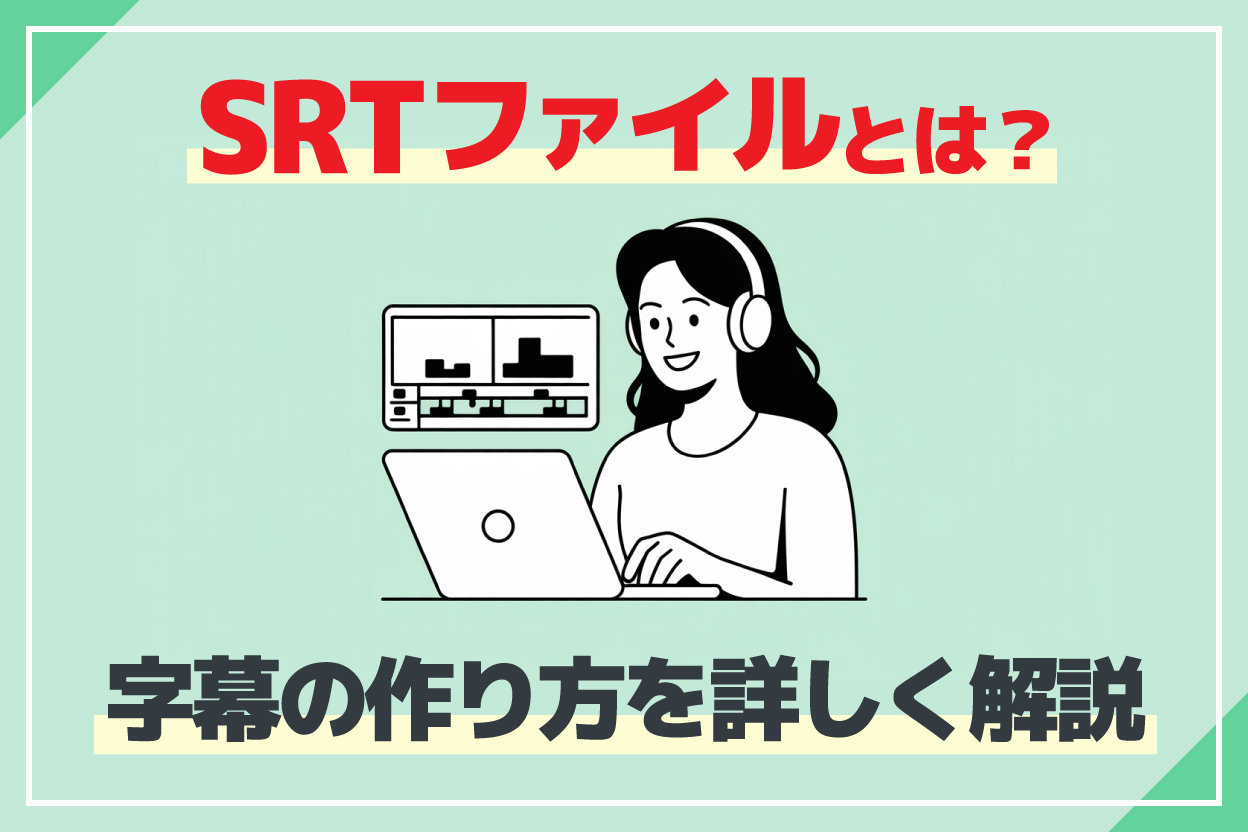
CapCut and VN also support importing "SRT file" formats for subtitle creation.
Since you can automatically create SRT subtitle files from audio with the AI app 『文字起こしさん』, it is recommended when you want to add subtitles easily and smoothly.
5 Tips for Viral Short Video Narration

Here, we will introduce tips to get more people to watch your short videos with AI narration.
1. Include a hook in the first 3 seconds
Short videos are decided in the first 3 seconds.
If viewers find it boring, they will immediately swipe to the next video.
Starting the narration with a question or a shocking fact, such as "Did you know?", "Actually, this is...", or "People who do XX should be careful," is effective.
2. Recommended reading speed is 1.1–1.2x
Good tempo is essential for short videos.
If the narration speed is too slow, viewers will drop off partway through.
Setting the speed to around 1.1–1.2x creates a narration with a good balance of clarity and tempo.
3. Always include subtitles
On TikTok and Instagram, there are many people watching with the sound turned off.
By including subtitles synchronized with the narration, the content can be conveyed even with sound off, which helps reduce the drop-off rate.
If you want to create highly accurate AI subtitles from audio, 『文字起こしさん』 is recommended.
Additionally, you can add subtitles using CapCut's auto-caption feature.
4. Adjust the balance between BGM and narration
In short videos with narration, the key is to lower the BGM volume to make the narration easy to hear.
As a guide, a volume balance of roughly Narration 70 : BGM 30 is recommended.
If the BGM overlaps the narration too much, the valuable content will be harder to convey.
5. Choose a voice that fits the video content
Another point is to choose a narration voice that matches the atmosphere of the video.
- Explanatory/educational videos: A calm, adult voice
- Entertainment/trend videos: A bright, up-tempo voice
- Product introduction/review videos: A clear voice with a sense of trust
Since 『Ondoku』 provides many voices, you can create narration with the perfect voice for your video content.
How to read aloud in foreign languages is explained in the latter half of this article.
Points for adding narration by app

TikTok, Instagram Reels, and YouTube Shorts each have specific points for creating narration.
Here, we explain the points for adding narration for each short video app.
TikTok: The key is how to use trending BGM
TikTok is an app where videos using trending sound sources are more likely to be displayed in recommendations.
Even for videos with narration, playing a trending sound source as BGM at a low volume makes it easier to get featured in recommendations.
The key to going viral on TikTok is to keep the narration as the main focus while effectively incorporating trending sound sources as BGM.
Instagram Reels: Consistency in the channel improves evaluation
Compared to TikTok, Instagram Reels is an app where consistency in the brand's worldview and visuals tends to be more highly evaluated.
It is recommended to consistently use a narration voice that matches the brand image of your account.
By using the same voice every time, it becomes easier for viewers to remember you, thinking, "Oh, it's that account with this voice."
YouTube Shorts: The key is using it to lead viewers to long-form videos
The key to YouTube Shorts is using it as an entry point to regular YouTube videos (long-form videos).
Just by adding a brief line at the end of the short video narration like "I explain in detail in the main video," you can guide viewers to long-form videos on the same channel.
For YouTube Shorts, it is recommended to use narration to increase channel subscribers.
Creating videos for overseas audiences with multilingual narration is also recommended!
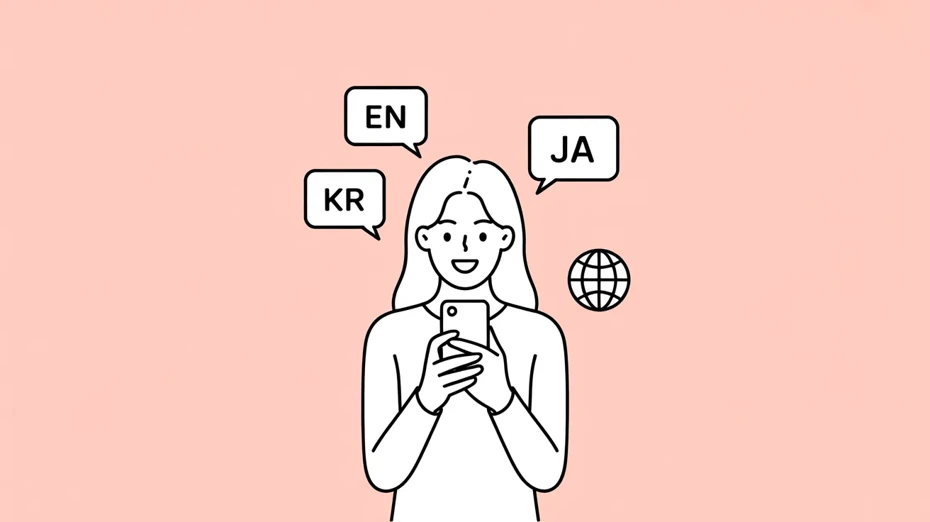
A characteristic of short videos is that they easily spread across borders.
By expanding Japanese short videos into English or Korean, you might be able to go viral among overseas viewers.
English and Korean for expanding your audience
Short videos introducing Japanese culture and trends are also popular overseas.
If you're making videos in foreign languages, English, which has many viewers, and Korean, where many people are interested in Japanese culture, are recommended first.
By translating your Japanese script into English or Korean and generating narration audio in that language with 『Ondoku』, you can create multilingual versions of short videos using the same video material.
『Ondoku』 supports 81 languages and regions, so you can generate narration not only in English and Korean but in various other languages as well.
How to mass-produce multilingual short videos with translation + AI voice
The procedure for multilingual expansion is very simple.
First, translate the Japanese script (it's easy to do using ChatGPT or DeepL).
Then, generate narration audio from the translated text using 『Ondoku』 in the same way as explained in this article.
All you have to do is replace the subtitles and narration with English or Korean in your video editing app!
Since you can reuse the video material as is, you can mass-produce short videos for overseas audiences with little effort!
Summary: Creating Narration for TikTok and Instagram Reels
In this article, we introduced how to add AI narration to short videos such as TikTok, Instagram Reels, and YouTube Shorts.
By using AI narration, anyone can easily create high-quality short videos with narration without using their own voice.
With the AI narration app 『Ondoku』, you can create narration audio that is free and commercial use OK.
Since it supports 81 languages and regions, you can also create short videos in multiple languages.
Why don't you try creating a short video with AI narration using 『Ondoku』 right away?
■ AI voice synthesis software "Ondoku"
"Ondoku" is an online text-to-speech tool that can be used with no initial costs.
- Supports 81 languages and regions, including Japanese, English, Chinese, Korean, Spanish, French, and German
- Available from both PC and smartphone
- Suitable for business, education, entertainment, etc.
- No installation required, can be used immediately from your browser
- Supports reading from images
To use it, simply enter text or upload a file on the site. A natural-sounding audio file will be generated within seconds. You can use voice synthesis up to 5,000 characters for free, so please give it a try.

Text-to-speech software "Ondoku" can read out 5000 characters every month with AI voice for free.
You can easily download MP3s and commercial use is also possible.
If you sign up for free, you can convert up to 5,000 characters per month for free from text to speech.
Try Ondoku now.
HP:
ondoku3.com
Email: ondoku3.com@gmail.com
Email: ondoku3.com@gmail.com
Related posts
"Ondoku" is a Text-to-Speech service that anyone can use for free without installation. If you register for free, you can get up to 5000 characters for free each month. Register now for free
- What is Ondoku
- Start text-to-speech conversion
- Free registration
- Pricing
- Posts
- Try other free services