5 Hidden Features to Make Ondoku Text-to-Speech More Convenient!
【Ondoku】How to use the Split function. Automatically split created audio files at fixed intervals.
July 22, 2026

Hello, this is Ondoku.
A new feature has arrived on Ondoku, following the dictionary feature!
The new feature is the "Split" function.
With this split function, simple tasks that required repeated reading aloud and downloading can be solved all at once.
- Creating YouTube videos
- Creating a flashcard function
- Tired of repetitive reading aloud and downloading tasks
It is highly recommended for people in these situations. Please give it a try.
In this blog post, we will introduce how to use the split function in detail.
Detailed Explanation of Ondoku's Split Function
The split function of Ondoku is a feature that allows you to split audio you've created into segments at specific intervals and download them as separate audio files.
For example,
1, 2, 3, 4, 5, 6, 7, 8, 9, 10
You can download audio files by splitting a text read aloud all at once by Ondoku at points where punctuation is used.
- 1
- 2
- 3
Audio files are saved together in a single folder.
The method for determining where to split is based on the length of the pause duration. It is not based on symbols like "、".
If you want to set the pause length precisely, please use the SSML <break time> tag.
Please also see these articles regarding pause adjustment and SSML.
![How to adjust pauses and blank time in Ondoku reading [2 types] | Text-to-speech software Ondoku](https://storage.googleapis.com/ondoku3/image/Line_930.webp)
How to adjust pauses and blank time in Ondoku reading [2 types] | Text-to-speech software Ondoku
One of the needs of Ondoku users is to "want to leave a little more pause." For adjusting a "pause" to leave a bit of space, there are two types of adjustment methods: 1. Punctuation 2. SSML.

What is Speech Synthesis Markup Language (SSML)? How to use it in text-to-speech software and a list of major codes. | Text-to-speech software Ondoku
SSML stands for Speech Synthesis Markup Language. By writing SSML code, you can further control Ondoku's speech. We will introduce how to use SSML in Ondoku and its codes in detail.
For simple lists of words, we recommend creating the text to be read aloud using Google Sheets or Excel.
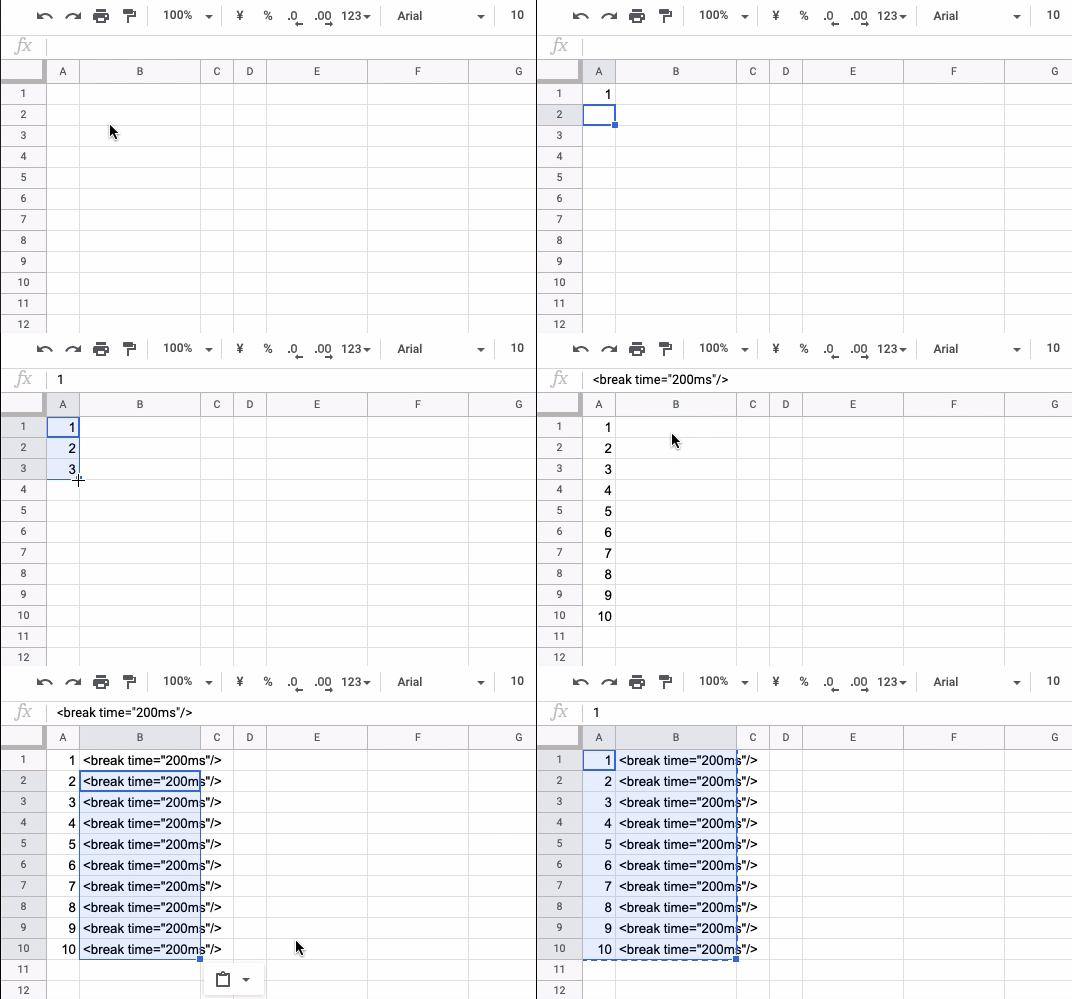
For example, in the case of the previous
1, 2, 3, 4, 5, 6, 7, 8, 9, 10
please create a table like this.
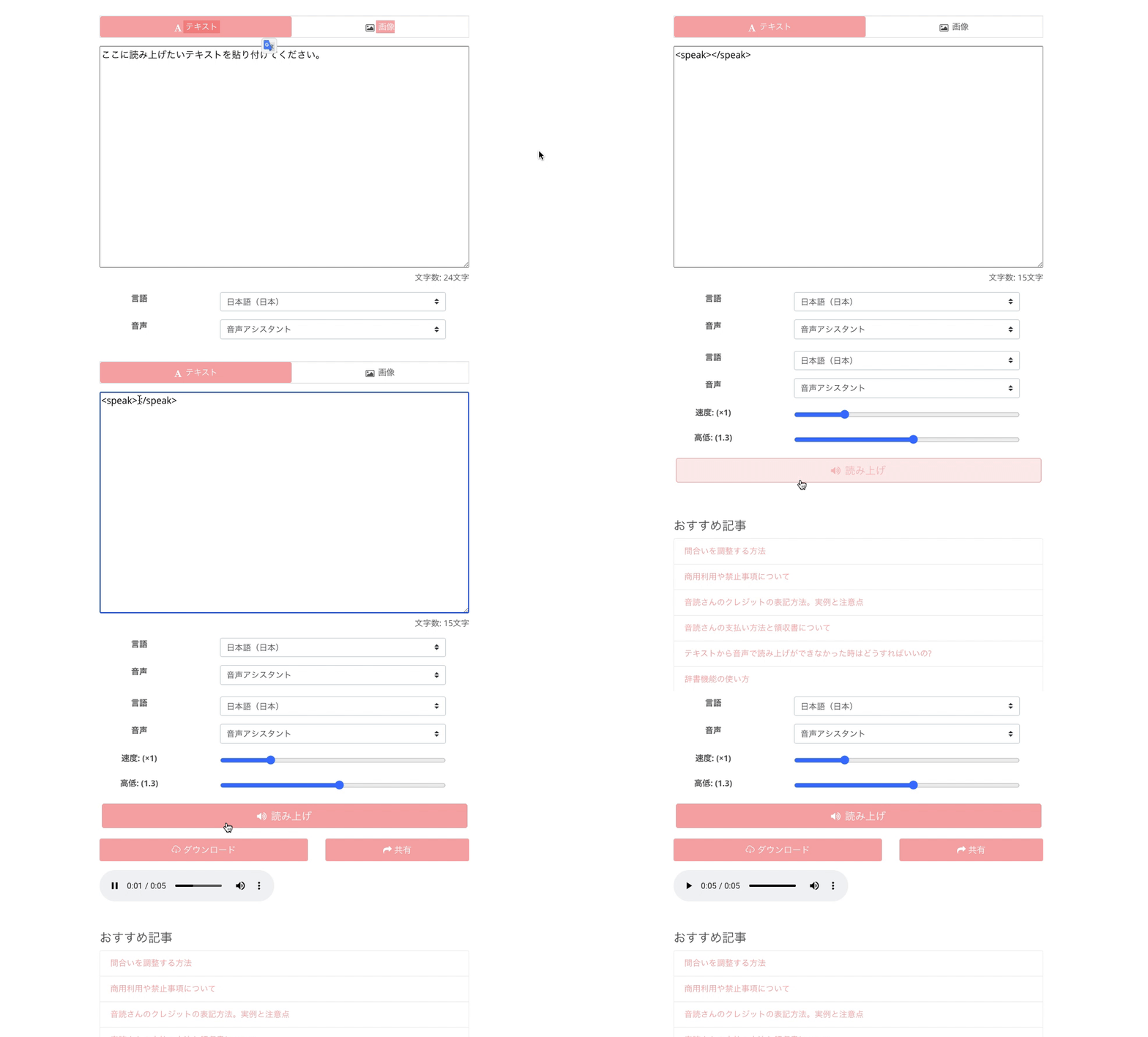
Then, by simply copying and pasting it into Ondoku, you can have the audio read aloud very easily.
This method of creating text can be applied to various scenes. Please make use of it.
How to Use Ondoku's Split Function
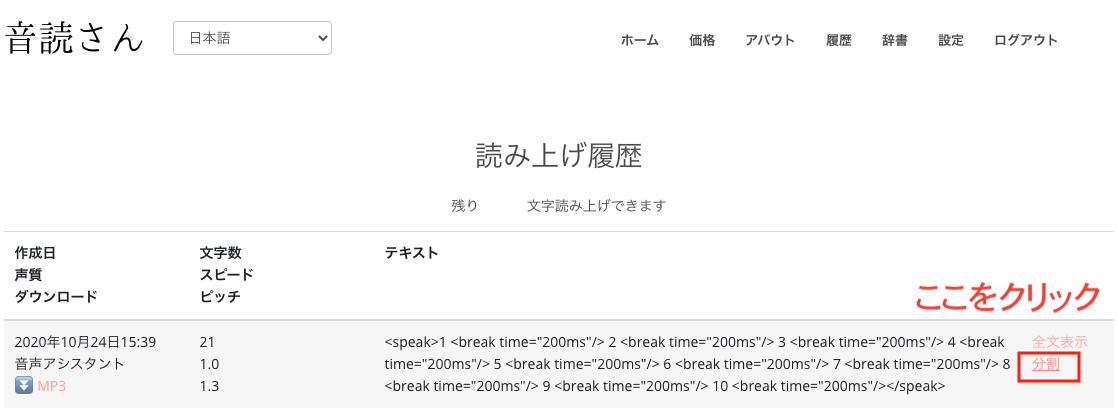
The split function can be accessed from the History page.
Click on History to check your reading history.
Then, in addition to the download button labeled MP3, you will find a "Split" button.
Please click this split button.
When you click Split, a screen like this will appear.
"ms" in "Pause (ms)" stands for milliseconds.
- 1 second = 1000 milliseconds
- 0.5 seconds = 500 milliseconds
- 0.1 seconds = 100 milliseconds
etc.
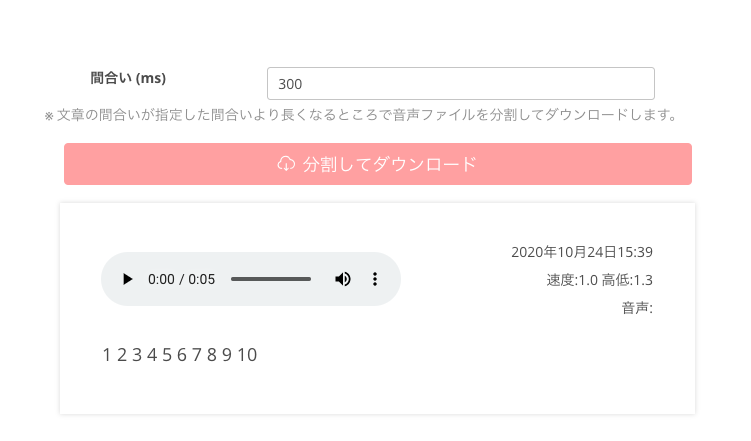
In the split function, the default is set to 300 milliseconds.
In the audio created this time, 200 milliseconds is used.
If you leave it set at 300 milliseconds, it will result in "the 200-millisecond pause being too short to be split there."
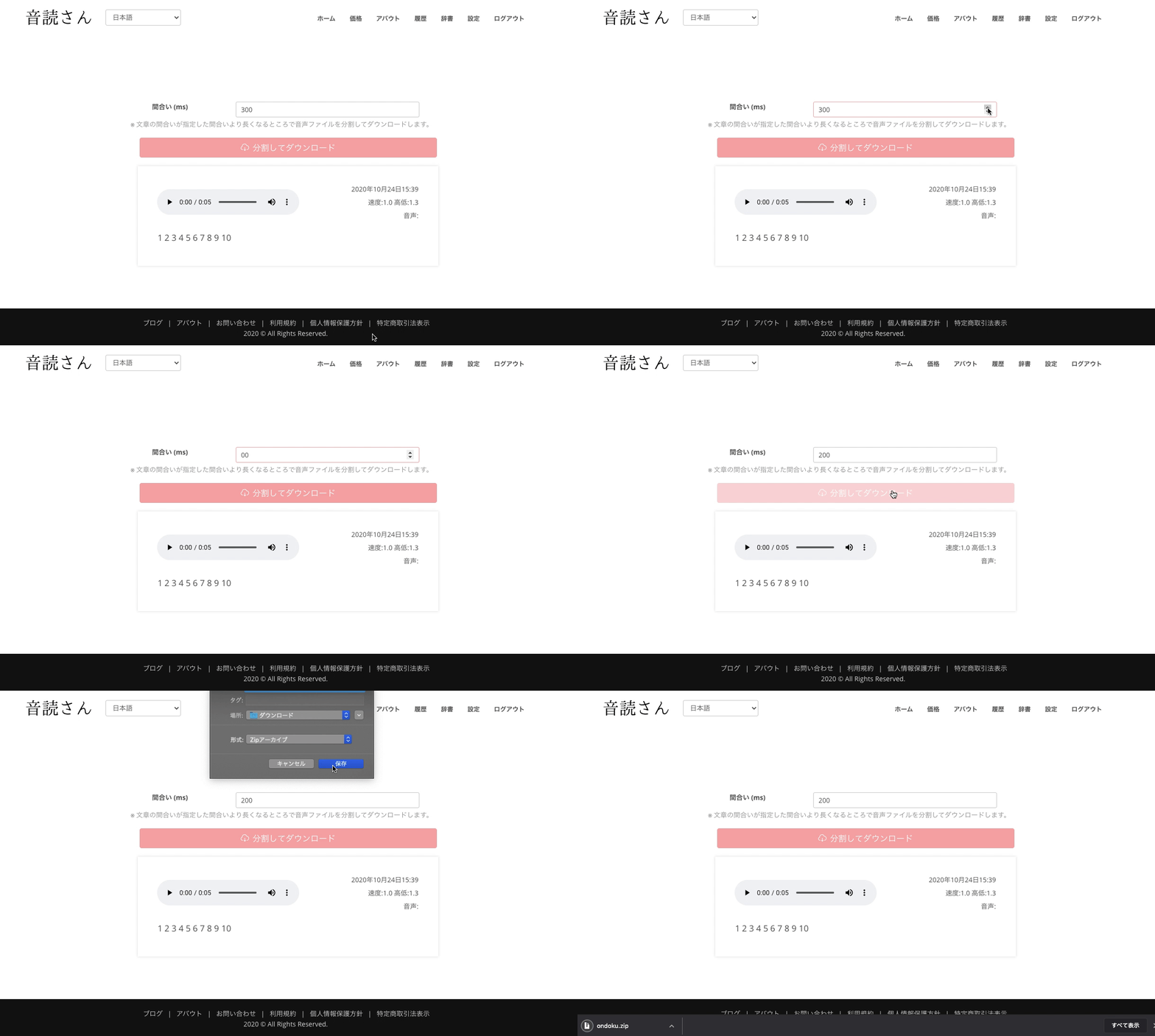
Since we want to split at the 200-millisecond mark, let's change the number to something smaller than 200.
We recommend a number less than half (100 in this case).
You can also change the number using the cursor next to it.
When you click "Split and Download," it will automatically split at parts where there is a pause of 100 milliseconds or more. After a short while, a ZIP file containing the split audio files will be created.
By clicking Save, you can download the ZIP file.
Unzip the downloaded ZIP file and check the contents of the folder.
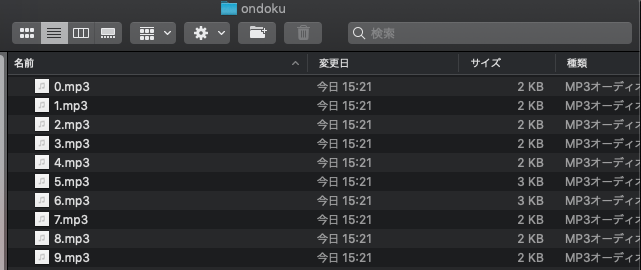
Then, files numbered 0 to 9 are saved like this.
File names are automatically assigned numbers starting from 0 based on the first part of the split text.
This split function is a convenient feature that can significantly shorten the repetitive reading and downloading process that used to be tedious.
It might be difficult to master at first, but it is very useful, so please try it out!
We are happy to continue being the easiest-to-use text-to-speech site for you today.
Thank you for your continued support.
■ AI voice synthesis software "Ondoku"
"Ondoku" is an online text-to-speech tool that can be used with no initial costs.
- Supports 81 languages and regions, including Japanese, English, Chinese, Korean, Spanish, French, and German
- Available from both PC and smartphone
- Suitable for business, education, entertainment, etc.
- No installation required, can be used immediately from your browser
- Supports reading from images
To use it, simply enter text or upload a file on the site. A natural-sounding audio file will be generated within seconds. You can use voice synthesis up to 5,000 characters for free, so please give it a try.

Text-to-speech software "Ondoku" can read out 5000 characters every month with AI voice for free.
You can easily download MP3s and commercial use is also possible.
If you sign up for free, you can convert up to 5,000 characters per month for free from text to speech.
Try Ondoku now.
HP:
ondoku3.com
Email: ondoku3.com@gmail.com
Email: ondoku3.com@gmail.com
Related posts
"Ondoku" is a Text-to-Speech service that anyone can use for free without installation. If you register for free, you can get up to 5000 characters for free each month. Register now for free
- What is Ondoku
- Start text-to-speech conversion
- Free registration
- Pricing
- Posts
- Try other free services