Best Text-to-Speech Software: 7 Free & Paid Tools for Commercial Use
[2026 Latest] How to Add YouTube Video Narration: Top AI Apps & Guide
Oct. 11, 2026
![[2026 Latest] How to Add YouTube Video Narration: Top AI Apps & Guide](https://storage.googleapis.com/ondoku3/image/video_narration_tmb_930.webp)
How do I add narration to a video? I want to know about apps and software!

Narration is essential for YouTube, Instagram, and TikTok videos.
When watching video sites and SNS, you have probably noticed an increase in videos with clear, easy-to-hear professional narration.
In fact, by using the latest AI, anyone can easily add easy-to-hear narration for free!
In this article, the management staff of Ondoku, who actually produce videos, will explain how to add narration to YouTube videos and recommend apps and software!
Based on our experience, we will introduce a wide range of topics, from points to consider when creating narration with AI to how to add narration for those who want to record it themselves.
If you are struggling with how to add narration to YouTube videos or short videos, why not use this article as a reference to create your ideal video?
[Free] Perfect for YouTube Videos! Recommended AI Narration App

If you want to add narration to YouTube, Instagram, or TikTok videos, the AI reading app Ondoku is recommended!
Ondoku is an AI app that can easily create narration audio using the latest AI.
Since it is a web app used from a browser, it can be used from any environment—PC, smartphone, or tablet—without installation.
You can generate high-quality, easy-to-hear narration from text using the latest AI speech synthesis engine, so you can increase the views and subscriber count of your YouTube channel right away.
What's more, Ondoku is free!
When you register and log in, you can read aloud up to 5,000 characters for free, so you can generate enough narration audio for more than one video for free.
Another key point is that commercial use is OK, such as for monetization or use in companies (Click here for details on commercial use).
If you are unsure about how to add narration to YouTube, SNS, or short videos, why not try using Ondoku for free first?
[Free] How to Add Video Narration Audio Using AI Apps/Software
I want to know how to add video narration!
First, we will introduce how to add video narration using the AI reading service Ondoku!
Since you can create read-aloud audio for free, why not try adding narration audio to your YouTube videos with Ondoku?
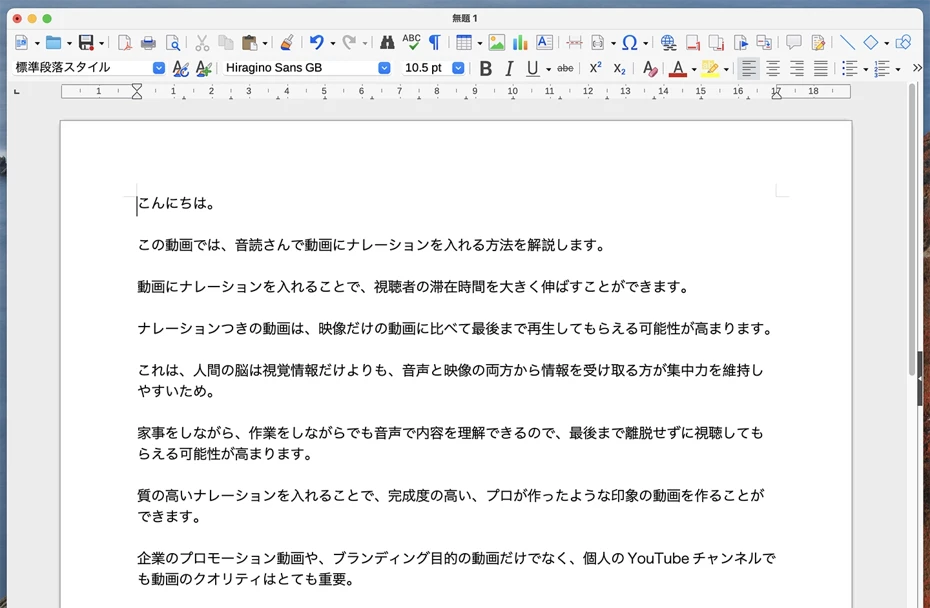
1. Write the script text for the narration audio

First, create a script.
The point when writing the script text is to be conscious of how long it will be when read aloud.
The amount of text for a script is roughly:
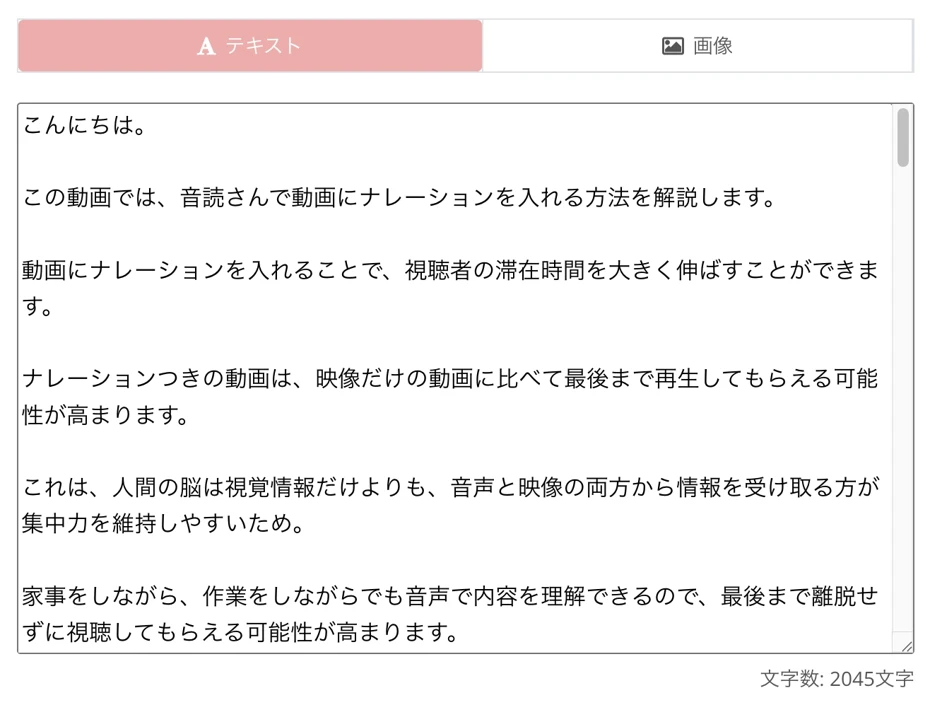
- 2,000 characters for about a 5-minute video
It is recommended to decide the length of the script based on the content, such as shorter for high-entertainment videos and longer for commentary videos.
Any software or app that can write text is fine, but using one with a character count function is convenient.
Software and apps that can count characters include:
- Microsoft Word
- LibreOffice
- Microsoft VSCode
When writing script text, in addition to length, it is recommended to pay attention to points such as:
- What is the theme of the video?
- Is the flow of the story natural?
- Is the tone of expression consistent (e.g., formal vs. informal)?
Put a "。" at the end of sentences
A point when making a script for reading aloud in Ondoku is to:
- Put a "。" (full stop/period) at the end of sentences
The AI reading engine of Ondoku recognizes the parts where a sentence ends with a "。" as a break.
By appropriately adding "。" to the text, you can create narration that reads naturally while taking breaks between sentences.
2. [Free] Create narration audio from text with Ondoku
Once the script is complete, use Ondoku to create the narration audio.
To create narration audio with Ondoku, first open the Ondoku page.
Paste the script text into the text box on the Ondoku top page.
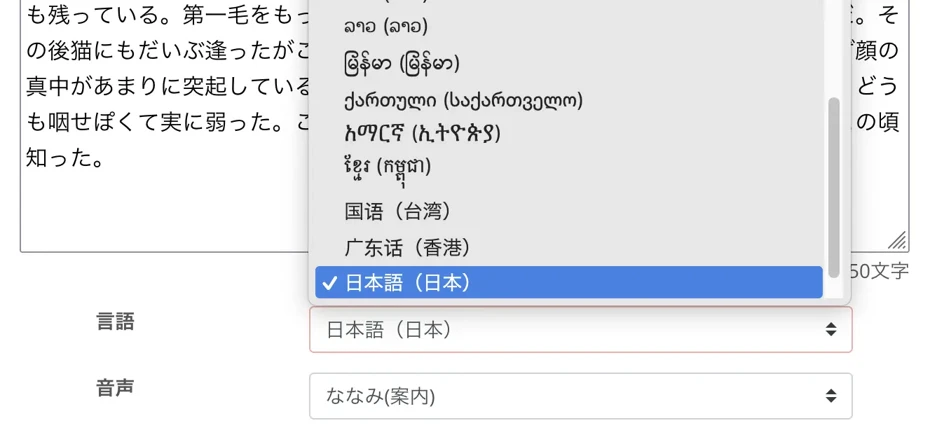
If the language is set to another language, select the language.
Since the script text this time is Japanese, I chose "Japanese".
Select the type of voice, such as female or male.
You can listen to samples of Ondoku voices on this page. Please take a look!
Listen to 16 types of voices from the text-to-speech software Ondoku for free. Change the impression with pitch variations
Ondoku has 16 types of Japanese voices. Of course, both male and female voices are available. We have made it possible for you to listen to 8 commonly used Japanese voices and how they sound when their pitch is adjusted.
![[Ondoku] Listen to voice types and sample audio for supported languages](https://storage.googleapis.com/ondoku3/image/%E5%A4%9A%E6%A7%98%E6%80%A7_930.webp)
[Ondoku] Listen to voice types and sample audio for supported languages
Here we introduce Ondoku's supported languages and sample audio.
Ondoku also allows you to set voice pitch and reading speed.

If you are using it for the first time, you can leave it at the default settings.
Now the settings are complete.
Press the "Read Aloud" button to start reading!
The audio generation is completed quickly.
The screen switches and the audio file is played.
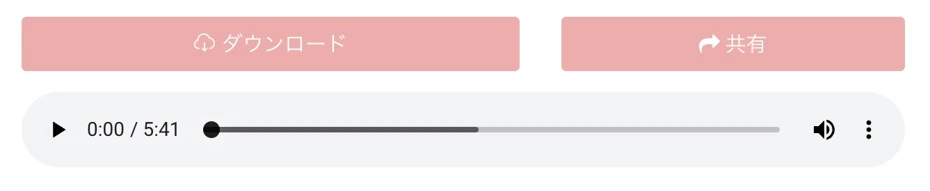
If you listen to it and there are no problems, press the download button to save the MP3 file.
With this, you have successfully created narration audio with Ondoku.
Ondoku also allows split downloading of narration audio
When downloading audio files from Ondoku, the "Split Download" function is recommended.
To use the split download function, open the Ondoku reading history page.

Click "Split" on the right side.

The split download page will open, so set the intervals and press Download (the interval length can be left at the default setting).

Then, the audio file will be split and downloaded as a ZIP file.

It allows for more convenient editing when you want to finely adjust the timing of the audio or swap audio on a sentence-by-sentence basis.
For more details on the split download function, please also see this page.

How to quickly create narration for videos such as YouTube with text-to-speech software. Tips and points
Explaining how to quickly create YouTube video narration with Ondoku. Easy-to-understand explanations from how to make a script, how to use Ondoku, adjusting natural intonation, to tips for editing in video editing software. A must-see for those who want to streamline video production with text-to-speech software!
3. Edit YouTube videos using narration audio

Once the narration MP3 file is complete, actually produce the video using video editing software.
A point when editing video is to use the cut tool to create pauses in the audio.
The narration audio from Ondoku reads the script in a natural flow as it is, but there are times when it is better to take a pause for video production purposes.
In such cases, use the cut tool to cut the audio on the timeline of the video editing software to create intervals.
For example, in Adobe Premiere Pro, it is possible to cut audio by using the "Razor Tool".
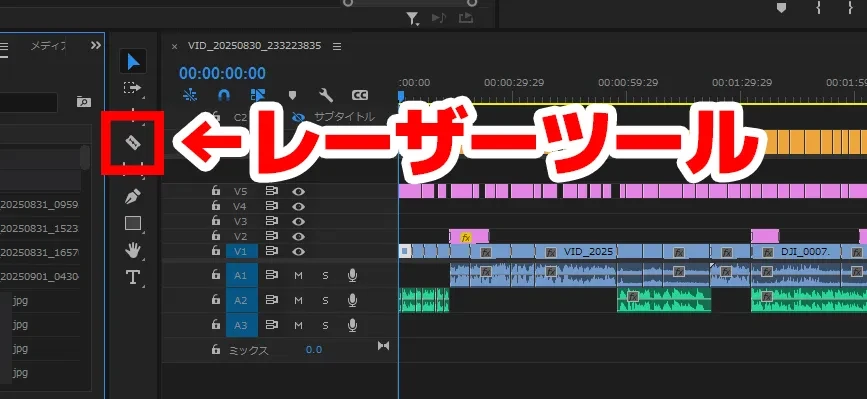
Editing video to match the narration audio is also recommended
There are two ways to add video narration.
- Edit video material to match the length of the narration audio
- Edit narration material to match the length of the video material
The recommendation is to edit video material to match the length of the narration audio.
If you cut and edit video material to match the content of the narration audio, it is possible to create a video with a very good rhythm.
If you observe the videos of famous YouTubers, you can see that they are edited in a rhythmic flow without stopping the momentum of the voice.
By cutting and editing video material based on the audio, you can create video content that is perfect for entertainment.
However, conversely, if it is a serious video or a video where the content shown in the video material itself is important, it is OK to cut and edit the narration audio based on the video material.
Automatically creating subtitle text from audio is also recommended
Adding subtitles to YouTube videos is also recommended!
You can add subtitles yourself from the script text, but the recommendation is to use a transcription service that can automatically create subtitle files.
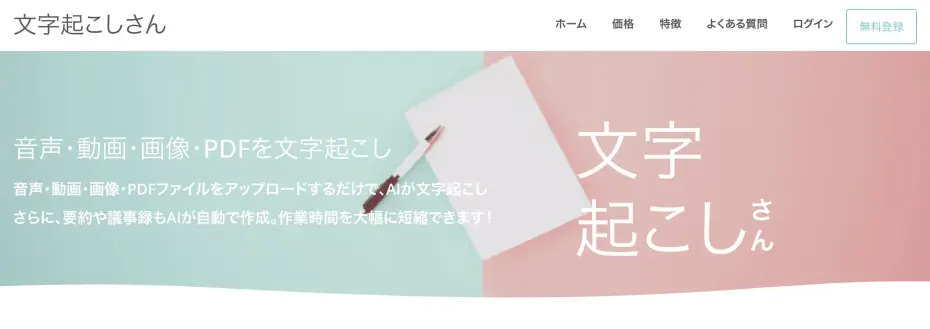
With the AI transcription service Mojiokoshi-san, you can create an "SRT file" for subtitles just by uploading an audio file.
You can easily add text subtitles by loading the SRT file into video editing software or YouTube.
For more details, please also see this article!
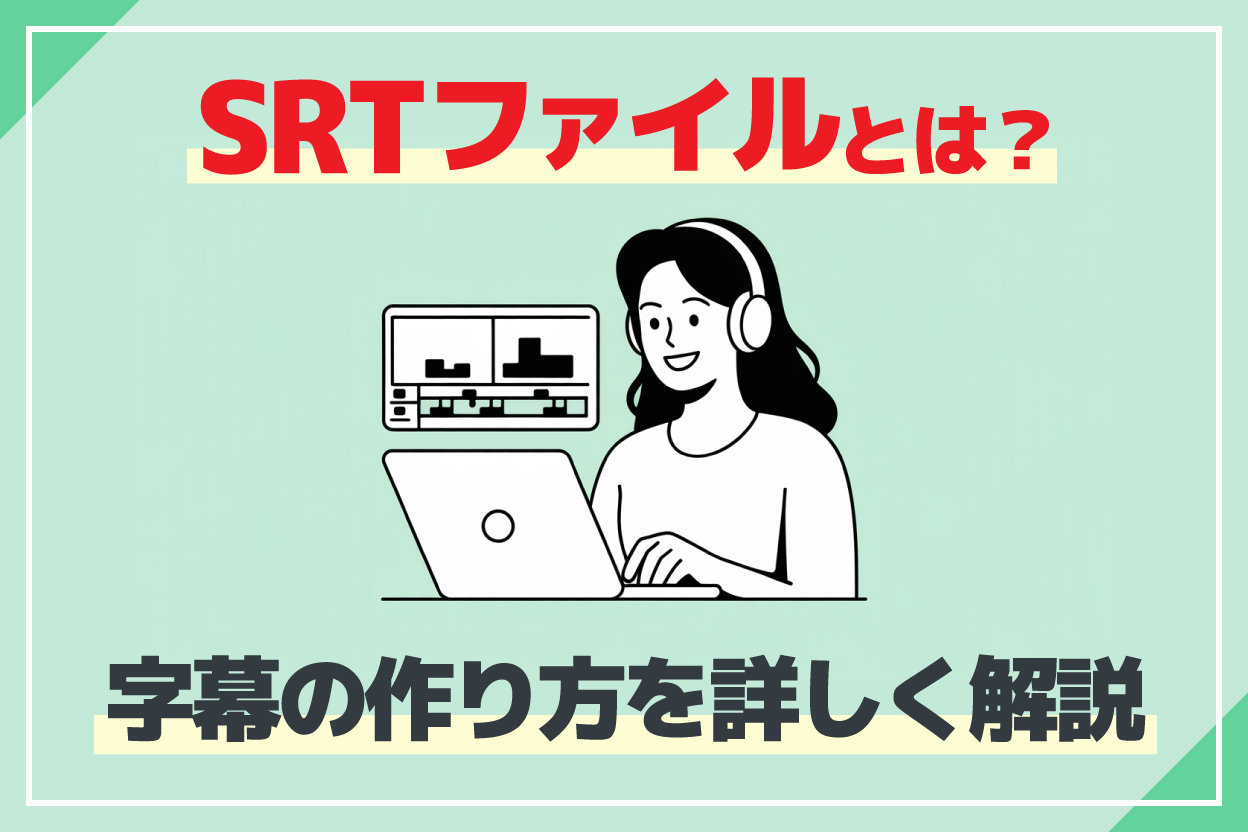
4. Upload the video to sites/services like YouTube

Once the video is finished, upload the video to sites and services like YouTube, TikTok, and Instagram.
A point when uploading a video to YouTube is to set the video language.
When the details screen opens, set the language to "Japanese", "English", etc., according to the narration language.
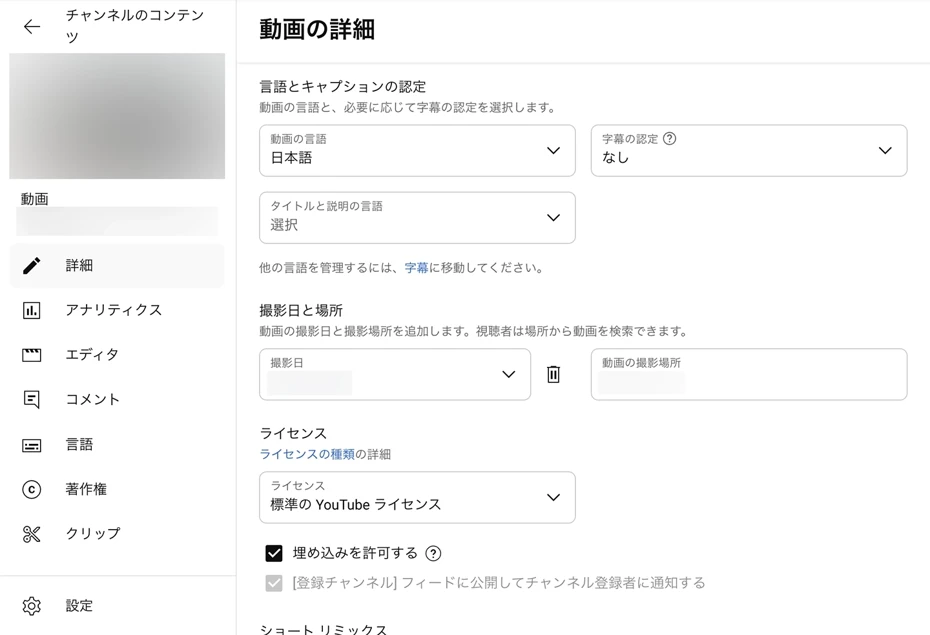
By setting the language, automatic subtitles for the video will become available on YouTube.
Having automatic subtitles allows foreign viewers to translate and watch the subtitles, so you can further increase the number of views and subscribers.
With this, the flow of adding narration using Ondoku, as well as editing and uploading, is complete!
Adding narration using Ondoku is very simple.
Since it can be used for free, why not try making video narration with Ondoku yourself first?
Why is it recommended to add narration audio to videos?


What are the benefits of video narration?
Adding narration to YouTube videos and short videos has many benefits.
- Viewer retention time increases, leading to more views
- A high level of video perfection leads to more channel subscribers
- Can enhance the presentation power of the video
Let's look at each in detail.
Viewer retention time increases, leading to more views
By adding narration to a video, you can significantly increase viewer retention time.
In the YouTube algorithm, videos with longer watch times (videos where the screen wasn't closed midway) are more likely to be displayed in recommendations, which also leads to increased view counts!
Videos with narration have a higher chance of being played until the end compared to videos with only images.
This is because the human brain finds it easier to maintain concentration when receiving information from both audio and visuals rather than just visual information.
What's more, having narration allows viewers to "watch while doing other things".
Since they can understand the content through audio while doing housework or working, the possibility of watching until the end without leaving increases.
A high level of video perfection leads to more channel subscribers
By adding high-quality narration, you can create a high-quality video that looks like it was made by a professional.
Video quality is very important not only for corporate promotional videos and branding videos but also for personal YouTube channels.
Videos with solid narration can give viewers the impression that "this is a well-made video," so the possibility of getting channel subscribers also increases.
![[2026 Latest] Successful Overseas Promotion Methods for Products | Increase Sales with YouTube Videos and AI Voice](https://storage.googleapis.com/ondoku3/image/overseas-promotion-tmb_930.webp)
[2026 Latest] Successful Overseas Promotion Methods for Products | Increase Sales with YouTube Videos and AI Voice
Explaining how to succeed in overseas product promotion. Detailed introduction from multilingual video production procedures utilizing YouTube videos and AI text-to-speech to effective overseas marketing strategies.
Conversely, depending on how you add it, such as if it's hard to hear or if the sound quality is poor, it may lower the impression of the YouTube channel or the operating company/brand...
By using an AI reading app/software, you can add narration for free and raise the degree of video perfection, allowing you to differentiate yourself from other channels and competing companies.
Enhance the presentation power of YouTube videos with narration audio!
Another reason why adding narration is recommended is that you can enhance the presentation power of the video.
The overall atmosphere of the video changes significantly depending on the voice quality, tone, and placement of the narration.
For example, a calm male voice can project a sense of trust or expertise, while a bright female voice can project friendliness or softness.
By utilizing narration, it is possible to leave a strong impression on viewers not only with visuals but also with "voice".
By editing narration in combination with sound effects and BGM, you can further increase the appeal of the video!
3 Ways to Add Narration Audio to YouTube Videos
What ways are there to add narration to YouTube videos?

There are three main ways to add narration to YouTube or SNS videos.
- Add narration with an AI reading app
- Request narration recording from professional narrators/voice actors
- Record narration audio yourself
Each method has its characteristics, so it is important to understand the recommended points and choose.
[Recommended/Free] Add narration audio with an AI reading app

When adding narration to YouTube, SNS videos, or short videos, the recommended method is to use an AI reading app.
An AI reading app is an app that anyone can easily use to create high-quality narration audio with AI just by entering text.
This is currently the most talked-about way to add video narration.
The greatest appeal of an AI reading app is the ability to easily create easy-to-hear narration audio as if a professional narrator were speaking!
Since you can create video narration for free that would normally cost tens of thousands of yen per video if requested from a professional narrator, you can create attractive videos and increase the number of views and subscribers.
With an AI reading app, audio is completed instantly from text!
A feature is that narration can be created in a short amount of time.
With the latest speech synthesis AI, narration is completed within one minute of loading the script text.
If you request it from a professional narrator, it takes many days from requesting the recording until the audio is complete, but with an AI reading app, you can create narration audio immediately whenever you want.
There is also no need for recording studio reservations or prior meetings!
Easy retakes! Zero additional cost
Another advantage of AI reading apps is that you can easily do retakes as many times as you like!
When you request a recording from a narrator or voice actor, additional costs occur with each retake.
Of course, each time you retake, you also need to spend a long time recording once more.
With an AI reading app, zero additional cost no matter how many times you retake!
If you think you want to retake, just by entering the script text, new audio is completed immediately.
Since you can easily create YouTube or SNS video narration from text for free 24 hours a day, for YouTube narration creation, the latest AI web app Ondoku is recommended!
Request narration audio recording from professional narrators/voice actors

It is also possible to request narration for YouTube videos or SNS short videos from professional narrators or voice actors.
The benefit of requesting a professional is their power of expression.
The characteristics are the voice tone, emotional acting, and timing that only professional narrators with years of experience can achieve.
The disadvantages of requesting professional narrators or voice actors are the high cost and the time it takes for recording.
Even for reading a short text of 500 characters, a cost of about 12,000 to 25,000 yen will occur.
If corrections or additional recordings occur, additional fees may also apply.
Of course, unlike AI reading apps, it requires a delivery time of at least a few days.
Actually, the latest AI reading apps can also read narration with emotion, just like a professional!
Before requesting a professional narrator or voice actor, it is also recommended to try and compare with an AI reading app first.
Record narration audio yourself

Many videos with self-added narration are uploaded to YouTube, Instagram, and TikTok.
The greatest advantage of recording narration yourself is that you can create a unique video.
In genres such as Vlogs, game commentary, and product reviews, you can produce highly original videos depending on your acting skills.
However, there are disadvantages.
First, recording and editing take a long time.
It is common for it to take over an hour to edit 10 minutes of narration to be easy to hear.
If you try to record with high sound quality, the cost of gathering equipment also becomes expensive.
Since recording equipment is a world where it is difficult to compare based on performance unlike cameras for recording, there can be no end once you start being particular...
If you are not confident in your own voice or in situations where a formal impression is required, such as a company's official video, you do not need to force yourself to record on your own.
In such cases, using an AI reading app is recommended.
[Cost, Benefits, Disadvantages] Comparison of methods to add narration audio to YouTube videos
Let's compare three methods for adding narration audio to YouTube videos and short videos, including costs, benefits, and disadvantages.
| Cost | Benefits | Disadvantages | |
| AI Reading App | Free | Created automatically and easily
High quality Low cost Easy to hear Created in a short time |
None |
| Narrator/Voice Actor | 12,000 yen~ for 500 characters | Professional acting skills | Cost is very high |
| Self-recording | Free
Equipment purchase cost required |
Interesting video depending on acting skills | Acting skills required
Takes time Cost for equipment required |
As you can see, if you are making narration audio for YouTube videos or short videos, an AI reading app that can create it quickly and easily is recommended!
You can create narration audio with less cost than requesting professional narrators/voice actors or recording it yourself.
Please choose the optimal way to add narration according to the purpose of your video.
[Free] Recommended AI Apps/Software for Creating Video Narration Audio
Ondoku: Recommended Narration Audio Creation AI App that can be used for Free
| Recommended for | People who want to make narration for free
People who want easy use People who want to make high-quality narration |
| Features | Free
All-round AI app No installation required |
| Cost/Price | Free
Paid plans: 1,000 yen/month~ |
| Commercial Use | OK (Click here for details) |
Ondoku is a recommended app that can create easy-to-hear audio with the latest AI speech synthesis engine.
If you are going to make narration for YouTube videos or short videos from now on, Ondoku is recommended!
Ondoku is a web app that can be used from a browser without installation.
Operation is very simple; just paste the script text and press the read-aloud button.
You can download the created audio file in MP3 format and use it immediately in video editing software.
Multi-functional AI reading app that can be used in any situation
The greatest feature of Ondoku is that it is a reading app that can be used in any situation.
Voices with strong character personalities can be difficult to use depending on the genre of the video.
When used for business in a company, problems with terms of use may occur depending on the app or software.
In that respect, with Ondoku, you can create narration from text with all-round voices that fit any video content!
Commercial use is also OK, so you won't have trouble with audio licensing.

What you can do with Ondoku. About commercial use (business use) and prohibited acts.
Commercial use (business use) is possible with Ondoku. Regardless of whether you are an individual or a corporation, use for the purpose of directly or indirectly obtaining monetary or other benefits is commercial use. However, please note that prohibited acts are established in Ondoku. This time, what you can and cannot do with Ondoku...
It supports 81 languages and regions starting with Japanese, so you can also make videos for foreign viewers.
If you want to appeal your video to a wide range of viewers and increase the number of views and channel subscribers, Ondoku is ideal!
Ondoku is an AI reading app that can be used for free
What's more, Ondoku is free!
- With registration: 5,000 characters
- Without registration: 1,000 characters
can be read aloud for free, so you can make many videos for free.
The paid plans also have easy-to-understand pricing, and personal and corporate use are the same price, so you can rest assured.
If you are lost on how to add narration to your video, we recommend trying out the latest AI narration first.
Why not try making video narration with Ondoku yourself first?
3 Recommended Video Editing Softwares for Adding Video Narration
What editing software should I use to add narration to a video?
Representative video editing softwares include the following.
1. Adobe Premiere Pro: Professional Video Editing Software with Monthly Billing
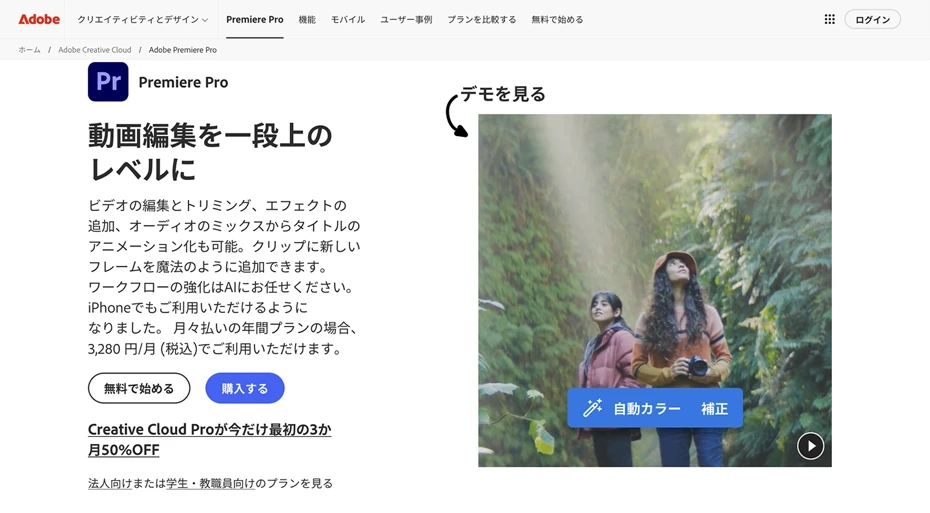
Adobe Premiere Pro is a video editing software provided by Adobe, famous for graphic software such as Photoshop and Illustrator.
It is a software used by professionals for business, and it is also characterized by its very orthodox operability.
A monthly billing subscription contract is required for use.
- Stand-alone: 3,280 yen/month
- Creative Cloud Standard: 6,480 yen/month
- Creative Cloud Pro: 9,080 yen/month
Plans like these are prepared (prices as of 2026).
The management staff of Ondoku uses Adobe Premiere Pro for video editing, and as expected of a standard paid software, it is very functional and easy to use.
2. DaVinci Resolve: Professional Video Editing Software that can be used for Free
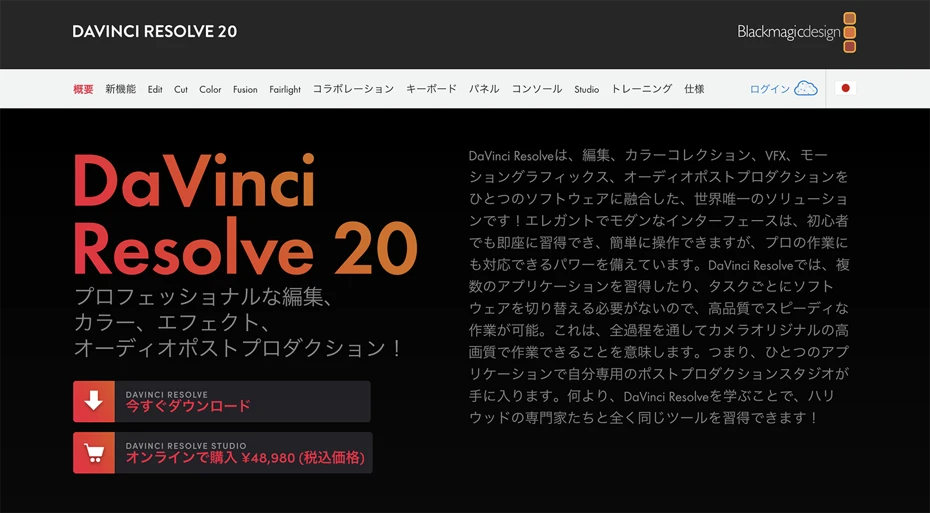
DaVinci Resolve is a video editing software provided by Blackmagic Design, a professional video camera manufacturer.
This is also a software favored by professionals, just like Adobe Premiere Pro, and the market share is split between them.
The feature of DaVinci Resolve is that it can be used for free.
Despite being a free software, it is equipped with all the functions professionals demand, allowing for authentic video editing.
There is also a paid version, where even more advanced functions using AI can be used.
The management staff of Ondoku has favored Adobe Premiere Pro until now, but is also considering migrating to DaVinci Resolve.
3. AviUtl: Free Video Editing Software with an Active User Community

AviUtl is a free video editing software produced and released individually by the Japanese software developer "KEN-kun".
It is a free software favored in the Japanese video editing community, particularly widely used on Nico Nico Douga.
It is characterized by the ability to perform a wide range of expressions with various plugins created by users, and a unique ecosystem has been formed by users.
In 2025, it became a topic of conversation with the appearance of AviUtl2, the first update since 2019.
It is a free software that can be particularly conveniently utilized when creating videos for the Japanese anime/game lover community, such as Yukkuri videos, Zundamon videos, and game commentary.
[Introducing Costs] How to record narration yourself? Explaining recommended equipment
Finally, for those who want to record narration with their own voice, we will briefly explain recording methods and equipment.
Equipment is important when recording narration yourself
Recording equipment is important when recording narration yourself.
Recording is possible even with inexpensive equipment, but to record easy-to-hear narration audio without noise, you need to spend a certain amount of money on equipment.
Specifically, equipment like this is recommended.
1. SONY ECM-PCV80U: The Standard Low-Priced Microphone for Beginners

| Features | Standard low-priced USB microphone |
| Price | About 5,000 yen |
SONY ECM-PCV80U is the absolute standard among low-priced microphones used by connecting to a PC via USB.
It comes as a set with the condenser microphone "ECM-PCV80U" and the USB interface "UAB-80" for connecting to a PC.
A simple microphone stand is also included, so it can be used for recording right away.
The management staff of Ondoku has also used this equipment, and recording can be done with sound quality that is not a problem for practical use.
However, it also has the disadvantage that small noise inevitably gets in.
The problem with this product is that when you want to step up to new equipment, you need to replace everything.
The microphone itself is a "condenser microphone" format, and the shape of the microphone terminal is the same as a normal microphone, but it is a unique standard different from the "+48V phantom power" generally used in condenser microphones and has no compatibility.
It is a product recommended when you want to start recording with simple equipment for the time being.
2. SHURE SM58: The Standard of Standards Dynamic Microphone

| Features | Standard dynamic microphone also used by professionals |
| Price | About 15,000 yen |
SHURE SM58 is the absolute standard of dynamic microphones.
The features are that it is sturdy and because it is a famous product, it can be repaired and used continuously.
Since it is a professional equipment, it can record with high sound quality.
The management staff of Ondoku was also surprised that recording could be done with a clear sound without noise.
Being a dynamic microphone format, another point is that it is easier for beginners to handle compared to the other format, condenser microphones.
However, the microphone cannot be used alone, and to connect it to a PC, equipment called an audio interface is also necessary.
Recommended when you want a professional microphone that can be used for a long time.
3. YAMAHA AG03/AG03MK2: Standard Audio Interface

| Features | Best-selling standard audio interface |
| Price | About 20,000 yen |
YAMAHA AG03 and AG03MK2 are also absolute standard audio interfaces.
YAMAHA AG03 is a model that sold incredibly well as a standard during the period when the number of people starting video production increased all at once, and used ones are abundantly available.
In the successor model YAMAHA AG03MK2, the connection became a Type-C terminal, making it easier to use.
Being a standard model, another recommended point is that information on how to use it is abundant.
4. BEHRINGER 302USB XENYX: Low-Priced, High-Performance Audio Interface

| Features | A hidden gem of an audio interface |
| Price | About 10,000 yen |
BEHRINGER 302USB XENYX is a hidden gem of an audio interface that can be purchased for half the price of the YAMAHA AG03 series.
BEHRINGER is a manufacturer famous for low-priced audio equipment, but this model can record with high sound quality comparable to or better than the YAMAHA AG03 series.
Since it has authentic functions, it is recommended not only for video production but also for those interested in music production.
5. Microphone Arm: Essential for Conveniently Recording Video Narration

| Price | About 1,000 to 2,000 yen |
If you want to conveniently record video narration, introducing a microphone arm is recommended.
By using a microphone arm, it is possible to bring the microphone to the ideal position in front of your mouth.
Since there is no need to place a microphone stand in front of your body, it is also very convenient when you want to stream as well as make videos.
Inexpensive Chinese products can be purchased for about 1,000 to 2,000 yen.
A point when installing a microphone arm is to fix it to a place separate from the desk, such as a shelf placed next to it.
If you fix it to the desk with a clamp, it will pick up the sound of placing objects or typing on the keyboard.
6. Pop Guard: Also Essential for High-Quality Recording

| Price | About 1,000 yen |
This is also an item you definitely want to buy if you are recording high-quality narration.
A pop guard is a tool like a thin cloth curtain installed in front of the microphone.
When you pronounce sounds like the "p-row", it can prevent the microphone from picking up the sound of your breath.
Inexpensive Chinese products can be purchased for about 1,000 yen.
Sometimes they are sold as a set with a microphone arm.
What is the total price/cost for recording yourself?
So, how much price is necessary if you record narration yourself?
Low-Priced Course: In the case of SONY ECM-PCV80U
- SONY ECM-PCV80U unit: About 5,000 yen
- Microphone arm: About 2,000 yen
- Pop guard: About 1,000 yen
Total: About 8,000 yen
Authentic Course: In the case of SHURE SM58
- SHURE SM58: About 15,000 yen
- YAMAHA AG03MK2: About 20,000 yen
- Microphone arm: About 2,000 yen
- Pop guard: About 1,000 yen
Total: About 38,000 yen
*If the audio interface is changed to BEHRINGER 302USB XENYX, about 28,000 yen
As you can see, if you gather equipment to record high-quality narration yourself, it will cost about 8,000 to 38,000 yen.
Of course, in addition to gathering equipment, work to record the narration yourself over time is necessary.
In contrast, Ondoku, where you can create narration with AI, can be used for free!
What's more, audio generation is completed immediately just by entering the script.
If you want to make video narration smoothly and easily, Ondoku is recommended.
Since it costs nothing and can be used for free, why not try creating narration with Ondoku yourself?
Experience the New Way of Adding Video Narration Now
If you want to easily make videos for YouTube, TikTok, or Instagram, using an AI reading service is recommended.
With Ondoku, which can be used for free, you can create high-quality, easy-to-hear narration right away.
Why not experience this new way of adding video narration for free yourself?
■ AI voice synthesis software "Ondoku"
"Ondoku" is an online text-to-speech tool that can be used with no initial costs.
- Supports 81 languages and regions, including Japanese, English, Chinese, Korean, Spanish, French, and German
- Available from both PC and smartphone
- Suitable for business, education, entertainment, etc.
- No installation required, can be used immediately from your browser
- Supports reading from images
To use it, simply enter text or upload a file on the site. A natural-sounding audio file will be generated within seconds. You can use voice synthesis up to 5,000 characters for free, so please give it a try.

Text-to-speech software "Ondoku" can read out 5000 characters every month with AI voice for free.
You can easily download MP3s and commercial use is also possible.
If you sign up for free, you can convert up to 5,000 characters per month for free from text to speech.
Try Ondoku now.
HP:
ondoku3.com
Email: ondoku3.com@gmail.com
Email: ondoku3.com@gmail.com
Related posts
"Ondoku" is a Text-to-Speech service that anyone can use for free without installation. If you register for free, you can get up to 5000 characters for free each month. Register now for free
- What is Ondoku
- Start text-to-speech conversion
- Free registration
- Pricing
- Posts
- Try other free services
![[2026 Latest] How to Add YouTube Video Narration: Top AI Apps & Guide](https://storage.googleapis.com/ondoku3/image/irodori-tts_tmb_140.webp)
![[2026 Latest] How to Add YouTube Video Narration: Top AI Apps & Guide](https://storage.googleapis.com/ondoku3/image/tategaki-image-yomiage_howto_tmb_140.webp)
![[2026 Latest] How to Add YouTube Video Narration: Top AI Apps & Guide](https://storage.googleapis.com/ondoku3/image/iphone-video-narration_tmb_140.webp)
![[2026 Latest] How to Add YouTube Video Narration: Top AI Apps & Guide](https://storage.googleapis.com/ondoku3/image/chrome-reading-mode-pc_tmb_140.webp)
![[2026 Latest] How to Add YouTube Video Narration: Top AI Apps & Guide](https://storage.googleapis.com/ondoku3/image/pdf-to-mp3-howto_tmb_140.webp)