


![[Latest 2026] A must-see for iPhone users! Thorough comparison of 8 recommended automatic text-to-speech apps](https://storage.googleapis.com/ondoku3/image/20250430_iphone_text_to_speech_app_tmb_930.webp)
Best Text-to-Speech Software: 7 Free & Paid Tools for Commercial Use
7 Best Browser-Based Text-to-Speech Tools & How to Use (No Install)
Sept. 27, 2026


I want to read aloud in a browser without installing anything!
When you want to read text aloud,
- The installation process is a hassle
- Cannot install on a smartphone
- Text-to-speech software is not compatible with the OS
problems like these can occur.
If you are turning text into speech with reading software, you want to use it easily without installation, right?
Therefore, in this article, we will explain in detail recommended text-to-speech software and services that can be used from a browser, as well as reading functions that can be used on smartphones and PCs without installation!
We will also introduce software and services that can be used for free, so after reading this article, anyone can easily read text aloud without installation.
If you are looking for a way to read audio aloud, why not try the recommended methods introduced in this article?
[Browser Compatible] 3 Recommended Reading Software/Services Without Installation
To read text aloud without installation, web services used from a browser are recommended.
There are the following three reading web services:
We will explain the features and recommended points for each service.
1. Ondoku
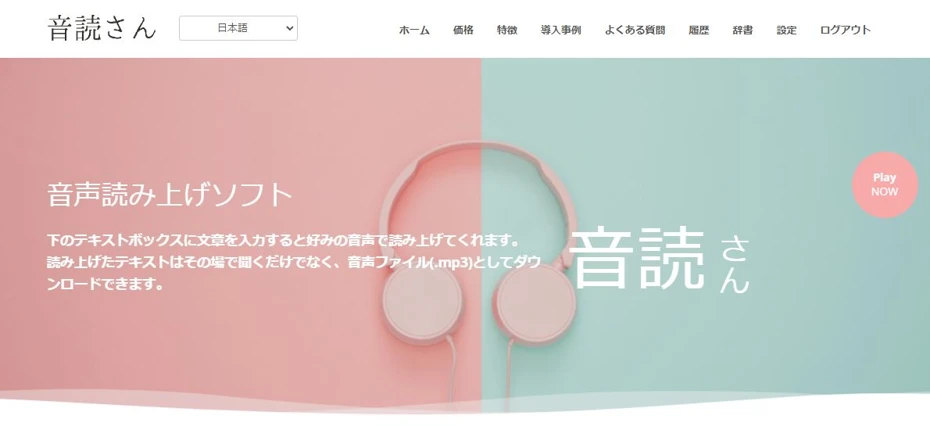
"Ondoku" is a recommended reading service that can be used from a browser without installation.
It is a web service that can read text aloud using the latest AI, allowing anyone to generate realistic voices.
You can read text aloud easily right now just by opening the top page from here.
Moreover, "Ondoku" can be used for free!
Since you can turn text into speech from your browser without registration, using "Ondoku" is recommended if you want to read text aloud without installation.
Read aloud realistically using the latest AI
Ondoku uses the latest AI to read text aloud from a browser realistically with a variety of voice tones.
Unlike reading software before AI appeared, it can generate easy-to-hear audio that sounds just like a real person reading.
There are 16 types of voice tones available for reading.
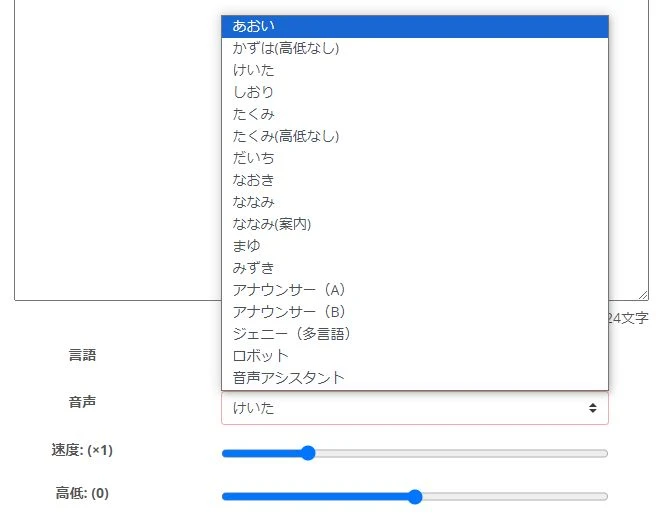
You can choose a voice tone according to your application, such as video narration, in-store broadcasts, or improving website accessibility.
Another point is that it is easy to use for business purposes because the characters are not too strong.
If you are looking for a browser reading software/service with natural speech, "Ondoku" is recommended.
Read aloud and save without installation
"Ondoku" is a reading service that can be used from a browser without installation and for free.
Of course, you can not only read aloud but also save the audio.
The download format is MP3 or WAV.
Since these are standard file formats, they can be easily opened with video editing software or audio editing software.
*Saving is possible even when using it for free and without registration!
![[Update] How to download Ondoku audio files in WAV format](https://storage.googleapis.com/ondoku3/image/%E3%82%AB%E3%82%BB%E3%83%83%E3%83%88%E3%83%86%E3%83%BC%E3%83%95_930.webp)
Commercial use OK!
"Ondoku" is OK for commercial use!
Of course, commercial use is also possible when reading aloud for free and without logging in.
If you are looking for a reading software or service that can be used for work without installation, why not try "Ondoku"?
*Credit notation is required when using it for free. To use it without credit notation, you need to subscribe to a paid plan. Click here for details.
Supports foreign languages
"Ondoku" supports 81 languages and regions, including Japanese and English.
![[Ondoku] Listen to voice types and sample audio for supported languages](https://storage.googleapis.com/ondoku3/image/%E5%A4%9A%E6%A7%98%E6%80%A7_930.webp)
You can easily generate audio in foreign languages without installation.
Conversation style reading with multiple voice tones is also possible!
Ondoku can also generate conversation-style audio using multiple voice tones!
This is a feature often available in paid software that you install, but since it is an advanced feature, it is usually not included in free software/services.
In that regard, "Ondoku" allows you to use the conversation function for free!
*Free membership registration is required to use the conversation function. Register here.
Since the conversation function is not available in the other web services introduced in this article, "Ondoku" is recommended for reading aloud in conversation format from a browser.
"Ondoku" is recommended for free reading
As you can see, "Ondoku", a web service that can read aloud with the latest AI, has many advantages.
Registration and login are not required and it can be used for free from a browser, so if you are looking for a reading software or service that does not require installation, why not try "Ondoku" from here first?
2. ゆくも!

ゆくも! is a reading service that can be used from a browser without installing software.
It can be used for free, but a license purchase is required for commercial use.
Reading service that can be used from a browser
ゆくも! is a reading service using the speech synthesis library of Aquest Co., Ltd.
By entering text from a browser, you can read text aloud as audio without installation.
Of course, downloading audio files is also possible.
The save format is MP3.
Can read with monotonous voices (Yukkuri voices)
The speech synthesis library "AquesTalk" used in ゆくも! also includes monotonous voices (Yukkuri voices).
Since it is rare to find a reading service that can be used from a browser and supports Yukkuri voices, ゆくも! is recommended when you want to easily use Yukkuri voices without any software download or installation.
Free for personal non-commercial use
ゆくも! can be used for free for personal non-commercial use.
Since it can be used immediately from a browser without registration, it is easy to check what kind of voice it reads with.
Paid for commercial use
However, a paid license agreement is required for commercial use.
This is because it is necessary to comply with the license of the speech synthesis library "AquesTalk" used by ゆくも!.
The commercial license must be purchased from Aquest Co., Ltd., the developer of the speech synthesis library software, rather than the operator of ゆくも!.
Care is needed because a commercial license is required for both individuals and corporations for purposes where money is involved, such as video distribution with advertisements, use of audio on commercial sites, or the sale of applications or videos using the audio.
![[Latest 2026] 6 Recommended Yukkuri Voice/Monotonous Software | Complete Comparison of PC and Smartphone Apps](https://storage.googleapis.com/ondoku3/image/20250507yukkuri_bouyomi_software_tmb_930.webp)
[Latest 2026] 6 Recommended Yukkuri Voice/Monotonous Software | Complete Comparison of PC and Smartphone Apps
Carefully selected introduction of Yukkuri voice and monotonous software ideal for video production and game commentary. Explaining how anyone can easily create high-quality audio with the latest 2026 apps from PC to smartphone.
3. Text-to-Speech - Text to voice

Text-to-Speech - Text to voice is a web service that can read audio aloud from a browser.
Reading aloud and downloading of text entered on a browser is possible.
For Japanese reading, it uses Microsoft's speech synthesis library.
Reading in foreign languages is also possible.
Can be used for free
Text-to-Speech - Text to voice can be used for free.
However, detailed information about commercial use is not written.
In addition, since the operator is not clearly stated, it is recommended to consider using other services if you want to use it for work.
4 Ways to Read Aloud on Smartphones and PCs Without Installation
Smartphones and PCs are standardly equipped with functions to read aloud, allowing them to be used without additional software installation.
However, you cannot save them as audio files.
We will explain the reading functions for these.
1. Android Smartphone
In the case of an Android smartphone, you can read aloud by turning on "Select to Speak" from the Settings app.
![[Latest 2026 Version] 5 Recommended Reading Apps for Android Smartphones!](https://storage.googleapis.com/ondoku3/image/android-yomiage-app_tmb_2026_930.webp)
Flow of setting up reading on an Android smartphone
*Explaining with Android 12.
Open the Settings app.

Open "Accessibility".
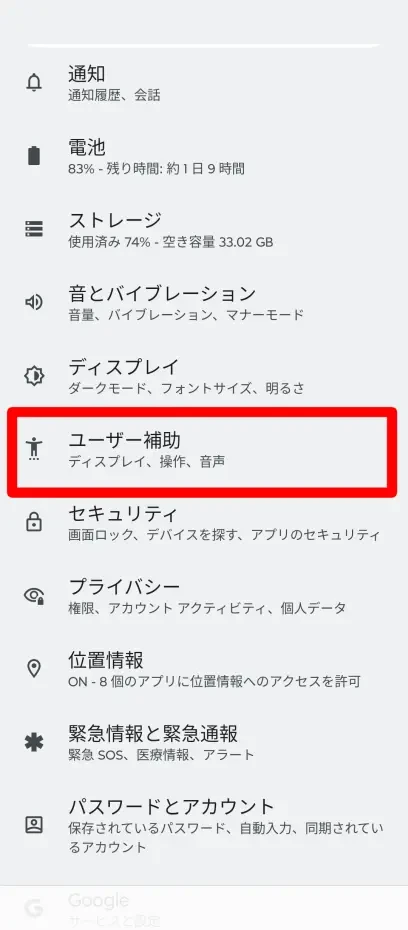
Open "Select to Speak".

Turn on "Select to Speak shortcut".

A confirmation screen will be displayed, so select "Allow".

This turns on the reading setting, and a reading button will be displayed at the bottom right of the screen.
*The reading button does not appear in the image because it is not captured in screen screenshots.
In this state, if you select text and press the reading button, you can read the content aloud.
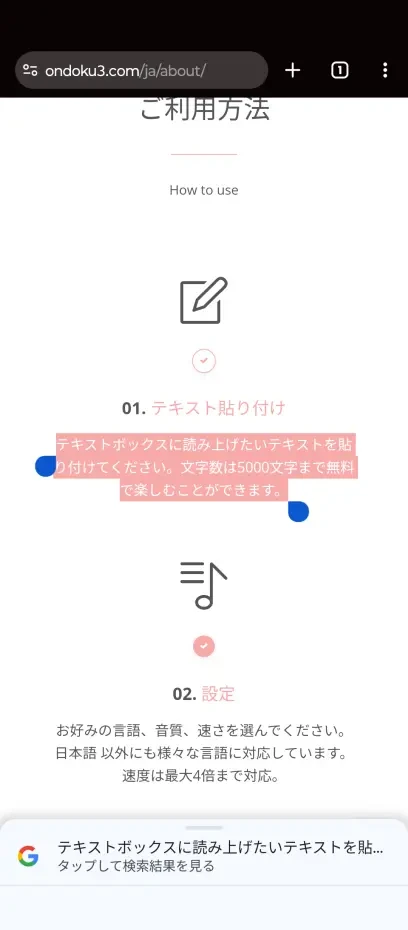
Reading aloud content displayed in a browser is also easily possible without installation.
However, this is strictly a function for improving accessibility, and audio cannot be saved.
If you want to save the read audio, we recommend using a service such as "Ondoku" from your browser.
2. iOS (iPhone/iPad)

iOS (iPhone/iPad) is also equipped with a reading function that does not require installation.
Naturally, no installation is necessary.
How to read aloud on iPhone
To read text aloud on an iPhone, open
"Settings" app -> "Accessibility" -> "Spoken Content"
and select
"Speak Selection"
.
Now you can select text from a browser or elsewhere to read it aloud.
However, this is also a function for improving accessibility, and audio cannot be saved.
If you want to save the audio, you should use a reading service such as "Ondoku" from your browser.
3. Windows PC (Narrator)
Windows PCs are equipped with a "Narrator" function as a standard reading feature.
It can be used without installation.
"Narrator" can be set from "Ease of Access" in the Settings app.
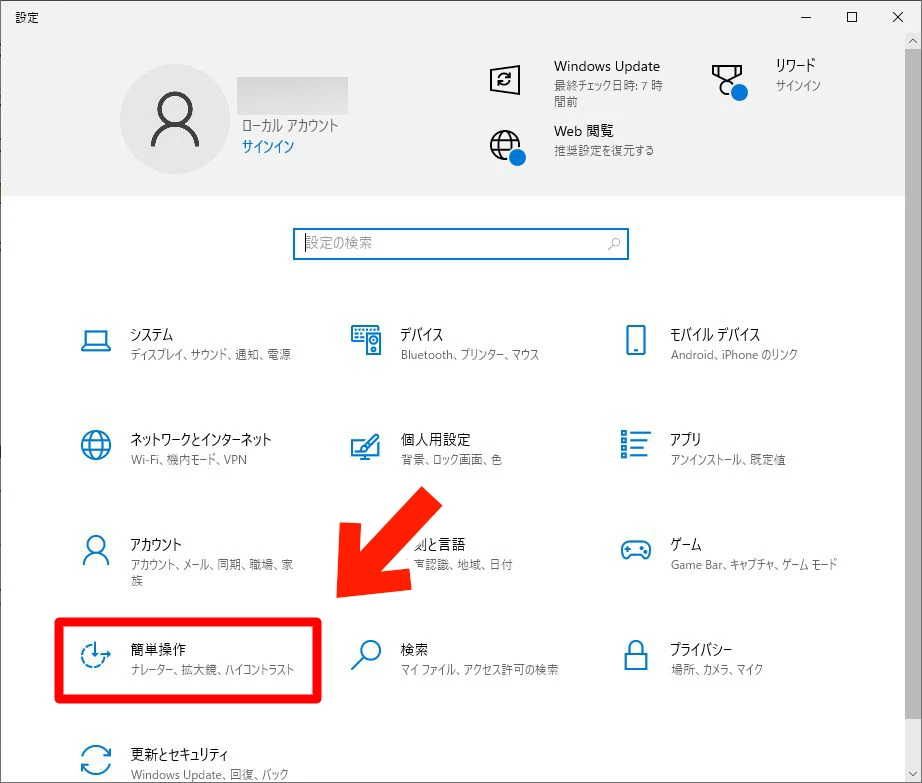
Open "Narrator".
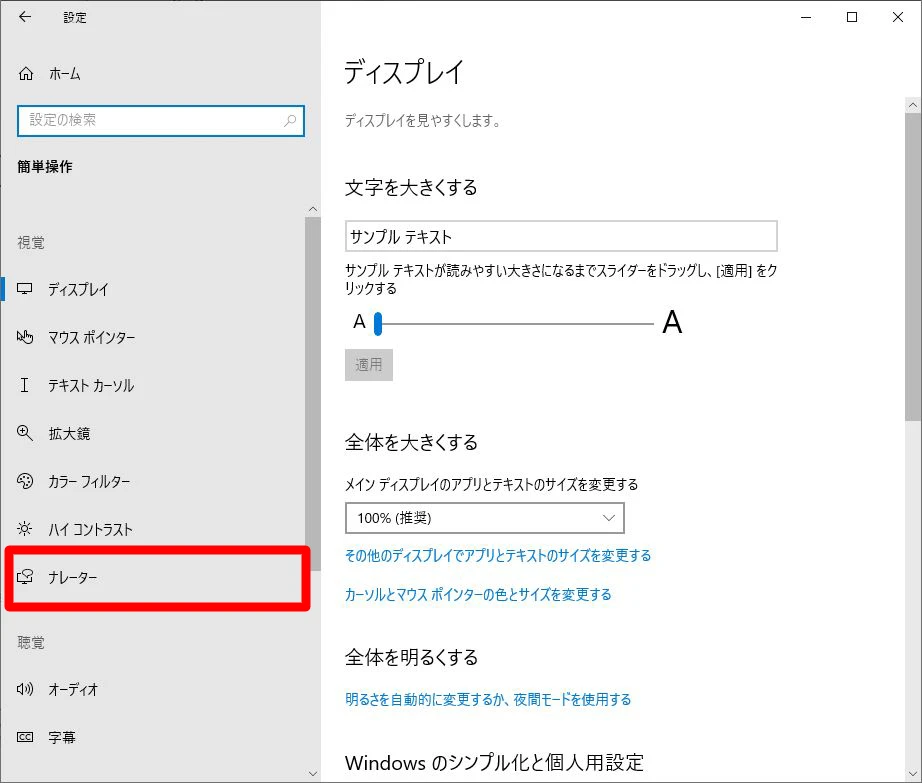
You can start the Narrator function from "Turn on Narrator".
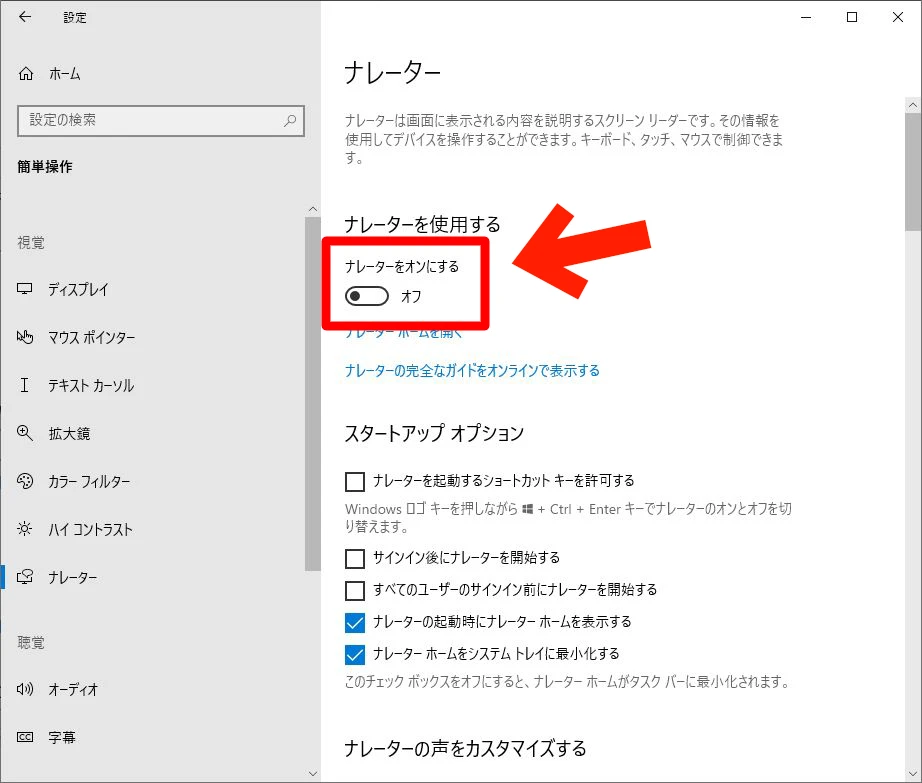
However, this is also a function for improving accessibility, and in its initial startup state, all text displayed on the screen will be read aloud.
For text reading for work or hobbies, we recommend using web services such as "Ondoku" from your browser.

4. Mac OS

Since each software (app) in Mac OS is equipped with a reading function, it is possible to read text aloud without installation.
It is very easy to use; simply select
"Edit" -> "Speech" -> "Start Speaking"
from the menu at the top of the app.
This function is also included in the Safari browser, so you can easily read websites aloud without installation.
However, you cannot save the read audio.
In the case of a Mac as well, we recommend using services such as "Ondoku" when you want to save the audio.
![[Free] Summary of 5 types of free text-to-speech software usable on Mac](https://storage.googleapis.com/ondoku3/image/Mac%E5%AF%BE%E5%BF%9C%E3%81%AE%E7%84%A1%E6%96%99%E9%9F%B3%E5%A3%B0%E8%AA%AD%E3%81%BF%E4%B8%8A%E3%81%91%E3%82%BD%E3%83%95%E3%83%885%E7%A8%AE%E9%A1%9E_930.webp)
[Free] Summary of 5 types of free text-to-speech software usable on Mac
Introducing 5 free text-to-speech software (sites) usable on Mac. Since many people want to use the voice of Siri, the AI assistant available on Mac OS, we also introduce methods to do so.
■ AI voice synthesis software "Ondoku"
"Ondoku" is an online text-to-speech tool that can be used with no initial costs.
- Supports 81 languages and regions, including Japanese, English, Chinese, Korean, Spanish, French, and German
- Available from both PC and smartphone
- Suitable for business, education, entertainment, etc.
- No installation required, can be used immediately from your browser
- Supports reading from images
To use it, simply enter text or upload a file on the site. A natural-sounding audio file will be generated within seconds. You can use voice synthesis up to 5,000 characters for free, so please give it a try.

Text-to-speech software "Ondoku" can read out 5000 characters every month with AI voice for free.
You can easily download MP3s and commercial use is also possible.
If you sign up for free, you can convert up to 5,000 characters per month for free from text to speech.
Try Ondoku now.
HP:
ondoku3.com
Email: ondoku3.com@gmail.com
Email: ondoku3.com@gmail.com
Related posts
"Ondoku" is a Text-to-Speech service that anyone can use for free without installation. If you register for free, you can get up to 5000 characters for free each month. Register now for free
- What is Ondoku
- Start text-to-speech conversion
- Free registration
- Pricing
- Posts
- Try other free services