Learn Japanese for Free! How to Use YouTube and Text-to-Speech Software
How to Quickly Create YouTube Narrations with Text-to-Speech. Tips & Points.
July 23, 2026

I want to know how to create video narration audio with Ondoku!

One common use for Ondoku is "narration for videos such as YouTube."
Text-to-speech software is very convenient for people who do not want to record their own voice, isn't it?
By using Ondoku, you can create professional-level narration that is much easier to hear than recording it yourself!
This video also uses Ondoku voice for the narration.
However, there are a few tips required to create video narration using Ondoku.
Therefore, in this article, we will introduce how to create video narration with Ondoku in an easy-to-understand way!
If you want to check not only how to use Ondoku, but also how to choose other apps/software or even how to record yourself, please see the article summarizing How to add YouTube video narration.
The process for creating narration with Ondoku is as follows:
- Create the narration script text
- Read aloud the narration script text with Ondoku
- Check the narration audio and download if there are no problems
- Correct the narration audio if it feels unnatural
- Import the downloaded narration audio into video editing software
- Edit the timing/pacing of the narration audio
- The YouTube video with easy-to-hear narration audio is complete!
This is the flow.
There are recommended points to focus on for each item, so we will explain them in detail.
The flow of creating narration audio for YouTube videos with Ondoku
Now, we will explain in detail how to create narration audio for YouTube videos with Ondoku!
1. Create the narration script text

First, create the script text for the narration.
In the YouTube video introducing Ondoku shown at the beginning, we used Google Docs.
Of course, any tool that can write text, such as Microsoft Word, Libre Office, or Notepad, is fine.
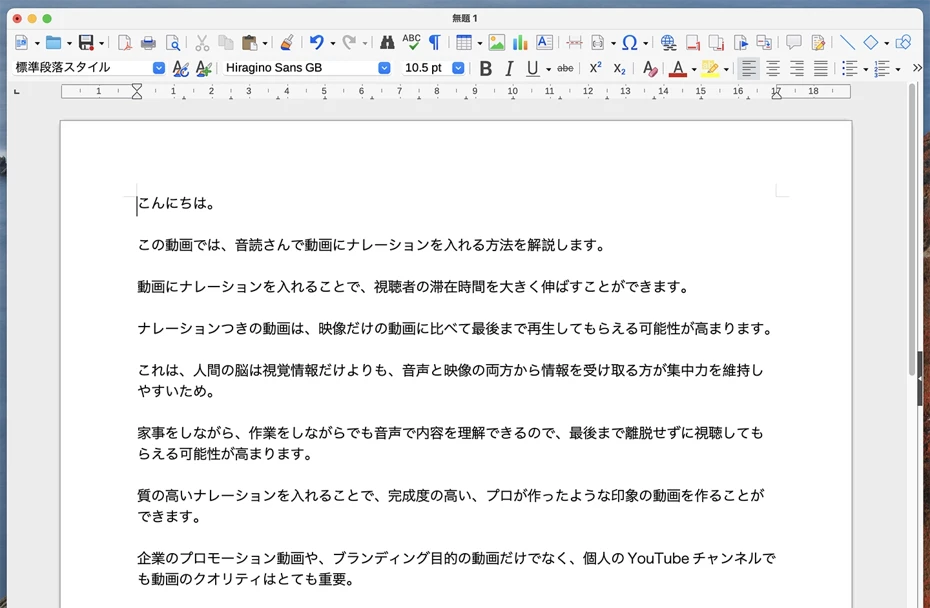
The script created here can also be reused as YouTube subtitles.
The video introduced at the beginning is structured to speak the narration using only one type of voice.
With this type of specification, it will result in a video of about 5 minutes for 2000 characters.
The video introduced is designed to narrate rhythmically without much space between voices, so if you take a little more space, it is possible to make it a video of about 7 minutes.
If you structure the narration to match the content of the video, you can freely adjust the length of the entire video.
- What is the theme?
- How many minutes long will the video be?
- Is the flow of the story natural?
By considering the video structure based on these points, you can create a script smoothly.
2. Read aloud the narration script text with Ondoku
Once the script is complete, next, read the narration audio aloud with Ondoku.
To create narration, open the Ondoku top page from here.

Paste the contents of the script into the text box.
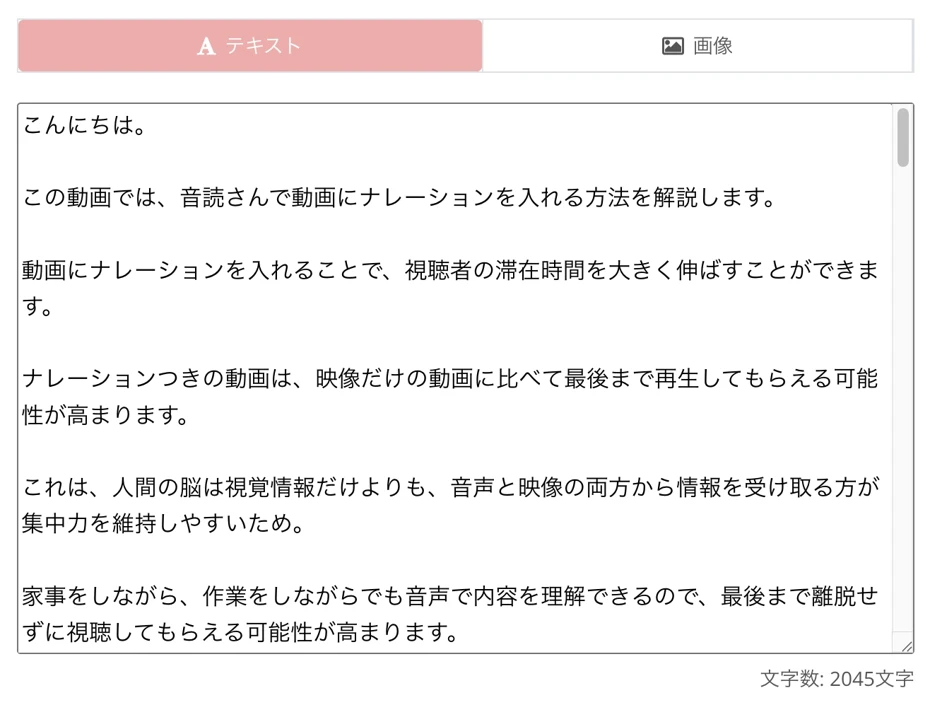
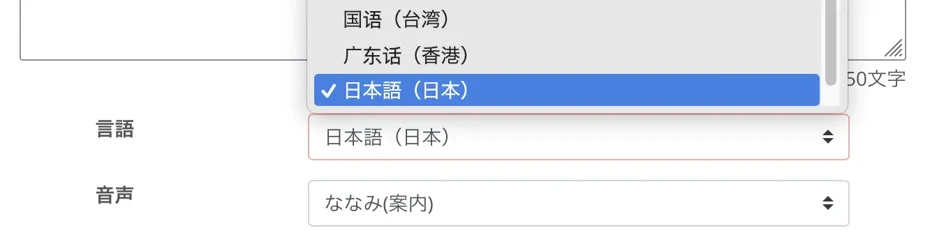
If it is set to another language, set the language according to the narration script text.
Select the voice type, such as female or male.
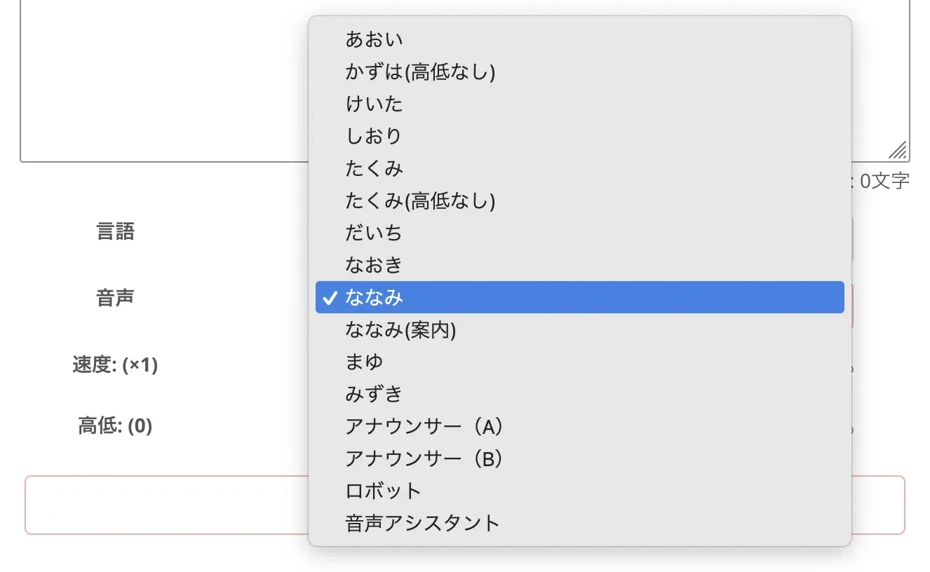
For example, in the case of Japanese, you can select from over 16 types of voices from women, men, and children!
You can listen to samples on this page, so please take a look.
Trial listen to 16 types of voices of the text-to-speech software Ondoku for free. Change the impression with pitch variations.
Ondoku has 16 types of Japanese voices. Of course, male and female voices are available. We have made it possible to trial listen to 8 commonly used Japanese voices and the voices when the pitch of each voice is adjusted.
In Ondoku, you can also adjust the pitch of the voice and the reading speed.
However, when using it for the first time, it is okay to leave it at the default settings.

Now, the preparation to read aloud the narration script text is complete.
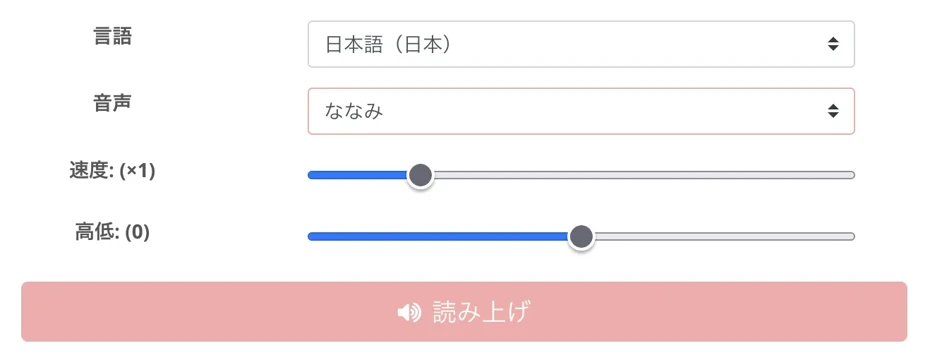
Press "Read" to start generating the narration audio!
The reading of the narration script text will be completed quickly, so wait with the screen open.
For example, in the case of a script text with 5,000 characters, reading is completed in just a few seconds.
When the generation of the audio is finished, the screen will switch and an audio player will be displayed.
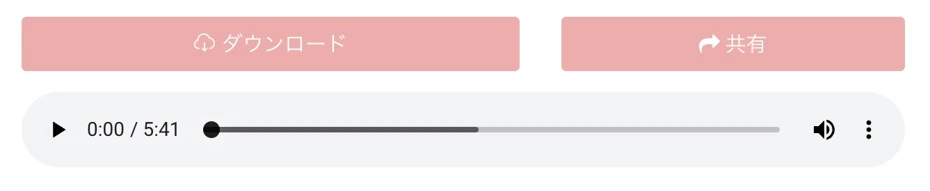
3. Check the narration audio and download if there are no problems
Listen to the read-aloud audio, and if there are no problems, press "Download" to save the audio file.
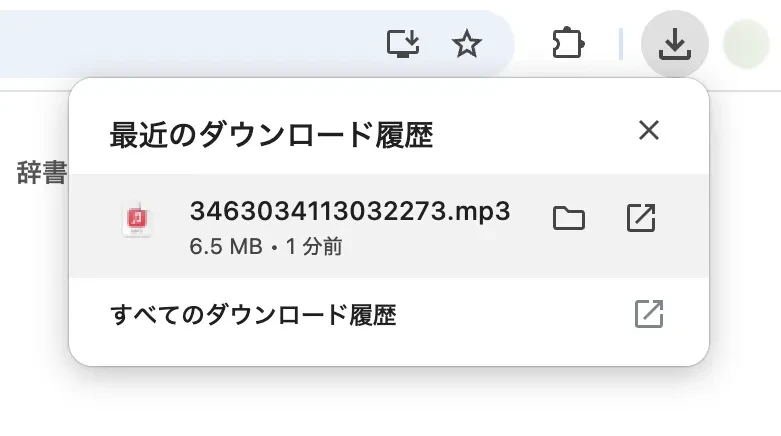
Splitting audio for download is also recommended
A feature you definitely want to utilize when downloading Ondoku audio is the split function.
To use the split function, first open the Ondoku Reading History page.

When you open the history page, on the right side there are menus for:
- Full text display
- Split
- Delete

Click "Split" to open the split download page.

Enter the "Interval".
The unit for the interval is milliseconds, so in the case of "300", the file will be split when the gap is longer than 0.3 seconds.
If using it for the first time, it's okay to leave it at the default setting of "300".
Press "Split and Download" to start the audio splitting process.

A ZIP file will be automatically downloaded once the splitting process is finished.

When you extract the ZIP file, the MP3 files are split like this.

Now just import them into your video editing software!
4. Correct the narration audio if it feels unnatural
If there is something unnatural about the read-aloud audio, correct it.
Correcting the interval/pacing
The pacing can be easily corrected with punctuation marks.
Please see this article for more details.
![How to adjust intervals and blank time in Ondoku reading [2 types]](https://storage.googleapis.com/ondoku3/image/Line_930.webp)
How to adjust intervals and blank time in Ondoku reading [2 types]
Among the needs of Ondoku users is the desire to "open up the interval a little more." If it's an adjustment of "interval" to open up a small gap, there are two types of adjustment methods: 1. Punctuation 2. SSML.
Adjusting intonation
When adjusting intonation:
- Add punctuation marks.
- Try adding quotation marks.
- Try changing to kanji, katakana, or hiragana notation.
- Try changing to kanji of homophones.
By being creative in these ways, the intonation will change.
Please see this article as well.
Methods to try when you want to adjust intonation and inflection in Ondoku
If you want to adjust the intonation even slightly in Ondoku, you can adjust the intonation and inflection to some extent by making full use of hiragana, katakana, kanji, alphabets, and punctuation.
For example, between the notation "文章読み上げソフト" and "文章読み上げそふと", the intonation changes slightly when read aloud by Ondoku.
Therefore, when the Ondoku management staff creates narration, they input it as "文章読み上げそふと" before reading it aloud.
Unfortunately, spaces, exclamation marks, and question marks are unrelated to intonation.
SSML can also be used
It is also possible to adjust using SSML (Speech Synthesis Markup Language).
Please see this article for more details on SSML.

What is Speech Synthesis Markup Language (SSML)? List of usage and main codes for text-to-speech software.
SSML stands for Speech Synthesis Markup Language. By writing SSML code, you can further control Ondoku's speech. We will introduce in detail how to use SSML and the codes in Ondoku.
5. Import the downloaded narration audio into video editing software
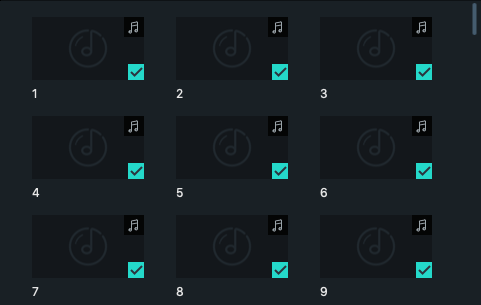
Import the downloaded video narration audio into your video editing software.
If you downloaded the entire audio file at once, just import the audio file as it is.
In the case of split download, the filenames are sequential like 0.mp3, 1.mp3, 2.mp3, so you can import them in order just by dragging and dropping them into the video editing software.
6. Edit the timing/pacing of the narration audio
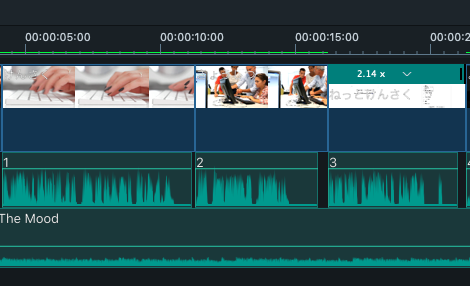
In videos, the narration often requires a certain amount of space.
This is because reading everything at once can make it difficult for viewers to understand.
To take gaps effectively, try opening up the audio intervals bit by bit on the timeline of your video editing software.
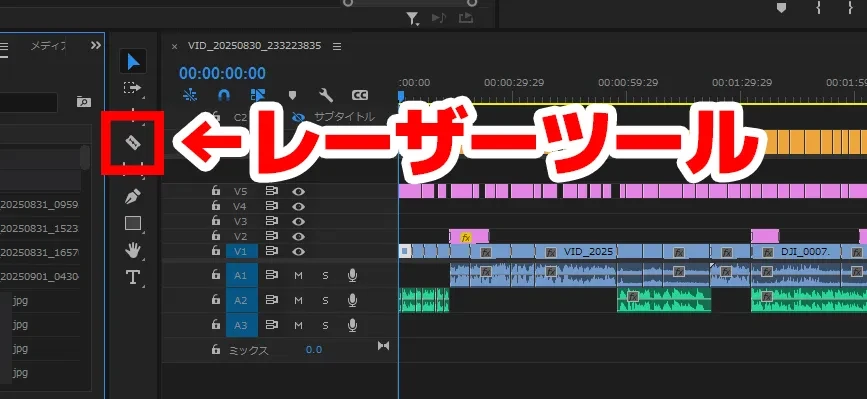
If you downloaded the entire audio file, split the parts where you want to add intervals using the "Cut tool" or "Razor Tool".
For example, in the case of Adobe Premiere Pro, you can split it with the "Razor Tool" in the menu.
In the case of split download, open up the space between each audio file so that the interval is just right for each file.
By editing in this way, the pacing changes and the video becomes easier to watch.
7. The YouTube video with easy-to-hear narration audio is complete!

By performing such tasks, the video narration is complete.
After this, please proceed with video editing according to your preference.
Why not try creating video narration with Ondoku?
This time, we introduced the method that the Ondoku management staff usually uses when making videos.
When making a YouTube video, a little bit of creativity leads to great narration.
There might be even better ways, so if you know of any, please let us know.
The use of Ondoku's voice is increasing on YouTube as well.
Reading by text-to-speech software has evolved much more advanced than before.
You can read aloud with realistic and easy-to-hear audio that is so wonderful you might not even realize it is text-to-speech software.
Since you can create narration audio for YouTube videos for free, why not experience Ondoku for yourself?
■ AI voice synthesis software "Ondoku"
"Ondoku" is an online text-to-speech tool that can be used with no initial costs.
- Supports 81 languages and regions, including Japanese, English, Chinese, Korean, Spanish, French, and German
- Available from both PC and smartphone
- Suitable for business, education, entertainment, etc.
- No installation required, can be used immediately from your browser
- Supports reading from images
To use it, simply enter text or upload a file on the site. A natural-sounding audio file will be generated within seconds. You can use voice synthesis up to 5,000 characters for free, so please give it a try.
Text-to-speech software "Ondoku" can read out 5000 characters every month with AI voice for free.
You can easily download MP3s and commercial use is also possible.
If you sign up for free, you can convert up to 5,000 characters per month for free from text to speech.
Try Ondoku now.
HP:
ondoku3.com
Email: ondoku3.com@gmail.com
Email: ondoku3.com@gmail.com
Related posts
"Ondoku" is a Text-to-Speech service that anyone can use for free without installation. If you register for free, you can get up to 5000 characters for free each month. Register now for free
- What is Ondoku
- Start text-to-speech conversion
- Free registration
- Pricing
- Posts
- Try other free services