How to use the text-to-speech software Ondoku, registration method, and useful features
Ondoku Google Chrome Extension | Installation and Usage Guide with Images
Nov. 12, 2026

Hello, and thank you for always using Ondoku.
There is a feature that is especially recommended for those who use Ondoku with Google Chrome.
It’s the Google Chrome extension.
By installing the Ondoku extension in Google Chrome, you can have selected text read aloud on the spot.
This saves you the trouble of “copying text, pasting it into the Ondoku website, and having it read aloud,” making it very convenient!
If Google Chrome is your main browser, this extension is definitely worth installing!
Now, let’s explain how to add the extension to Google Chrome.
How to add the “Ondoku” extension to Google Chrome
1. Open “Ondoku” in the Google Chrome Web Store
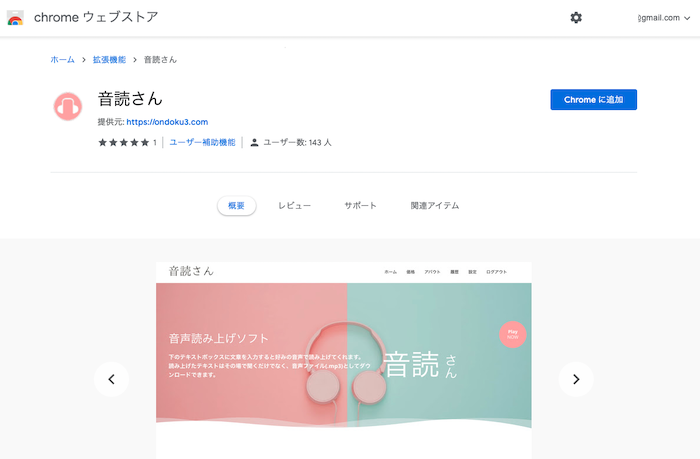
Use this link to open the Google Chrome Web Store page for the “Ondoku” extension.
Alternatively, in the Google Chrome browser, you can use Google Search to search for “Ondoku extension” and open the extension’s Web Store page.
2. Add the extension to Google Chrome
On the Web Store page, click “Add to Chrome”.
A confirmation screen will appear. Click “Add extension”.

The extension has now been added.

3. Set up an access token
The settings screen will open after you install the extension.

On this screen, set up an access token to link your Ondoku account with the extension.
* You cannot have text read aloud using the extension unless you set up an access token.
How to set up an access token
To set up an access token for the Ondoku extension, first click “Open settings page”.

The Ondoku login page will open. Log in to your account.
* You need to register an account to use the Ondoku extension.
The settings page will open. Copy the access token.

* Be sure not to let anyone else learn your access token.
Return to the extension’s settings screen and paste the access token.
Once you have pasted it, click “Save” to save the access token.

You’re all set.
You can now have text on websites read aloud using the Ondoku Google Chrome extension.
How to have text read aloud with the Ondoku extension
It’s easy to have text read aloud with the Ondoku extension!
First, select the text on the web page that you want to have read aloud.

Next,
- Right-click → “Read aloud with Ondoku”
- Click the toolbar icon (at the top right of the browser)
- Use a keyboard shortcut
to launch the extension.
The screen shown in the image will appear, and loading will begin.

Once loading is complete, the read-aloud screen will open and the audio will play.

You can now have text read aloud using the Ondoku extension!
How do I show the icon in the toolbar?
To show the icon in the toolbar (at the top right of the browser), click the extensions icon → “…” next to “Ondoku” → “Manage extension.”

The extension management screen will open. Turn on “Pin to toolbar.”

The Ondoku icon will now appear in the toolbar.

How do I use a keyboard shortcut?
You can control read-aloud playback not only by clicking the icon, but also using a keyboard shortcut.
By default, the keyboard shortcuts are:
- Windows: Ctrl + Shift + O
- Mac: Command + Shift + O
.
However, these shortcuts will work only if they are not already assigned to another function on your computer.
If you use the same keyboard shortcut for another command, set a different keyboard shortcut.
You can change the keyboard shortcut in the Google Chrome settings.
Copy this URL and paste it into the Google Chrome address bar to open the settings screen.
chrome://extensions/shortcuts
How do I change the voice?
To set the read-aloud voice, click “Open voice settings” on the extension’s settings screen.

The voice settings screen will open.

On this screen, you can change:
- Language
- Voice (speaker)
- Speed
- Pitch
.
Things to keep in mind when having text read aloud with the extension
When having text read aloud with the extension, clicking somewhere else before loading is complete will clear the selected text.
Be careful not to click anywhere while the text is loading.
Once loading is complete and read-aloud playback begins, you can click somewhere else without any problem.
Make things even more convenient with the Ondoku extension!
As you can see, the Ondoku extension makes it even more convenient to have text on websites read aloud.
We also plan to release updates to make the extension even easier to use.
Why not try “Ondoku”, which lets you have text read aloud naturally with convenient features?
■ AI voice synthesis software "Ondoku"
"Ondoku" is an online text-to-speech tool that can be used with no initial costs.
- Supports 81 languages and regions, including Japanese, English, Chinese, Korean, Spanish, French, and German
- Available from both PC and smartphone
- Suitable for business, education, entertainment, etc.
- No installation required, can be used immediately from your browser
- Supports reading from images
To use it, simply enter text or upload a file on the site. A natural-sounding audio file will be generated within seconds. You can use voice synthesis up to 5,000 characters for free, so please give it a try.

Text-to-speech software "Ondoku" can read out 5000 characters every month with AI voice for free.
You can easily download MP3s and commercial use is also possible.
If you sign up for free, you can convert up to 5,000 characters per month for free from text to speech.
Try Ondoku now.
HP:
ondoku3.com
Email: ondoku3.com@gmail.com
Email: ondoku3.com@gmail.com
Related posts
"Ondoku" is a Text-to-Speech service that anyone can use for free without installation. If you register for free, you can get up to 5000 characters for free each month. Register now for free