Make it more convenient with the text-to-speech software 【Ondoku】 Google Chrome extension! How to s…
How to Set Up Text-to-Speech on iPhone & Android [2026 Guide]
Sept. 4, 2026
![How to Set Up Text-to-Speech on iPhone & Android [2026 Guide]](https://storage.googleapis.com/ondoku3/image/ios_android_930.webp)
Text-to-speech software refers to software or services that convert characters, text, or documents into audio and read them aloud.
Since it reads the text for you, it can be used more conveniently than you might think.
While there are many types of text-to-speech software for PC versions, it is often difficult to find good text-to-speech software for smartphones even when you search for it.
But actually, smartphones come with a standard text-to-speech function built-in.
In other words, you can use text-to-speech as is on iPhones, iPads, Android smartphones, etc., without having to search for software or apps.

I have no preference for sound or voice quality
I just want to use a read-aloud function

The setup method for using the smartphone's standard read-aloud function is very simple.
In this article, we will introduce how to use the text-to-speech available as a standard smartphone function and recommended text-to-speech websites.
Using Text-to-Speech with Standard Smartphone Functions
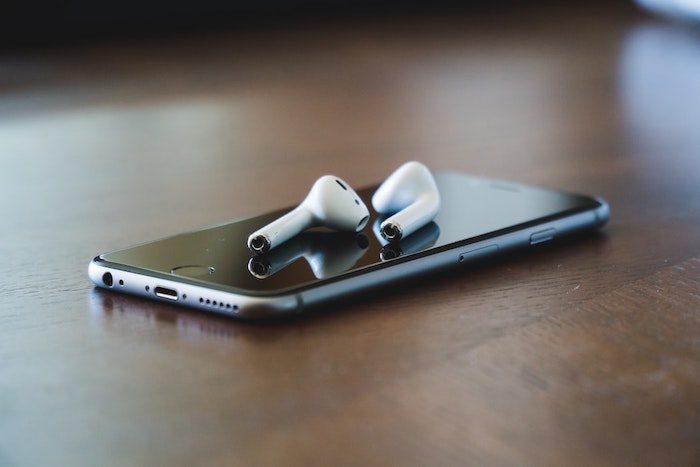
- iOS devices (iPhone, iPad, etc.)
- Android devices (Google Pixel, Xperia, OPPO, Xiaomi, AQUOS, etc.)
The setup methods are different. Please check your device and configure the settings accordingly.
For iPhone and iPad

Setting up an iPhone or iPad is very easy.
- Open the "Settings" app → "General"
- Select "Accessibility"
- Select "Speech" from the list
When you tap Speech, there are three options.
- Speak Selection
- Speak Screen
- Auto-text to speech
Please turn on your preferred settings.
This time, we will turn "On" the "Speak Screen".
Then,
- "Voice" selection
- "Speaking Rate" etc.
The screen will switch to one where you can make detailed settings. Please adjust it to your liking.
Among the voice types, there is also Siri. This is a convenient feature that allows Siri to read for you.
How to Use
To use it, simply slide two fingers from the top to the bottom of the screen on the page where the text you want to read is displayed.
This starts the reading.
You can adjust the speed or fast-forward using the displayed playback panel.
While reading, the audio will not stop even if you display another app or screen. It is very convenient for multitasking!
For Android Devices
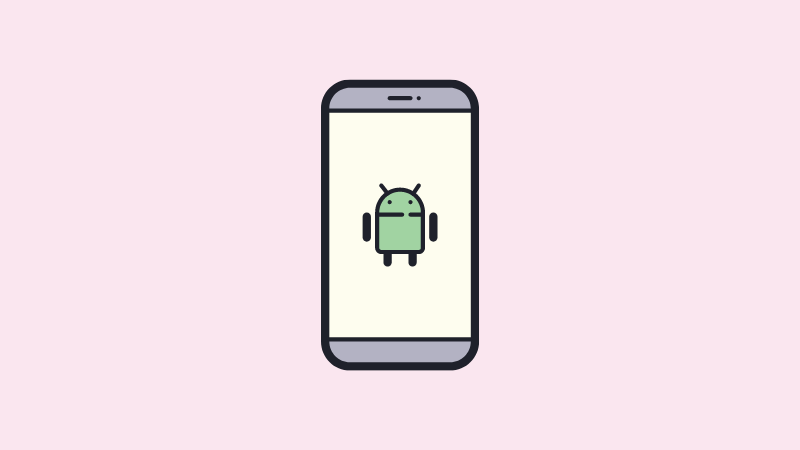
This is the method for using Android OS smartphones such as Xperia, OPPO, Xiaomi, and AQUOS.
There are three ways to read text using the standard functions of an Android device.
- Say "Read it" to Google Assistant
- Select the part you want read and tap "Read aloud" from the menu bar
- Go to Settings → Accessibility → Turn "On" the Select to Speak shortcut
If you just want to select and have text from notes or web pages read to you, methods "1" or "2" are easy and can be used immediately without setup.
Let's explain each method.
Say "Read it" to Google Assistant
If you want to select and have text from notes or web pages read aloud, this method is the easiest.
However, it cannot read text from Gmail emails.
[Setup Method]
- Open the page you want read.
- Launch Google Assistant.
Say "OK Google."
It will launch when you swipe from the bottom right to the top. - Tell Google Assistant "Read it."
Then, the reading will begin.
It will read the entire page for you.
- Marker display of the part being read
- Speed change (0.5x to 3.0x)
There are also functions such as these.
It is very useful when you want to have the whole thing read aloud quickly.
Select the part you want read and tap "Read aloud" from the menu bar

I don't want the whole page; I just want a specific part read
In such cases, we recommend the method of tapping "Read aloud" from the menu bar.
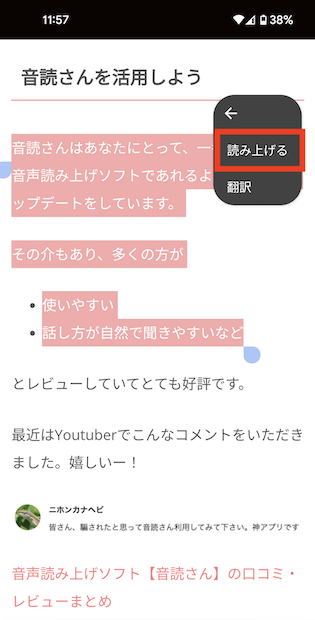
[Setup Method]
- Open the page you want read.
- Select the part you want read.
- Tap "︙" on the menu bar.
- Tap the "Read aloud" menu.
It can be done very easily by just pressing "Read aloud" from the menu bar of the selected part.
However, it cannot read text from Gmail emails.
Settings → Accessibility → Turn "On" the Select to Speak shortcut
When you have frequent opportunities to use the read-aloud function on a daily basis, use Accessibility.
Setup Method
- Launch the "Settings" app.
- Tap "Accessibility."
- Tap "Select to Speak."
- Turn on the "Select to Speak" shortcut.
How to Use
Click the shortcut key on the screen you want read.
This will read the text while marking the part being read.
This function can also read text from LINE messages, emails, memo apps, etc.
The shortcut key is always displayed.
It is a very convenient feature for those who use it often.
However, for those who do not use read-aloud much, the shortcut might be in the way and feel inconvenient.
Please choose the best method and use the read-aloud function meaningfully.
Text-to-Speech Websites for Smartphones

Text-to-speech functions can also be easily used from websites!
Among them, we will introduce "Ondoku", which is simple, easy to use, and has a reputation for high text-to-speech performance.
Ondoku also has a function to download audio as MP3, which is not available in the standard read-aloud functions of iPhone or Android.
It is used for various text-to-speech purposes, not only by individuals but also by many corporations.
How to Use Ondoku

Using Ondoku for free is very simple.
There is no need to download apps or software. Its appeal is that it can be used with just a web browser.
The usage is:
- Access the Ondoku site
- Enter the text you want read into the text box (copy and paste is also OK)
- Adjust settings such as voice type and speaking speed to your liking
- Click Read Aloud
That is all.
The audio can also be downloaded in MP3 format.
Textbooks and Printouts Can Also Be Read Aloud
Ondoku also has a convenient feature: "Upload an image for text-to-speech."
This is a function that can read text from images taken with a smartphone or similar device.
You can read aloud with Ondoku just by taking photos of picture books, books, textbooks, etc.
It is very convenient because you don't have to enter text one by one.
[How to use the Image → Text-to-Speech function]
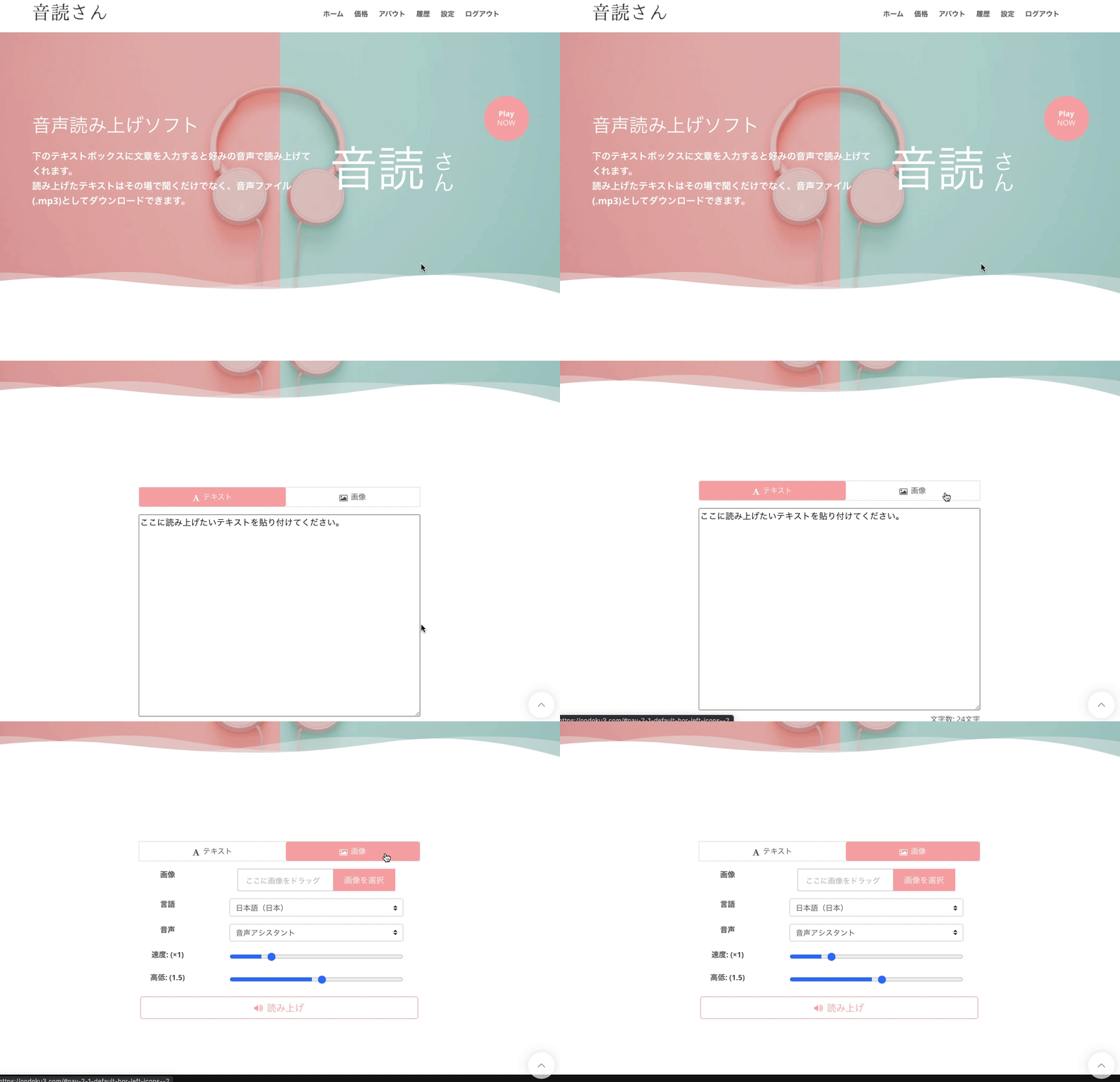
- Access the Ondoku top page
- There are "Text" and "Image" tabs above the text box
- Click the "Image" tab
- Click image upload and choose your preferred image
*On a smartphone, you can also launch the camera and take a photo directly here. - After selecting the image, adjust the reading speed and pitch.
- Click the Read Aloud button
Then, it will analyze the image in just a few seconds and read it aloud as audio.
After the image is loaded, the recognized characters are displayed in the text box.
If there are recognition errors and the read content is incorrect, you can edit it here.
Detailed instructions for using the image read-aloud function are introduced in even more detail in this article.

How to use image reading | How to convert text in photos into voice with free OCR
An explanation of Ondoku's feature that can read text from images and photos (OCR) and read it aloud. It can be used for free. Whether on a PC or smartphone, reading is completed in just a few seconds simply by uploading an image.
■ AI voice synthesis software "Ondoku"
"Ondoku" is an online text-to-speech tool that can be used with no initial costs.
- Supports 81 languages and regions, including Japanese, English, Chinese, Korean, Spanish, French, and German
- Available from both PC and smartphone
- Suitable for business, education, entertainment, etc.
- No installation required, can be used immediately from your browser
- Supports reading from images
To use it, simply enter text or upload a file on the site. A natural-sounding audio file will be generated within seconds. You can use voice synthesis up to 5,000 characters for free, so please give it a try.

Text-to-speech software "Ondoku" can read out 5000 characters every month with AI voice for free.
You can easily download MP3s and commercial use is also possible.
If you sign up for free, you can convert up to 5,000 characters per month for free from text to speech.
Try Ondoku now.
HP:
ondoku3.com
Email: ondoku3.com@gmail.com
Email: ondoku3.com@gmail.com
Related posts
"Ondoku" is a Text-to-Speech service that anyone can use for free without installation. If you register for free, you can get up to 5000 characters for free each month. Register now for free
- What is Ondoku
- Start text-to-speech conversion
- Free registration
- Pricing
- Posts
- Try other free services
![How to Set Up Text-to-Speech on iPhone & Android [2026 Guide]](https://storage.googleapis.com/ondoku3/image/irodori-tts_tmb_140.webp)
![How to Set Up Text-to-Speech on iPhone & Android [2026 Guide]](https://storage.googleapis.com/ondoku3/image/tategaki-image-yomiage_howto_tmb_140.webp)
![How to Set Up Text-to-Speech on iPhone & Android [2026 Guide]](https://storage.googleapis.com/ondoku3/image/iphone-video-narration_tmb_140.webp)
![How to Set Up Text-to-Speech on iPhone & Android [2026 Guide]](https://storage.googleapis.com/ondoku3/image/chrome-reading-mode-pc_tmb_140.webp)
![How to Set Up Text-to-Speech on iPhone & Android [2026 Guide]](https://storage.googleapis.com/ondoku3/image/pdf-to-mp3-howto_tmb_140.webp)