How to use the text-to-speech software Ondoku, registration method, and useful features
Make it more convenient with the text-to-speech software 【Ondoku】 Google Chrome extension! How to set up and use
Jan. 26, 2026

Hello, thank you for always using Ondoku.
There is a feature especially recommended for those who use Ondoku with Google Chrome.
That is the Google Chrome extension.
By installing the Ondoku extension in Google Chrome, you can read out specific sections on the spot using the Ondoku extension.
You will no longer have to go through the double effort of copying text, going to the Ondoku site, and pasting it to read it aloud!
If you use the Google Chrome browser as your main browser, it is an extension worth installing!
Now, let's explain how to add the extension to Google Chrome.
Open "Ondoku" in the Chrome Web Store
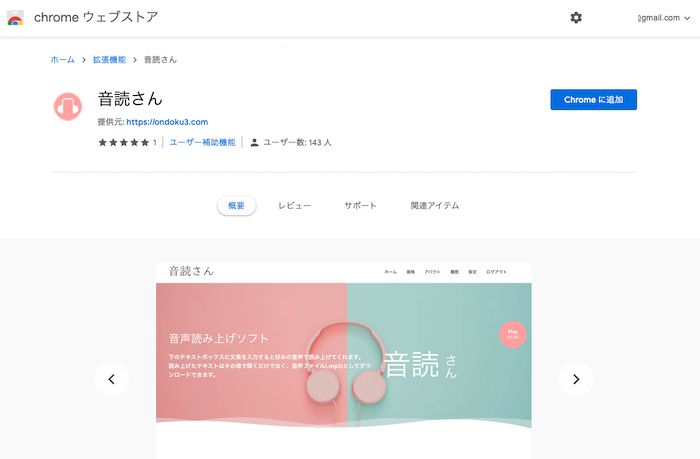
Open the Google Chrome Web Store "Ondoku" from this link.
Alternatively, use Google Search in your Google Chrome browser to search for "Ondoku extension" to find the extension's Web Store page.
A confirmation screen will appear, so click "Add to Chrome"
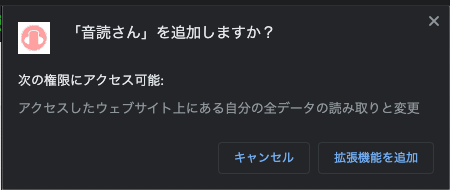
The "pink headphones" logo displayed in the upper right of the browser
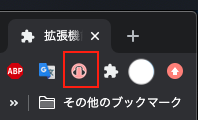
Once the extension is successfully installed, the "pink headphones" logo will be displayed in the upper right of the browser.
If you turn on the pin mark, it will always be displayed in the upper right.
Access Token Settings
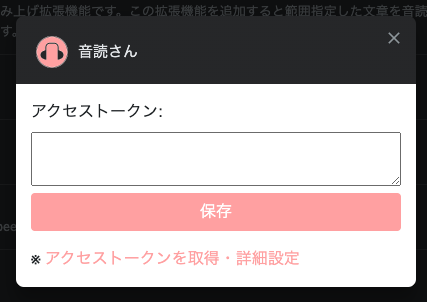
To link your Ondoku account with the extension, configure the access token settings.
Without setting an access token, you cannot read text using the extension.
To set the access token:
- Click the headphone mark
- Click Token Settings
- Click Get Access Token / Detailed Settings
- Log in to the Ondoku web page and obtain the extension access token
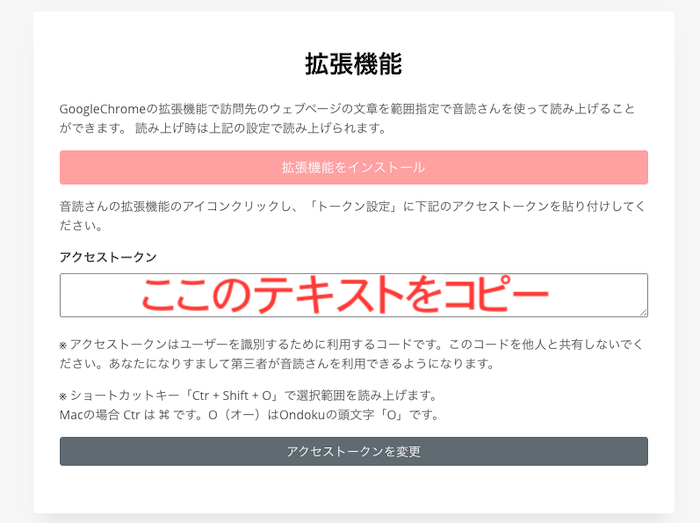
- Paste it into the previous page and save
- Refresh the page
*Pages opened before adding the extension cannot be read aloud. If you want to read a page opened before addition, please refresh the page.
How to read text with the Ondoku extension
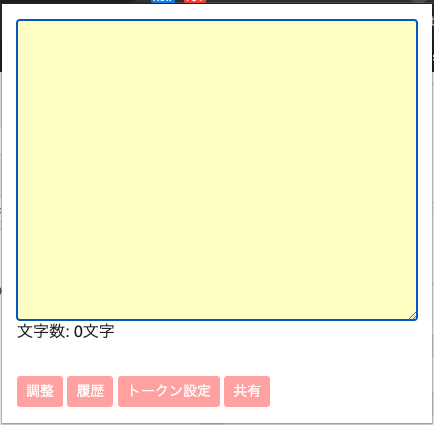
Reading text with the Ondoku extension is easy!
- Select a range within the web page and click the icon or press the shortcut key to read it aloud.
That's all you need to do.
Precautions for text reading with the extension
When reading text with the extension, if you click elsewhere before the loading is complete, the loading will disappear.
Please be careful not to click anywhere while loading.
Once loading is finished, the audio will be read aloud, and clicking elsewhere will not interrupt the reading.
Operation via shortcut keys is also possible!
Reading audio is very simple as it can be done by clicking the icon or using shortcut keys.
For those who find it troublesome to click the pink headphone logo button, shortcut keys are highly recommended.
The default shortcut key is "command + shift + o".
However, this applies only if this shortcut key does not conflict with others on the computer you are using.
If you are using the same shortcut key for another command, please set a different shortcut key.
You can change the shortcut key here (clicking will open the Google Chrome feature settings screen).
For voice settings and selecting the type of voice, you can change the settings on the Ondoku website by clicking the adjust button.
Make it even more convenient with the Ondoku extension!
This extension has a reputation for being very convenient among those who use it.
Updates are also planned to make the extension even easier to use in the future.
Ondoku is well-reputed for being convenient and providing natural-sounding voice reading.
Please take this opportunity to try it out.
■ AI voice synthesis software "Ondoku"
"Ondoku" is an online text-to-speech tool that can be used with no initial costs.
- Supports approximately 50 languages, including Japanese, English, Chinese, Korean, Spanish, French, and German
- Available from both PC and smartphone
- Suitable for business, education, entertainment, etc.
- No installation required, can be used immediately from your browser
- Supports reading from images
To use it, simply enter text or upload a file on the site. A natural-sounding audio file will be generated within seconds. You can use voice synthesis up to 5,000 characters for free, so please give it a try.

Text-to-speech software "Ondoku" can read out 5000 characters every month with AI voice for free.
You can easily download MP3s and commercial use is also possible.
If you sign up for free, you can convert up to 5,000 characters per month for free from text to speech.
Try Ondoku now.
HP:
ondoku3.com
Email: ondoku3.com@gmail.com
Email: ondoku3.com@gmail.com
Related posts
"Ondoku" is a Text-to-Speech service that anyone can use for free without installation. If you register for free, you can get up to 5000 characters for free each month. Register now for free
- What is Ondoku
- Start text-to-speech conversion
- Free registration
- Pricing
- Posts
- Try other free services