How to use the text-to-speech software Ondoku, registration method, and useful features
How to Use Image-to-Speech! Free OCR to Convert Photo Text to Audio
Sept. 4, 2026

Hello, thank you for always using Ondoku.
In this article, we will introduce how to use the "upload an image and read text aloud" function.
- Transcribing text from images is difficult
- I want to OCR images and convert them to speech immediately
- I want to use it for free
This is recommended for those who feel this way.
Now, we will introduce in detail and explain how to use Ondoku's "function to read text from images and read it aloud as audio."
How to Use the Image-to-Speech Function [Free OCR]
The method to OCR images and read them aloud for free on Ondoku is simple.
- Access the Ondoku top page
- Click the "Image" tab located above the text box
- Click upload image and select an image
*For smartphones, you can also start the camera and take a photo directly here. - After selecting the image, adjust the language, speaker, speed, and pitch.
- Click the Read Aloud button
Then, in just a few seconds, the image is analyzed via OCR.
The audio can be read aloud.
After the image is loaded, the recognized characters will be displayed in the text box.
If you want to correct the reading content, such as recognition errors, you can edit it here.
Next, we will explain in more detail with images and videos.
Explaining the OCR to Text-to-Speech Flow with Images and Videos
1. Access the Ondoku top page

First, access the top page of Ondoku.
2. Click the "Image" tab
When you open the Ondoku top page, above the text box, there are
- Text
- Image
tabs.
The display is the same in any environment, whether on a PC, smartphone, or tablet.
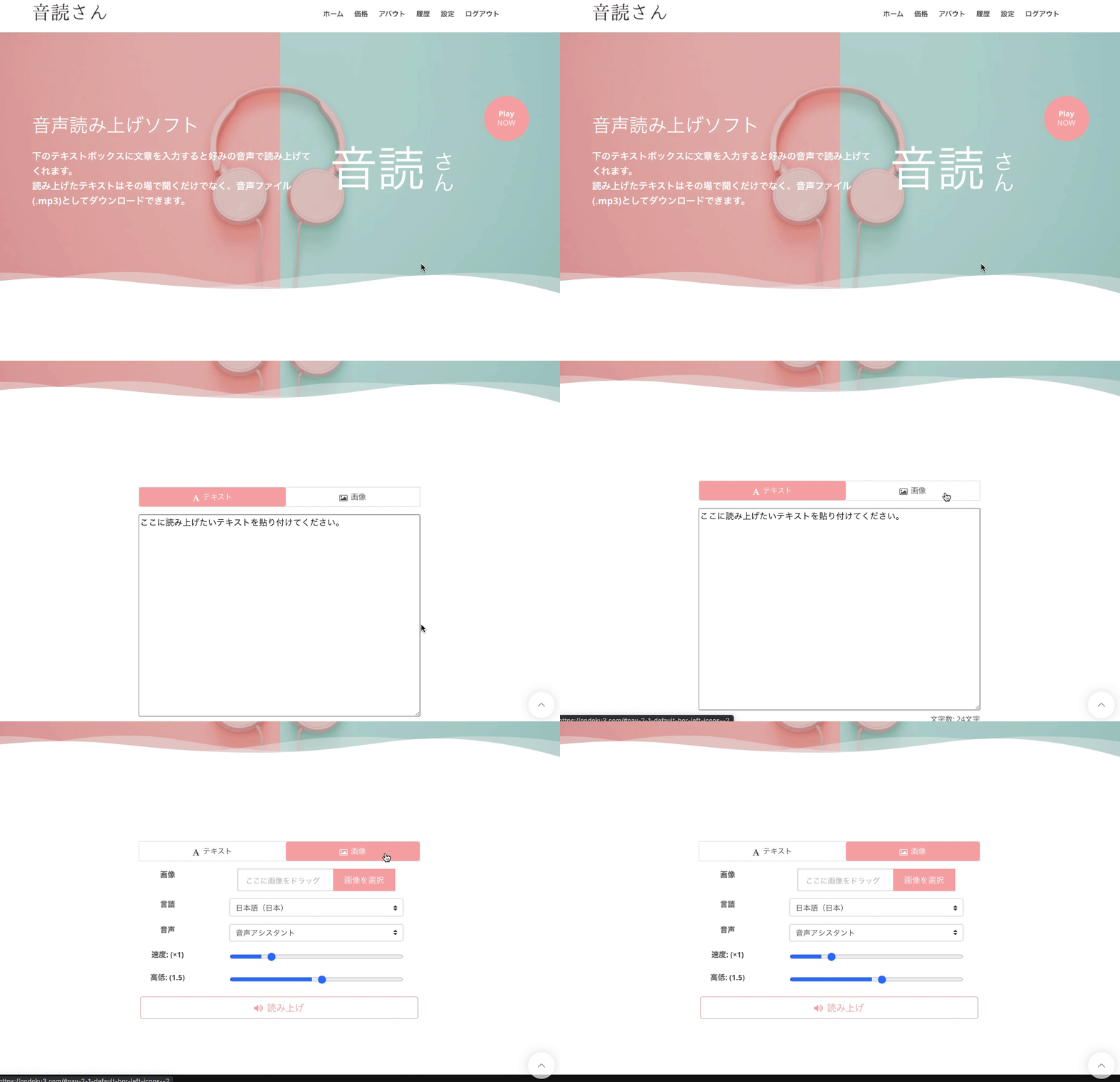
When performing OCR on an image, click the "Image" tab.
Then, the display will switch from the text box to a button for uploading images.
3. Click "Select Image" and choose an image
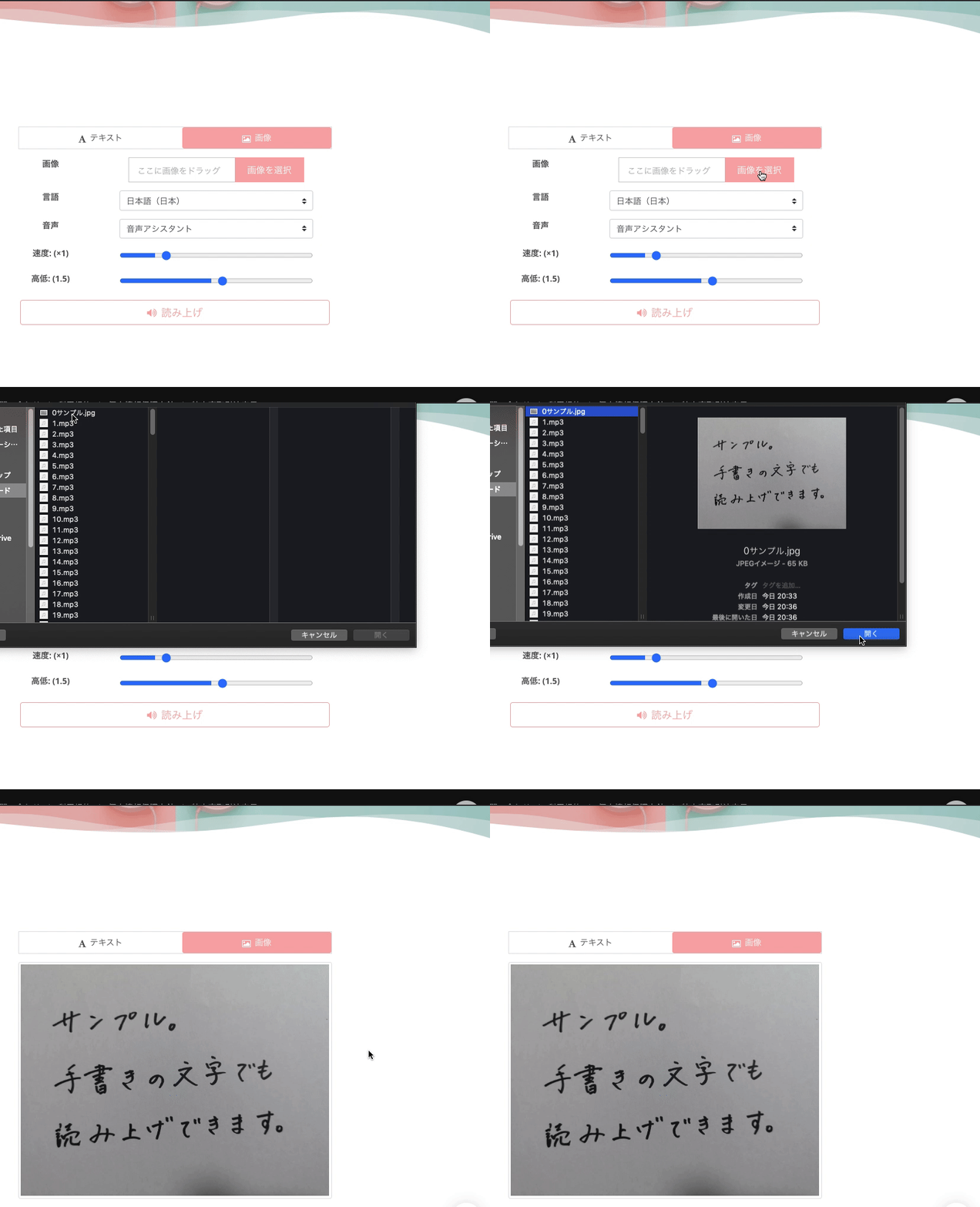
For PC
Clicking the "Select Image" button opens a separate window where you can select an image from your computer.
Select the desired image and press "Open."
For iPhone/Android smartphones and tablets

Clicking the "Select Image" button allows you to choose "where to refer to the image from" (image folder, camera, etc.).
You can also select the camera, take a photo on the spot, and upload it.
4. After selecting the image, adjust the reading speed and pitch.
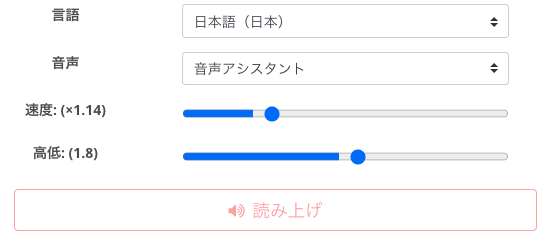
Once you have selected the image you want to read, check the settings.
On Ondoku, you set the
- Voice type (speaker)
- Reading speed
- Voice height (pitch)
You can listen to samples of Japanese voices on this page, so please take a look.
5. Click the Read Aloud button to start OCR and reading aloud
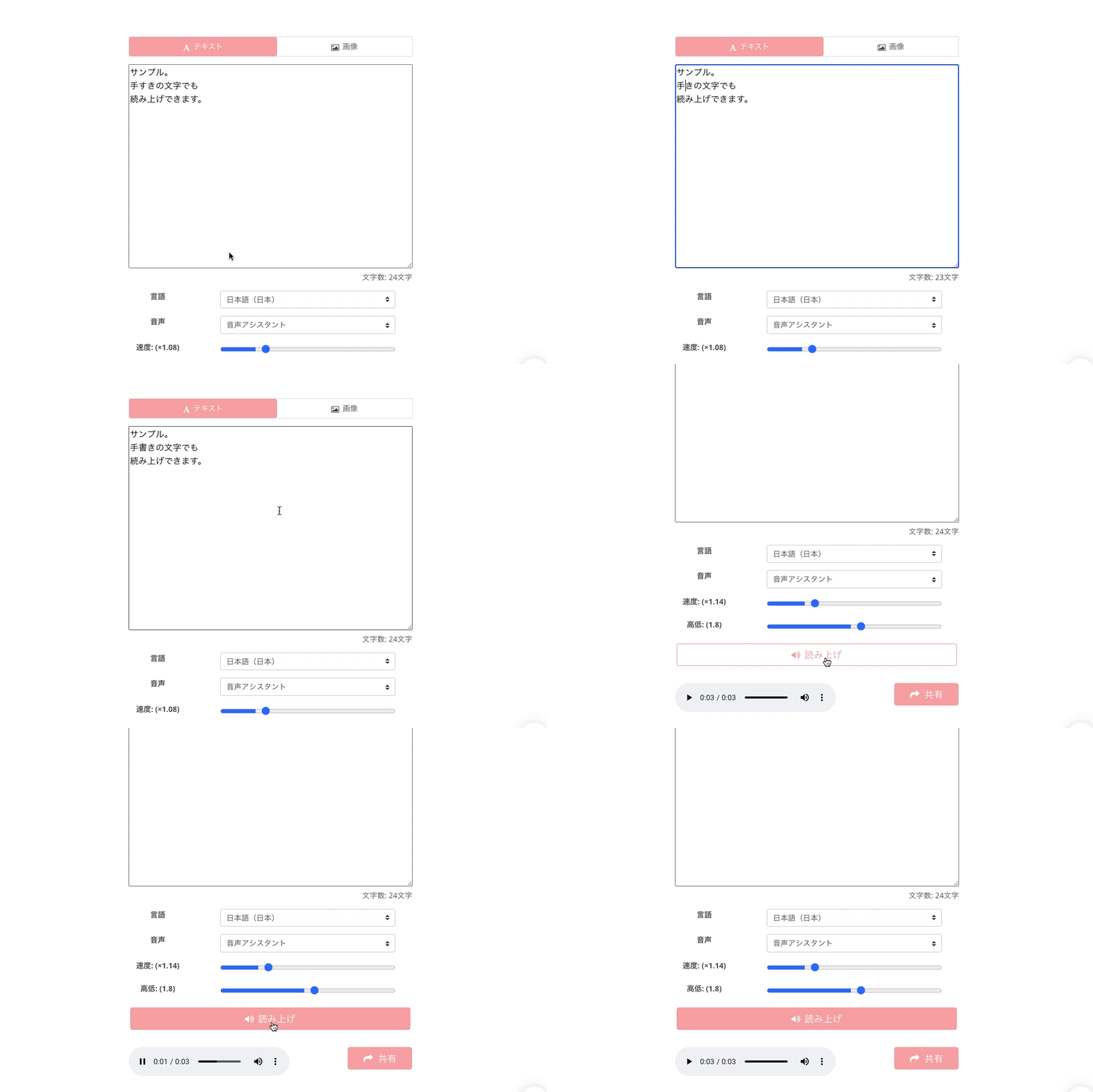
Once everything is ready, click the "Read Aloud button."
Ondoku's latest AI performs OCR recognition on the text within the image.
The process is completed immediately, and it starts reading aloud as audio.
*Reading starts the moment you click the "Read Aloud" button, and then the audio is played automatically.
During playback, the OCR-recognized characters are displayed in the text box.
AI is used for recognizing text from photos.
If there are any errors in text recognition, you can correct them in the text box.
OCR Recognition Range for Images
Recognition from images to text recognizes "all text appearing in the image."
Therefore, when selecting an image, please choose an image cropped to only the part you want to read aloud.
Also, handwritten characters can be read, but accuracy may be lower.
There are some characters that are difficult to recognize.
For example, in the part where "handwritten" (手書き) was written in this image, it was recognized as "tesuki" (手すき) due to the handwritten font style.
How many images can be used for free or paid?
The image reading function, which converts images to speech, can of course be used for free.
However, the number of times it can be used varies depending on the plan.
- Non-member: 1 image/day
- Free member: 3 images/day
- Basic Plan: 300 images/month
- Value Plan: 1000 images/month
- Premium Plan: 2500 images/month
[Points to Note]
The image reading function
consumes both the number of images and the number of characters available for reading.
Please note that reading cannot be performed using only the number of images.
Why not try OCR reading of images for yourself?
Image OCR, which might seem difficult, has become very easy with the latest AI!
Seeing is believing—why not give it a try?
This function can be used from both computers and smartphones.
Once you use the function that can read text from images, you will be surprised at how convenient it is!
- Reading necessary documents in daily life
- Converting textbooks or handouts from images to speech using Ondoku
By using it this way, ease of recognition and understanding will improve significantly.
You can also easily check documents that you had put off because they were troublesome to read by converting them from images to audio with Ondoku.
Please try out the image reading function.
We look forward to seeing you on the Ondoku site.
■ AI voice synthesis software "Ondoku"
"Ondoku" is an online text-to-speech tool that can be used with no initial costs.
- Supports 81 languages and regions, including Japanese, English, Chinese, Korean, Spanish, French, and German
- Available from both PC and smartphone
- Suitable for business, education, entertainment, etc.
- No installation required, can be used immediately from your browser
- Supports reading from images
To use it, simply enter text or upload a file on the site. A natural-sounding audio file will be generated within seconds. You can use voice synthesis up to 5,000 characters for free, so please give it a try.

Text-to-speech software "Ondoku" can read out 5000 characters every month with AI voice for free.
You can easily download MP3s and commercial use is also possible.
If you sign up for free, you can convert up to 5,000 characters per month for free from text to speech.
Try Ondoku now.
HP:
ondoku3.com
Email: ondoku3.com@gmail.com
Email: ondoku3.com@gmail.com
Related posts
"Ondoku" is a Text-to-Speech service that anyone can use for free without installation. If you register for free, you can get up to 5000 characters for free each month. Register now for free
- What is Ondoku
- Start text-to-speech conversion
- Free registration
- Pricing
- Posts
- Try other free services